Knowing how to convert files online is one of the most useful digital skills you can have. Every week, most of us meet a file that will not open: a PDF that needs editing, an iPhone photo that Windows cannot display, a video that will not play on the TV, or a ZIP attachment on a phone. The good news is that you can fix almost all of these problems in seconds, for free, without installing anything.
This complete guide explains how file conversion works, how to choose the right format, and, most importantly, how to convert safely without putting your private files at risk.
Table of Contents
What Does It Mean to Convert a File?
Every file is stored in a particular format, which is a set of rules for organising its data. A converter reads a file in one format and writes the same content in another. For example:
- A PDF becomes an editable Word document.
- A HEIC photo becomes a JPG that opens anywhere.
- A MOV video becomes an MP4 that plays on any TV.
- A WAV recording becomes a small MP3.
- A folder of files becomes a single ZIP archive.
Good file conversion keeps the content as intact as possible while making it compatible with the app, device or website you need to use.
Why People Convert Files
The reasons usually fall into a few groups:
- Compatibility. The file does not open on your device, or an app or website does not accept it.
- Editing. You need to change a document or image that was saved in a fixed format.
- Size. The file is too big to email, upload or store.
- Sharing. You want a format everyone can open, such as PDF, JPG, MP4 or MP3.
- Organisation. You want to combine, split or bundle files.
How to Convert Files Online in 3 Steps
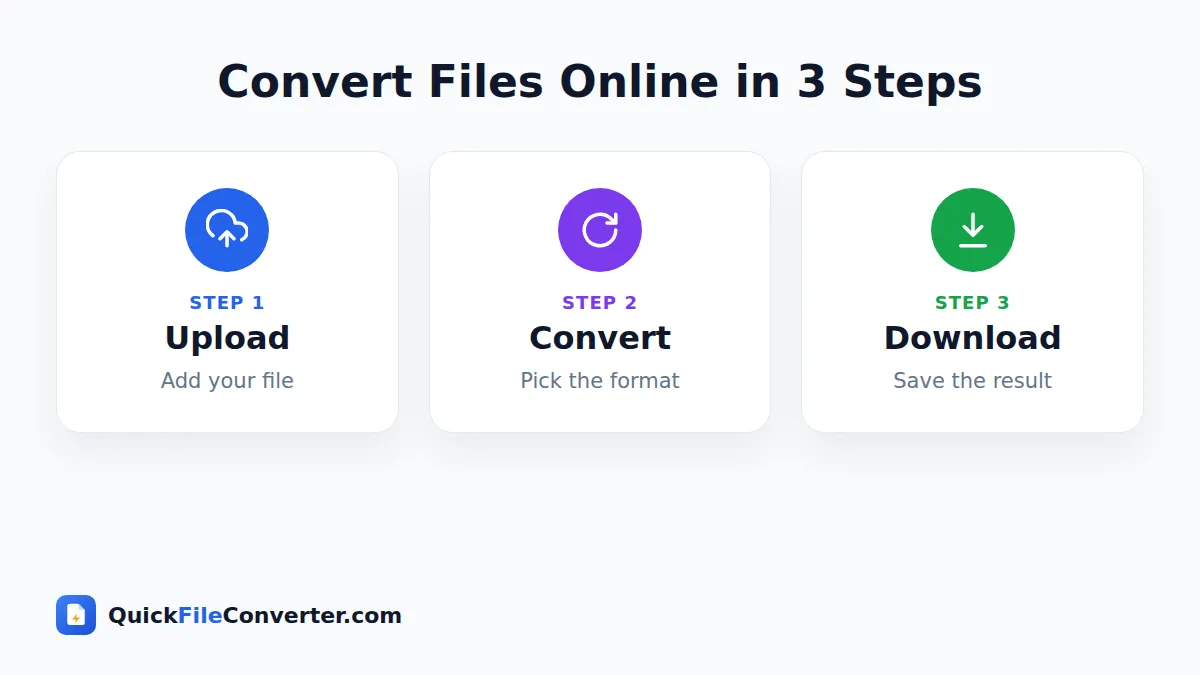
With QuickFileConverter, every tool follows the same simple pattern:
- Add your file. Hover over Choose Files and select From Device, From URL or Add Folder, or drag your files onto the upload box.
- Choose the output. On the homepage, pick the format next to each file. On a tool page such as PDF to Word, the output is already set. Adjust options like quality or bitrate if you want.
- Convert and download. Click Convert Now and save the result. For several files, download them all together as a ZIP.
That is all you need to convert files online, whether you are on a laptop, a tablet or a phone.
The Three Ways Online Converters Work
Not all converters handle your files in the same way, and the difference matters for privacy.
1. Server-based converters
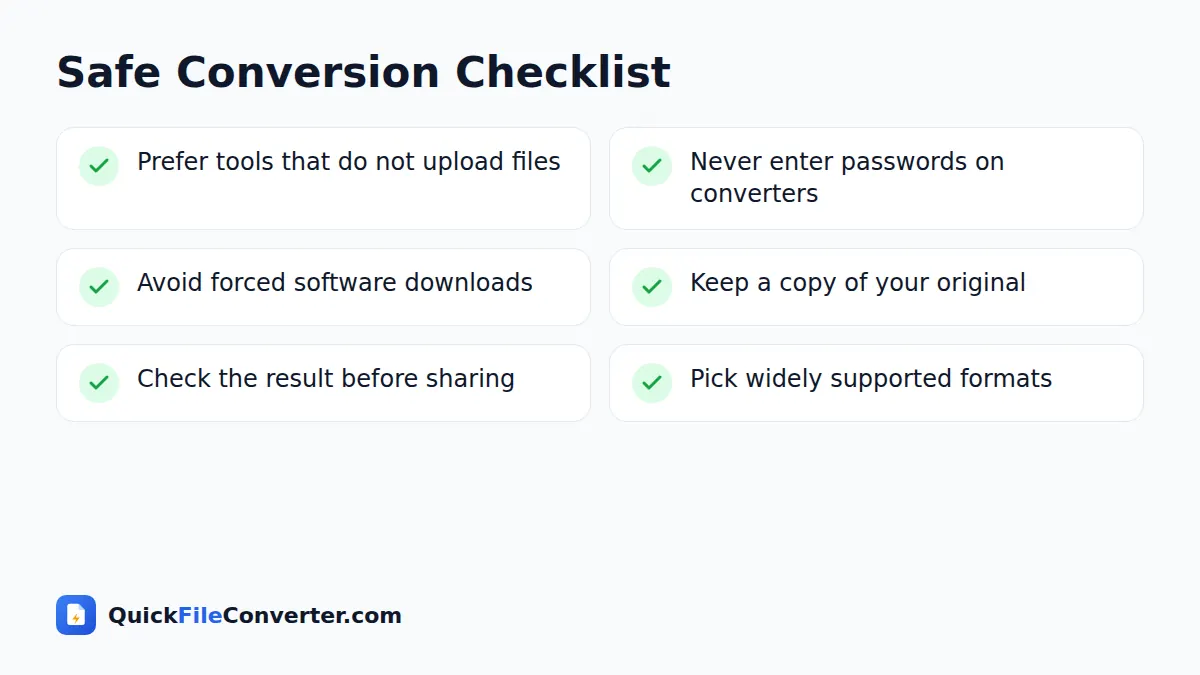
Most websites upload your file to their servers, convert it there and ask you to download the result. This works, but your file is copied to someone else’s computer, and you have to trust how long they keep it and who can access it. Large files also take time to upload and download.
2. Desktop software
Programs installed on your computer convert files locally, which is private, but they often cost money, take up space and only handle one type of file. They may also bundle unwanted extras.
3. In-browser converters
Modern browsers can run powerful conversion engines using JavaScript and WebAssembly. With an in-browser converter, like QuickFileConverter, the conversion code is loaded into the page and your file is processed on your own device. Nothing is uploaded. You get the privacy of desktop software with the convenience of a website. The WebAssembly documentation on MDN explains the technology behind it.
10 Proven Tips to Convert Files Online Safely
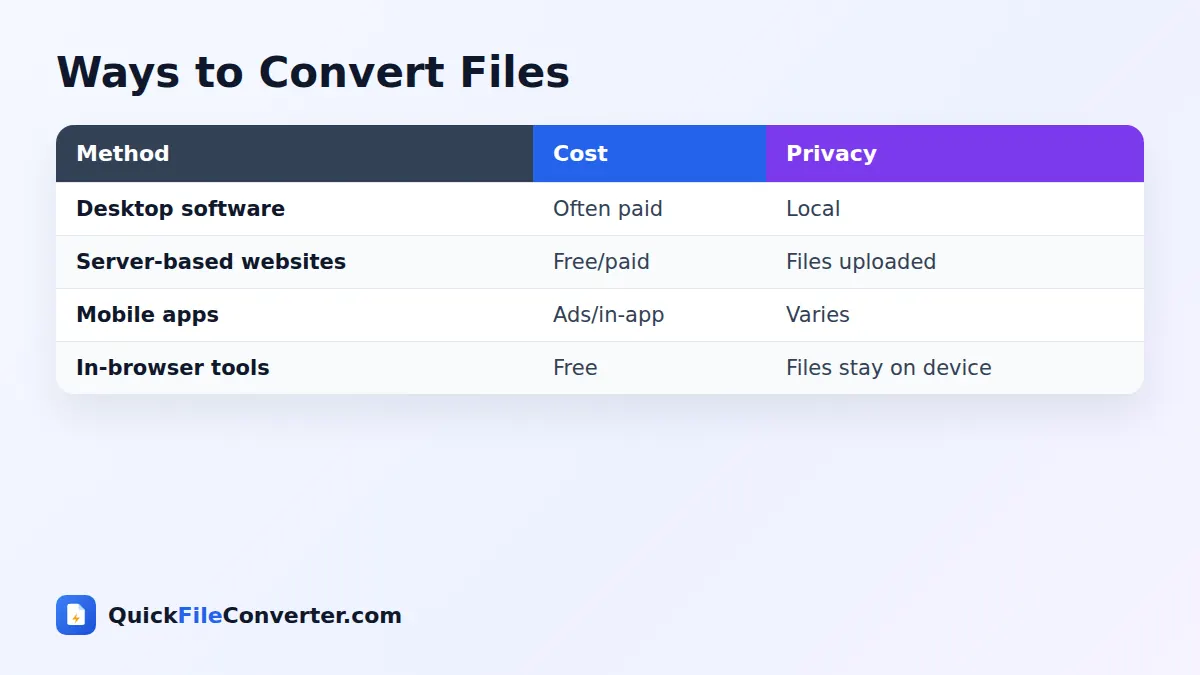
- Prefer tools that do not upload your files. In-browser converters keep documents on your device.
- Read how the site handles files. A trustworthy converter explains what happens to your data in plain language.
- Never type passwords or bank details into a converter. No legitimate file converter needs them.
- Avoid sites that force downloads or extensions. Converting a file should not require installing unknown software.
- Watch for fake download buttons. Some sites hide the real download among adverts. Use clean, simple tools.
- Remove sensitive pages first. Split PDFs so you only convert or share what is necessary.
- Keep a copy of the original. Conversions can lose formatting or quality, so never delete the source until you have checked the result.
- Check the result before sending. Open the converted file and scroll through it.
- Be careful with executable files. Never open .exe or script files from unknown ZIP archives.
- Use HTTPS websites. The padlock in your browser shows the connection is encrypted.
Following these tips lets you convert files online with confidence, even when the documents are personal.
Choosing the Right Format
The right format depends on what you want to do next.
| Goal | Best format | Tool |
|---|---|---|
| Share a finished document | Word to PDF | |
| Edit a document | DOCX | PDF to Word |
| Share photos | JPG | HEIC to JPG, PNG to JPG |
| Fast website images | WebP | JPG to WebP |
| Sharp graphics or transparency | PNG | SVG to PNG, WebP to PNG |
| Play video anywhere | MP4 | MOV to MP4, MKV to MP4 |
| Listen anywhere | MP3 | WAV to MP3, M4A to MP3 |
| Send many files | ZIP | Zip Files |
For deeper explanations, read our guides to document file formats, image file formats, video file formats and audio file formats.
Converting Documents
The most common document tasks are turning PDFs into editable Word files, saving Word documents as PDF, combining or splitting PDFs, turning photos of pages into a PDF, and converting spreadsheets between Excel and CSV. Remember that PDFs made from scans contain images rather than text, so converting them to Word keeps the pages as pictures unless you use OCR.
Converting Images
Image conversion usually solves compatibility or size problems. Convert HEIC to JPG for iPhone photos, WebP to JPG for images saved from websites, PNG to JPG to shrink screenshots, and JPG or PNG to WebP to speed up websites. Converting never adds detail, so always start from the best original.
Converting Video
Video conversion is the most demanding task because files are large. Converting MOV, MKV or AVI to MP4 makes videos play everywhere. Many MOV and MKV files can be converted without re-encoding, which is fast and lossless. Old AVI files need full re-encoding. You can also extract audio with MP4 to MP3 or create animations with Video to GIF.
Converting Audio
Audio conversion usually balances size and quality. Convert WAV or FLAC to MP3 for phones and cars, M4A or OGG to MP3 for compatibility, and MP3 to WAV when an editor or device requires uncompressed audio.
Working with Archives
ZIP files bundle many files into one. Zip files before emailing or uploading several documents, and unzip archives you receive with Extract ZIP when your device has no built-in tool.
How to Convert Files on Different Devices
Windows computers
Windows handles many formats, but it still struggles with HEIC photos, some MKV and MOV videos, and certain audio files. Open any browser, go to the right tool and drag files straight from File Explorer. It is the quickest way to convert files online on a work laptop where you cannot install software.
Mac computers
Macs open PDFs, images and MOV videos natively, but many colleagues and websites need Word, JPG or MP4 files. Drag files from Finder onto a converter page and download the results to your Downloads folder.
Chromebooks
Chromebooks cannot install traditional desktop converters, so browser-based tools are the natural choice. Everything on QuickFileConverter runs in Chrome, including video conversion.
Android phones
Tap Choose Files to pick files from your gallery, Downloads, Google Drive or WhatsApp documents. Converted files are saved to your Downloads folder, ready to share.
iPhone and iPad
Save attachments to the Files app first, then tap Choose Files and Browse to select them. After converting, save results back to Files or share them directly from Safari.
File Conversion for Work, Study and Home
At work
Office workers use file conversion constantly: saving reports as PDF, editing PDFs sent by clients, merging documents for approvals, converting spreadsheets for imports and zipping folders for colleagues. A reliable online file converter that keeps documents private is an everyday tool for any team.
At school and university
Students convert assignments to PDF, turn phone photos of handwritten work into documents, extract audio from recorded lectures and unzip course materials. Because browser tools work on shared computers and phones, they are ideal for students.
At home
Families convert iPhone photos for relatives with Android phones, turn old AVI home videos into MP4, shrink music for the car and prepare ID documents as PDF for online applications. Knowing how to convert files saves many frustrating moments.
A Beginner’s Walkthrough: Your First Conversion
If you have never used a converter before, here is a complete example. Imagine a relative has sent you iPhone photos that will not open on your Windows laptop.
- Save the photos to a folder on your laptop, such as Downloads.
- Open the HEIC to JPG converter in your browser.
- Hover over Choose Files and click Add Folder, then select the folder with the photos.
- Leave the quality at High and click Convert Now.
- When the progress bar finishes, click Download all to save a ZIP of the JPG photos.
- Open the ZIP, and your photos now open in any app.
The same simple pattern works when you convert files online of any other type, from PDFs to videos.
Quality Settings Made Simple
Many tools offer quality options. You rarely need to change them, but it helps to know what they mean:
- Image quality (JPG, WebP): higher percentages keep more detail and make larger files. 85 to 92 percent is ideal for most uses.
- Resolution (PDF to image): 150 DPI for screens, 300 DPI for printing.
- Audio bitrate (MP3): 128 kbps for speech, 192 to 320 kbps for music.
- Video quality (MP4): Fast keeps the original quality when possible; re-encoding options balance size and detail.
When in doubt, the default settings are chosen to give good results for most people.
Batch File Conversion Tips
When you need to convert files online in bulk, a few habits save time. Put all the files in one folder and use Add Folder. Pick one set of options for the whole batch. Download everything as a ZIP, then check a few files before deleting the originals. For very large batches of video, convert a handful at a time so your device’s memory is not overloaded.
Keeping Converted Files Organised
After converting, give files clear names, store them in folders by project or date, and delete temporary copies you no longer need. Keep originals in a safe place, ideally backed up to the cloud, so you can always convert again in a different way later. A tidy system means you will never wonder which version is the latest.
Online File Converter vs Built-In Tools
Your computer or phone may already include some conversion features. macOS Preview can export images and PDFs, Windows Photos can save copies in different formats, and phones can share photos as JPG. These are great for quick tasks. An online file converter covers the many formats and tasks those built-in tools cannot, such as merging PDFs, extracting audio from video, converting MKV to MP4 or turning HEIC into JPG on Windows, all in one place and on any device.
How Browser-Based Conversion Protects Your Privacy
When you convert files online with a traditional website, the process involves at least two transfers over the internet and a copy of your file sitting on a remote server. With browser-based conversion, the only thing downloaded is the conversion engine, just like any other part of a web page. Your file is read from your device into the browser’s memory, converted there, and saved straight back to your device. You can even disconnect from the internet after the page has loaded and the conversion will still work. This approach removes the biggest privacy risk of online file conversion.
Common File Conversion Problems and Fixes
- The file will not open in the converter. It may be damaged or password protected. Try re-downloading it or ask the sender for an unlocked copy.
- Formatting changed. Complex layouts do not always convert perfectly. Try a different mode, such as exact-look PDF to Word, or keep the original.
- The output is too big. Choose a lower quality setting, a lower bitrate or a smaller resolution.
- The output looks blurry. Choose a higher resolution or quality setting.
- Conversion is slow. Large videos take time. Use a computer, close other tabs and keep the page open.
- Renaming did not work. Changing a file extension does not convert the file. Use a real converter.
Frequently Asked Questions
Is it safe to convert files online?
It is safe when you use a trustworthy tool. In-browser converters such as QuickFileConverter are safest because your files are processed on your device and never uploaded.
How do I convert files online for free?
Open a converter, add your file, choose the output format and download the result. All QuickFileConverter tools are free with no sign-up.
Can I convert files on my phone?
Yes. Modern mobile browsers on Android and iPhone can run conversion tools directly, so you do not need to install apps.
Will converting a file reduce its quality?
Converting to lossy formats such as JPG, MP3 or MP4 can reduce quality slightly. Choose high quality settings and always keep your original.
What is the most compatible format for each file type?
PDF for documents, JPG for photos, PNG for graphics, MP4 for video, MP3 for audio and ZIP for archives.
Do I need to install software to convert files?
No. Browser-based tools handle most everyday file conversion without installing anything.
Final Thoughts
Once you know how to convert files online safely, stubborn files stop being a problem. Choose widely supported formats, keep your originals, and use tools that respect your privacy. Everything on QuickFileConverter runs in your browser, so you can convert documents, images, video, audio and archives in seconds without uploading a thing. Start with our online file converter or browse all tools.