Our free PDF to PNG converter turns every page of a PDF into a crisp, lossless PNG image in a few seconds. Add your file to the box above, pick a resolution, click Convert Now and download one PNG per page, or grab them all at once as a ZIP. There is no sign-up, no watermark and no page limit.
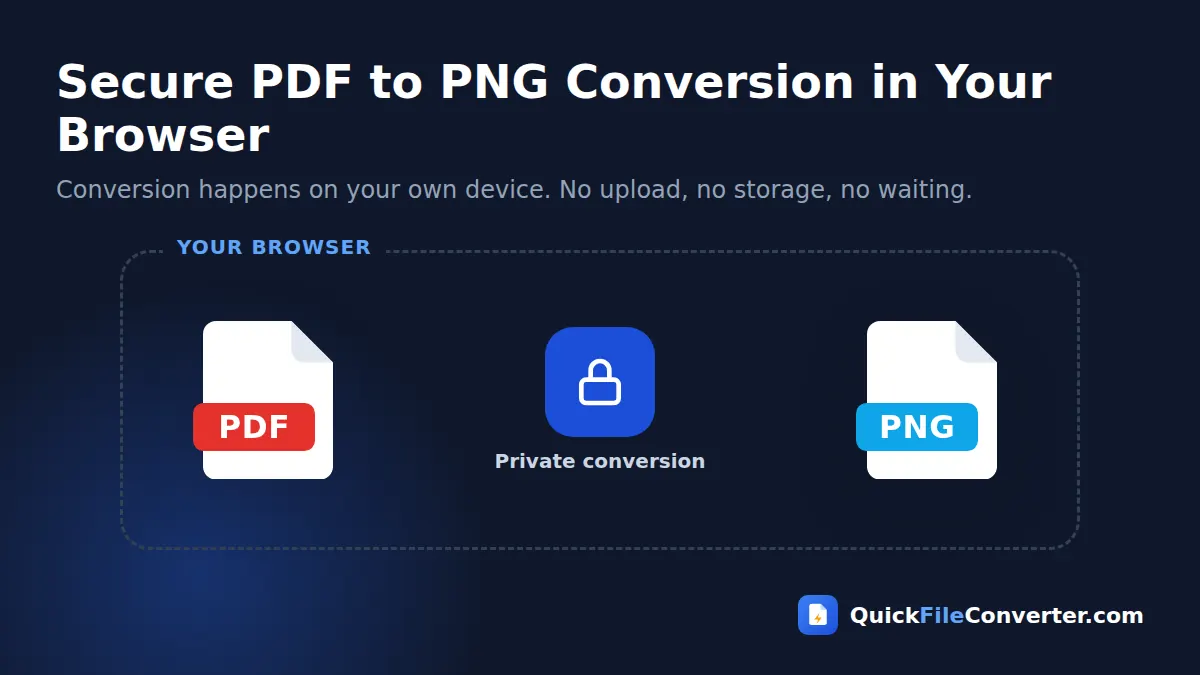
The whole conversion runs inside your browser. Your PDF is never uploaded to a server, which makes this PDF to PNG tool a safe choice for contracts, designs, invoices and anything else you would rather keep private.
Table of Contents
What Is a PDF to PNG Converter?
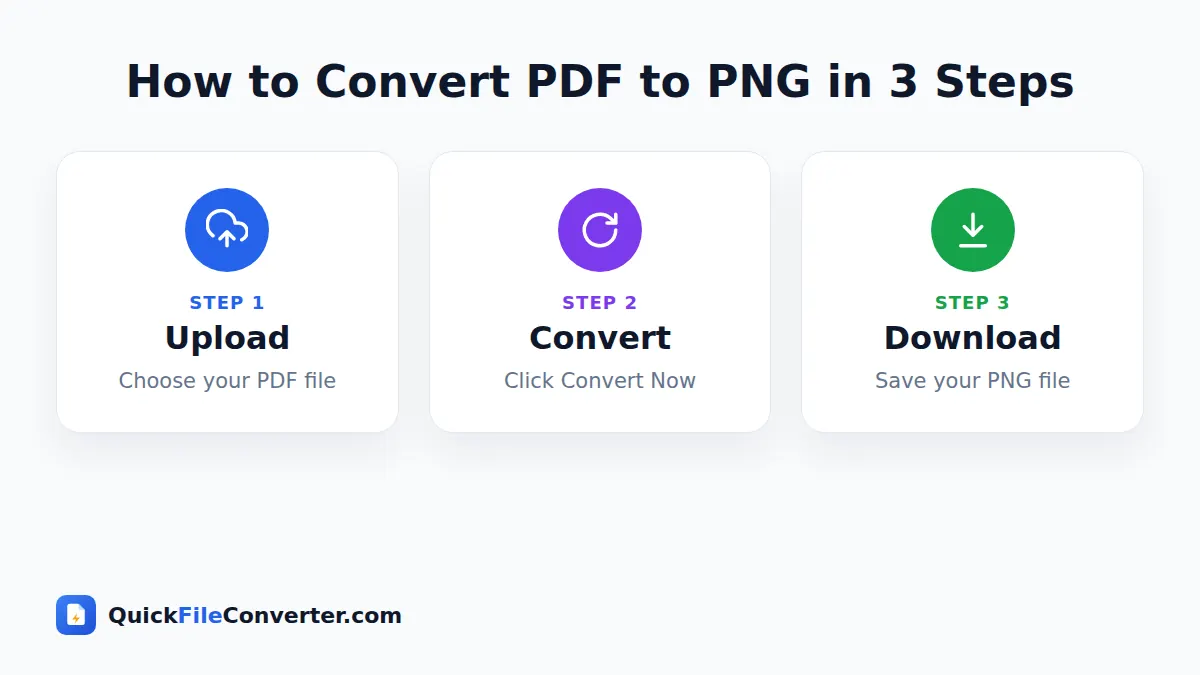
A PDF to PNG converter draws each page of a PDF document exactly as a viewer would show it on screen and saves that picture as a PNG file. PNG stands for Portable Network Graphics. It is an image format that uses lossless compression, which means every pixel is stored exactly, with no blurry edges around text or lines. That makes PNG the favourite format for diagrams, charts, screenshots, logos and any page where sharpness matters.
PDF is excellent for multi-page documents, but you cannot drop a PDF page into most image editors, design tools, chat apps or websites. Converting PDF to PNG solves that problem while keeping the page perfectly crisp. The PNG format is an open standard maintained by the W3C, and every browser, phone and operating system supports it.
How to Convert PDF to PNG in 3 Steps
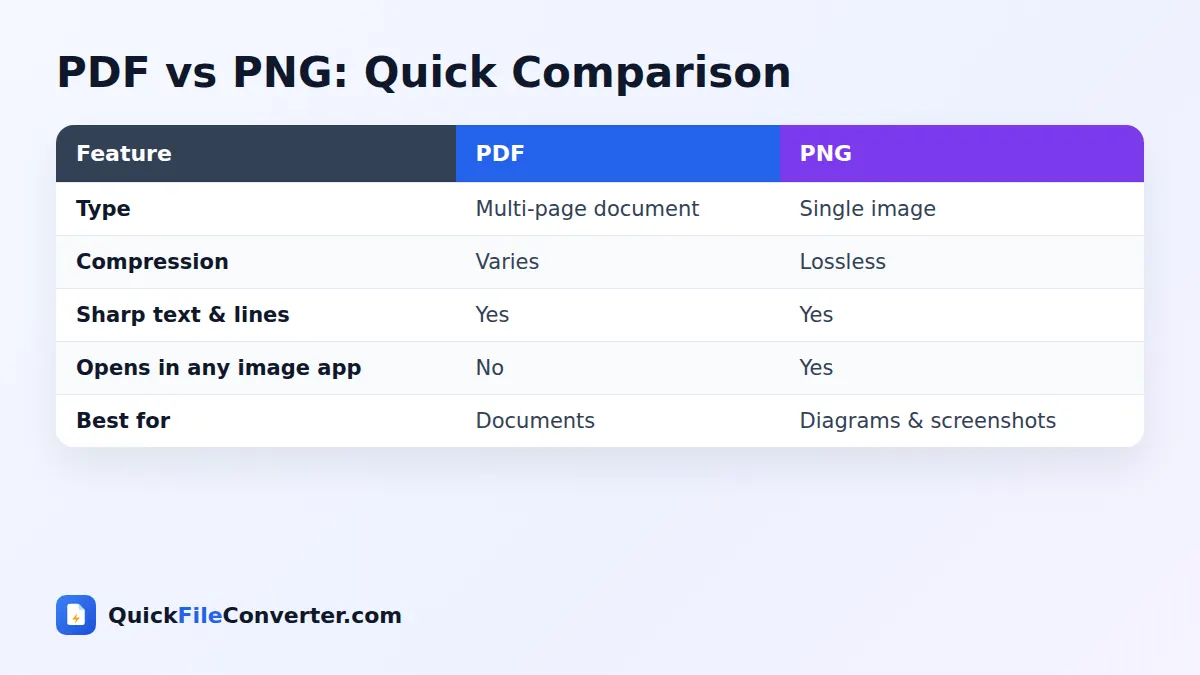
- Add your PDF. Hover over Choose Files and select From Device, drag the file onto the upload area, or paste a link using From URL.
- Choose a resolution. 150 DPI suits screens, slides and websites. Choose 300 DPI for printing or detailed diagrams, or 72 DPI for small previews.
- Convert and download. Click Convert Now. Each page becomes a PNG named in order. Download them individually or click Download all for a ZIP file.
Why Choose PNG for PDF Pages?
JPG is the most common image format, so why would you pick PNG? The answer is quality. JPG compression throws away small details to save space, which can leave faint smudges around sharp edges such as text, thin lines and flat colours. PNG keeps every pixel exactly as rendered.
| PNG | JPG | |
|---|---|---|
| Compression | Lossless | Lossy |
| Text and line sharpness | Perfect | Very good, slight artefacts |
| File size for text pages | Small to medium | Small |
| File size for photo pages | Large | Small |
| Best use | Diagrams, charts, UI, editing | Photos, sharing, social media |
If your PDF is mostly text, tables, charts, plans or vector artwork, PDF to PNG gives the cleanest result. If it is full of photographs and you want small files, our PDF to JPG converter may be better.
Resolution Guide
The resolution you choose decides how many pixels each page has. More pixels mean sharper zooming and printing, but bigger files.
| Setting | A4 page in pixels | Good for |
|---|---|---|
| 72 DPI | about 595 × 842 | Thumbnails and quick previews |
| 150 DPI | about 1240 × 1754 | Slides, websites, documentation, chat |
| 300 DPI | about 2480 × 3508 | Printing, posters, detailed technical drawings |
Most people should start with 150 DPI. It keeps text crisp on normal screens and produces files that are easy to share. Choose 300 DPI when you need to print the image or zoom in on small details such as engineering drawings or fine print.
Common Reasons to Convert PDF to PNG
- Design work. Import PDF pages into Photoshop, GIMP, Figma, Canva or Affinity as editable images.
- Presentations and training material. Put a page, chart or form into slides without blurring the text.
- Technical documentation. Engineers and developers use PNG images of diagrams in wikis, README files and knowledge bases.
- Websites and blogs. Show a page of a report as an image that loads instantly.
- Annotations. Mark up a page with arrows and highlights in any image editor.
- Archiving signatures and stamps. Save a signed page as an exact image copy.
- E-learning. Turn worksheet pages into images for online courses and quizzes.
Each of these jobs benefits from the lossless quality you get when you convert PDF to PNG instead of JPG.
Features of Our PDF to PNG Tool
Lossless quality
Every page is saved without compression artefacts, so text and lines stay razor sharp.
All pages in one go
The tool converts every page automatically and names the files in page order, such as report-page-1.png and report-page-2.png.
Trusted rendering engine
Pages are rendered with PDF.js, the open-source engine behind Firefox’s built-in PDF viewer, for accurate fonts, vectors and images.
Private by design
Your PDF is processed on your own device. Nothing is uploaded, stored or shared.
Free with no limits
Convert as many files and pages as you like, without watermarks or accounts.
ZIP download
Save every PNG in a single click with the Download all button, which is ideal for long documents.
How Our PDF to PNG Converter Works
When you click Convert Now, three things happen inside your browser.
- The PDF is opened. PDF.js reads the document’s structure, fonts and graphics directly from your file.
- Each page is rendered. The page is drawn onto an off-screen canvas at the resolution you selected, with a white background so it looks like paper.
- The canvas is saved as PNG. Your browser encodes the image losslessly and offers it for download.
Because there is no server involved, the speed depends only on your device. Most text pages convert in well under a second each.
PDF to PNG on Different Devices
Windows, Mac and Linux
Drag the PDF from your desktop onto the upload box, choose 150 or 300 DPI and click Convert Now. Use Download all to save a ZIP to your Downloads folder, then extract it.
Android
Tap Choose Files and pick the PDF from Files, Drive or your email downloads. After converting, tap Download under each image or download the ZIP.
iPhone and iPad
Tap Choose Files, select the PDF from the Files app and tap Convert Now. The images save to Files, where you can share them or save them to Photos.
Tips for the Best PNG Images
- Start with 150 DPI. It is sharp enough for most uses and keeps file sizes sensible.
- Use 300 DPI for print. Printed images need more pixels to look sharp on paper.
- Split long files first. If you only need a few pages, extract them with Split PDF to save time.
- Unlock protected files. Password-protected PDFs must be unlocked by the owner before conversion.
- Compress for the web. For website use, convert the PNG files to WebP with our PNG to WebP tool, which keeps quality high and file size low.
- Keep the original PDF. It remains your master copy for future edits or other formats.
Is It Safe to Convert PDF to PNG Online?
Many free converters upload your files to their servers and keep them for hours. That is a risk for confidential documents. Our PDF to PNG converter never uploads your file. The rendering happens entirely on your device using JavaScript, and the images are created in memory. Once you close the page, everything is gone. You can read more in our privacy policy.
Troubleshooting
My PNG files are very large
Pages with big photographs produce large PNG files because PNG does not use lossy compression. Choose a lower resolution, or use PDF to JPG for photo-heavy documents.
Text looks slightly soft when printed
Increase the resolution to 300 DPI. At 150 DPI, an A4 page is around 1240 pixels wide, which is perfect for screens but can look soft on paper.
The background is white, not transparent
PDF pages are designed to look like paper, so the converter fills the background with white. This keeps text readable on dark websites and apps. If you need a transparent image, you can remove the white background in an image editor afterwards.
A page looks different from my PDF viewer
This is rare, but some PDFs use unusual effects. Try re-saving the PDF with your browser’s Print to PDF option, then convert again.
PDF to PNG for Designers and Developers
Designers often receive brand guidelines, wireframes and print proofs as PDFs. Converting them to PNG lets you drop pages straight onto a design canvas as reference images, compare versions pixel by pixel, or cut out a logo. At 300 DPI, even small details such as icon strokes stay sharp.
Developers use PDF to PNG to include diagrams and specification pages in documentation, pull requests and issue trackers. PNG is supported everywhere on the web, it keeps line art sharp, and it displays inline in Markdown files on platforms such as GitHub and GitLab. Converting the pages you need takes seconds and saves you from taking and cropping screenshots by hand.
PDF to PNG vs Taking Screenshots
Many people simply take a screenshot of a PDF page. That works for a quick look, but it has drawbacks. Screenshots capture only what fits on your screen, include toolbars and scroll bars, and depend on your zoom level and screen resolution. You also have to repeat the process for every page.
Our converter renders each full page at a fixed, predictable resolution, without any interface clutter, and processes the whole document at once. The result is cleaner images and a lot less work, especially for documents with dozens of pages.
Choosing Between PNG, JPG and WebP
Once your pages are images, you may wonder which format to keep. Each has a clear role.
- PNG is the best choice for editing, printing and any page with text or line art, because it never adds compression artefacts.
- JPG is best for pages dominated by photographs, and for sharing on social media where small files matter more than perfect edges.
- WebP is ideal for websites. It supports both lossless and lossy compression, so you can keep the sharpness of PNG at a fraction of the size.
A common workflow is to convert PDF to PNG for the master copies, then create lighter WebP versions for your website with our PNG to WebP tool. That way you always keep a perfect original.
Using Converted Pages in Popular Apps
Microsoft Word and Google Docs
Insert the PNG with Insert, Picture. Because the image is lossless, text inside it stays readable even when you resize it slightly. Choose “In line with text” to keep it in place.
PowerPoint, Keynote and Google Slides
Drag the PNG onto a slide. At 150 DPI an A4 page is taller than a slide, so crop it to the part you want to show, such as a chart or table.
Canva, Figma and Photoshop
Import the PNG as an image layer. Use 300 DPI if you plan to zoom in, crop tightly or print the final design.
Notion, Confluence and wikis
Paste or upload the PNG directly into a page. Compressed WebP copies load faster for large documentation sites, but PNG works everywhere.
PDF to PNG for Printing Posters and Handouts
Sometimes you need to print a single page from a PDF much larger than it was designed, for example as a poster, a classroom chart or a notice board sign. Converting that page to PNG at 300 DPI gives you a sharp master image. You can then open it in a design tool, place it on a larger canvas, add a border or extra text, and print it at a copy shop. Because PNG is lossless, the edges of text and lines stay clean even after several rounds of editing and saving.
For handouts, you can place several PNG pages on one sheet to save paper. Many print dialogs and word processors let you arrange two or four images per page. This is a handy way to print slide decks, checklists or worksheet answers without wasting paper.
Converting Only Part of a Page
The converter always saves whole pages. If you only need a chart, logo or table, convert the page at 300 DPI and crop the area you want in any image editor, including the built-in Photos apps on Windows, macOS, Android and iOS. Starting from a high-resolution PNG means the cropped section stays sharp even when you enlarge it.
Keeping Your Files Organised
Long documents create many images, so a simple system helps. Keep each document’s pages together in their own folder, keep the page numbers in the file names, and delete pages you do not need as soon as you have downloaded them. If you share the images, include the original PDF name in the folder so colleagues know where they came from. These small habits make it easy to find the right page months later.
Related Tools
- Save PDF pages as smaller images with PDF to JPG.
- Turn images back into a document with JPG to PDF.
- Make a PDF editable with PDF to Word.
- Learn which format fits each job in our image file formats guide.
Frequently Asked Questions
Is the PDF to PNG converter free?
Yes. It is completely free with no sign-up, no watermarks and no page limits.
Are my PDF files uploaded?
No. The PDF is rendered inside your browser and never leaves your device.
Does each page become a separate PNG?
Yes. Every page is saved as its own PNG file, and you can download all of them together as a ZIP.
Which resolution should I choose?
Use 150 DPI for screens and sharing, 300 DPI for printing or detailed diagrams, and 72 DPI for small previews.
Why is PNG better than JPG for PDF pages?
PNG is lossless, so text and thin lines stay perfectly sharp. JPG files are smaller but can show slight blurring around edges.
Can I get a transparent background?
Converted pages have a white background, like paper. You can remove it in an image editor if you need transparency.
Does it work on my phone?
Yes. The tool works in modern browsers on Android, iPhone and iPad, as well as on Windows, Mac and Linux.
Final Thoughts
When sharpness matters, PNG is the right choice, and our PDF to PNG converter makes it effortless. Drop your PDF into the box at the top of this page, choose a resolution and download perfectly crisp images of every page in seconds, without giving up your privacy.