Our free WAV to MP3 converter shrinks large, uncompressed WAV recordings into small MP3 files in seconds, often cutting the size by 80 to 90 percent. Drop your WAV files into the box above, choose a bitrate and click Convert Now. Convert one file or a whole folder and download the results individually or together as a ZIP. There is no sign-up, no watermark and no limit.
Everything happens in your browser, so your recordings are never uploaded. Songs, podcasts, interviews and voice memos stay private while you convert WAV to MP3.
Table of Contents
What Is a WAV to MP3 Converter?
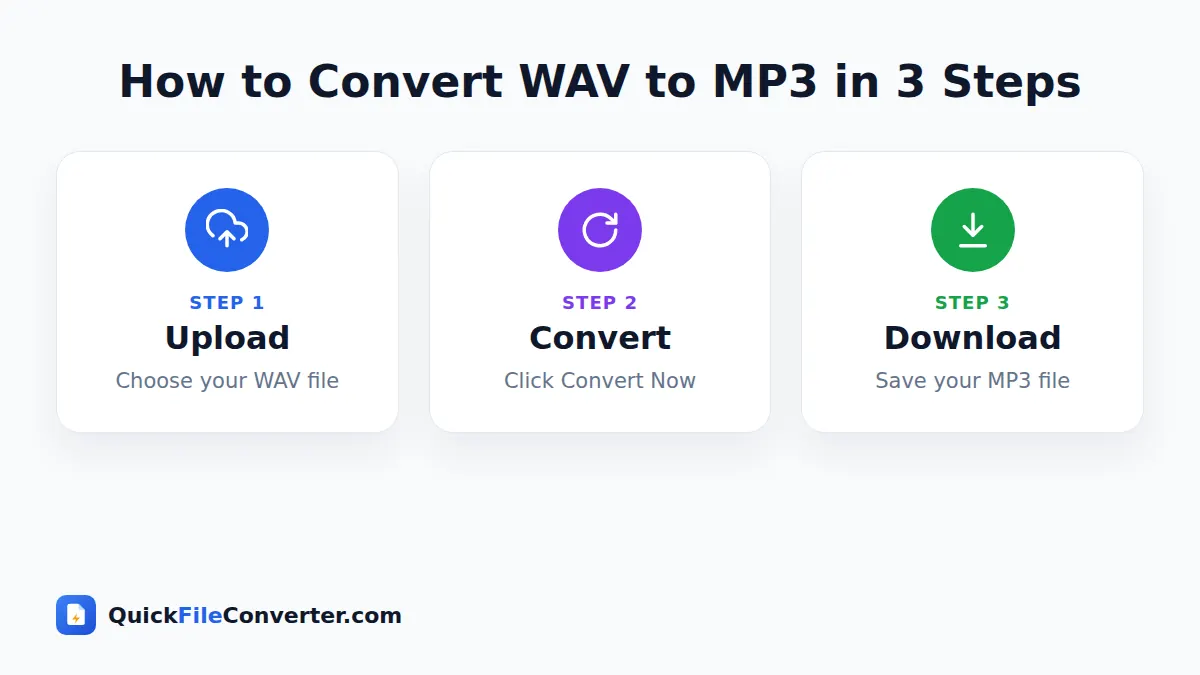
A WAV to MP3 converter reads an uncompressed WAV audio file and encodes it as a compressed MP3. WAV (Waveform Audio File Format) was created by Microsoft and IBM in 1991. It usually stores raw PCM audio, exactly as captured by a microphone or produced by music software. That makes WAV perfect for recording and editing, but the files are huge: about 10 MB for every minute of CD-quality stereo sound.
MP3 uses clever psychoacoustic compression that removes sounds the human ear is unlikely to notice. At 192 kbps, an MP3 sounds very close to the original for most listeners while being around seven times smaller. At 128 kbps, it is more than ten times smaller. You can learn about both formats in the WAV article on Wikipedia and the MP3 article.
How to Convert WAV to MP3 in 3 Steps
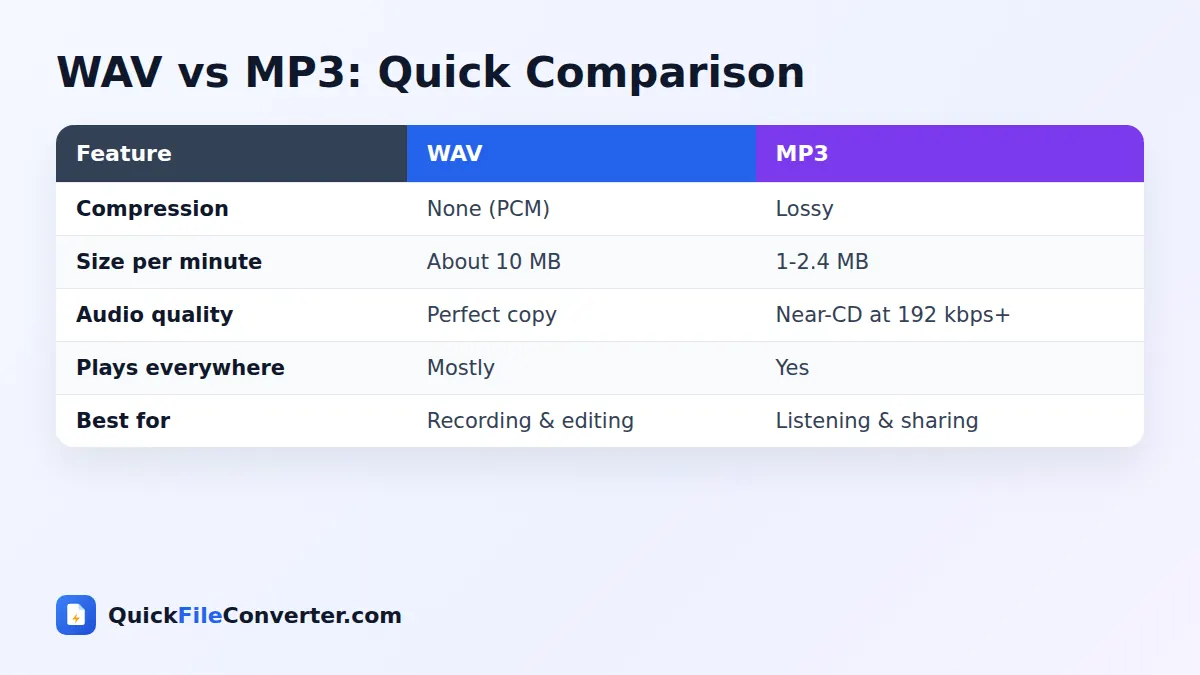
- Add your WAV files. Hover over Choose Files and pick From Device, drag files onto the upload area, or use Add Folder to add a whole album or recording session.
- Choose the MP3 bitrate. 192 kbps is recommended. Choose 256 or 320 kbps for music you care about, or 128 kbps for speech.
- Convert and download. Click Convert Now. Download each MP3 or use Download all to get a ZIP.
Choosing the Right Bitrate
| Bitrate | Size per minute (stereo) | Saving vs WAV | Best for |
|---|---|---|---|
| 128 kbps | about 0.95 MB | about 91% | Speech, podcasts, voice notes |
| 192 kbps | about 1.4 MB | about 86% | Everyday music, recommended |
| 256 kbps | about 1.9 MB | about 81% | High-quality music listening |
| 320 kbps | about 2.4 MB | about 77% | Best MP3 quality, music archives |
If you are unsure, start with 192 kbps. Most people cannot hear a difference between 192 kbps MP3 and the original WAV on everyday headphones and speakers. Musicians and audiophiles often prefer 320 kbps for finished tracks.
Why Convert WAV to MP3?
- Save storage space. Keep more music and recordings on your phone and laptop.
- Email and message audio. A 5-minute WAV is about 50 MB, too big for many email services. As MP3 it is around 7 MB.
- Share demos and mixes. Send songs to bandmates, clients and friends quickly.
- Publish podcasts. Podcast hosts and players expect MP3.
- Upload to websites. Many platforms accept MP3 but limit file size.
- Play anywhere. MP3 works in every car stereo, phone, speaker and music app.
- Faster streaming. Smaller files load and buffer faster on websites.
Features of Our WAV to MP3 Converter
LAME-quality encoding
MP3 files are created with the LAME encoder, known for excellent sound quality at every bitrate.
Batch conversion
Convert an entire folder of WAV files at once and download them as a ZIP.
Choice of bitrate
Pick 128, 192, 256 or 320 kbps depending on your needs.
Keeps stereo or mono
Stereo recordings stay stereo and mono recordings stay mono.
Handles high-resolution WAV
24-bit and 32-bit float WAV files, and sample rates such as 88.2 or 96 kHz, are converted to the standard 44.1 kHz used by MP3.
Private and free
Nothing is uploaded, and there are no accounts, watermarks or limits.
WAV to MP3 for Musicians and Producers
Music software such as FL Studio, Ableton Live, Logic Pro, GarageBand and Audacity exports mixes as WAV by default. That is perfect for mastering and distribution, but not for sharing work-in-progress. Converting WAV to MP3 at 320 kbps gives bandmates, collaborators and clients a high-quality preview that downloads quickly and plays on their phones. Keep the WAV as your master and send the MP3 for feedback.
When your track is finished, digital distributors usually want the WAV master, while your website, social posts and demo pages can use the MP3.
WAV to MP3 for Podcasters
Podcasters typically record and edit in WAV, then publish in MP3. For spoken-word shows, 128 kbps mono or stereo sounds clear and keeps episodes small for listeners on mobile data. Music-heavy shows may prefer 192 kbps. Convert your final edited WAV here, add your episode details in your podcast host, and publish.
WAV to MP3 for Voice Recordings
Interviews, lectures, meetings and voice memos recorded on dedicated recorders or phones are often saved as WAV. These files grow quickly: an hour-long interview is around 600 MB as stereo WAV. At 128 kbps, the MP3 is under 60 MB, easy to store, share and send to transcription services.
Tips for the Best Sound
- Convert from the original WAV. Avoid converting MP3 files back to WAV and then to MP3 again, as quality drops each time.
- Use 320 kbps for finished music. It is the highest quality MP3 option.
- Use 128 kbps for speech. Voices remain clear and files are very small.
- Normalise volume before converting. Use your editing software to set consistent levels.
- Add tags afterwards. Use a tag editor to add title, artist and album information.
- Keep your WAV masters. They are your best source for future edits and formats.
Converting WAV to MP3 on Your Device
Windows and Mac
Drag WAV files from your recordings or exports folder onto the upload area, pick a bitrate and click Convert Now. Long files convert quickly on a computer.
Android
Tap Choose Files and select recordings from your Files app or voice recorder folder. Convert and download the MP3 files.
iPhone and iPad
Tap Choose Files, then Browse, and pick WAV files from the Files app. After converting, save the MP3 files to Files or share them.
Is It Safe to Convert WAV to MP3 Online?
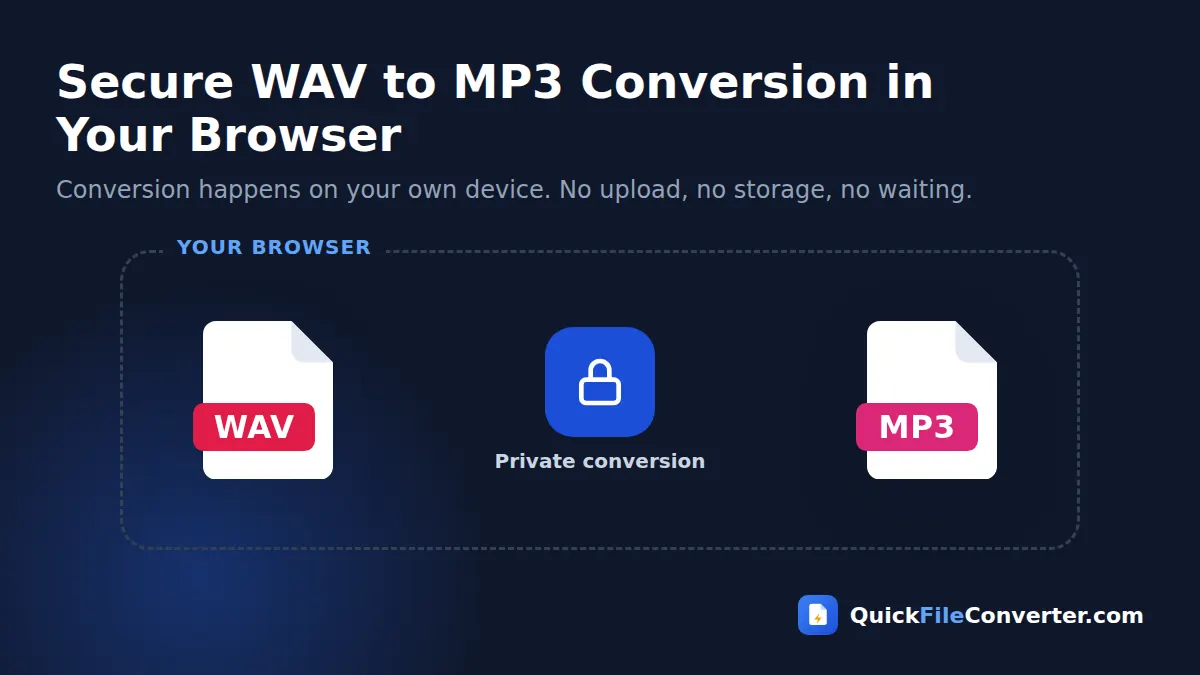
Unreleased songs, private interviews and business meetings are exactly the kind of audio you should not upload to unknown servers. Our WAV to MP3 converter processes everything inside your browser. The WAV file is decoded by your browser’s audio engine and encoded as MP3 on your device. Nothing is transmitted or stored. Read our privacy policy for more.
How the Conversion Works
- Decoding. Your browser’s Web Audio engine reads the WAV file into raw audio samples.
- Resampling. If needed, audio is converted to 44.1 kHz, a sample rate MP3 supports.
- Encoding. The LAME encoder, running in JavaScript, compresses the audio in small blocks at your chosen bitrate.
- Saving. The MP3 is assembled and offered as a download.
Because there is no upload, a five-minute song usually converts in just a few seconds.
Understanding Lossless and Lossy Audio
Audio formats fall into three families. Uncompressed formats such as WAV and AIFF store every sample exactly. Lossless compressed formats such as FLAC and ALAC shrink files by about half without losing anything. Lossy formats such as MP3, AAC and OGG Vorbis remove information the ear is unlikely to miss, making files much smaller.
Converting WAV to MP3 moves from uncompressed to lossy. At good bitrates, the difference is inaudible to most people on most equipment, which is why MP3 remains so popular. If you ever need a lossless copy, keep your original WAV or convert it to FLAC.
Common Problems and Solutions
The MP3 sounds different from the WAV
At 128 kbps, very detailed music may lose a little sparkle in the high frequencies. Choose 256 or 320 kbps for music.
The file will not convert
Some WAV files use unusual encodings, such as compressed ADPCM. The converter uses a built-in FFmpeg engine as a fallback for those files, which may take a little longer the first time.
The MP3 is quieter or louder than expected
The converter keeps the original volume. Adjust levels in an audio editor before converting if needed.
A very long recording fails on my phone
Phones have limited memory. Convert long recordings on a computer, or split them into shorter parts first.
Sample Rate and Bit Depth Explained
Two numbers describe the quality of a WAV file: sample rate and bit depth.
Sample rate is how many times per second the sound is measured. CDs use 44,100 samples per second (44.1 kHz), video usually uses 48 kHz, and studios often record at 88.2 or 96 kHz. Human hearing tops out around 20 kHz, and a 44.1 kHz sample rate captures everything up to about 22 kHz, which is why it is the standard for music.
Bit depth is how precisely each sample is stored. CDs use 16 bits, while studios use 24 or 32 bits to leave plenty of headroom during recording and mixing. Higher bit depth matters while you edit, but for finished listening files, MP3 at a good bitrate captures what our ears can hear.
| WAV type | Sample rate | Bit depth | Size per minute (stereo) |
|---|---|---|---|
| CD quality | 44.1 kHz | 16-bit | about 10 MB |
| Video standard | 48 kHz | 24-bit | about 16.5 MB |
| Studio high resolution | 96 kHz | 24-bit | about 33 MB |
This table shows why high-resolution recordings fill hard drives so quickly, and why a compact listening copy is so useful.
Organising Your Music and Recordings
After converting, a little organisation makes your audio easy to find:
- Folder structure. Use folders such as Artist, Album, or Project and Date.
- File names. Start with a track number or date so files sort correctly, for example “03 – Evening Raga.mp3”.
- Tags. Title, artist, album, year and cover art make MP3 files display nicely in music apps and car stereos. Free tools like Mp3tag and Kid3 can edit tags in bulk.
- Master archive. Keep WAV masters in a separate archive folder or drive, and use the MP3 files for everyday listening.
WAV to MP3 for Teachers and Students
Language teachers, music teachers and lecturers often record audio in WAV using classroom recorders or laptops. Converting those recordings to MP3 before uploading them to Google Classroom, Moodle or a school website keeps files small enough for students to stream on phones. For spoken lessons, 128 kbps mono is clear and compact. Students recording presentations, oral exams or music practice can do the same before submitting their work, avoiding upload limits and long waits.
WAV to MP3 for Radio and Voice-Over Artists
Voice-over artists usually deliver final files in WAV, but auditions, samples and demos are often sent as MP3. A high-quality 256 or 320 kbps MP3 sounds professional while keeping email attachments and casting-site uploads small. Many community radio stations also accept MP3 for pre-recorded segments, although you should always check their technical requirements first.
Can You Hear the Difference?
Blind listening tests consistently show that most people cannot tell a well-encoded 256 or 320 kbps MP3 from the original WAV on typical headphones, laptops, car stereos and phone speakers. Differences are more likely to be noticed on very high-end equipment, with certain instruments such as cymbals and harpsichords, or at low bitrates like 96 kbps. For everyday listening, a good MP3 is more than enough, and the massive saving in space is well worth it.
If you are curious, try it yourself: convert a favourite song at 128, 192 and 320 kbps and compare them with the original on your usual headphones.
Batch Converting a Whole Album
Exported an entire album or a day of recordings? Use Add Folder to load every WAV at once, pick one bitrate for all of them and click Convert Now. When the batch finishes, the Download all button saves every MP3 in a single ZIP, keeping the original file names so track order is preserved.
Sending Audio to Clients and Collaborators
When you share audio for feedback, make it easy for the listener. Convert to MP3 at 256 or 320 kbps, give each file a clear name with a version number, such as “Jingle_v3_2026-09-24.mp3”, and share it through a cloud link or messaging app. Small MP3 files open instantly on phones, so clients can listen and reply quickly. Keep a note of which WAV each MP3 came from, so you always know which version is the latest.
Related Tools
- Go the other way with MP3 to WAV.
- Shrink lossless music with FLAC to MP3.
- Extract audio from video with MP4 to MP3.
- Learn more in our audio file formats guide.
Frequently Asked Questions
Is this WAV to MP3 converter free?
Yes. It is completely free with no sign-up, watermark or limits.
How much smaller will my files be?
Typically 77 to 91 percent smaller, depending on the bitrate you choose.
What bitrate should I use?
192 kbps for everyday music, 320 kbps for the best quality, and 128 kbps for speech.
Can I convert many WAV files at once?
Yes. Add multiple files or a whole folder and download all the MP3 files as a ZIP.
Are my recordings uploaded?
No. The conversion happens in your browser and your files never leave your device.
Does it support 24-bit and 96 kHz WAV files?
Yes. High-resolution WAV files are converted to standard 44.1 kHz MP3.
Will the MP3 keep stereo sound?
Yes. Stereo WAV files become stereo MP3 files, and mono stays mono.
Final Thoughts
WAV is the perfect format for recording and editing, and MP3 is the perfect format for listening and sharing. Our WAV to MP3 converter bridges the two in seconds, with excellent sound quality and complete privacy. Drop your WAV files into the box at the top of the page, choose a bitrate and download compact MP3 files ready for any device, from your phone to your car stereo.