Our free PNG to JPG converter turns large PNG images into compact JPG files in seconds. Drop your pictures into the box above, choose a quality level and click Convert Now. You can convert one image or hundreds at once and download them individually or together as a ZIP. There is no sign-up, no watermark and no daily limit.
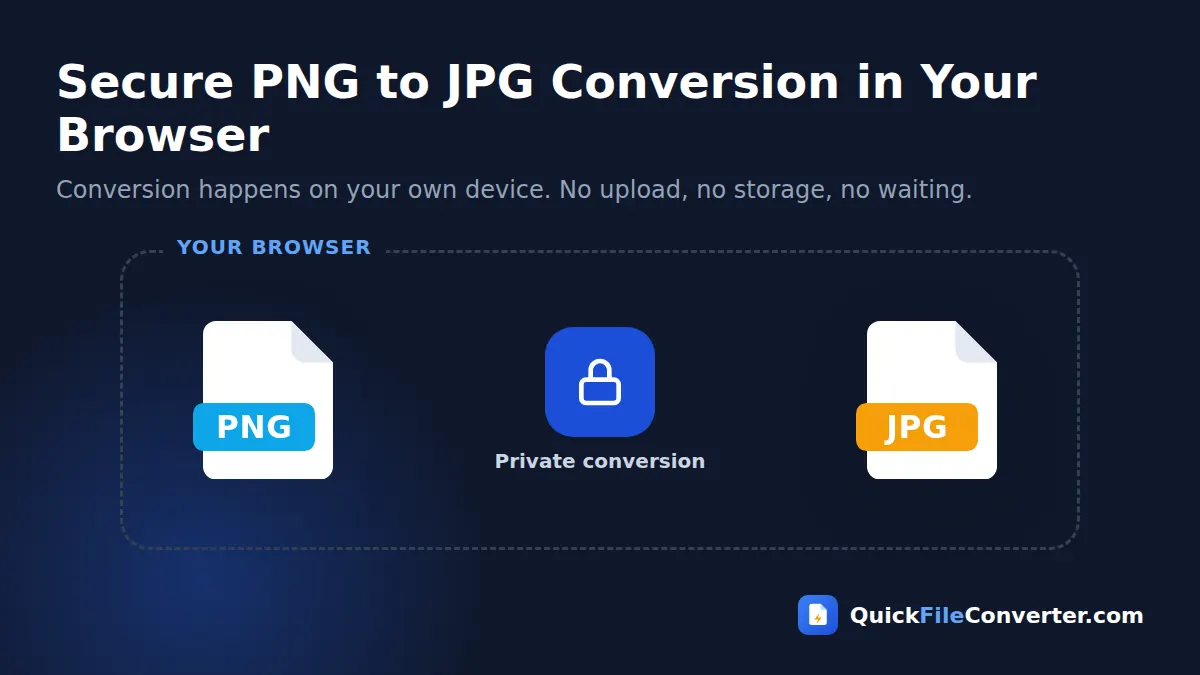
The conversion happens entirely in your browser. Your images are never uploaded, so screenshots, personal photos and client work stay private while you convert PNG to JPG.
Table of Contents
What Is a PNG to JPG Converter?
A PNG to JPG converter opens a PNG image and saves it in the JPG (JPEG) format. PNG is a lossless format: it keeps every pixel exactly, which is great for graphics and editing but makes photos very large. JPG uses smart lossy compression that removes detail the eye barely notices, so the same photo can be three to ten times smaller.
Smaller files upload faster, send more easily by email and chat, load faster on websites and take up less storage. That is why converting PNG to JPG is one of the most common image tasks on the web. You can learn more about the formats from the W3C PNG specification and the JPEG committee.
How to Convert PNG to JPG in 3 Steps
- Add your PNG images. Hover over Choose Files and pick From Device, drag images onto the upload area, or use Add Folder to add a whole folder of screenshots.
- Choose the quality. High (92%) is the default and looks identical to the original for most images. Choose Balanced (85%) or Smaller file (75%) if you need to save even more space.
- Convert and download. Click Convert Now and download each JPG, or use Download all to get a ZIP.

PNG vs JPG: Which Should You Use?
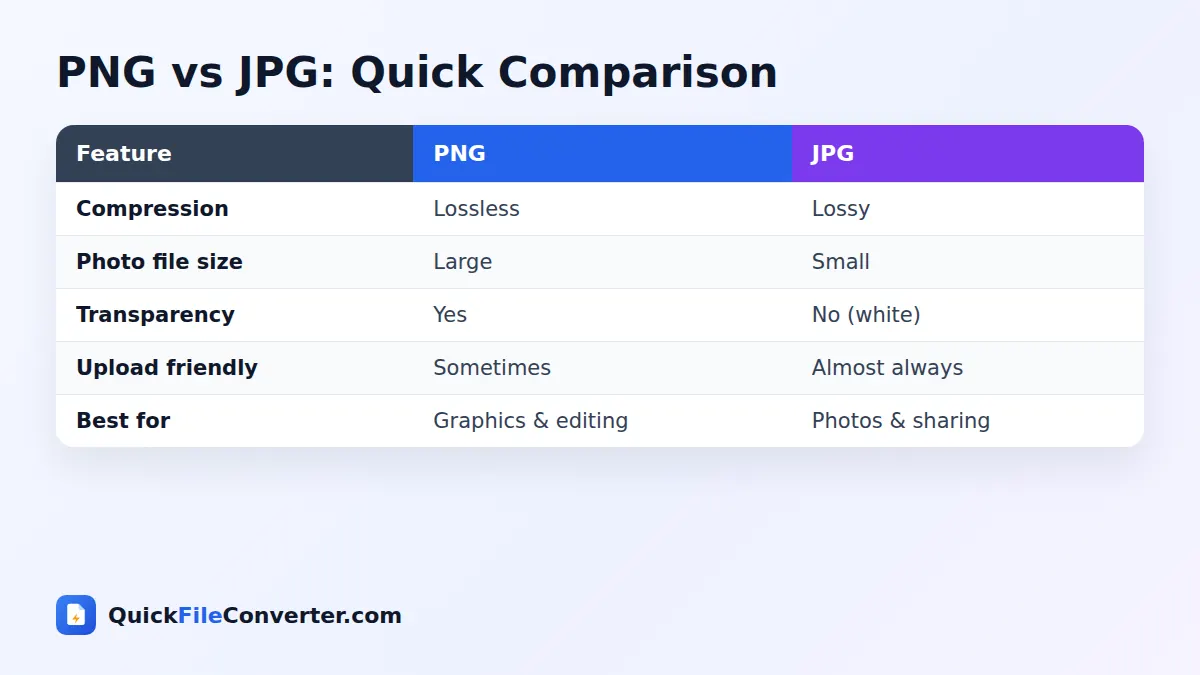
| Feature | PNG | JPG |
|---|---|---|
| Compression | Lossless | Lossy, adjustable |
| Typical photo size | 3 to 10 MB | 0.5 to 2 MB |
| Transparency | Yes | No |
| Best for | Logos, icons, screenshots with text, editing | Photos, social media, email, websites |
| Compatibility | Very high | Universal |
As a rule of thumb, use JPG for photographs and PNG for graphics. If your PNG is a photo or a screenshot you only need to share, converting it to JPG will save lots of space without any visible difference.
Why Convert PNG to JPG?
- Smaller files. Free up storage on your phone, laptop or cloud drive.
- Faster uploads. Social networks, job portals and marketplaces accept JPG quickly and some limit file size.
- Email attachments. Many email services limit attachments to 20 or 25 MB. JPG helps you fit more images.
- Faster websites. Smaller images mean quicker page loads and better search rankings.
- Compatibility. Some older systems, printers and upload forms accept only JPG.
- Screenshots. Phone and computer screenshots are saved as PNG by default and can be much smaller as JPG.
Choosing the Right JPG Quality
Our PNG to JPG tool lets you pick a quality level. Higher quality means a larger file with more detail.
| Quality setting | Typical size saving vs PNG | Best for |
|---|---|---|
| Maximum (95%) | 60 to 80% smaller | Printing, portfolios, professional work |
| High (92%) | 70 to 85% smaller | Everyday use, recommended default |
| Balanced (85%) | 80 to 90% smaller | Websites and social media |
| Smaller file (75%) | 85 to 95% smaller | Email, chat apps, strict upload limits |
For most people, High is the perfect choice. Differences only become noticeable at lower settings on images with sharp text or fine patterns.
What Happens to Transparency?
JPG does not support transparent pixels. When you convert PNG to JPG, any transparent areas are filled with white. This works well for logos and graphics that will appear on white pages. If you need to keep transparency, convert to WebP instead with our PNG to WebP converter, which supports transparent backgrounds and still produces small files.
Features of Our PNG to JPG Converter
Adjustable quality
Choose from four quality levels to balance file size and detail.
Batch processing
Convert many images at once and download them in a single ZIP file.
Keeps full resolution
Converted images keep the same width and height as the originals.
White background for transparency
Transparent areas become clean white, ready for documents and printing.
Private in-browser conversion
Nothing is uploaded. Your browser does all the work locally.
Free and unlimited
No watermark, no account and no limits on the number of images.
Tips for Great Results
- Use High quality by default. It offers big savings without visible loss.
- Keep PNG for graphics with text. Diagrams and logos look sharper as PNG or WebP.
- Convert screenshots in batches. Use Add Folder to process an entire screenshots folder.
- Resize if needed. A 4000-pixel image is more than most websites need. Smaller dimensions save even more space.
- Keep originals for editing. Edit the PNG, then convert the final version to JPG.
- Check transparency first. If your image has a transparent background, make sure a white background is acceptable.
How to Convert PNG to JPG on Your Device
Windows and Mac
Drag PNG files onto the upload box, pick a quality and click Convert Now. Your JPG files save to the Downloads folder.
Android
Tap Choose Files, select screenshots or images from your gallery, and tap Convert Now. Download the files or the ZIP.
iPhone and iPad
Tap Choose Files, choose Photo Library or Browse, and select your PNG images. After converting, save the JPG files to Files or share them straight away.
Is It Safe to Convert PNG to JPG Online?
Screenshots often contain private information such as messages, bank balances and email addresses. Uploading them to an unknown server is risky. Our PNG to JPG tool keeps everything on your device: the browser decodes the PNG, draws it onto a canvas and encodes a JPG without sending anything over the internet. See our privacy policy for more.
How the Conversion Works
- Decoding. Your browser reads the PNG into raw pixels.
- Background fill. A white background is painted so transparent areas look clean.
- Encoding. The browser’s JPEG encoder compresses the image at the quality you chose.
The whole process usually takes well under a second per image, even on a phone.
Common Problems and Solutions
My logo has a white box around it
That is where transparency used to be. JPG cannot store transparent pixels. Use PNG or WebP if the logo must sit on coloured backgrounds.
Text looks slightly fuzzy
JPG compression can soften very sharp edges. Choose Maximum quality, or keep text-heavy graphics as PNG.
The JPG is not much smaller
Simple graphics with flat colours compress very well as PNG, so the saving may be small. Photos and detailed screenshots see the biggest savings.
Colours look slightly different
Some PNG files include special colour profiles. For screen use, colours are almost always identical. For professional print work, use a dedicated image editor.
PNG to JPG for Websites and SEO
Image size is one of the biggest factors in page speed. Google’s page experience guidance recommends fast-loading pages, and heavy PNG photos slow everything down. Converting photos from PNG to JPG, or better still to WebP, can cut page weight dramatically. Keep PNG only for graphics that need transparency or pixel-perfect edges.
PNG to JPG for Social Media and Messaging
Social networks recompress every image you upload. Uploading a huge PNG does not guarantee better quality, it just takes longer. Converting to a high-quality JPG first gives you faster uploads and more predictable results on Instagram, Facebook, X, LinkedIn and WhatsApp.
Why Are Screenshots Saved as PNG?
Phones and computers save screenshots as PNG because screens are full of sharp text, icons and flat colours. PNG reproduces those details perfectly, which matters if you need to read small print in a screenshot. The downside is size. A single full-screen screenshot on a modern phone can be 2 to 5 MB, and a folder of a few hundred quickly fills up storage.
For screenshots you just want to keep as a record, such as receipts, booking confirmations or chat messages, converting to a high-quality JPG usually saves around 80 percent of the space while keeping text readable. For screenshots you plan to include in tutorials or documentation, keep the PNG or convert to WebP so text stays razor sharp.
How Image Size Affects Everyday Life
Large images slow down more than just websites. They also affect:
- Phone storage. Photos and screenshots are often the biggest users of space on a phone. Smaller files mean more room for apps and updates.
- Mobile data. Sending large images over a mobile network uses more data and takes longer, especially in areas with weak coverage.
- Backups. Cloud backup services back up every file. Smaller images mean faster backups and lower storage costs.
- Email. Big attachments can bounce or land in spam folders. Keeping images compact makes email more reliable.
- Upload forms. Job portals, exam registrations and government websites often limit image uploads to a few hundred kilobytes.
Converting images to a sensible format is one of the easiest ways to keep all of these under control.
Resizing and Converting Together
File size depends on two things: the format and the number of pixels. A modern phone camera produces images around 4000 pixels wide, but most websites display images at 800 to 1600 pixels. If you need a really small file, resize the image before converting. Most phones let you choose a smaller size when you share or export a photo, and every desktop operating system includes a basic resize option in its built-in photo app.
As a rough guide, halving both width and height reduces the number of pixels by 75 percent, and the file size drops by a similar amount. Combined with JPG compression, that can turn a 10 MB PNG into a 200 KB image that still looks great on screen.
Removing Hidden Information from Images
Images can carry hidden information called metadata. Photos from cameras and phones may include the date, the device model and sometimes the GPS location where the picture was taken. PNG files created by some apps can also contain text notes. When our tool redraws the picture and saves a new JPG, this extra information is not copied across. That makes converted images a little safer to share publicly, because they do not reveal where or when they were created.
If you are sharing images for work, this also avoids accidentally exposing internal file paths or software details that some programs embed in PNG files.
Converting Graphics with Care
Not every PNG should become a JPG. Logos, icons, charts and illustrations with large areas of flat colour often look worse as JPG because compression can add faint blotches around edges. For those, a better option is to keep the PNG or switch to WebP, which supports both transparency and efficient compression. Photos, on the other hand, almost always look identical after conversion while shrinking dramatically.
Printing Converted Images
JPG files print perfectly on home printers and at photo labs. For the best prints, keep the quality at High or Maximum and make sure the image has enough pixels: around 1800 by 1200 pixels for a standard 6 by 4 inch photo, or about 3500 by 2500 pixels for an A4 print. Most photo labs actually prefer JPG over PNG because the files are faster to upload and process, and the difference in print quality is not visible at high quality settings.
Converting Images for Online Forms
Government, university and job portals often ask for a passport-size photo or signature under 50 KB or 100 KB, usually as JPG. Convert your PNG at Balanced or Smaller file quality, and if the result is still too big, reduce the image dimensions first. A photo of 600 by 600 pixels at 85 percent quality is typically well under 100 KB.
Keeping a Master Copy
Before converting an important graphic or design, keep the original PNG in a safe folder. JPG compression cannot be undone, so the PNG remains your best source if you need to edit, resize or reuse the image later.
Choosing a File Name
When you save converted images, a clear file name helps you and anyone you share them with. Use short, descriptive names with hyphens, such as “kochi-beach-sunset.jpg” instead of “Screenshot_2026-09-24-1045.png”. On websites, descriptive file names also give search engines a small clue about what the image shows.
Related Tools
- Go the other way with JPG to PNG.
- Keep transparency and small size with PNG to WebP.
- Combine images into a document with JPG to PDF.
- Learn more in our image file formats guide.
Frequently Asked Questions
Is this PNG to JPG converter free?
Yes. It is completely free with no sign-up, watermark or limits.
Will I lose quality when converting PNG to JPG?
At the default High setting, the difference is not visible for photos. Very sharp text and graphics may soften slightly at lower settings.
What happens to transparent backgrounds?
Transparent areas are filled with white, because JPG does not support transparency.
Can I convert multiple PNG files at once?
Yes. Add as many images as you like, or a whole folder, and download them all as a ZIP.
Are my images uploaded?
No. The conversion happens in your browser, and your files never leave your device.
How much smaller will my files be?
Photos are typically 70 to 90 percent smaller as JPG. Simple graphics may see smaller savings.
Does it work on phones?
Yes. The tool works in all modern browsers on Android, iPhone, iPad and desktop computers.
Final Thoughts
Large PNG files slow down uploads, fill up storage and make websites sluggish. Our PNG to JPG converter shrinks them in seconds while keeping them looking great. Drop your images into the box at the top of the page, choose a quality and download compact JPG files, all without your pictures ever leaving your device.