Our free video to GIF converter turns short clips into smooth, looping animated GIFs in seconds. Drop an MP4, MOV, WebM, MKV or AVI file into the box above, choose where the GIF should start, how long it should be, the frame rate and the width, then click Convert Now. There is no watermark, no sign-up and no upload.
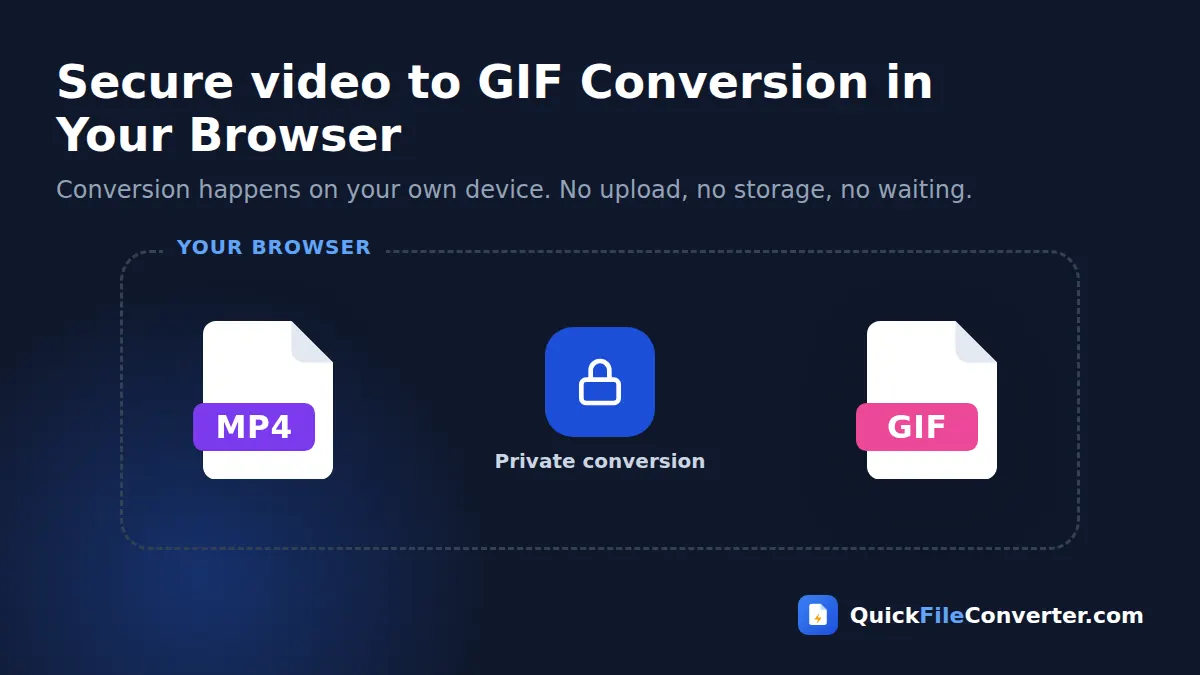
Everything happens inside your browser. Your video never leaves your device, so personal clips, product demos and unreleased footage stay private while you convert video to GIF.
Table of Contents
What Is a Video to GIF Converter?
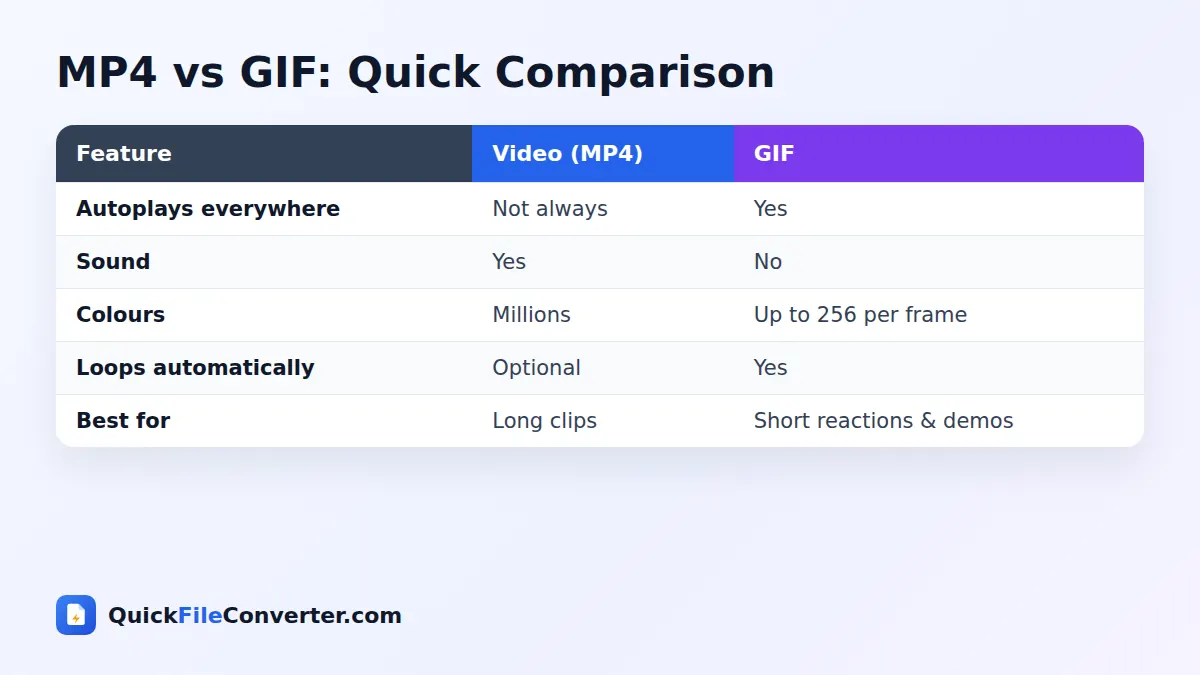
A video to GIF converter takes a section of a video, captures its frames and stitches them into an animated GIF image. GIF, short for Graphics Interchange Format, has been around since 1987. Despite its age, it remains the most universally supported way to show a short animation. GIFs autoplay and loop in emails, chat apps, forums, documentation, social networks and presentations, without a play button or sound.
That makes GIFs perfect for reactions, memes, quick product demonstrations, software tutorials, and any moment you want to show rather than tell. You can read about the format’s history in the GIF article on Wikipedia.
How to Convert Video to GIF in 3 Steps
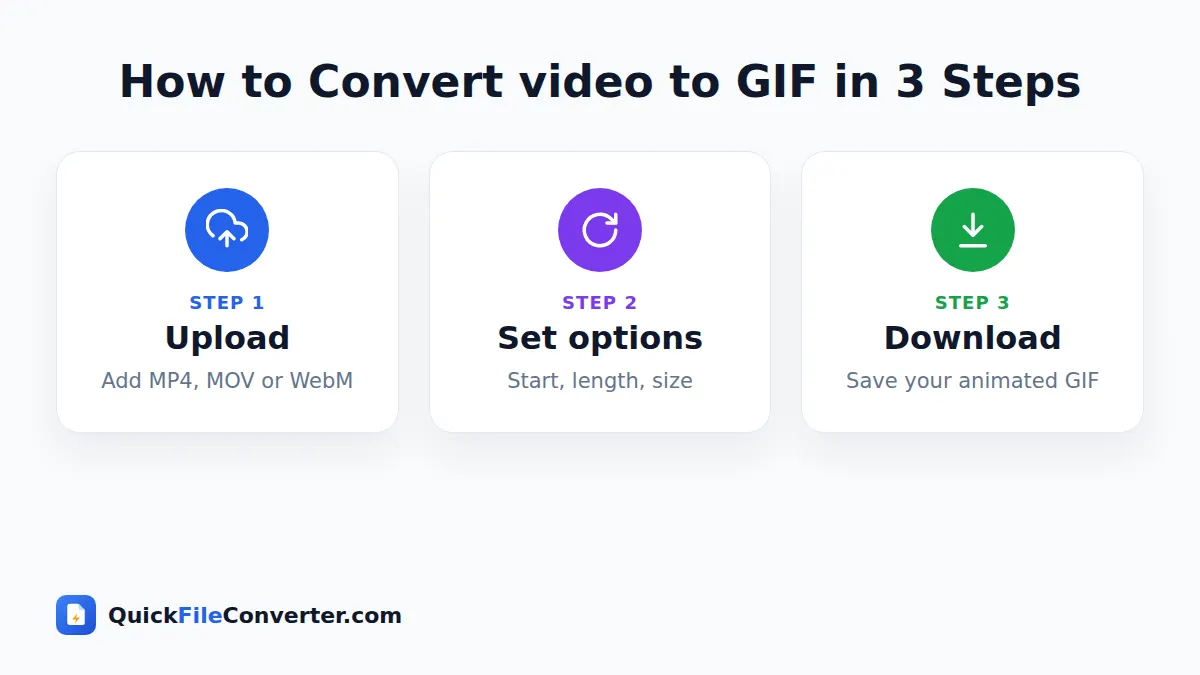
- Add your video. Hover over Choose Files and pick From Device, or drag a video onto the upload area. MP4, MOV, WebM, M4V, MKV and AVI are supported.
- Set your GIF options. Enter the start time in seconds and the length (up to 30 seconds). Choose a frame rate and a width.
- Convert and download. Click Convert Now. When the progress bar finishes, download your animated GIF.
GIF Settings Explained
The right settings make the difference between a crisp, lightweight GIF and a huge, choppy one.
| Setting | Options | Tips |
|---|---|---|
| Start at | Any time in seconds | Find the moment in a video player first |
| Length | 0.5 to 30 seconds | 2 to 6 seconds is ideal for most GIFs |
| Frame rate | 5, 10, 15 or 20 fps | 10 fps is smooth and small; 15 to 20 for fast action |
| Width | 320, 480, 640 or 800 px | 480 px suits chats and social; 640 to 800 for tutorials |
The height is calculated automatically to keep your video’s proportions.
How settings affect file size
GIF files grow with every extra frame and every extra pixel. Doubling the frame rate roughly doubles the size, and doubling the width roughly quadruples it. A 4-second clip at 10 fps and 480 px wide is usually 1 to 4 MB, which is perfect for sharing.
Why Convert Video to GIF?
- Reactions and memes. Share funny moments that loop forever.
- Product demos. Show a feature in action on a landing page or in an email.
- Software tutorials. Demonstrate clicks and steps in documentation and support articles.
- Social media. GIFs autoplay silently on many platforms and in comment threads.
- Messaging apps. Send animated reactions in WhatsApp, Telegram, Slack, Discord and Teams.
- Presentations. Add short looping animations to slides without embedding video players.
- Emails and newsletters. Most email clients show GIFs, while video is rarely supported.
- Bug reports. Show developers exactly what went wrong.
Features of Our Video to GIF Converter
Precise control
Choose the exact start time, length, frame rate and width for your GIF.
High-quality colour
Each frame gets its own optimised 256-colour palette, which keeps colours as natural as possible within the GIF format.
Many input formats
MP4, MOV, WebM and M4V are captured directly by your browser. MKV and AVI files are handled by a built-in FFmpeg engine.
Infinite looping
GIFs loop forever by default, just like people expect.
Private by design
The video is processed on your device. Nothing is uploaded.
Free and watermark-free
No sign-up, branding or limits.
Tips for Great GIFs
- Keep it short. The best GIFs are 2 to 6 seconds long. Short loops feel snappy and stay small.
- Pick a clear moment. Choose a clip with obvious action that makes sense without sound.
- Use 10 fps for most clips. It looks smooth and keeps files light. Use 15 to 20 fps only for fast movement.
- Choose 480 px for chats. Wider GIFs look great on desktops but can be slow on mobile networks.
- Avoid heavy gradients. GIF has a limited colour palette, so skies and smooth gradients can show banding.
- Make the loop seamless. Start and end on similar frames so the loop feels natural.
Is It Safe to Convert Video to GIF Online?
Many GIF makers ask you to upload your video to their servers, which can be slow for large files and risky for private footage. Our converter never uploads anything. Your browser reads the video, captures frames on an off-screen canvas and builds the GIF locally. Nothing is transmitted or stored. Read our privacy policy for more.
How the Conversion Works
- Loading the video. For MP4, MOV and WebM, your browser opens the video with its built-in player.
- Capturing frames. The tool jumps to each moment in your selected range and draws the frame onto a canvas at your chosen width.
- Building palettes. For each frame, the best 256 colours are chosen using a quantisation algorithm.
- Encoding the GIF. Frames are written into an animated GIF with the correct timing and infinite looping.
- Fallback for other formats. For MKV, AVI and unusual codecs, a WebAssembly build of FFmpeg generates the GIF using a high-quality palette filter.
Video to GIF vs Short Video
Modern platforms also support short muted videos that autoplay, which look better and are smaller than GIFs. So when should you use a GIF?
- Use a GIF for emails, documentation, forums, chat apps and anywhere video autoplay is not guaranteed.
- Use a short MP4 for websites and social networks that support autoplaying video, especially for longer or high-quality clips.
If you need an MP4 instead, our MOV to MP4 and MKV to MP4 tools can help.
Common Problems and Solutions
My GIF is too big
Shorten the clip, lower the frame rate to 10 fps or less, or reduce the width to 320 or 480 px.
The colours look grainy
GIF is limited to 256 colours per frame. Scenes with smooth gradients, such as skies, may show banding. Choose clips with bold, simple colours for the best results.
The GIF starts at the wrong moment
Check the exact second in a video player, then enter it in the Start at field. You can use decimals, such as 12.5.
My MKV or AVI takes longer
These formats use the FFmpeg engine, which downloads once (about 30 MB) and then runs on your device. After the first time, it loads from your browser cache.
Video to GIF for Marketers
Marketers use GIFs to grab attention in emails, where video is rarely supported. A short product animation in a newsletter can lift click-through rates compared with a static image. Keep marketing GIFs under 1 to 2 MB so they load quickly in inboxes, and make sure the first frame works as a still image, because some email clients, such as older versions of Outlook, only show the first frame.
Video to GIF for Developers and Support Teams
Screen recordings turned into GIFs are perfect for pull requests, bug reports, release notes and help centre articles. They show exactly what happens on screen without asking readers to press play. Record your screen, convert the relevant few seconds at 10 fps and 640 or 800 px wide, and paste the GIF into GitHub, GitLab, Jira or your documentation.
Step-by-Step: Making the Perfect Reaction GIF
Reaction GIFs are the most popular type of animated image. Here is a simple routine for making one that people will want to share.
- Find the moment. Play your video and note the exact second where the reaction starts. A facial expression, a gesture or a punchline works best.
- Keep it tight. Most great reactions last between 1.5 and 4 seconds. Anything longer loses impact.
- Choose 10 fps and 480 px. This keeps the file small enough for chat apps while staying smooth.
- Check the loop. If the first and last frames look very different, adjust the start time slightly so the loop feels natural.
- Convert video to GIF and test it. Send it to yourself in a chat app to see how it looks on a phone before sharing it widely.
Step-by-Step: Making a Tutorial GIF
Tutorial GIFs show someone how to do something, such as clicking through a menu or using a feature in an app.
- Record your screen with the built-in tools on your computer or phone. On Windows, press Win+Alt+R with Xbox Game Bar; on Mac, press Shift+Cmd+5; on iPhone and Android, use the screen recording shortcut.
- Move slowly and deliberately while recording, so viewers can follow each step.
- Trim to one action per GIF. Several short GIFs are easier to follow than one long one.
- Use 640 or 800 px width so text in the interface stays readable.
- Use 10 to 15 fps. Interface animations look smooth at these rates.
- Add a caption in your documentation explaining what the GIF shows, for accessibility.
How Big Should a GIF Be?
There is no single right answer, but these guidelines keep GIFs fast to load:
| Where it will be used | Suggested width | Suggested size limit |
|---|---|---|
| Chat apps and comments | 320 to 480 px | Under 3 MB |
| Email newsletters | 480 to 600 px | Under 1 to 2 MB |
| Documentation and help centres | 640 to 800 px | Under 5 MB |
| Slack and Teams | 480 px | Under 5 MB |
| Social media posts | 480 to 640 px | Check each platform’s limit |
If your GIF ends up larger than you want, shorten it first, then lower the frame rate, and finally reduce the width.
Where Do Your Clips Come From?
Almost any short clip can become a great GIF. Here are the most common sources and tips for each:
- Phone videos. iPhone videos are MOV files and Android videos are usually MP4. Both convert directly, so you can turn a funny moment from your gallery into a GIF in seconds.
- Screen recordings. Perfect for tutorials and bug reports. Keep the cursor movements slow and clear.
- Webcam and video calls. Save a recording of your own reaction for a personal touch.
- Game clips. Capture a winning moment with your console or PC recording tool, then convert video to GIF to share with friends.
- Product footage. Short turntable or unboxing clips make eye-catching animated product images.
Remember to use only footage you own or have permission to use, especially if you plan to share the GIF publicly.
Video to GIF on Phones
On Android and iPhone, tap Choose Files and pick a clip from your gallery. Enter the start time and length, keep the width at 480 px, and tap Convert Now. Short clips convert quickly even on older phones. Once the video to GIF conversion is done, tap Download and share the GIF from your Files app or gallery straight into any chat.
Storing and Reusing Your GIFs
Keep your favourite animations in one folder, named by topic, so you can find the right reaction quickly. Many chat apps also let you save GIFs to a personal collection. If you often reuse the same clips in documentation, store them next to the pages that use them, and keep the original videos in case you want to recreate a GIF at a different size or speed later. A little organisation turns a random pile of downloads into a handy personal library.
Understanding Frame Rate
Frame rate is the number of still images shown each second. Films usually run at 24 frames per second and phone videos at 30 or 60. A GIF does not need that many frames to look smooth, because it is small and short. At 10 frames per second, most movement looks fluid while the file stays compact. Fast motion, such as sports or dancing, benefits from 15 to 20 frames per second. Slideshow-style animations and simple interface demonstrations can drop to 5 frames per second for the smallest files.
Accessibility Tips for GIFs
Animated images can be distracting or even uncomfortable for some people. Keep these points in mind when you convert video to GIF for a website or document:
- Avoid rapid flashing, which can trigger seizures in people with photosensitive epilepsy.
- Add alt text describing what the animation shows.
- Keep important information in the surrounding text too, not only in the GIF.
- For long animations on websites, consider using a video with controls instead, so visitors can pause it.
Related Tools
- Extract the soundtrack with MP4 to MP3.
- Convert iPhone videos with MOV to MP4.
- Turn frames into still images with PNG to JPG.
- Learn about formats in our video file formats guide.
Frequently Asked Questions
Is this video to GIF converter free?
Yes. It is completely free with no sign-up, watermark or limits.
Which video formats can I convert to GIF?
MP4, MOV, WebM, M4V, MKV and AVI files are supported.
How long can my GIF be?
Up to 30 seconds. For sharing, 2 to 6 seconds usually works best.
Is my video uploaded?
No. The GIF is created in your browser and your video never leaves your device.
How do I make my GIF smaller?
Shorten the clip, lower the frame rate or reduce the width. Each change makes the file noticeably smaller.
Does the GIF include sound?
No. The GIF format does not support audio. Use MP4 to MP3 if you need the sound.
Will the GIF loop?
Yes. GIFs created with our tool loop forever by default.
Final Thoughts
Some moments are best shared as a looping animation. Our video to GIF converter turns any short clip into a GIF in seconds, with full control over timing, smoothness and size. Drop your video into the box at the top of the page, set your options and download your GIF, with your footage kept private on your own device. From reactions and memes to tutorials and product demos, a well-made GIF says more than a paragraph of text, and it only takes a few seconds to create. Bookmark this page so your favourite GIF maker is always one click away.