Our free MOV to MP4 converter turns iPhone and QuickTime videos into MP4 files that play on every phone, computer, TV and website. Drop your MOV file into the box above, pick a quality option and click Convert Now. In Fast mode, most iPhone videos convert in seconds without losing any quality. There is no sign-up, no watermark and no upload.
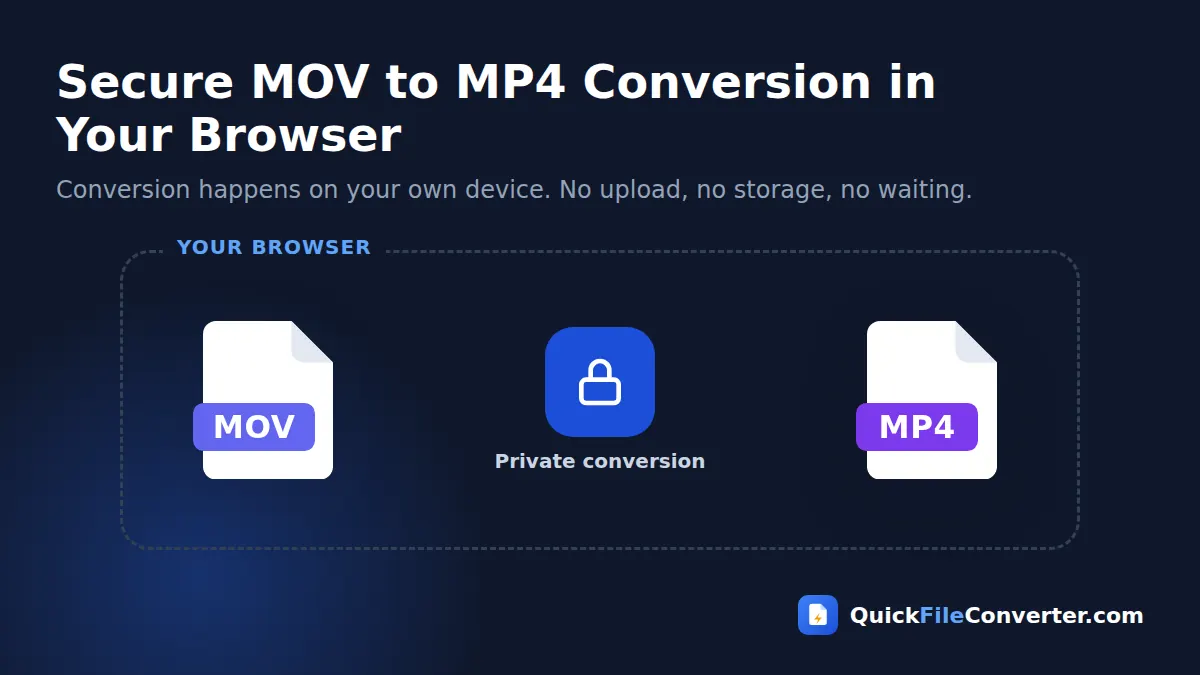
The conversion happens entirely in your browser, so your videos never leave your device. Family clips, client footage and private recordings stay safe while you convert MOV to MP4.
Table of Contents
What Is a MOV File?
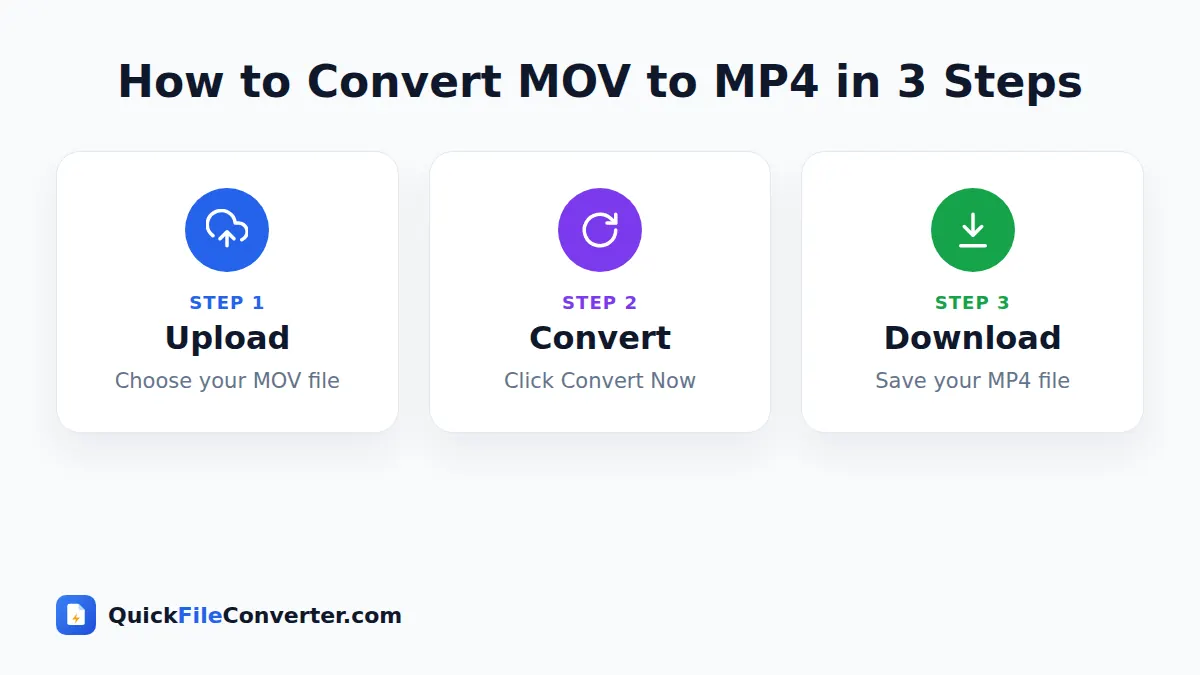
MOV is Apple’s QuickTime video format. It is the default recording format on iPhones, iPads and many Mac apps, and it is widely used in professional editing. A MOV file is a container: it holds a video stream, usually encoded with H.264 or HEVC (H.265), plus one or more audio streams, often AAC.
MP4 is an almost identical container defined by the international MPEG-4 Part 14 standard. In fact, MP4 was based on Apple’s QuickTime format. The big difference is support. MP4 plays on virtually everything, while MOV can cause problems on Windows PCs, Android phones, smart TVs, social media schedulers, learning platforms and many upload forms. Converting MOV to MP4 removes those compatibility problems.
How to Convert MOV to MP4 in 3 Steps
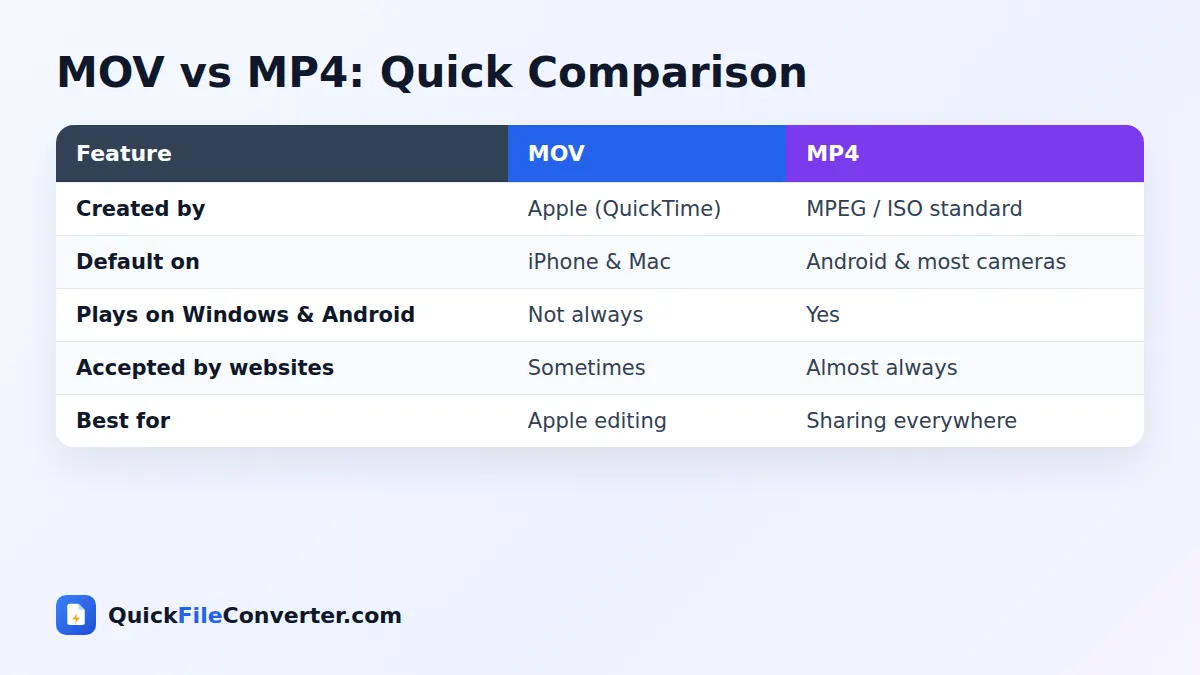
- Add your MOV video. Hover over Choose Files and select From Device, or drag the file onto the upload area. You can also add a public video link with From URL.
- Choose a quality option. Fast keeps the original quality and is usually the quickest. Balanced and High quality re-encode the video with H.264 for maximum compatibility. Smaller file reduces the size.
- Convert and download. Click Convert Now. The first video conversion loads the video engine once, then your MP4 is ready to download.
Fast Mode vs Re-Encoding
Our MOV to MP4 tool offers two ways to convert, and understanding them helps you choose.
Fast mode (recommended first)
Many MOV files already contain H.264 video and AAC audio, which MP4 supports directly. In Fast mode, the tool copies the video stream into a new MP4 container without re-encoding it. This is called remuxing. It is very fast, even for long videos, and keeps 100 percent of the original quality. If the video cannot be copied, the tool automatically falls back to re-encoding.
Balanced, High quality and Smaller file
These options re-encode the video with the H.264 codec and AAC audio, producing an MP4 that plays on almost any device made in the last decade. Re-encoding takes longer because every frame is processed, but it is the most compatible choice for HEVC videos, older TVs, and platforms with strict requirements.
| Option | Speed | Quality | When to use |
|---|---|---|---|
| Fast | Very fast | Identical to original | Most iPhone and camera videos |
| Balanced | Slower | Very good | General sharing and uploading |
| High quality | Slowest | Excellent | Important footage, larger files |
| Smaller file | Slower | Good | Email, messaging, limited storage |
Why Convert MOV to MP4?
- Play iPhone videos on Windows and Android. Some players and older systems struggle with MOV or HEVC.
- Upload to websites. Many learning platforms, job portals, marketplaces and form builders accept only MP4.
- Social media scheduling tools. Several tools reject MOV uploads.
- Smart TVs and media players. MP4 plays on most TVs, streaming sticks and USB playback.
- Video editing apps. Most editors import MP4 easily on any operating system.
- Sharing with anyone. MP4 is the safest format when you do not know what device the viewer uses.
- Smaller files. Re-encoding with the Smaller file option can reduce file size for sharing.
Features of Our MOV to MP4 Converter
Lossless fast conversion
Remuxing keeps the original video quality and finishes in seconds for most files.
Automatic fallback
If a fast copy is not possible, the tool re-encodes to H.264 automatically.
Powered by FFmpeg
Conversion uses FFmpeg compiled to WebAssembly, the same trusted engine used by professional video tools.
Private in-browser processing
Your video is processed on your device. Nothing is uploaded, which also saves your mobile data.
Web-optimised output
MP4 files are saved with “fast start”, so they begin playing quickly when uploaded to websites.
Free and watermark-free
No accounts, logos or limits.
Converting iPhone Videos to MP4
iPhones record in MOV using either HEVC (High Efficiency) or H.264 (Most Compatible), depending on your camera settings. HEVC saves storage but is less widely supported.
- H.264 MOV files convert perfectly in Fast mode.
- HEVC MOV files can often be copied into MP4 too, but some older devices cannot play HEVC. Choose Balanced to convert to H.264 for maximum compatibility.
To make your iPhone record in H.264 from the start, open Settings, tap Camera, then Formats, and choose Most Compatible. New videos will still be MOV, but they will convert to MP4 instantly in Fast mode.
Converting MOV to MP4 on Different Devices
Windows
Drag the MOV file onto the upload box and click Convert Now. The MP4 plays in the Windows Media Player, Films & TV and VLC.
Mac
Although Macs play MOV natively, converting to MP4 makes files easier to share with Windows and Android users and to upload to websites.
iPhone and iPad
Tap Choose Files and select the video from Photos or Files. Fast mode is quick even on a phone. After converting, save the MP4 to Files and share it.
Android
If you received a MOV video from an iPhone user, tap Choose Files, pick the video from Downloads and convert it to MP4.
Tips for Faster, Better Conversions
- Try Fast mode first. It is the quickest and keeps the original quality.
- Use Balanced for HEVC videos that need to play on older devices.
- Keep your device plugged in for long re-encodes, and keep the tab open.
- Use a computer for very long videos. Desktops have more memory and faster processors.
- Trim before converting if you only need part of a long clip. Use your phone’s built-in trim tool.
- Keep the original MOV. It remains your master copy.
Is It Safe to Convert MOV to MP4 Online?
Video files are large and often personal. Uploading them to an online converter takes time, uses lots of data and places your footage on someone else’s server. Our MOV to MP4 converter runs in your browser, so the video never leaves your device. Nothing is uploaded or stored, and the only download is the conversion engine itself, which your browser caches for next time. See our privacy policy.
How the Conversion Works
- Loading the engine. The first time you convert a video, your browser downloads FFmpeg compiled to WebAssembly (about 30 MB). It is cached for future conversions.
- Reading the MOV. Your file is loaded into the engine’s memory on your device.
- Remuxing or re-encoding. In Fast mode, streams are copied into an MP4 container. Otherwise, video is encoded with H.264 and audio with AAC.
- Saving the MP4. The finished file is offered for download with web-friendly fast start enabled.
Understanding Codecs and Containers
People often mix up containers and codecs. A container is the file type, such as MOV, MP4, MKV or AVI. It holds the streams and information about them. A codec is the method used to compress the video or audio inside, such as H.264, HEVC, VP9 or AAC.
MOV and MP4 are both containers that can hold H.264 and AAC. That is why a fast copy is often possible: the content stays the same, only the packaging changes. When the codec inside is not supported by the target device, re-encoding is needed.
Common Problems and Solutions
Conversion is slow
Re-encoding video is demanding, especially in a browser. Use Fast mode when possible, convert on a computer, and close other heavy tabs.
The MP4 has no sound
Some MOV files contain audio in a format that needs re-encoding. Try Balanced mode, which converts the audio to AAC.
The video will not play on my TV
Your TV may not support HEVC. Convert with Balanced or High quality to create an H.264 MP4.
My browser runs out of memory
Very large files, such as several gigabytes of 4K footage, can exceed browser memory limits. Trim the video into shorter parts, or convert on a computer with more RAM.
MOV to MP4 for Content Creators
Creators who shoot on iPhones often upload to platforms and tools that prefer MP4. Converting in Fast mode keeps the full quality of your footage for editing and publishing, and the web-optimised output starts playing quickly when embedded on websites. For thumbnails and previews, you can also create short loops with our Video to GIF converter.
MOV to MP4 for Teachers and Students
Schools often use learning platforms that only accept MP4 uploads for assignments and recorded presentations. Students filming projects on iPhones can convert their MOV files in a few seconds, and teachers can convert classroom recordings before sharing them with students on any device.
Video Resolution, Frame Rate and File Size
Three things decide how big a video file is: resolution, frame rate and bitrate.
| Recording setting | Approximate size per minute |
|---|---|
| 1080p at 30 fps (H.264) | 60 to 130 MB |
| 1080p at 60 fps (H.264) | 100 to 200 MB |
| 4K at 30 fps (HEVC) | 170 to 350 MB |
| 4K at 60 fps (HEVC) | 400 MB or more |
When you convert MOV to MP4 in Fast mode, the size stays almost exactly the same, because the video data is copied. The Smaller file option re-encodes at a lower bitrate and can cut the size significantly, which helps when you need to email or message a clip. For very large 4K recordings, consider recording at 1080p in the future if you do not need the extra detail.
Sharing Converted Videos
Once your video is an MP4, you can share it almost anywhere:
- Messaging apps such as WhatsApp and Telegram accept MP4, but may compress large videos. Send as a document or file to keep full quality.
- Email attachments are usually limited to 20 to 25 MB. For longer videos, upload to a cloud drive and share a link.
- Cloud storage services like Google Drive, OneDrive and Dropbox preview MP4 files in the browser.
- Social media platforms all accept MP4 and will process it for their own players.
- Websites can embed MP4 directly with the HTML video tag. Our output is optimised to start playing quickly.
Editing After Converting
MP4 files open in every popular editor, including CapCut, DaVinci Resolve, Premiere Pro, iMovie, Clipchamp and Shotcut. If you plan to edit and export again, convert with Fast mode to avoid an extra round of compression before editing. Export your final edit as MP4 with H.264 for the widest compatibility.
MOV to MP4 for Businesses
Marketing teams, trainers and sales staff often record product demos and testimonials on iPhones. Converting those clips from MOV to MP4 before sending them to agencies, uploading them to a CMS or adding them to a learning management system avoids “unsupported format” errors. Because the conversion happens in the browser, unreleased product footage never leaves company laptops.
MOV to MP4 for Weddings and Family Events
Relatives at weddings, birthdays and graduations often record on iPhones and share the clips afterwards. When you collect those videos to make a highlight reel or to share with family members on Android phones and smart TVs, converting MOV to MP4 first means everyone can watch without problems. Use Fast mode to keep every precious moment at full quality.
Keeping Your Video Library Organised
Name converted videos with the date and a short description, such as “2026-09-24 Onam celebration.mp4”. Store them in folders by year or event, and back up important footage to cloud storage or an external drive. Keeping the original MOV files alongside the MP4 versions means you always have the untouched master if you want to edit again later.
Converting Screen Recordings
Mac screen recordings made with QuickTime Player or Shift+Cmd+5 are saved as MOV. They often have unusual frame sizes or variable frame rates. If a screen recording will not play smoothly after a fast conversion, re-convert it with Balanced mode, which produces a standard H.264 MP4 that plays reliably everywhere.
Related Tools
- Convert other formats with MKV to MP4 and AVI to MP4.
- Extract the audio with MP4 to MP3.
- Convert iPhone photos with HEIC to JPG.
- Learn more in our video file formats guide.
Frequently Asked Questions
Is this MOV to MP4 converter free?
Yes. It is free with no sign-up, watermark or limits.
Will I lose quality converting MOV to MP4?
Not in Fast mode, which copies the original video stream. Re-encoding options keep very high quality at sensible sizes.
Is my video uploaded?
No. The conversion happens in your browser and your video never leaves your device.
Why is the first conversion slower?
Your browser downloads the video engine once (about 30 MB). After that, it loads from cache.
Can I convert iPhone HEVC videos?
Yes. Use Fast mode to keep HEVC, or Balanced to convert to H.264 for maximum compatibility.
Is there a file size limit?
There is no fixed limit, but very large videos depend on your device’s memory. Trimming long videos helps.
Does it work on iPhone and Android?
Yes. It works in modern mobile browsers, although long videos convert faster on a computer.
Final Thoughts
MOV is great on Apple devices, but MP4 is the format the rest of the world expects. Our MOV to MP4 converter makes your videos universally playable in seconds, without uploading them anywhere. Drop your MOV file into the box at the top of the page, choose Fast mode and download an MP4 that plays everywhere. Whether it is a family memory, a class project or a client video, your footage stays private on your own device from start to finish.