Our free OGG to MP3 converter turns OGG Vorbis and Opus audio into MP3 files that play on every phone, computer, car stereo and music player. Drop your OGG, OGA or OPUS files into the box above, choose a bitrate and click Convert Now. Convert a single clip or a whole folder and download the results individually or as a ZIP. There is no sign-up, no watermark and no limit.
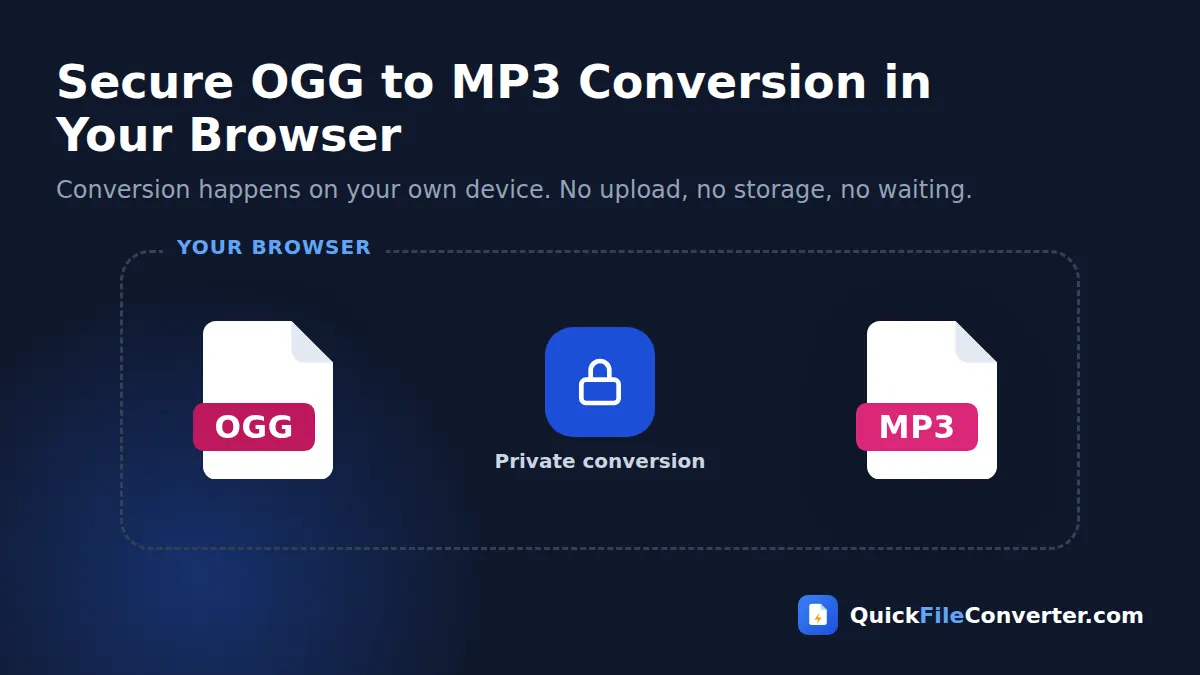
The conversion runs in your browser, so your audio never leaves your device. Voice notes, game sounds, recordings and music stay private while you convert OGG to MP3.
Table of Contents
What Is an OGG File?
OGG is an open, royalty-free container format created by the Xiph.Org Foundation. It most often holds audio compressed with the Vorbis codec, and increasingly with Opus, a modern codec designed for speech and music over the internet. Files may use the .ogg, .oga or .opus extensions. You can learn more on the Xiph.Org Vorbis page and the Opus codec website.
OGG audio is everywhere once you look for it. WhatsApp and Telegram voice messages use Opus, many video games store sound effects and music as OGG Vorbis, Wikipedia hosts audio as OGG, and Linux applications often record in it. The quality is excellent, but support is patchy on iPhones, older Windows apps, car stereos, smart speakers and many website upload forms. Converting OGG to MP3 fixes that instantly.
How to Convert OGG to MP3 in 3 Steps
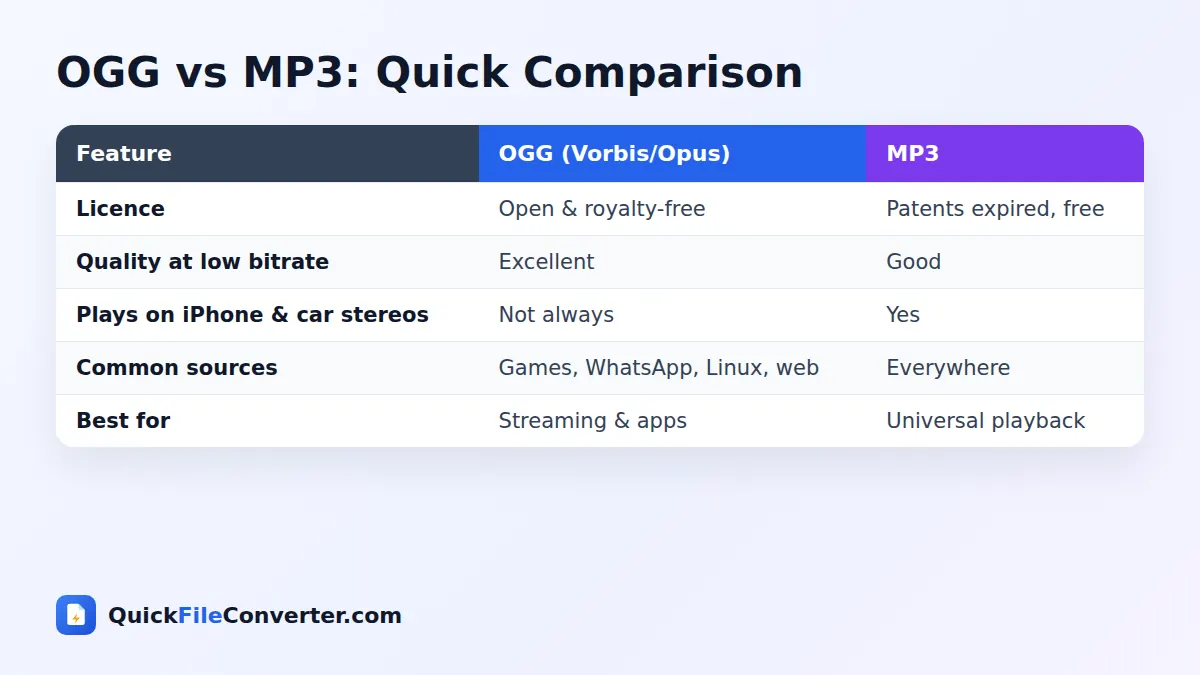
- Add your audio files. Hover over Choose Files and pick From Device, drag OGG, OGA or OPUS files onto the upload box, or use Add Folder.
- Choose a bitrate. 128 kbps is perfect for voice messages. Choose 192 kbps for music, or 256 to 320 kbps for high-quality tracks.
- Convert and download. Click Convert Now and download each MP3 or all of them together as a ZIP.
OGG Vorbis, Opus and MP3 Compared
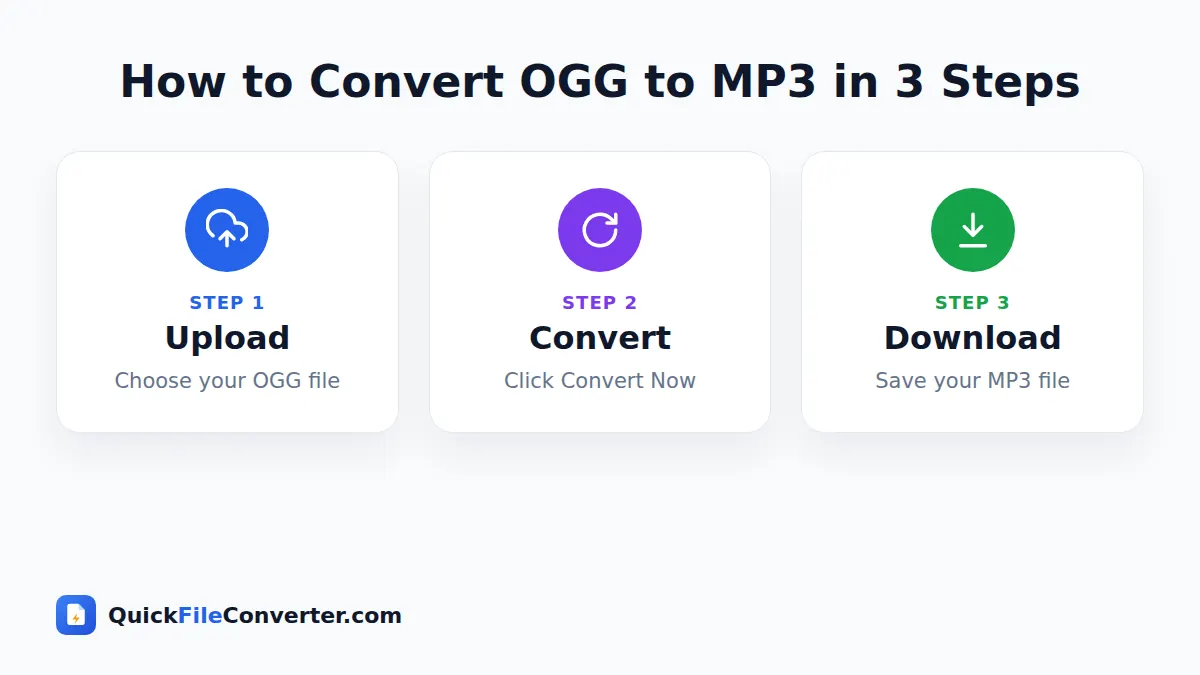
| Feature | OGG Vorbis | Opus | MP3 |
|---|---|---|---|
| Released | 2000 | 2012 | 1993 |
| Best at | Music | Speech and music at low bitrates | General audio |
| Typical use | Games, Linux, web | Voice messages, calls, streaming | Everything |
| Compatibility | Good on Android and browsers | Good in apps, limited elsewhere | Universal |
| Licence | Royalty-free | Royalty-free | Patents expired |
Vorbis and Opus are technically excellent, often sounding better than MP3 at the same size. MP3 wins on compatibility, which is why converting OGG to MP3 is so common.
Why Convert OGG to MP3?
- Save WhatsApp and Telegram voice notes as files that play on any device.
- Play game soundtracks and sound effects in regular music players.
- Use audio in video editors and presentation software that do not support OGG.
- Play in car stereos and portable players that only understand MP3.
- Upload to websites that require MP3.
- Share with iPhone users whose apps may not open OGG files.
- Build a consistent music library in one universal format.
Choosing the Right Bitrate
| Bitrate | Best for |
|---|---|
| 128 kbps | Voice notes, speech, podcasts |
| 192 kbps | Most music, recommended |
| 256 kbps | High-quality music |
| 320 kbps | Best MP3 quality |
Voice messages from chat apps are usually recorded at low bitrates optimised for speech, so 128 kbps MP3 is more than enough. For game music or Vorbis albums, choose 192 kbps or higher.
Features of Our OGG to MP3 Converter
Vorbis and Opus support
Both common OGG codecs are supported, along with the .oga and .opus extensions.
High-quality MP3 output
MP3 files are encoded with the LAME encoder for clear, natural sound.
Batch conversion
Convert dozens of files at once and download them as a ZIP.
Choice of bitrate
Pick the balance between size and quality that suits you.
Private in-browser processing
Your browser decodes the audio and encodes the MP3 locally. Nothing is uploaded.
Free and unlimited
No sign-up, watermarks or daily limits.
Saving WhatsApp Voice Messages as MP3
WhatsApp voice notes are Opus audio, often saved with the .opus or .ogg extension. To convert them:
On Android
Open the chat, long-press the voice message, tap the share icon and choose to save it to Files or Drive. You can also find voice notes in your phone’s WhatsApp Media folder. Then open this page, tap Choose Files and select the file.
On iPhone
Long-press the voice message, tap Forward, then the share icon, and choose Save to Files. Open this page in Safari, tap Choose Files, then Browse, and select the saved file.
On WhatsApp Web or Desktop
Hover over the voice message, open the menu and choose Download. Drag the downloaded file onto the upload area.
Choose 128 kbps and click Convert Now. The MP3 plays in every music app and can be attached to emails or added to documents.
Tips for the Best Results
- Use 128 kbps for voice and 192 kbps or more for music.
- Convert once from the original rather than converting between lossy formats repeatedly.
- Batch convert folders of game sounds or voice notes with Add Folder.
- Rename files clearly. Voice notes often have long automatic names.
- Respect privacy. Only share voice messages with permission from the people in them.
- Keep originals until you have checked the MP3 files.
Is It Safe to Convert OGG to MP3 Online?
Voice messages are personal. Uploading them to an unknown website is a real privacy risk. Our OGG to MP3 converter processes everything in your browser: the audio is decoded by your browser’s media engine or, if needed, by a built-in FFmpeg engine, and the MP3 is created on your device. Nothing is uploaded or stored. See our privacy policy.
How the Conversion Works
- Decoding. Chrome, Edge, Firefox and Android browsers decode Vorbis and Opus natively. Safari decodes many OGG files too.
- Fallback. If your browser cannot decode a file, a WebAssembly build of FFmpeg is loaded once and handles the conversion.
- Resampling. Opus audio is decoded at 48 kHz, which MP3 supports directly.
- Encoding. The LAME encoder produces an MP3 at your chosen bitrate.
Common Problems and Solutions
The file will not convert on iPhone
Older Safari versions may not decode every OGG file natively. The converter then uses the FFmpeg fallback, which downloads once. If problems persist, try the conversion on a computer.
My voice note is very quiet
Voice notes are recorded at the levels of the original microphone. Use an audio editor to amplify the MP3 if needed.
The MP3 is bigger than the OGG
Opus and Vorbis are very efficient, so an MP3 at a similar quality is often larger. Use 128 kbps for speech to keep files small.
The extension is .opus, not .ogg
That is fine. Opus files are supported directly.
OGG to MP3 for Gamers and Modders
Many PC games store music and sound effects as OGG Vorbis files. Players who want to listen to a soundtrack on their phone, or modders who need audio in MP3 for tools and videos, can convert whole folders at once. Always check the game’s licence before sharing converted audio publicly.
OGG to MP3 for Linux Users
Linux recording tools and audio players often default to OGG. When you need to share recordings with Windows or Mac users, send them to clients, or use them in software that expects MP3, converting in the browser is quick and needs no extra packages.
OGG to MP3 on Different Devices
Windows
Windows 10 and 11 can play some OGG files, but many apps, older players and video editors cannot. Drag your files onto the upload area, convert OGG to MP3 and use them anywhere.
Mac
macOS apps such as QuickTime and Music do not support OGG Vorbis. Converting creates MP3 files that open in every Mac app and sync to iPhones.
Android
Android supports OGG well, but converting helps when you need to share audio with iPhone users or upload it to websites. Tap Choose Files, convert and download.
iPhone and iPad
Save the file to the Files app, tap Choose Files and Browse, and select it. The converted MP3 plays in the Files app and can be shared or added to other apps.
Chromebook and Linux
Because the tool runs in the browser, it works on ChromeOS and every Linux distribution without installing codecs or packages.
Understanding Opus: The Codec Behind Voice Messages
Opus was standardised by the Internet Engineering Task Force in 2012 and is now used for most internet voice communication, including WhatsApp, Telegram, Discord, Zoom and WebRTC video calls. It adapts smoothly from very low bitrates for speech to high bitrates for music, and it has extremely low delay, which is ideal for live conversation.
Voice messages are typically encoded at around 16 to 32 kbps, which is remarkably small for clear speech. When you convert these to MP3, a 128 kbps setting preserves everything that was recorded. Going higher will not improve the sound, it will just make the file larger.
Using Converted Voice Notes
Once your voice messages are MP3 files, they are easy to use in many ways:
- Transcription. Upload them to transcription services or dictation tools that require MP3.
- Legal and business records. Keep important spoken instructions or agreements as standard audio files, with the consent of the people involved.
- Memories. Save voice messages from loved ones in a family archive that will play on future devices.
- Presentations and videos. Add short clips of speech to slideshows or video projects.
- Language learning. Collect pronunciation examples from teachers or friends.
OGG to MP3 for Content Creators
Streamers and video creators often capture audio with tools that save OGG or Opus, such as some screen recorders, Discord recording bots and browser-based recorders. Most video editors and podcast hosts prefer MP3 or WAV. Converting OGG to MP3 at 192 kbps gives clean, widely compatible audio for editing timelines and publishing. For heavy editing, you can also convert the MP3 to WAV and export the final mix later.
OGG to MP3 for Teachers and Trainers
Online learning tools and classroom recorders sometimes produce OGG or WebM audio. Before uploading recordings to a learning management system, sharing them with students or adding them to slides, convert them to MP3 so they play on every student’s device, including older phones and school computers with limited software.
Why Not Just Change the File Extension?
Renaming a file from .ogg to .mp3 does not convert it. The data inside is still Vorbis or Opus, and many players will refuse to open it or play only noise. Proper conversion decodes the audio and encodes it again as a genuine MP3, which is exactly what this tool does.
A Note on Audio Quality
Every lossy conversion discards a small amount of information. Converting OGG to MP3 means decoding one lossy format and encoding another. At 192 kbps or higher, the result sounds essentially identical to the original for music, and at 128 kbps speech remains perfectly clear. To keep the best possible quality, always convert from the original file rather than from a copy that has already been converted several times.
Batch Converting Game Soundtracks
Game folders can contain hundreds of OGG files for music, ambience and effects. Use Add Folder to load them all, choose 192 kbps for music or 128 kbps for effects, and download the results as a single ZIP. File names are kept, so tracks stay easy to identify.
Converting Audio from Web Recorders
Some browser-based voice recorders and online meeting tools save audio as OGG or Opus. If a colleague sends you such a file and your media player cannot open it, convert it here in seconds on any computer or phone, with nothing to install and no need to upload the recording anywhere.
Checking Your Converted Files
After converting, play a few files from start to finish to confirm the sound is clean, then compare the durations with the originals. If everything matches, you can safely move the MP3 files to your phone, music library or project folder.
Keeping Your Audio Organised
Name files with the date and the sender or topic, such as “2026-09-24 Amma voice note.mp3”. Store them in folders by person or project, and back up important recordings to cloud storage. This makes it easy to find a specific message years later.
Related Tools
- Convert Apple audio with M4A to MP3.
- Shrink lossless audio with FLAC to MP3.
- Compress recordings with WAV to MP3.
- Learn more in our audio file formats guide.
Frequently Asked Questions
Is this OGG to MP3 converter free?
Yes. It is completely free with no sign-up, watermark or limits.
Can I convert WhatsApp voice messages?
Yes. Save the voice note as a file, then add it to the converter. Both .ogg and .opus files are supported.
Does it support Opus audio?
Yes. OGG Vorbis, OGG Opus and .opus files are all supported.
What bitrate should I choose?
128 kbps for voice notes and speech, and 192 kbps or higher for music.
Are my audio files uploaded?
No. The conversion runs in your browser and your audio never leaves your device.
Can I convert many files at once?
Yes. Add multiple files or a whole folder and download all the MP3 files as a ZIP.
Will the quality be the same?
At 192 kbps or higher, the MP3 will sound essentially the same as the original for most listeners.
Final Thoughts
OGG audio sounds great, but MP3 plays everywhere. Our OGG to MP3 converter bridges the gap in seconds, with excellent quality and total privacy. Drop your OGG or Opus files into the box at the top of the page, choose a bitrate and download MP3 files ready for any device. Voice messages, game music, lectures and recordings will play on every phone, laptop, speaker and car stereo, and your files never leave your hands during the process. Bookmark this page for the next time an audio file refuses to open.