Our free Word to PDF converter turns any DOCX document into a clean, shareable PDF in seconds. Drop your file into the box above, click Convert Now and download a PDF that looks the same on every phone, computer and printer. You do not need Microsoft Word installed, and there is no sign-up, watermark or daily limit.
The conversion happens right inside your browser. Your document is not uploaded to a server, so CVs, contracts, invoices and school work stay completely private while you convert Word to PDF.
Table of Contents
What Does a Word to PDF Converter Do?
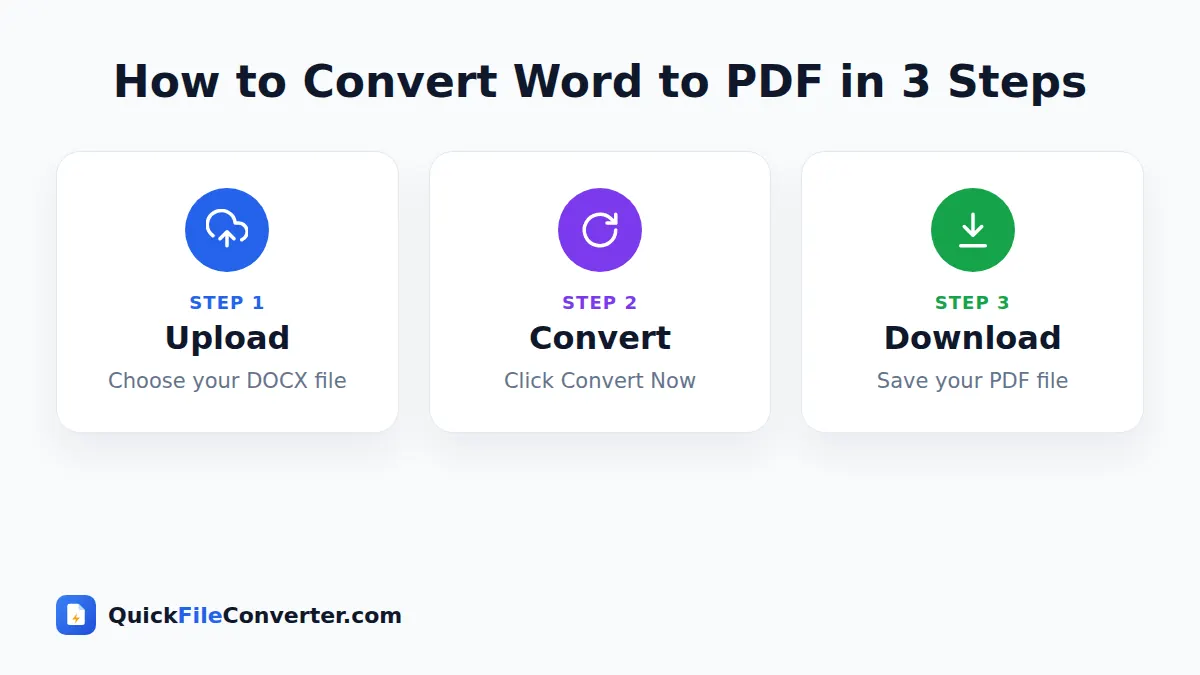
A Word to PDF converter reads the text, headings, lists, tables and images inside a Word document and lays them out on fixed PDF pages. Word files are designed to be edited, which is why they can look slightly different depending on the computer, the installed fonts and the version of Word. A PDF freezes the layout so the reader sees exactly what you intended.
That is why so many organisations ask for PDFs. Job portals, universities, government offices and clients all prefer PDF because it opens in any browser, prints reliably and cannot be changed by accident. Converting Word to PDF is the simplest way to meet those requirements.
The PDF format is an open international standard known as ISO 32000, and Microsoft documents the DOCX format as Office Open XML. Our tool bridges the two in a single click.
How to Convert Word to PDF in 3 Simple Steps
You can finish a conversion in under a minute.
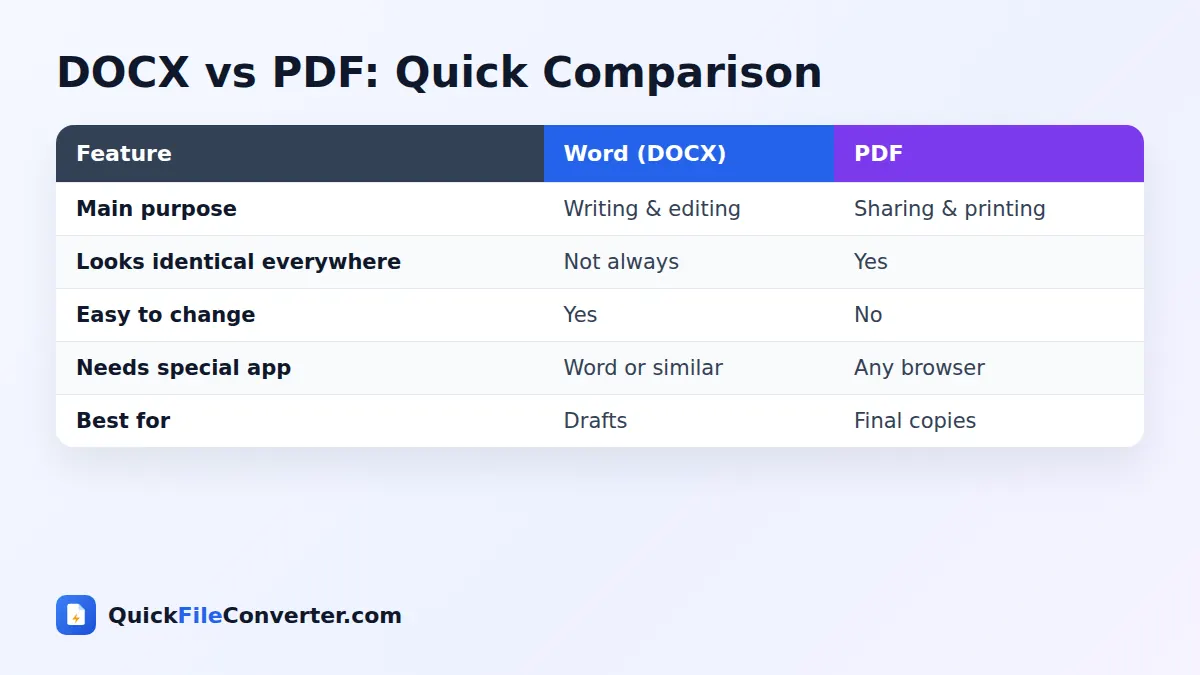
- Add your Word file. Click Choose Files and pick From Device, or drag your DOCX onto the upload area. From URL works for public links, and Add Folder is handy when you have several files.
- Click Convert Now. The tool reads your document, lays it out on A4 pages and builds the PDF.
- Download your PDF. When the progress bar finishes, click Download. Your PDF is ready to email, upload or print.
To convert more documents, click Convert more files and repeat. There is no waiting between conversions.
Why Convert Word to PDF?
People turn Word documents into PDFs for many reasons. These are the most common.
- Job applications. Recruiters and applicant tracking systems often ask for a CV and cover letter as PDF so the layout stays neat.
- Official forms and submissions. Universities, visa offices, banks and courts usually accept PDF only.
- Sharing with clients. Quotes, proposals and reports look professional and cannot be edited accidentally.
- Printing. Print shops prefer PDF because fonts and margins are locked in place.
- Archiving. A PDF is a reliable long-term copy of a finished document.
- Reading on phones. PDFs open instantly in mobile browsers without a Word app.
In each case, a quick Word to PDF conversion gives you a file that looks right for whoever opens it.
What Our Word to PDF Tool Keeps
The converter reads your document structure and recreates it on PDF pages. Here is what carries across.
| Element | Kept in the PDF? | Notes |
|---|---|---|
| Paragraph text | Yes | Rendered with a clean, widely available font |
| Headings | Yes | Heading 1 to Heading 3 get clear sizes |
| Bold and italic | Yes | Emphasis is preserved |
| Bulleted and numbered lists | Yes | Indentation is kept |
| Tables | Yes | With simple borders |
| Pictures | Yes | Inline images are placed in the flow |
| Page size | A4 | With comfortable margins |
| Headers, footers, comments | No | These are skipped |
Pages are filled one block at a time so that paragraphs, tables and images are never cut in half across a page break. The result is a tidy, readable PDF that is ideal for sharing and printing.
A note on complex layouts
Documents with text boxes, columns, WordArt or tracked changes are simplified into a clean single-column layout. If your file relies on a very specific design, such as a brochure, the most faithful option is to use Save As PDF in Word itself. For letters, CVs, reports, essays, invoices and most everyday documents, our Word to PDF tool gives excellent results.
Features That Make Conversion Easy
Free forever
Every conversion is free. We do not add watermarks, limit pages or ask for an email address before you download.
Private in-browser processing
The converter runs with JavaScript on your own device. Your document is never sent to our server, which makes the tool suitable for personal and confidential files.
No Microsoft Word needed
You can convert a DOCX file on a Chromebook, a borrowed computer or a phone without installing Office.
Works on any device
Use it on Windows, macOS, Linux, Android, iPhone and iPad in Chrome, Edge, Firefox, Safari or Samsung Internet.
Batch friendly
Add several documents at once and download all the PDFs together as a ZIP file.
Word to PDF on Different Devices
Windows and Mac
Open this page in your browser, drag the DOCX from File Explorer or Finder onto the upload box and click Convert Now. The PDF appears in your Downloads folder.
Android phones and tablets
Tap Choose Files, pick the document from Files, Google Drive or your email downloads, and tap Convert Now. Your phone saves the PDF to Downloads, ready to share on WhatsApp or email.
iPhone and iPad
Tap Choose Files and select the DOCX from the Files app or iCloud Drive. After converting, tap Download and open the PDF from the Files app or share it directly.
Tips for a Perfect PDF
A few quick checks before you convert Word to PDF make the final file look its best.
- Use built-in heading styles. Headings formatted with Heading 1, 2 and 3 convert into clear, well-spaced titles.
- Insert images inline. Pictures set to “In line with text” stay exactly where you placed them.
- Accept or reject tracked changes. Final copies should not contain editing marks.
- Check page count. Very long documents convert fine but take a few seconds more on phones.
- Name your file clearly. The PDF keeps the same name as your document, so “Jane-Smith-CV.docx” becomes “Jane-Smith-CV.pdf”.
- Keep the Word original. You will need it if you want to make changes later.
Is It Safe to Convert Word to PDF Online?
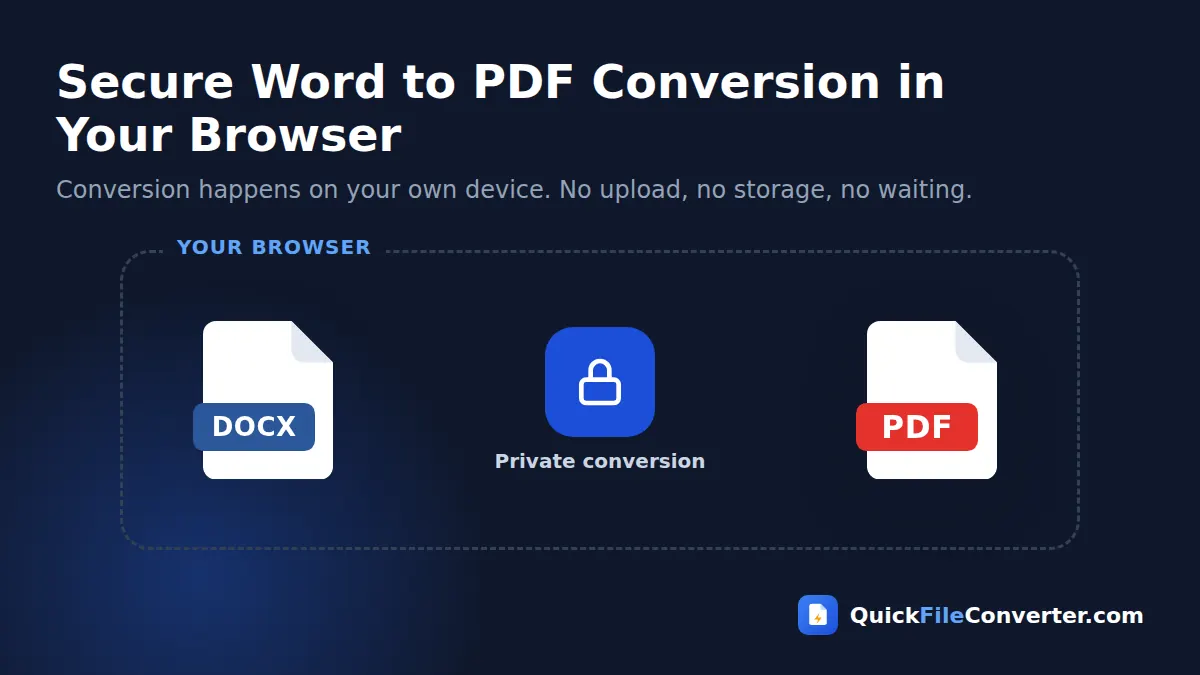
With most websites, your document is uploaded, processed on a server and deleted some time later. You have to trust that the company handles it properly. Our approach removes that risk. The conversion engine loads in your browser and your document is read from your device, converted in memory and saved straight back to your device.
Nothing is transmitted, logged or stored. You can even disconnect from the internet after the page loads and the conversion still works. Read our privacy policy for the full details.
Word to PDF vs Other Methods
There are several ways to turn a Word file into a PDF. Here is how they compare.
- Save As PDF in Microsoft Word. Very accurate, but needs a paid Word licence on a computer.
- Google Docs download as PDF. Free, but you must upload the file to your Google account first.
- Print to PDF. Built into most systems, but it can change margins and adds steps.
- Our free Word to PDF converter. No account, no upload, works on any device and is ready in seconds.
For quick, private conversions, especially on phones or shared computers, an in-browser Word to PDF tool is the most convenient option.
Common Word to PDF Questions Answered
Why does my PDF use a different font?
Fonts that are installed on your computer are not embedded inside a DOCX file. To make sure the PDF always looks consistent, the converter uses a clean, widely available sans-serif font similar to Calibri. Your text, spacing and structure stay the same.
Can I convert the old DOC format?
This tool reads modern DOCX files, which Word has used since 2007. If you have an older DOC file, open it in Word, Google Docs or LibreOffice, save it as DOCX, then convert Word to PDF here.
How do I make the PDF smaller?
Large photos are the main reason a PDF grows. Resize or compress images in your document before converting. Text-only documents usually produce very small PDFs.
Can I combine several Word files into one PDF?
Yes. Convert each document to PDF, then join them in the right order with our Merge PDF tool. This is perfect for application packs and reports with appendices.
Converting Specific Types of Documents
Different documents have different needs. Here is how to get the best result for the files people convert most often.
CVs and cover letters
Recruiters open hundreds of applications on laptops and phones, and a CV that looks broken is often skipped. Keep your CV to one or two pages, use simple headings, and avoid text boxes. After you convert Word to PDF, open the file on your phone to check that the layout still looks clean before you apply. Name the file with your full name so it stands out in a recruiter’s downloads folder.
Invoices and quotes
An invoice sent as a Word file can be edited by mistake, which causes confusion about amounts and dates. A PDF invoice is fixed and looks more professional. Put your logo inline at the top of the document, use a simple table for line items, and convert each invoice to PDF before emailing it.
School and university assignments
Many learning platforms such as Moodle, Canvas and Google Classroom prefer PDF uploads, because teachers can annotate them easily and the formatting never shifts. Check that your title page, page numbers and references are in place, then convert. If you have to submit several parts, convert each one and combine them into a single PDF.
Letters and official forms
Letters to banks, landlords, insurance companies and government offices are often requested as PDF. Type the letter in Word, add your signature as an inline image if needed, and convert. The recipient receives exactly the page you prepared.
Reports and manuals
Long reports with many headings, tables and charts convert well because the tool keeps blocks together across page breaks. Insert charts as pictures rather than live objects so they appear in the PDF.
How the Conversion Works Behind the Scenes
Curious about what happens when you click Convert Now? The process has four stages, all running on your device.
- Reading the document. A DOCX file is really a ZIP package of XML files. The open-source Mammoth library opens that package and reads paragraphs, headings, lists, tables and images.
- Building clean HTML. The content is turned into simple, well-structured HTML that keeps the meaning of your document, such as which lines are headings and which are list items.
- Laying out pages. The HTML is placed on A4-sized pages. Each paragraph, table or picture is measured, and a new page starts whenever the next block would not fit.
- Creating the PDF. Every finished page is drawn in high resolution and written into a PDF file with the jsPDF library.
Because every step happens in your browser, even a long document never touches our server.
Printing Your Converted Document
PDF is the most reliable format for printing, whether you use a home printer, an office copier or a print shop. Open the file in your browser or any PDF reader and choose Print. For best results, set scaling to “Actual size” or “100%” so the margins stay exactly as designed. If you print on US Letter paper, choose “Fit to page”, which shrinks the A4 page very slightly so nothing is cut off.
Print shops appreciate PDFs because the layout cannot change on their computers. Tell them the paper size, whether you need colour or black and white, and whether the pages should be printed on one side or both. For bound reports, a large margin on the left side leaves room for staples or binding, so add extra space in your original document before converting.
Word to PDF and Accessibility
If your PDF will be read by many people, it is worth thinking about accessibility. Screen readers rely on real text and document structure. For a fully accessible PDF with tagged headings and selectable text, the best option is Word’s own Save As PDF feature with the “Document structure tags for accessibility” box ticked. Our Word to PDF converter focuses on faithful appearance and privacy, so it is ideal for sharing, printing and submitting documents. Keeping the DOCX original means you can always produce an accessible version later.
Related Tools
- Need to edit a PDF? Turn it back into a document with our PDF to Word converter.
- Want pictures of your pages? Try PDF to JPG.
- Sending photos as a document? Use JPG to PDF.
- Learn when to use each format in our document file formats guide.
Frequently Asked Questions
Is the Word to PDF converter free?
Yes. It is completely free with no limits, no watermark and no registration.
Do you upload my Word document?
No. The document is converted inside your browser and never leaves your device.
Do I need Microsoft Word installed?
No. The tool reads the DOCX file directly, so you can convert on any computer or phone.
Will my images and tables appear in the PDF?
Yes. Inline pictures and tables are included, and blocks are kept together so they are not split across pages.
What page size does the PDF use?
The PDF uses standard A4 pages with comfortable margins, which print well on both A4 and US Letter paper.
Can I select and copy text in the PDF?
The PDF is designed for faithful viewing and printing, so pages are stored as high-quality images. Keep your Word original if you will need to copy text later.
Can I convert several Word files at once?
Yes. Add multiple DOCX files, convert them together and download all the PDFs as a single ZIP.
Final Thoughts
When you need a document that looks right everywhere, PDF is the answer. Our free Word to PDF converter gives you that result in seconds, without software, accounts or privacy worries. Drop your DOCX into the box at the top of the page and download your PDF straight away.