Our free HEIC to JPG converter turns iPhone and iPad photos into standard JPG images that open on any computer, phone or website. Drop your HEIC photos into the box above, choose a quality level and click Convert Now. Convert one picture or an entire album and download the results individually or together as a ZIP. There is no app to install, no sign-up and no watermark.
Your photos never leave your device. The conversion runs inside your browser, so family pictures, ID scans and personal memories stay private while you convert HEIC to JPG.

Table of Contents
What Is a HEIC File?
HEIC stands for High Efficiency Image Container. It is the default photo format on iPhones and iPads since iOS 11 in 2017. HEIC images use a modern compression method called HEVC (High Efficiency Video Coding), which stores photos at roughly half the size of a JPG with the same quality. That means you can keep twice as many photos on your iPhone.
The catch is compatibility. Many Windows computers, Android phones, older Macs, photo printers, websites and upload forms cannot open HEIC files. When you email an iPhone photo, copy it to a PC or download it from iCloud, you often end up with a .heic file that shows as an unknown format. Converting HEIC to JPG solves that instantly. The format is based on the HEIF standard published as ISO/IEC 23008-12, and Apple explains how iPhones handle it in its support article on HEIF and HEVC media.
How to Convert HEIC to JPG in 3 Steps
- Add your iPhone photos. Hover over Choose Files and pick From Device, drag the HEIC files onto the upload area, or use Add Folder to convert a whole folder exported from your iPhone.
- Choose the quality. High (92%) is the default and looks identical to the original. Maximum (95%) is best for printing, and Balanced or Smaller file save space.
- Convert and download. Click Convert Now. Save each JPG, or use Download all to get every photo in one ZIP.

HEIC vs JPG Compared
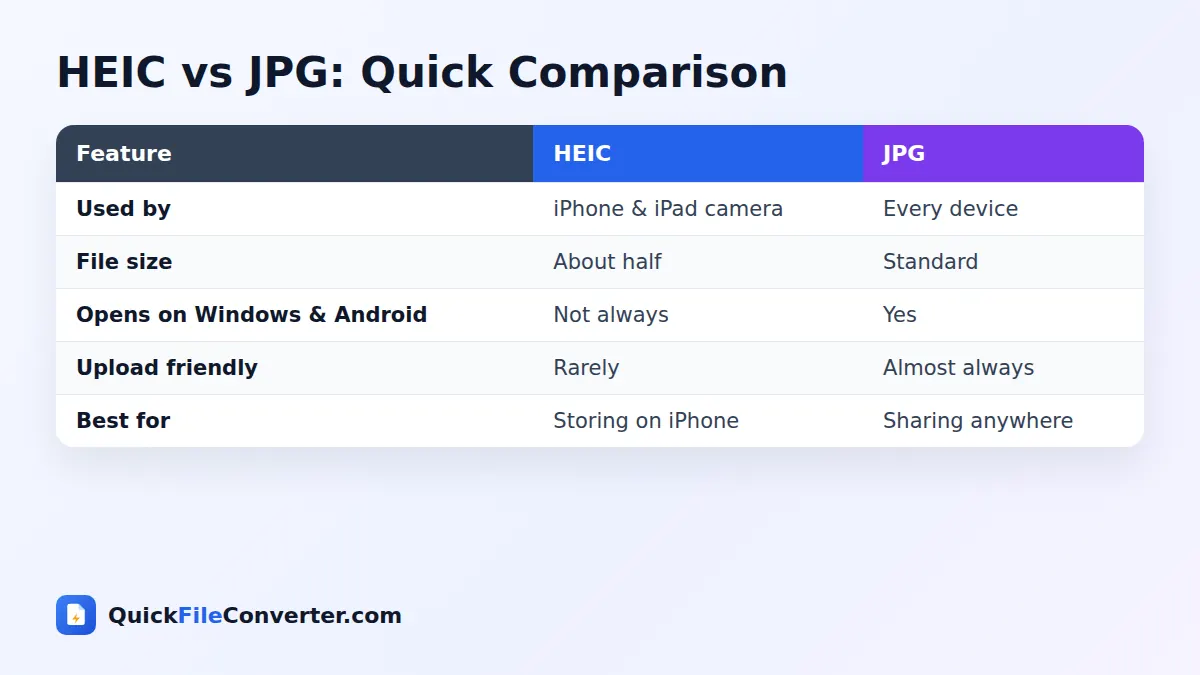
| Feature | HEIC | JPG |
|---|---|---|
| Default on | iPhone and iPad | Almost every camera and phone |
| File size for the same quality | About 50% smaller | Standard |
| Opens on Windows without extras | Not always | Yes |
| Opens on Android | Varies by phone | Yes |
| Accepted by websites and forms | Rarely | Almost always |
| Supports photo bursts and depth data | Yes | No |
HEIC is excellent for storing photos on your iPhone. JPG is excellent for sharing them with everyone else.
Why Convert HEIC to JPG?
- Open iPhone photos on Windows. Many PCs need extra codecs to display HEIC.
- Share with Android users. Not every Android phone or app handles HEIC.
- Upload to websites. Job portals, government forms, marketplaces and many social tools only accept JPG or PNG.
- Print photos. Photo labs and home printers usually expect JPG.
- Edit in any app. Older versions of Photoshop, Lightroom and many free editors cannot open HEIC.
- Email and messaging. JPG attachments preview everywhere.
- Photo books and slideshows. Most photo book services and presentation software prefer JPG.
Features of Our HEIC to JPG Converter
Batch conversion
Convert dozens or hundreds of iPhone photos at once and download them as a ZIP.
Adjustable quality
Choose from four quality levels to balance detail and file size.
Full resolution
Your JPG photos keep the same pixel dimensions as the original HEIC images.
Private in-browser processing
HEIC decoding runs on your device using a WebAssembly build of the open-source libheif library. Nothing is uploaded.
Works on Windows, Mac, Android and iPhone
No codecs, apps or extensions to install.
Free and unlimited
No sign-up, watermark or daily limit.
How to Stop Your iPhone Saving HEIC Photos
If you would rather your iPhone saved photos as JPG from the start, you can change a setting. Open Settings, tap Camera, then Formats, and choose Most Compatible. New photos will be saved as JPG. Keep in mind that JPG files take about twice as much storage space, and some features, such as 4K video at 60 frames per second, may require High Efficiency.
Another option is to leave HEIC on and let the iPhone convert automatically when you transfer photos to a computer. Go to Settings, Photos, and under Transfer to Mac or PC choose Automatic. Photos are then converted to JPG when copied with a cable. This does not help with photos you download from iCloud, share through some apps or receive from other people, which is where our HEIC to JPG tool comes in.
Converting HEIC to JPG on Different Devices
On Windows 10 and 11
Drag the HEIC files from File Explorer onto the upload box and click Convert Now. The JPG photos save to your Downloads folder and open in Photos, Paint and every other program.
On Mac
Macs can open HEIC in Photos and Preview, but many websites and apps still reject it. Drag files from Finder onto the upload area to create JPG copies for uploading and sharing.
On iPhone and iPad
Tap Choose Files, then Photo Library, and select your photos. Note that when you pick photos from the library, iOS may convert them to JPG automatically. To keep full control, choose Browse and select HEIC files from the Files app. After converting, save the JPG files to Files or share them straight away.
On Android
Tap Choose Files and select the HEIC files you received from an iPhone user by email, WhatsApp document or cloud storage. Convert and download the JPG files to your gallery.
Tips for the Best Results
- Use High or Maximum quality for keepsakes. Family photos and prints deserve the highest detail.
- Convert whole albums at once. Export photos from iCloud or your iPhone into a folder and use Add Folder.
- Check orientation. Photos are rotated to match how they were taken, so portraits stay upright.
- Keep your originals. HEIC files can contain extra data, such as depth information for portrait photos. Keep the originals in your iCloud or backup.
- Mind your storage. JPG files are larger. Convert only the photos you need to share or upload.
- Use Smaller file for uploads with size limits. Many forms limit uploads to 1 or 2 MB.
Is It Safe to Convert HEIC to JPG Online?
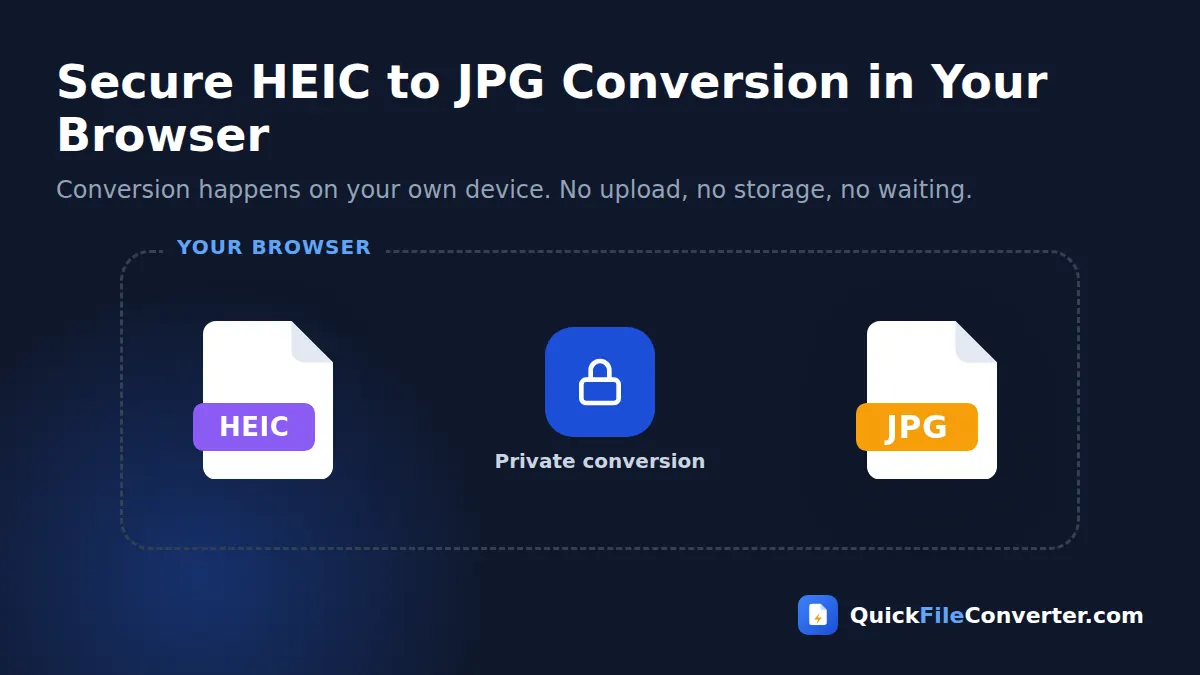
Photos can reveal a lot: faces, homes, documents and sometimes even the location where they were taken. Many online converters upload your photos to their servers, where they may be kept for hours. Our HEIC to JPG converter processes everything inside your browser. Your photos are decoded and converted in memory on your own device and never sent anywhere. See our privacy policy for details.
How the Conversion Works
- Loading the decoder. The first time you convert a HEIC photo, your browser downloads a small decoding engine. It is then cached for future use.
- Decoding the photo. The HEIC image is decoded into full-resolution pixels on your device.
- Encoding as JPG. The pixels are drawn to a canvas with a white background and saved as JPG at your chosen quality.
A typical 12-megapixel iPhone photo converts in one to three seconds, depending on your device.
What Happens to Photo Information?
HEIC files often include metadata such as the date, camera settings and GPS location. When you convert HEIC to JPG with our tool, the image is redrawn and saved fresh, so this hidden metadata is not copied into the new file. That is a useful privacy bonus if you plan to share photos publicly, because the JPG will not reveal where the photo was taken. If you need to keep the date and location for your own archive, keep the original HEIC files as well.
HEIC, HEIF and Live Photos Explained
You may see both .heic and .heif extensions. HEIF is the general container format, while HEIC is the version that uses HEVC compression, which is what iPhones produce. Our converter accepts both.
Live Photos are made of a HEIC still image plus a short video clip. When you convert a Live Photo, you get the still image as a JPG. To keep the moving part, share the Live Photo as a video from your iPhone or convert the clip with our MOV to MP4 converter.
Common Problems and Fixes
My photo converted but looks rotated
Most photos are rotated correctly automatically. If one is not, rotate it in any photo viewer and save. This can happen with images edited by third-party apps.
Conversion is slow on my phone
HEIC decoding is demanding. Convert a few photos at a time on older phones, or use a computer for very large batches.
The file will not add
Make sure the file ends in .heic or .heif. Files named .jpg that are really HEIC inside may need to be renamed to .heic first.
Colours look slightly different
iPhones capture photos in a wide colour space. On most screens, JPG colours look the same. Very saturated reds and greens may appear slightly less vivid on some displays.
Moving iPhone Photos to a Windows PC
Many people first meet HEIC when they copy photos from an iPhone to a Windows computer. Here are the three most common ways to get photos onto a PC, and where HEIC to JPG conversion fits in.
With a USB cable
Connect the iPhone, unlock it, tap Trust, and open the Photos app on Windows to import. If your iPhone is set to keep originals, the files arrive as HEIC. Add them to our converter to create JPG copies.
Through iCloud for Windows or iCloud.com
Photos downloaded from iCloud are often delivered as HEIC. Download the album, then add the whole folder here with Add Folder and convert HEIC to JPG in one go.
Through email, WhatsApp or cloud storage
When iPhone users send photos as documents or share them through Google Drive, Dropbox or OneDrive, the original HEIC format is usually kept. Save the files, then convert them on your PC or phone.
Sharing iPhone Photos with Android Friends
Android phones have improved their HEIC support, but many gallery apps, messaging apps and older devices still cannot display it. When sharing a batch of holiday photos with a mixed group of friends, the simplest approach is to convert HEIC to JPG first and share the JPG versions. Everyone will see the photos immediately, whatever phone they use.
HEIC to JPG for Online Sellers
Marketplace sellers often photograph products with an iPhone. Many listing tools, marketplaces and product feeds reject HEIC uploads or show them as broken images. Converting product photos to JPG at High quality keeps colours accurate and details sharp, and the files upload smoothly to Amazon, Etsy, eBay, Flipkart, Meesho, Shopify and other platforms.
Converting Photos for Official Applications
Passport, visa, exam and job portals often require a recent photograph and a scanned signature in JPG format, frequently with strict limits such as “under 100 KB” or “between 20 KB and 50 KB”. iPhone photos in HEIC will usually be rejected outright. Convert the photo to JPG, crop it to the required proportions in your phone’s editor, and if the file is still too large, choose the Smaller file quality setting. Always check the portal’s exact size and dimension rules before submitting.
How Much Space Does HEIC Save?
HEIC’s main benefit is storage. A typical 12-megapixel iPhone photo is around 1.5 to 2.5 MB as HEIC and 3 to 5 MB as JPG. Across a library of 10,000 photos, that can mean a saving of 15 to 25 GB. This is why it makes sense to keep HEIC on your iPhone and in iCloud, and only convert HEIC to JPG for the photos you actually need to share, print or upload.
HEIC to JPG for Work and Study
Students photograph notes and assignments, and professionals photograph receipts, whiteboards and documents. When those photos need to go into a report, a learning platform or an expense system, JPG is usually the required format. Converting them in the browser takes seconds and avoids installing codecs on shared or managed computers.
HEIC to JPG for Photo Printing
Most online photo printing services and in-store kiosks accept JPG. For prints, choose Maximum quality to keep every detail. A standard iPhone photo of 4032 by 3024 pixels prints sharply at sizes up to around A4 or 8 by 10 inches.
Related Tools
- Put converted photos into one document with JPG to PDF.
- Create lightweight web images with JPG to WebP.
- Convert iPhone videos with MOV to MP4.
- Learn more in our image file formats guide.
Frequently Asked Questions
Is this HEIC to JPG converter free?
Yes. It is free with no sign-up, watermark or limits.
Can I convert many iPhone photos at once?
Yes. Add multiple HEIC files or a whole folder and download all the JPG photos as a ZIP.
Will my photos lose quality?
At High or Maximum quality, the JPG looks the same as the original HEIC photo.
Are my photos uploaded to a server?
No. The conversion runs in your browser and your photos never leave your device.
Does it work on Windows without installing anything?
Yes. You do not need HEIF codecs or extra software. The converter works in any modern browser.
Is location data kept in the JPG?
No. The converted JPG does not include the original photo’s hidden metadata, such as GPS location.
Can I convert HEIF files too?
Yes. Both .heic and .heif files are supported.
Final Thoughts
iPhone photos should be easy to share with everyone, not just other Apple users. Our HEIC to JPG converter makes them universally compatible in seconds. Drop your photos into the box at the top of this page, choose a quality level and download JPG images that open on any device, with your memories kept private on your own device.