Use our free tool to merge PDF files into one document in seconds. Add two or more PDFs to the box above, arrange them in the order you want and click Merge PDF. You will get a single file containing every page, ready to email, upload or print. There is no sign-up, no watermark and no limit on how many files you combine.
Everything happens in your browser. Your documents are not uploaded to any server, so you can merge PDF files that contain private information, such as bank statements, contracts or medical records, with complete peace of mind.
Table of Contents
What Does It Mean to Merge PDF Files?
To merge PDF files means to take several separate PDF documents and join them together into one. The pages of the first file come first, followed by the pages of the second file, and so on. The original pages are copied exactly, so text, images, links, fonts and layout stay the same. Only the packaging changes: many files become one.
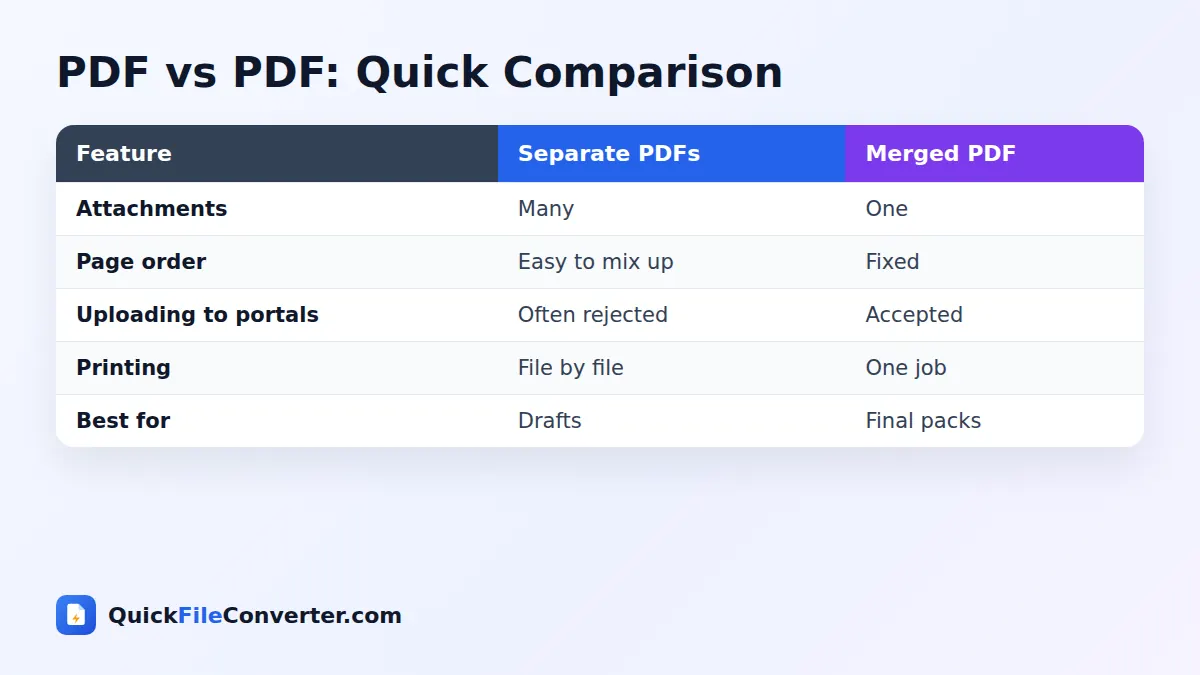
This is useful because many websites, offices and people prefer a single document. An application pack, a set of invoices or a report with appendices is much easier to handle as one file than as a folder of attachments. The PDF format itself is an open standard, described in ISO 32000, which is why merged files open in every PDF viewer.
How to Merge PDF Files in 3 Steps
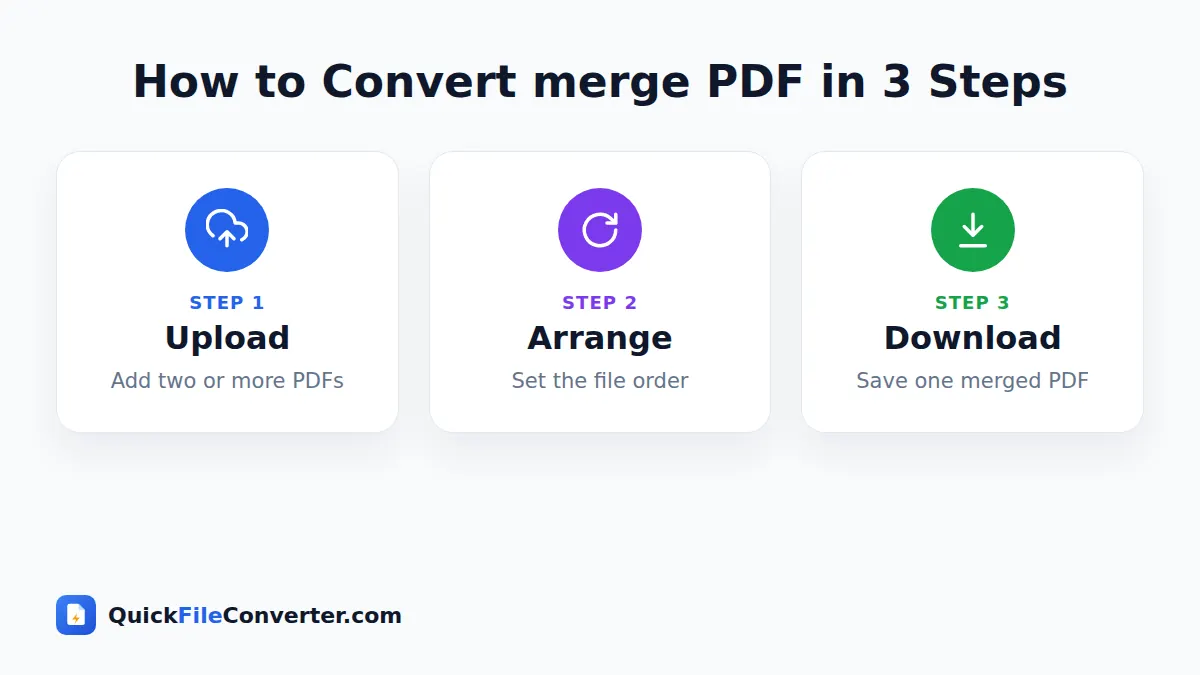
- Add your PDFs. Hover over Choose Files and pick From Device, drag the files onto the upload area, or use Add Folder to add every PDF in a folder at once.
- Put them in order. Use the up and down arrows next to each file to arrange them. The file at the top will be the first part of the merged document.
- Click Merge PDF and download. The tool joins the files in seconds. Click Download to save merged.pdf to your device.
You can add more files at any time with the Add files button, and remove a file with the cross next to its name.
Why Merge PDF Documents?
People merge PDF files for all kinds of practical reasons:
- Job and university applications. Combine your CV, cover letter, certificates and references into one file.
- Visa, loan and government forms. Many portals accept only one upload per section, so merging is essential.
- Monthly bookkeeping. Join all invoices or receipts for a month into a single record.
- Reports with appendices. Add charts, data tables and supporting documents to the end of a report.
- Scanned documents. If a scanner created one PDF per page, merge them into a complete document.
- Printing. Send one print job instead of many, with pages in the correct order.
- Sharing with clients. A single, well-ordered file looks more professional than a pile of attachments.
Features of Our Merge PDF Tool
Unlimited and free
Merge as many files as you like, as often as you like, without paying or registering.
Keeps quality intact
Pages are copied directly from the original files. Nothing is re-rendered or compressed, so the merged document looks identical to the originals.
Easy ordering
Move files up or down before merging so the final document appears in exactly the right order.
Private and secure
The merge happens on your device with the trusted open-source pdf-lib library. Your files never travel over the internet.
Works everywhere
Use it on Windows, macOS, Linux, Android, iPhone and iPad in any modern browser.
What Is Kept When You Merge PDF Files?
| Element | Kept? | Notes |
|---|---|---|
| Text and fonts | Yes | Copied exactly, still selectable and searchable |
| Images and graphics | Yes | No loss of quality |
| Page size and orientation | Yes | Each page keeps its original size |
| Links within pages | Yes | Web links keep working |
| Form fields | Usually | Simple fields are copied; complex forms may be flattened by some viewers |
| Bookmarks and outlines | No | The merged file starts without a bookmark list |
| Digital signatures | No | Signatures are invalidated when any PDF is changed |
If a document is digitally signed, keep the original signed file as well, because merging creates a new file that the signature no longer covers.
Tips for Merging PDF Files
- Name your files with numbers. Names such as 01-cv.pdf and 02-cover-letter.pdf make it easy to see the right order.
- Check page orientation. Landscape pages stay landscape. That is correct for wide tables, but double-check scans that were saved sideways.
- Remove unwanted pages first. Use our Split PDF tool to extract only the pages you need from a long document before merging.
- Unlock protected files. Some password-protected PDFs cannot be copied. Ask the owner for an unprotected version.
- Watch the file size. Merging ten 5 MB scans gives a 50 MB document. If an upload portal has a limit, merge in smaller groups.
- Open the result before sending. Scroll through quickly to confirm every section is present and in order.
How to Merge PDF Files on Your Phone
Android
Tap Choose Files, then pick several PDFs from Files, Downloads or Google Drive. Arrange them with the arrows and tap Merge PDF. The merged file is saved to your Downloads folder.
iPhone and iPad
Tap Choose Files and select Browse to open the Files app. Select your PDFs, arrange them and tap Merge PDF. The result saves to the Files app, ready to share by email, WhatsApp or AirDrop.
Adding Images or Word Files to a Merged PDF
Sometimes not every part of your pack is already a PDF. That is easy to fix:
- Photos and scans can be turned into PDF pages with JPG to PDF.
- Word documents can be converted with Word to PDF.
- Then add all the resulting PDFs here and merge them into one file.
This workflow lets you build a complete application or report from any mix of documents and images.
Is It Safe to Merge PDF Files Online?
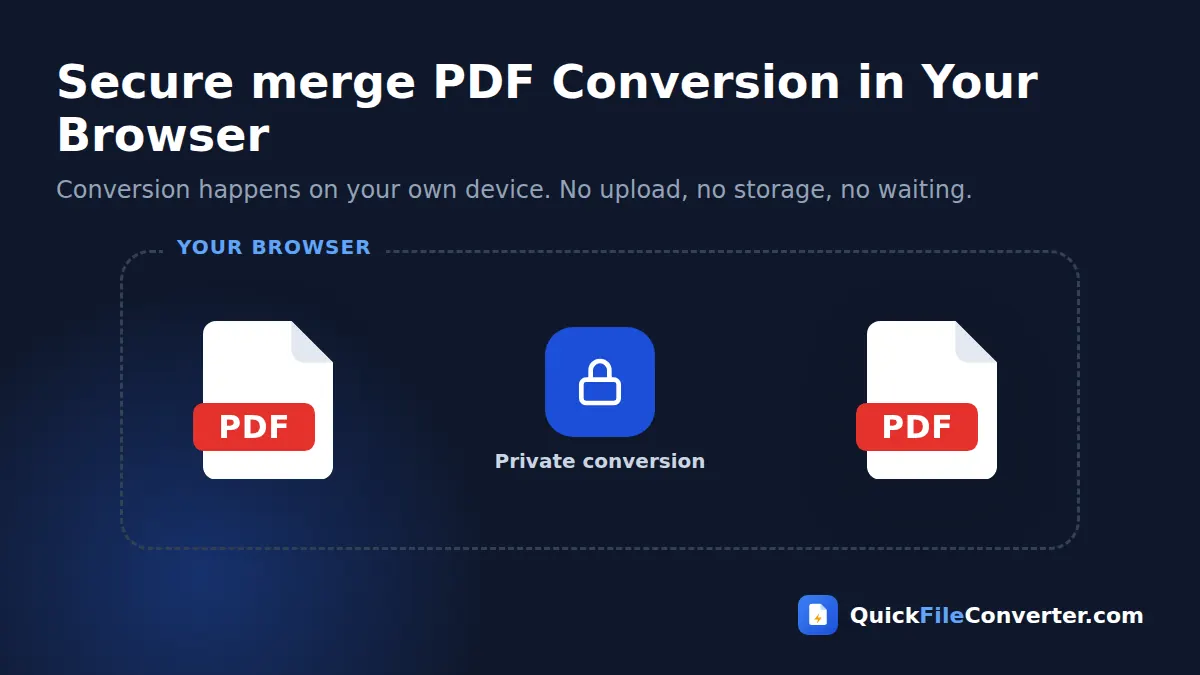
With many online tools, your PDFs are uploaded to a server, merged there and stored for a while before being deleted. You have to trust that company with your data. Our tool is different: the merging code runs in your browser, your files are read from your device and the merged PDF is created in memory. No copy is ever sent to us. Details are in our privacy policy.
How the Merge Works Behind the Scenes
When you click Merge PDF, the tool creates a brand-new, empty PDF document. It then opens each of your files in turn, copies every page object, including its text, fonts, images and drawing instructions, and appends the pages to the new document. Finally, it saves the new document as a standard PDF file.
Because pages are copied rather than redrawn, the process is fast and lossless. A merge of a few dozen pages typically finishes in about a second on a modern phone or laptop.
Common Problems When You Merge PDF Files
One of my files will not load
The file may be damaged or protected with a password. Try opening it in your browser’s PDF viewer. If it asks for a password, it must be unlocked first. If it is damaged, re-download it or print it to a new PDF.
The pages are in the wrong order
Use the arrows next to each file before merging. The order of the list is the order of the final document. If pages inside one file are out of order, split that file first and rearrange the parts.
The merged file is too large
Scanned documents are often large. Merge fewer files at a time, or scan at a lower resolution. For image-heavy PDFs, converting pages to JPG and back with lower resolution can also reduce size.
Page sizes are different
Each page keeps its original size, so a mix of A4 and Letter documents will produce pages of slightly different sizes. This is normal and prints correctly on most printers.
Merging PDF Files for Work and Study
For office teams
Finance teams merge supplier invoices into monthly packs, HR teams combine contracts with ID proofs, and project managers attach specifications to proposals. A single merged file is easier to review, approve and archive.
For students
Students often submit coursework in several parts: a cover sheet, the main assignment, a bibliography and appendices. When the learning platform accepts only one upload, merging the parts into one PDF solves the problem in seconds.
For freelancers
Freelancers can send a professional package to clients by combining a quote, a portfolio and terms of business into one document. It looks tidy and makes it easy for the client to find everything.
Organising Documents Before You Merge
A little preparation makes the merged file easier for everyone to read.
Decide on a logical order
Think about how the reader will use the document. For a job application, the usual order is cover letter, CV, then certificates. For a report, it is summary, main content, then appendices. For accounts, sort invoices by date.
Add a cover page
A simple first page with a title, your name and the date makes a merged pack look professional. Create it in Word, convert it with Word to PDF and place it at the top of the list.
Keep file names meaningful
Before merging, rename files so their purpose is clear, such as “03-degree-certificate.pdf”. The numbers keep the right order when you add a whole folder at once, and the names help you check the list.
Check each file opens
Open every document once before merging. It is much easier to spot a corrupted or wrong file at this stage than after everything is combined.
Merge PDF vs Other Methods
There are other ways to combine documents, but each has drawbacks.
- Paid PDF editors can merge files well, but they cost money and must be installed.
- Printing to PDF from a viewer only works for one document at a time and may re-draw pages at lower quality.
- Uploading to a website that processes files on a server puts your documents on someone else’s computer.
- Our free tool merges files instantly, keeps every page identical, and never uploads anything.
For most people, the quickest and safest way to merge PDF documents is right here in the browser.
Real-World Examples
A visa application pack
Visa portals often ask for a passport copy, photo page, bank statements, employment letter and travel bookings. Scan or download each item, convert any photos to PDF, then add everything here in the order listed on the application checklist. One merged file with clearly ordered sections makes the officer’s job easier and reduces the chance of a request for missing documents.
A small business month-end
At the end of each month, a shop owner can collect supplier invoices, card machine reports and expense receipts as PDFs, merge them into a single “March 2026 accounts” file, and send it to the accountant. Everything for the month is in one place, easy to search and easy to archive.
A student portfolio
Art and design students often present sketches, project write-ups and reflections together. Converting each piece to PDF and merging them creates one polished portfolio that tutors can scroll through without opening dozens of files.
A home filing system
Household paperwork piles up quickly: utility bills, insurance renewals, school letters and warranties. Scanning them and merging each category into a single yearly file, such as “Home Insurance 2026”, turns a drawer of paper into a handful of searchable documents that are easy to back up to cloud storage or an external drive.
Merging on Work and School Computers
Office and school computers often block software installation, which rules out most desktop PDF programs. Our tool needs nothing installed and keeps every file on the computer, which fits well with typical IT policies. Open the page, add your documents, merge them and close the tab when you are done.
Keeping Your Merged PDF Tidy
After merging, open the file and scroll through it once. Rotate any sideways pages in your viewer if needed, and check that the total page count equals the sum of the original files. If something is missing, simply adjust the list and merge again, because your original files remain untouched on your device.
Related Tools
- Extract pages with Split PDF.
- Edit text with PDF to Word.
- Save pages as images with PDF to PNG.
- Read our guide to document file formats.
Frequently Asked Questions
How do I merge PDF files for free?
Add your PDFs to the box at the top of this page, put them in order and click Merge PDF. It is completely free and needs no account.
Is there a limit on how many PDFs I can merge?
There is no fixed limit. You can combine as many files as your device’s memory allows, which is usually hundreds of pages.
Will merging reduce the quality of my PDF?
No. Pages are copied exactly as they are, so text, images and layout stay identical.
Are my files uploaded to your server?
No. Merging happens in your browser and your files never leave your device.
Can I change the order of the files?
Yes. Use the up and down arrows next to each file before clicking Merge PDF.
Can I merge password-protected PDFs?
Encrypted PDFs usually need to be unlocked by their owner first. Unprotected files merge normally.
Does it work on iPhone and Android?
Yes. The tool works in every modern mobile browser, as well as on Windows, Mac and Linux computers.
Final Thoughts
When you need one tidy document instead of a pile of attachments, the quickest solution is to merge PDF files right here. Add your documents at the top of the page, arrange them in order and download a single merged PDF in seconds, knowing your files never left your device. Bookmark this page so it is ready the next time a portal, employer or client asks for everything in one document, and keep your original files safely stored in case you need to rebuild the pack later.