Our free JPG to PNG converter changes JPEG photos into lossless PNG images in seconds. Drop one image or a whole batch into the box above, click Convert Now and download your PNG files individually or together as a ZIP. There is no sign-up, no watermark and no limit on how many pictures you convert.
Your images never leave your device. The conversion happens right inside your browser, so personal photos, product shots and screenshots stay private while you convert JPG to PNG.
Table of Contents
What Is a JPG to PNG Converter?
A JPG to PNG converter opens a JPEG image and saves the same picture in the PNG format. JPG (also written JPEG) is the most common photo format in the world. It uses lossy compression, which throws away small details that are hard to see so that files stay small. PNG, which stands for Portable Network Graphics, uses lossless compression. Once an image is saved as PNG, it will never lose any more quality, no matter how many times you open, edit and save it.
That is the main reason people convert JPG to PNG: they want a stable, high-quality file for editing, design work or graphics with sharp edges. The PNG format is an open W3C standard, and the JPEG format is maintained by the JPEG committee. Both are supported by every browser and operating system.
How to Convert JPG to PNG in 3 Steps
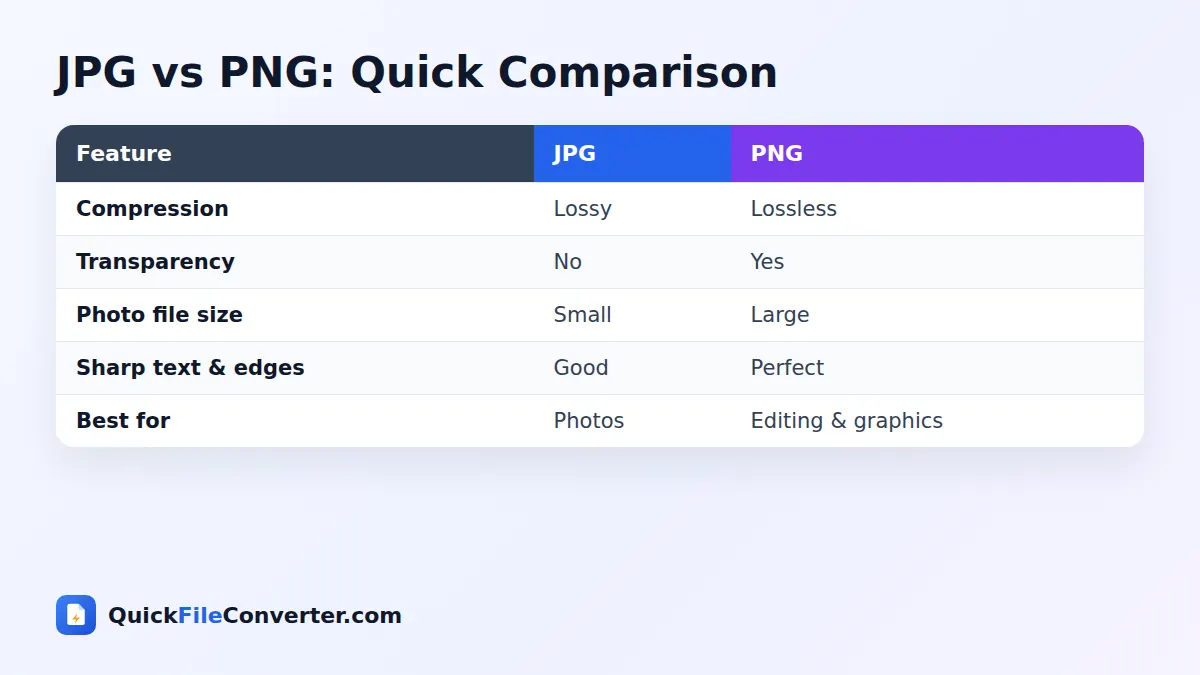
- Add your images. Hover over Choose Files and pick From Device, drag JPG files onto the upload box, or use Add Folder to add a whole folder at once.
- Click Convert Now. Each image is decoded and saved as a PNG in your browser.
- Download. Save each PNG with its Download button, or click Download all to get a ZIP of every converted image.
JPG vs PNG: The Key Differences
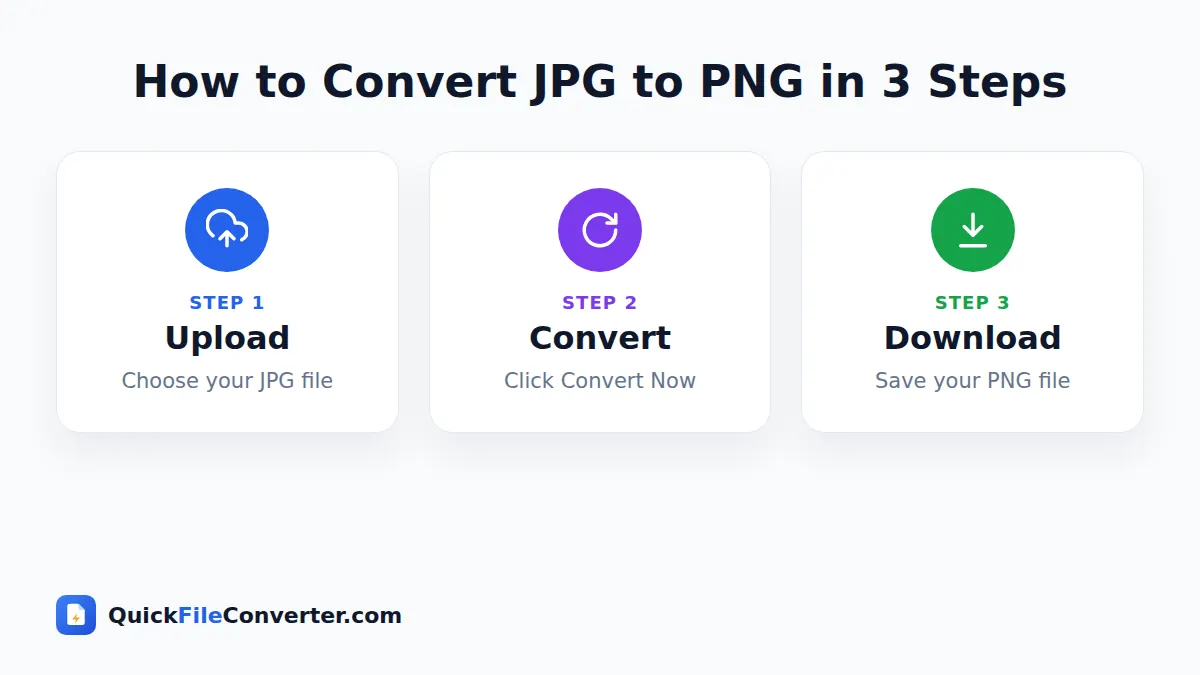
| Feature | JPG | PNG |
|---|---|---|
| Compression | Lossy | Lossless |
| Quality after repeated saving | Drops each time | Stays the same |
| Transparency | Not supported | Supported |
| File size for photos | Small | Larger (often 3 to 6 times) |
| Sharp text, logos and lines | Can show artefacts | Perfectly crisp |
| Best use | Sharing photos | Editing, graphics, screenshots |
Neither format is always better. JPG is ideal for sharing photos because the files are small. PNG is ideal for anything you plan to edit, for graphics with text and flat colours, and for images that need a transparent background.
Why Convert JPG to PNG?
- Editing without further loss. Every time you save a JPG, it is compressed again and loses a little more detail. Converting to PNG before editing stops that.
- Preparing images for design tools. Designers often prefer PNG in Canva, Figma, Photoshop and PowerPoint.
- Adding transparency later. JPG cannot store transparent areas. Converting to PNG first lets you remove a background in an editor and keep it transparent.
- Screenshots and text images. Diagrams and screenshots saved as JPG can look fuzzy around text. Keeping later edits in PNG prevents further blur.
- Website graphics. Logos, icons and illustrations look cleaner in PNG.
- Printing and archiving. A lossless master copy is useful for long-term storage of important images.
- Upload requirements. Some forms, app stores and platforms ask specifically for PNG files.
Does Converting JPG to PNG Improve Quality?
This is the most common question, and the honest answer is no. Converting a JPG to PNG does not bring back detail that was lost when the JPG was created. What it does is protect the image from losing any more quality. The PNG will look exactly like the JPG you started with, pixel for pixel, and it will stay that way through any number of edits and saves.
So if you plan to crop, retouch, annotate or resize an image several times, converting it to PNG first is a smart move. If you only want to share a photo, keep it as JPG because the file is smaller.
Features of Our JPG to PNG Converter
Lossless output
Every pixel from your JPG is kept exactly as it is. Nothing is compressed away during conversion.
Batch conversion
Convert dozens of images in one go and download them as a single ZIP file.
Keeps full resolution
The PNG has the same width and height as your original photo. Nothing is resized or cropped.
Private and secure
Images are converted with your browser’s built-in image engine. Nothing is uploaded or stored.
Free with no limits
No watermark, no registration and no daily cap. Convert as many images as you need.
Works on any device
Use it on Windows, Mac, Linux, Android, iPhone and iPad in any modern browser.
JPG to PNG File Size: What to Expect
Because PNG is lossless, converted photos are usually larger than the original JPG. The exact increase depends on the picture.
| Type of image | Typical PNG size compared with JPG |
|---|---|
| Detailed phone photo | 3 to 6 times larger |
| Screenshot or flat graphic | Similar or smaller |
| Logo or icon | Often smaller |
| Scanned document | 2 to 4 times larger |
If you need a small file for the web after editing, you can convert the finished PNG to WebP with our PNG to WebP tool, or back to JPG with PNG to JPG.
Tips for the Best Results
- Start with the highest quality JPG you have. The PNG can only be as good as its source.
- Convert before editing, not after. This avoids repeated JPEG compression.
- Use batch mode for albums. Add a whole folder with Add Folder and download everything as a ZIP.
- Keep an eye on storage. Large photo collections in PNG take up much more space.
- Remove backgrounds after converting. Use an editor to make areas transparent. PNG will keep that transparency.
- Keep your originals. Your JPG files are not changed, so you can always go back to them.
How to Convert JPG to PNG on Any Device
Windows and Mac
Drag photos from File Explorer or Finder onto the upload area and click Convert Now. Downloads go to your usual Downloads folder.
Android
Tap Choose Files and select images from your Gallery or Files app. Convert and download the PNG files, or download the ZIP to keep them together.
iPhone and iPad
Tap Choose Files and pick Photo Library. iPhones usually share photos as JPG, which convert straight away. If your photos are HEIC, use our HEIC to JPG converter first.
Is It Safe to Convert JPG to PNG Online?
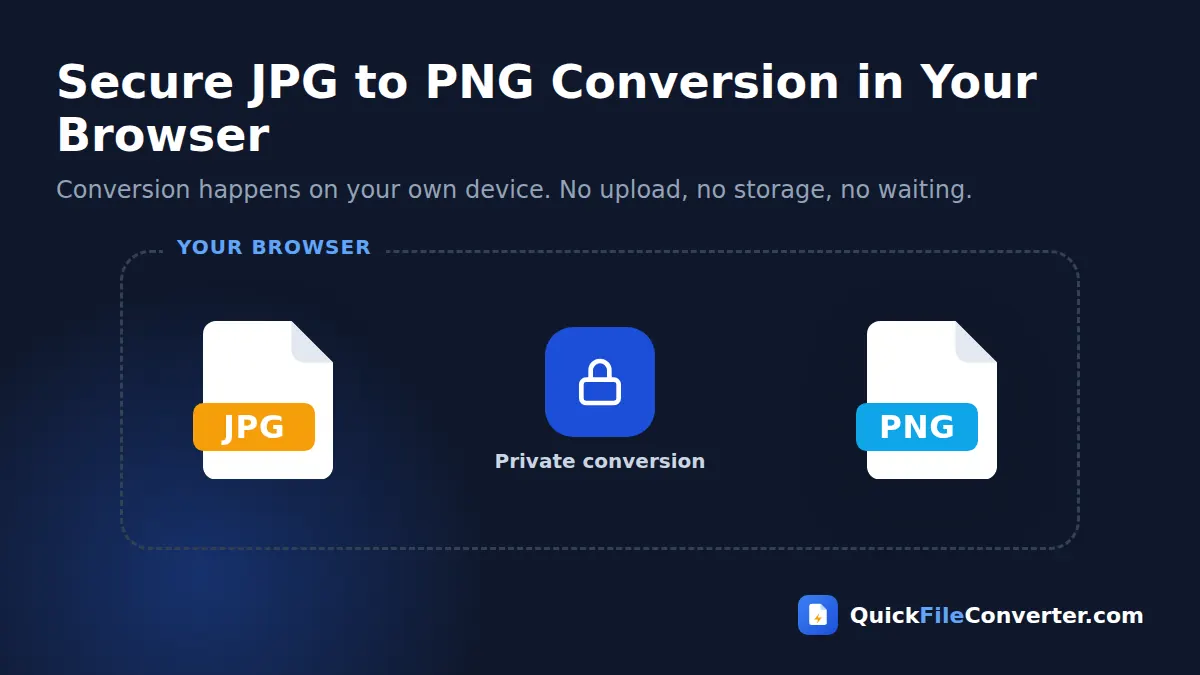
Many image converters upload your pictures to a remote server, where they may be stored for hours or longer. That is a concern for personal photos, ID scans and unreleased product images. Our JPG to PNG converter never uploads anything. Your browser reads the image, draws it onto an invisible canvas and saves it as PNG, all on your device. Read our privacy policy for details.
How the Conversion Works
The process takes place in your browser in three quick steps.
- Decoding. Your browser decodes the JPG into raw pixels, just as it does when displaying a picture on a web page.
- Drawing. The pixels are painted onto an off-screen canvas at the original resolution.
- Encoding. The canvas is saved using the browser’s built-in PNG encoder, which is lossless.
Because modern browsers are highly optimised for images, most photos convert in a fraction of a second.
Common Questions About JPEG to PNG
Is JPEG the same as JPG?
Yes. JPEG and JPG are the same format. The shorter .jpg extension became popular because older versions of Windows only allowed three-letter extensions. Our JPG to PNG converter accepts both .jpg and .jpeg files.
Will my photo’s colours change?
No. The colours are kept exactly. Some photos contain colour profiles for professional printing; for everyday use on screens, colours will look the same as in the original.
What happens to photo information like location and date?
Metadata such as camera model, date and GPS location is not copied to the PNG. This is a privacy bonus if you plan to share the image online.
Can I convert PNG back to JPG?
Yes. Use our PNG to JPG converter when you need a smaller file for sharing.
JPG to PNG for Designers and Content Creators
Designers often receive client images as JPG. Converting them to PNG before placing them into a design ensures that repeated exports do not add compression artefacts. Content creators use the same approach for thumbnails: they convert JPG to PNG, add text and graphics, then export the final thumbnail. Keeping the working file in PNG means text stays sharp and colours stay clean.
JPG to PNG for Students and Office Work
Students add images to reports and presentations, and office workers include photos in documents and slides. Converting to PNG is useful when you need to annotate an image with arrows, labels and highlights. Because PNG is lossless, those annotations stay crisp, even when the image is scaled up on a projector.
Understanding Lossy and Lossless Compression
To understand why the two formats behave so differently, it helps to know how each one squeezes an image into a smaller file.
How lossy compression works
JPEG splits a picture into small blocks of 8 by 8 pixels and describes each block using a set of wave patterns. Fine details that the human eye barely notices, such as tiny variations in colour, are simplified or thrown away. The result is a much smaller file that still looks like the original photo. The trade-off is that the discarded information can never be recovered, and each new save throws away a little more.
How lossless compression works
PNG looks for repeated patterns in rows of pixels and records them more efficiently, a bit like writing “blue, repeated 200 times” instead of “blue, blue, blue”. Nothing is thrown away, so the decoded image is identical to the one that was saved. This works brilliantly for graphics with large areas of flat colour, and less well for photos, where almost every pixel is slightly different.
Why artefacts appear
When a JPEG is compressed heavily, the 8 by 8 blocks can become visible, and faint halos, called ringing, appear around sharp edges such as text. Converting to PNG will not remove artefacts that are already there, but it guarantees that no new ones will be added when you keep editing.
Building a Simple Editing Workflow
A reliable workflow keeps quality high and file sizes sensible:
- Keep the original. Store your camera or phone JPG untouched in an “Originals” folder.
- Create a working copy. Convert the image to PNG before you start editing.
- Edit freely. Crop, retouch, add text and save as many times as you like without any extra loss.
- Export for sharing. When you are finished, export a final copy in the format that suits its destination: JPG for photos, WebP for websites, or PNG for graphics with transparency.
- Archive the PNG master. If you might edit the image again later, keep the PNG working copy alongside the original.
This simple routine is used by photographers, designers and marketing teams to avoid the gradual quality loss that comes from repeatedly saving JPG files.
When You Should Not Convert
Converting is not always the right move. If you only want to send a photo to friends, post it on social media or attach it to an email, keep the JPG. Social networks recompress every upload anyway, so a larger PNG gives no benefit and just takes longer to send. The same applies to websites, where WebP or JPG load much faster than PNG photos.
A Quick Glossary
- Pixel: one tiny dot of colour in an image.
- Resolution: the width and height of an image in pixels.
- Artefact: an unwanted visual flaw caused by compression.
Storage Tips for Large PNG Collections
Because PNG photos are larger, it is worth thinking about storage if you convert a big album:
- Only convert what you will edit. Keep holiday snaps as JPG and convert just the ones you plan to work on.
- Use cloud storage for archives. Services such as Google Drive, OneDrive and iCloud make it easy to keep large master files without filling your laptop.
- Clear out old working copies. Once a project is finished, delete intermediate versions you no longer need.
- Compress for sharing. Share a JPG or WebP copy rather than the full PNG to save your recipients’ data and storage.
Related Tools
- Make files smaller with PNG to JPG.
- Create web-friendly images with JPG to WebP.
- Turn images into a document with JPG to PDF.
- Learn more in our image file formats guide.
Frequently Asked Questions
Is this JPG to PNG converter free?
Yes. It is completely free with no sign-up, limits or watermarks.
Does converting JPG to PNG improve image quality?
No. It keeps the current quality exactly and stops any further loss when you edit and save the image again.
Why is my PNG file bigger than the JPG?
PNG uses lossless compression, so photos take more space. Graphics and screenshots are often similar in size.
Can I convert many images at once?
Yes. Add multiple files or a whole folder, then download all the PNG images as a ZIP.
Are my photos uploaded to a server?
No. The conversion happens in your browser and your images never leave your device.
Will the PNG have a transparent background?
The converted image looks exactly like the JPG, which has no transparency. You can make areas transparent afterwards in an image editor, and PNG will keep them.
Does it work with .jpeg files?
Yes. Both .jpg and .jpeg files are supported.
Final Thoughts
When you want a stable, high-quality image for editing or design, converting JPG to PNG is the right first step. Drop your photos into the box at the top of this page, click Convert Now and download lossless PNG files in seconds, with your privacy fully protected.