Our free PDF to Word converter turns a locked PDF into an editable Word document in a few seconds. Drop your file into the box above, click Convert, and download a DOCX file you can open in Microsoft Word, Google Docs, LibreOffice or Pages. There is nothing to install, no account to create and no watermark on the result.
What makes this PDF to Word tool different is where the work happens. Most online converters upload your document to a remote server. QuickFileConverter reads the PDF inside your own browser, rebuilds the text as Word paragraphs, and hands the DOCX straight back to you. Your contract, CV or bank letter never leaves your computer or phone.
Table of Contents
What Is a PDF to Word Converter?
A PDF to Word converter is a tool that reads the content of a PDF file and writes it into a Microsoft Word document (DOCX). PDF stands for Portable Document Format. It was designed to look exactly the same on every screen and printer, which is perfect for sharing a finished document but frustrating when you need to change a sentence, fix a date or reuse a paragraph.
Word files work the other way around. A DOCX file is built for editing. Text flows from line to line, you can change fonts and headings, and you can track changes with colleagues. Converting PDF to Word gives you the best of both: you keep the content of the PDF and gain the freedom to edit it.
If you want to know more about how the format works under the hood, the PDF format overview on Wikipedia explains its history, and the official standard is published as ISO 32000.
PDF vs DOCX at a glance
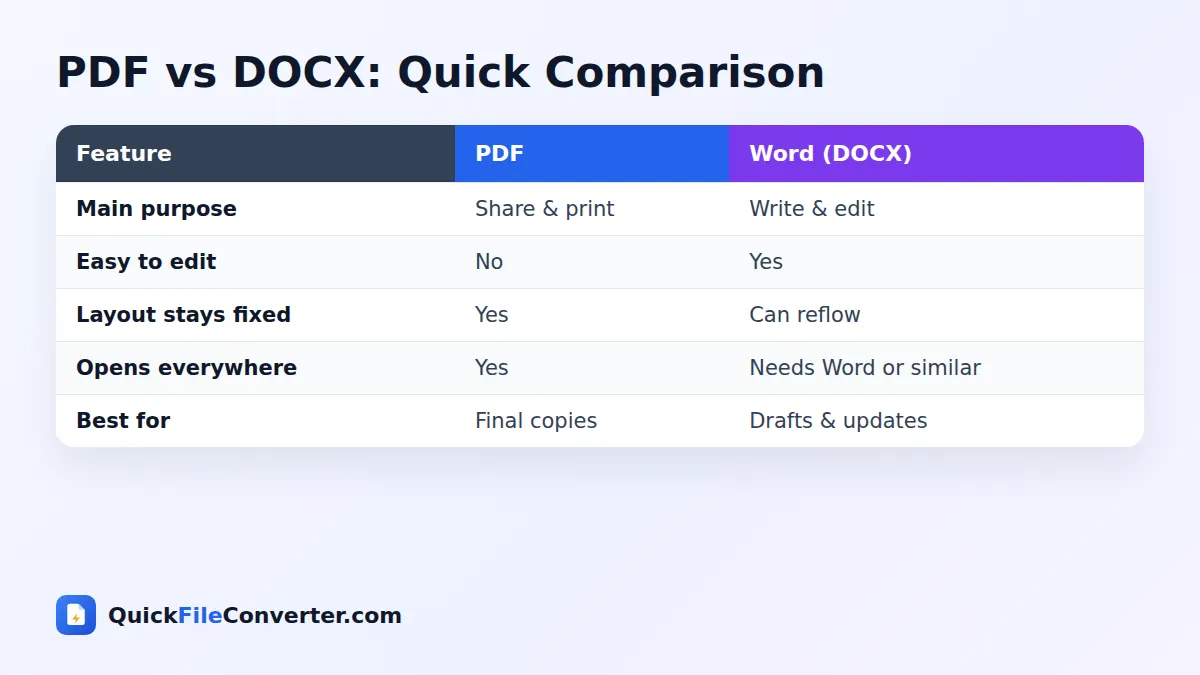
The table below shows why people convert between the two formats so often.
| Feature | Word (DOCX) | |
|---|---|---|
| Designed for | Sharing and printing a final copy | Writing and editing |
| Editing | Difficult without paid software | Easy in any word processor |
| Layout | Fixed on every device | Reflows to fit the page |
| File size | Usually small | Usually small |
| Collaboration | Comments only | Track changes, comments, suggestions |
How to Convert PDF to Word in 3 Easy Steps
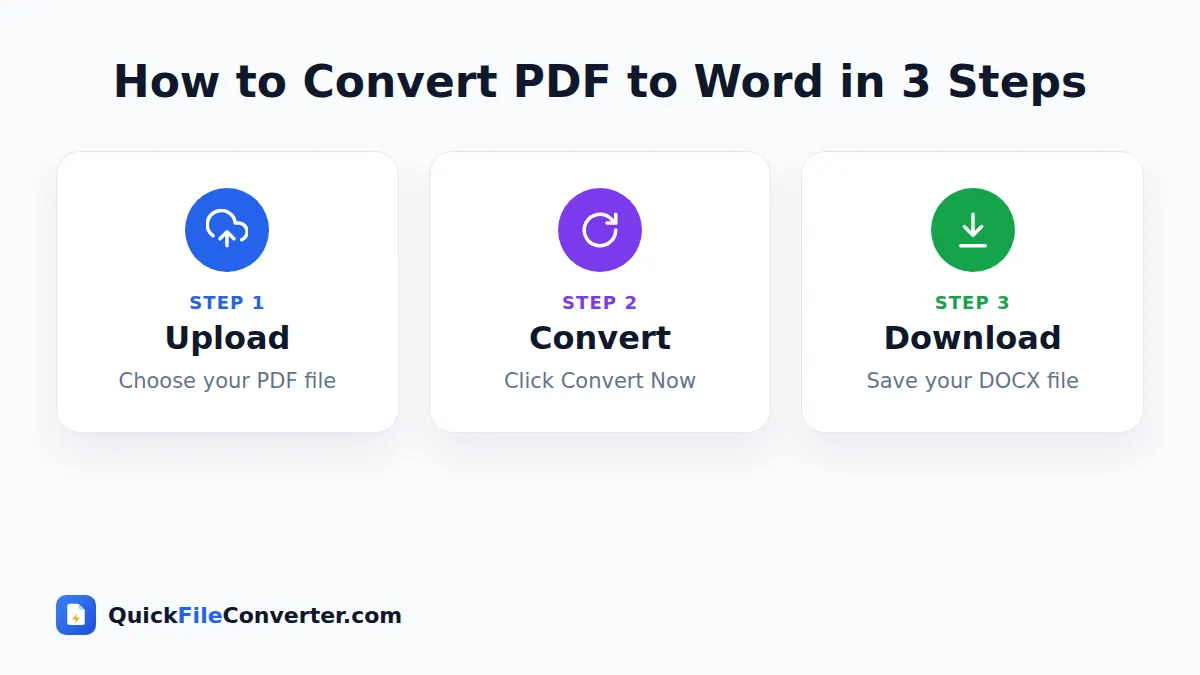
Using the converter takes less than a minute, even if you have never converted a file before.
- Upload your PDF. Click the Choose Files button and pick From Device, or simply drag the file onto the upload area. You can also choose From URL to paste a link to a public PDF.
- Pick a conversion mode. Editable text is selected by default and gives you a normal Word document with real paragraphs. Exact look places each page into Word as a picture, which is useful for forms and designs that must look identical.
- Click Convert Now and download. When the progress bar reaches 100%, click Download to save your DOCX file.
That is all. You can convert another file straight away by clicking Convert more files.
Editable Text or Exact Look: Which Mode Should You Use?
Every PDF is different, so our PDF to Word tool gives you two ways to convert.
Editable text mode (recommended)
This mode reads every line of text in the PDF, joins lines into proper paragraphs, detects larger text as headings and writes everything into a clean Word document. Page breaks are kept so each PDF page starts a new page in Word. This is the right choice for letters, reports, essays, articles, CVs and most business documents.
Because the result is real text, you can search it, change it, check the spelling and copy it into other documents. The trade-off is that very complex designs, such as magazine layouts with several columns or text wrapped around pictures, are simplified into a single column that you may need to tidy up.
Exact look mode
Exact look renders each PDF page as a high-resolution picture and places it on its own page in Word. The document looks identical to the original, including logos, stamps, signatures and unusual fonts. The downside is that you cannot edit the words inside the pictures. Choose this mode when you need to add notes around a page, insert a PDF into a larger Word report, or keep a design pixel-perfect.
What about scanned PDFs?
A scanned PDF is really a photo of paper, so it contains no text for any converter to read. When our tool finds a page without text it automatically inserts that page as an image, so nothing is lost. To turn a scan into editable text you need OCR (optical character recognition), which is a different process. Many word processors, including Microsoft Word itself, can run OCR on an image once it is in your document.
Why Convert PDF to Word?
People convert PDF to Word for all kinds of everyday reasons. Here are the most common ones we hear about.
- Updating an old document when the original Word file has been lost.
- Editing a CV or cover letter that was saved only as a PDF.
- Reusing text from a report, research paper or brochure without retyping it.
- Filling in forms that were shared as flat PDFs rather than fillable ones.
- Translating a document with the help of Word’s built-in tools.
- Fixing mistakes such as a wrong date, name or price before sending a file again.
- Accessibility, because text in a Word document is easier for screen readers to handle and easier to enlarge.
In each case, a quick PDF to Word conversion saves you from copying text line by line, which usually breaks formatting and wastes time.
Features of Our PDF to Word Converter
We built this converter to be simple for beginners and still useful for people who convert documents every day.
100% free with no limits
There is no paid plan hidden behind the button. You can convert PDF to Word as many times as you like, with no daily cap and no watermark added to your documents.
Private by design
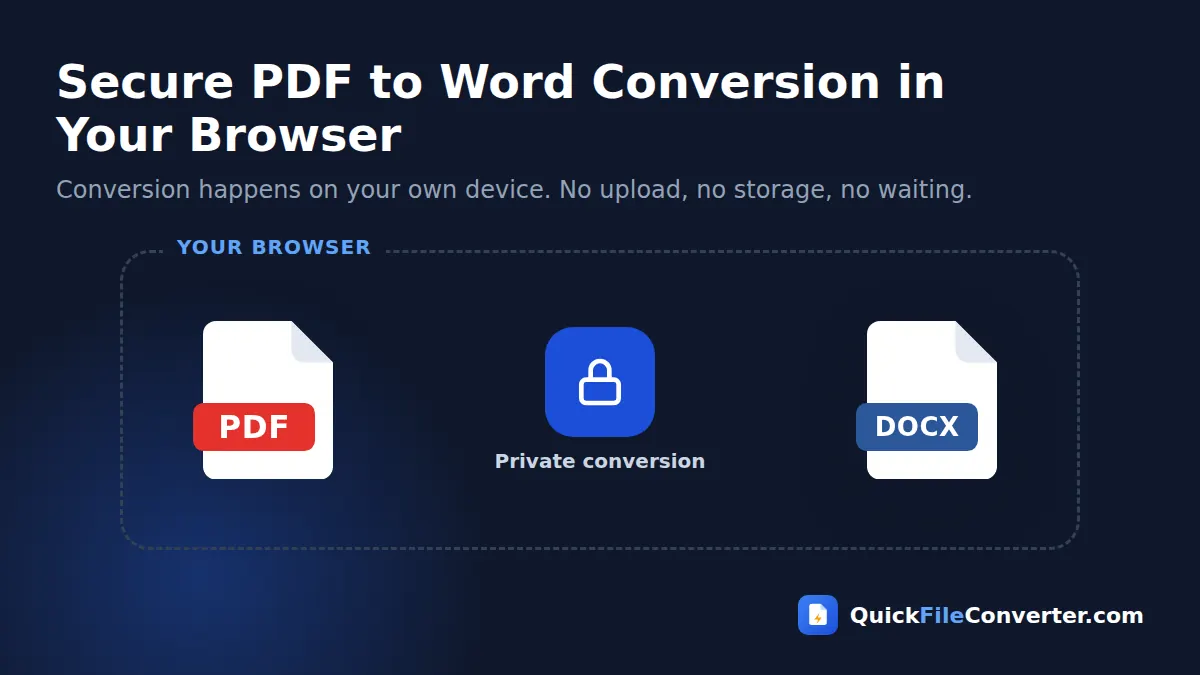
Your PDF is processed with JavaScript and WebAssembly inside your browser. Nothing is uploaded to our server, and nothing is stored. When you close the tab, the file is gone. This makes the tool a good choice for sensitive paperwork such as contracts, medical letters, invoices and ID documents.
Fast results
Because there is no upload queue, conversion starts the moment you click the button. A typical ten-page document converts in a few seconds on a modern laptop or phone.
Works on every device
The converter runs in Chrome, Edge, Firefox, Safari and other modern browsers on Windows, Mac, Linux, Android and iPhone. You do not need Microsoft Word installed to convert the file, although you will need a word processor to open the result.
Several ways to add files
Hover over Choose Files to pick From Device, From URL or Add Folder, or simply drag and drop your PDF. You can even paste a copied file with Ctrl+V.
Tips for the Best PDF to Word Results
A few small habits make a big difference to the quality of your converted document.
- Start with a text-based PDF. If you can select and copy words in your PDF viewer, the file contains real text and will convert well.
- Remove the password first. Password-protected PDFs cannot be read by any converter until the protection is removed by the owner.
- Use Editable text for documents you will change and Exact look for documents that must stay identical.
- Check headings and lists after converting. Our tool detects larger text as headings, but a quick review in Word lets you apply your own styles in seconds.
- Split huge files first. If you only need a few pages of a long PDF, use our Split PDF tool to extract them. Smaller files convert faster and are easier to review.
- Keep the original PDF. Always keep a copy of the source file in case you need to compare the two versions.
What Gets Kept When You Convert PDF to Word?
It helps to know what a converter can and cannot carry across, so there are no surprises.
| Element | Editable text mode | Exact look mode |
|---|---|---|
| Words and sentences | Yes, as editable text | Yes, as an image |
| Paragraphs | Rebuilt automatically | Kept visually |
| Headings | Detected by text size | Kept visually |
| Page breaks | Kept | Kept |
| Images and logos | Not included (text only) | Kept |
| Tables | Converted to text lines | Kept visually |
| Fonts | Replaced with Word defaults | Kept visually |
If you need both editable text and the pictures from your file, you can convert twice: once in each mode, and copy the parts you need. You can also save individual pages as pictures with our PDF to JPG converter.
PDF to Word on Windows, Mac, Android and iPhone
Because this tool is a web page, the steps are the same everywhere. Still, a few platform tips can help.
On Windows and Mac
Open this page in any modern browser, drag the PDF from your desktop or Downloads folder onto the upload box and click Convert. The DOCX file lands in your usual Downloads folder. Double-click it to open in Word, or upload it to Google Docs if you do not have Office.
On Android
Tap Choose Files, then pick the PDF from Files, Drive or your downloads. After the conversion, tap Download. Most phones open DOCX files with Google Docs or Microsoft Word for Android.
On iPhone and iPad
Tap Choose Files and select the PDF from the Files app or iCloud Drive. When the download finishes, open the Files app, find the DOCX in Downloads and share it to Word or Pages.
Is It Safe to Convert PDF to Word Online?
Safety is the biggest worry people have with online converters, and it is a fair one. Many websites keep uploaded files for hours or days, and some share them with third parties. QuickFileConverter works differently. The conversion code is loaded into your browser, and your PDF is read from your own device. The document is never sent to us, so there is nothing for us to store, view or lose.
You can check this yourself: open the converter, turn off your internet connection after the page has loaded, and the conversion still works. For more detail, read our privacy policy.
PDF to Word vs Other Ways to Edit a PDF
Converting is not the only way to change a PDF, so here is how the options compare.
- Paid PDF editors can change text directly inside a PDF, but they are expensive and editing is often fiddly.
- Opening the PDF in Word works in recent desktop versions of Microsoft Word, but it needs a paid Office licence and uploads nothing only if you use the desktop app.
- Copy and paste is free but loses line breaks, spacing and headings, and takes a long time for longer files.
- A free PDF to Word converter like this one gives you an editable DOCX in seconds, at no cost, with your privacy intact.
For most people, converting PDF to Word and then editing in a familiar word processor is the quickest route.
Common PDF to Word Problems and How to Fix Them
Even the best conversion can need a little tidying. These are the issues people run into most often, with quick fixes.
The text comes out in one long column
PDFs with two or three columns, such as newsletters and academic papers, are read line by line from left to right. After a PDF to Word conversion, simply cut and paste the second column below the first. For long papers it can be faster to convert page by page.
Some words are joined together or split apart
A PDF stores letters at exact positions rather than as words, so unusual spacing can confuse any tool. Word’s Find and Replace feature fixes repeated problems in seconds. Replacing double spaces with single spaces is a good first step.
The file will not open at all
If the converter reports that the PDF is damaged, try opening it in your browser’s built-in viewer and printing it to a new PDF. That usually repairs broken files. If the PDF asks for a password, it must be unlocked by its owner before any PDF to Word tool can read it.
Special characters look wrong
Some older PDFs use custom font encodings, which can turn symbols into odd characters. Converting with Exact look mode keeps these pages visually correct. You can then retype only the few lines you need to change.
The document has hundreds of pages
Large books and manuals convert fine, but they take longer on phones and older laptops. For the smoothest PDF to Word experience, split the file into chapters first and convert each part separately. Then join the Word files with Insert, Text from File.
Most of these fixes take less than a minute. Once you know them, turning any PDF to Word becomes a routine task rather than a headache.
Related Document Tools
Once your PDF to Word conversion is done, these tools can help with the rest of your workflow.
- Turn your edited document back into a PDF with the Word to PDF converter.
- Combine several PDFs into one file with Merge PDF.
- Save PDF pages as crisp images with PDF to PNG.
- Learn which document format suits each job in our guide to document file formats.
Frequently Asked Questions
Is this PDF to Word converter really free?
Yes. The converter is completely free to use, with no sign-up, no daily limit and no watermark on your Word documents.
Are my files uploaded to your server?
No. Your PDF is converted inside your web browser using JavaScript, so the file never leaves your device. We cannot see or store your documents.
Can I convert a scanned PDF to an editable Word document?
A scanned PDF contains pictures of text rather than real text. Our tool places those pages into Word as images so nothing is lost. To make the words editable you will need OCR software after converting.
Will my formatting be kept?
Editable text mode keeps your text, paragraphs, headings and page breaks, and replaces fonts with Word defaults. Exact look mode keeps the page appearance perfectly, but the text is not editable.
Which Word format do I get?
You get a modern DOCX file that opens in Microsoft Word 2007 and later, Google Docs, LibreOffice Writer, WPS Office and Apple Pages.
Can I convert a password-protected PDF?
No. The owner needs to remove the password first. Once the PDF opens without a password, it will convert normally.
Does it work on my phone?
Yes. The converter works in the browser on Android phones, iPhones and tablets, as well as on Windows, Mac and Linux computers.
Is there a file size limit?
There is no fixed limit because the work is done on your own device. Very large PDFs with hundreds of pages may take longer on older phones, so splitting them first can help.
Final Thoughts
A good PDF to Word converter should be quick, free and respectful of your privacy, and that is exactly what we set out to build. Drop your file into the box at the top of this page, pick Editable text or Exact look, and you will have a Word document ready to edit in seconds. If you convert documents often, bookmark this page so the tool is always one click away.