Our free tool lets you split PDF files online in seconds. Add a PDF to the box above, choose whether to save every page separately, split by page ranges, or extract selected pages into a new file, then click Split PDF. Your new documents are ready to download straight away, individually or together as a ZIP.
The whole process happens inside your browser, so your document is never uploaded. That makes it safe to split PDF files containing contracts, statements, exam papers and other private information.
Table of Contents
What Does It Mean to Split a PDF?
To split PDF documents means to break one file into smaller files, or to pull out just the pages you need. A 50-page report can become five chapters, a scanned bundle can become individual documents, and a long contract can be trimmed to the two pages you actually need to send.
The pages themselves are not changed. Text stays selectable, images stay sharp and links keep working, because each page is copied exactly into the new file. Only the grouping changes. PDF is an open format defined by ISO 32000, so the new files open in any PDF viewer.
How to Split PDF Files in 3 Steps
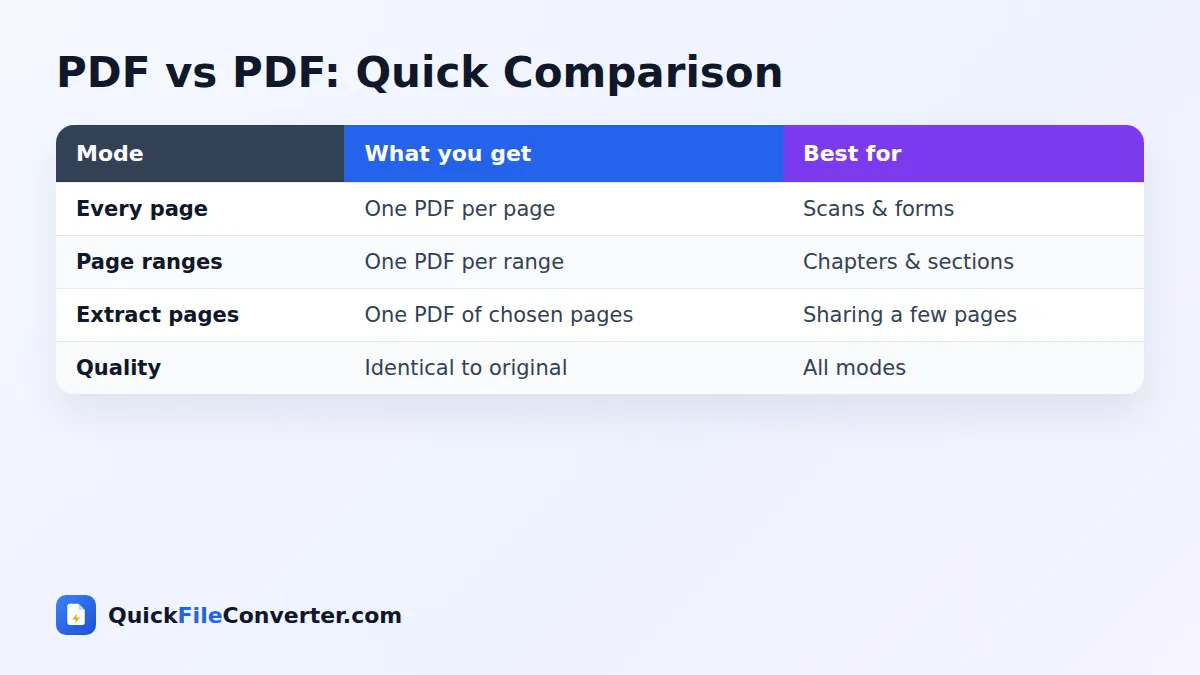
- Add your PDF. Hover over Choose Files and pick From Device, drag the file onto the upload box, or add it from a link with From URL.
- Choose a split mode. Pick Every page, Page ranges or Extract selected pages. For ranges and extraction, type the pages you want, for example 1-3, 5, 8-10.
- Click Split PDF and download. Download each new file, or use Download all to save them in one ZIP.
The Three Ways to Split PDF Documents
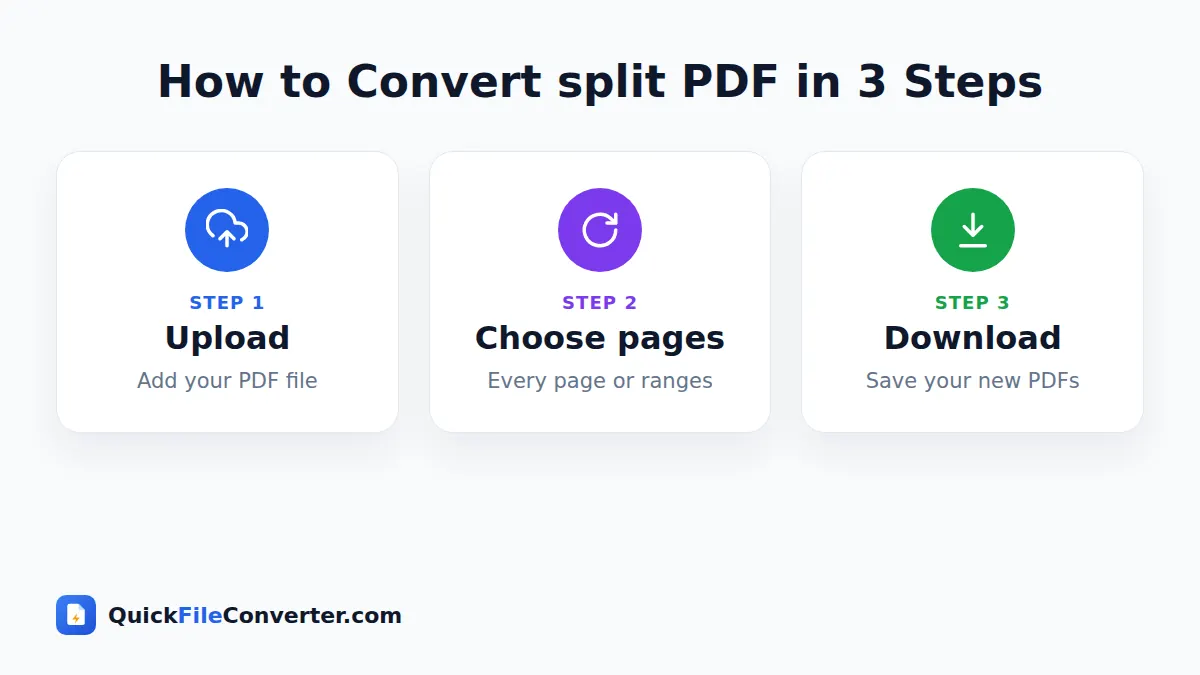
1. Every page into a separate PDF
This mode creates one PDF for each page. A 12-page file becomes 12 single-page PDFs named with their page numbers. It is ideal when a scanner has combined separate documents, such as receipts or ID proofs, into one file.
2. Each page range into its own PDF
Type ranges separated by commas, such as 1-4, 5-9, 10-12. Each range becomes its own PDF. Use this mode to divide a book into chapters, a report into sections, or a bundle of forms into complete documents.
3. Extract selected pages into one PDF
Type the pages you want to keep, for example 2, 5, 7-9, and the tool saves them together in a single new PDF, in the order you typed. This is perfect for sending only the signed page of a contract or the relevant pages of a long statement.
How to write page ranges
| You type | Result |
|---|---|
| 3 | Page 3 only |
| 2-6 | Pages 2 to 6 |
| 1, 4, 9 | Pages 1, 4 and 9 |
| 10- | Page 10 to the last page |
| -5 | Page 1 to page 5 |
| 1-3, 7, 12-15 | Several ranges at once |
Spaces are optional, and page numbers that go beyond the end of the document are adjusted automatically.
Why Split PDF Files?
- Upload limits. Many portals reject large files. Splitting a document lets you upload it in parts.
- Sending only what is needed. Share the relevant pages instead of an entire document with personal details.
- Organising scans. Separate a batch scan into individual invoices, letters or certificates.
- Chapters and sections. Divide e-books, manuals and course packs into manageable parts.
- Printing selected pages. Save just the pages you want to print as their own file.
- Faster conversions. Extract a few pages before converting them with PDF to Word or PDF to JPG.
Features of Our Split PDF Tool
Three flexible modes
Split every page, split by ranges or extract selected pages, all from one simple screen.
Lossless page copying
Pages are copied exactly, so fonts, images and layout remain identical to the original.
Private by design
The tool uses the open-source pdf-lib library in your browser. Your file never leaves your device.
Free, unlimited, no watermark
No sign-up, daily limits or branding added to your files.
Clear file names
New files are named after the original with page numbers added, such as report-pages-1-4.pdf, so you always know what is inside.
Tips to Split PDF Files Like a Pro
- Check page numbers first. The page numbers printed on a document may differ from the actual page positions. Use the page count in your PDF viewer.
- Use Extract mode for sharing. It creates one clean file with only the pages you choose.
- Split before converting. Smaller files convert faster and are easier to check.
- Rename files after splitting. Descriptive names such as “Invoice-March.pdf” help when you have many files.
- Keep the original. The source PDF stays untouched on your device, so you can always split it again differently.
- Recombine later. Put pages back together in a new order with our Merge PDF tool.
How to Split PDF Files on a Phone
Android
Tap Choose Files and select the PDF from Files, Downloads or Drive. Choose a split mode, type your page ranges if needed and tap Split PDF. Download the files or the ZIP.
iPhone and iPad
Tap Choose Files, then Browse, and pick the PDF in the Files app. After splitting, tap Download for each file. They are saved in Files, where you can share them straight away.
Is It Safe to Split PDF Files Online?
With a typical online tool, your document is uploaded, processed on a remote server and stored for some time. That can be a real risk for sensitive paperwork. Our tool splits files locally, inside your browser, and never sends them anywhere. There is no copy to leak and nothing to delete afterwards. Our privacy policy explains this in detail.
What Happens Behind the Scenes
When you click Split PDF, the tool opens your document with pdf-lib and reads the list of pages. For each output file it creates a new empty PDF, copies the chosen pages into it, including their text, fonts, images and drawing instructions, and saves it. Because pages are copied rather than redrawn, the process is fast and there is no loss of quality.
Even a document with hundreds of pages usually splits in a few seconds on a modern computer or phone.
Common Problems and Solutions
The tool says my file cannot be read
The PDF may be damaged or protected by a password. Open it in your browser’s viewer. If it asks for a password, ask the owner for an unlocked copy. If it is damaged, try downloading it again.
I typed a range but got an error
Make sure you used numbers separated by commas and hyphens, such as 1-3, 6. Letters and other symbols are not accepted.
The new file is almost as big as the original
Pages that share fonts or images with the rest of the document may still carry those resources. This is normal. Text-only pages are usually small.
The page order is wrong in Extract mode
Pages are saved in the order you type them. Typing 5, 2, 9 gives you page 5 first. Change the order in the text box and split again.
Splitting PDF Files for Common Tasks
Separating scanned documents
Office scanners often save a whole stack of paper as one PDF. Use Every page mode to separate them, then rename and file each page. For multi-page documents in the stack, use ranges instead, such as 1-2, 3-5, 6.
Sharing part of a bank statement
Lenders and landlords sometimes ask for a specific month. Extract only the pages they need so you do not share more financial details than necessary.
Preparing study material
Teachers and students can split a textbook PDF into chapters, making each part quicker to open on a tablet and easier to annotate.
Sending a signed page
When only the signature page of a contract is needed, extract it with a single page number and send a tiny, focused file.
Split PDF vs Printing to PDF
Some people print selected pages to a new PDF using their browser or operating system. That works, but it re-draws each page and can change quality, remove links, and alter page sizes. When you split PDF files with our tool, pages are copied directly, so the result is identical to the original and much faster when you need several output files.
When Should You Split PDF Documents?
Knowing when to split PDF files can save you time and protect your privacy. Here are the situations where splitting makes the biggest difference.
When a file is too large to upload
Job portals, exam boards and government sites often have limits of 2 MB, 5 MB or 10 MB. Instead of compressing a document until it becomes hard to read, split PDF pages into logical parts and upload each one where the form allows it.
When you only need to share part of a document
A tenancy agreement, medical report or bank statement may contain far more information than the recipient needs. Extracting only the requested pages means you share less personal data, which is always a good habit.
When a scanner combined everything
Office scanners and phone apps often save a whole stack of paper as one file. Splitting it back into separate documents makes each one easy to name, file and find later.
When you want to work on a smaller section
Converting, reviewing or annotating a 300-page file is slow. Extract the chapter you are working on and everything becomes faster, from opening the file to converting it.
How to Split PDF Pages Without Losing Quality
Some methods of splitting, such as printing selected pages to a new PDF, redraw every page. That can blur scanned images, remove clickable links and change page sizes. Our tool avoids those problems because it copies each page object directly from the original file into the new one. When you split PDF pages this way, the result is identical to the source, down to the last pixel and character.
This also means the text in your new files remains selectable and searchable, and any form fields or links on those pages continue to work in most viewers.
Split PDF and Then Merge Again
Splitting and merging work together beautifully. Suppose you need to move page 7 of a report to the end. Split the document into ranges 1-6, 7 and 8-20, then open our Merge PDF tool, add the three parts in the new order and merge them. In under a minute you have rearranged the document without any special software. You can use the same trick to remove blank pages or replace a single page with a corrected version.
Privacy Tips When Sharing Pages
Splitting is a simple but powerful privacy habit. Before sending any document, ask yourself which pages the recipient really needs. A landlord may need proof of income but not your full transaction history. An employer may need your degree certificate but not your mark sheets. Extracting only the necessary pages reduces the amount of personal information you share and lowers the risk if an email is forwarded or a portal is breached.
For extra protection, check that the pages you keep do not show account numbers, addresses or ID numbers that are not required. If they do, cover them with a redaction tool in a PDF editor before sending, and always keep your complete original safely stored on your own device.
Split PDF on Shared or Work Computers
Many offices and schools do not allow staff or students to install software. Browser-based tools are often the only option, but uploading work documents to unknown websites can break company policy. Because our tool runs entirely in the browser and never uploads anything, it fits well with typical IT rules. There is nothing to install, no admin rights are needed, and no document leaves the computer. When you finish, close the tab and nothing remains except the files you chose to download.
Quick Answers for Beginners
If you have never split a document before, remember three things. First, your original file is never changed, so you cannot break anything. Second, you can always try again with different page numbers. Third, the new files are ordinary PDFs that open anywhere.
Keeping Your Split Files Organised
After you split PDF documents into many parts, a little organisation helps. Download everything as a ZIP, extract it into its own folder, and rename each file with a clear description. If you share the files, mention which pages of the original they came from, so the recipient can find the context if needed.
Related Tools
- Combine files with Merge PDF.
- Turn pages into images with PDF to PNG.
- Make pages editable with PDF to Word.
- Learn about formats in our document file formats guide.
Frequently Asked Questions
How do I split a PDF into separate pages?
Add your PDF, choose “Every page into a separate PDF” and click Split PDF. Each page is saved as its own file.
Can I extract specific pages from a PDF?
Yes. Choose “Extract selected pages into one PDF” and type the page numbers, such as 2, 5, 7-9.
Is it free to split PDF files?
Yes. The tool is completely free with no sign-up, limits or watermarks.
Are my files uploaded?
No. The PDF is split inside your browser and never leaves your device.
Will the quality of my pages change?
No. Pages are copied exactly, so text, images and layout stay identical.
Can I split a password-protected PDF?
Encrypted files must be unlocked by their owner first. After that they split normally.
Does it work on mobile?
Yes. It works in modern browsers on Android phones, iPhones and tablets, as well as on computers.
Final Thoughts
Whether you need a single page, a few chapters or every page on its own, the easiest way to split PDF documents is right here in your browser. Add your file at the top of the page, choose a mode and download your new PDFs in seconds, with your privacy fully protected.