Our free PNG to WebP converter shrinks heavy PNG images into lightweight WebP files while keeping transparent backgrounds intact. Drop your PNG files into the box above, choose a quality level and click Convert Now. Convert one image or an entire folder and download them individually or as a ZIP. No sign-up, no watermark, no limits.
Everything runs in your browser, so your images are never uploaded. Logos, UI screenshots, product cut-outs and design assets stay private while you convert PNG to WebP.
Table of Contents
What Is a PNG to WebP Converter?
A PNG to WebP converter re-encodes a PNG image in Google’s WebP format. PNG is loved for its lossless quality and transparency, but PNG files can be very large, especially for photos, detailed illustrations and big screenshots. WebP supports transparency too, yet it uses far more efficient compression. In many cases a WebP version is 50 to 80 percent smaller than the original PNG while looking the same on screen.
That makes WebP ideal for websites, web apps, online stores and blogs, where every kilobyte affects loading speed. Google explains the format in its WebP documentation, and speed-testing tools such as PageSpeed Insights specifically recommend serving images in next-generation formats like WebP.
How to Convert PNG to WebP in 3 Steps
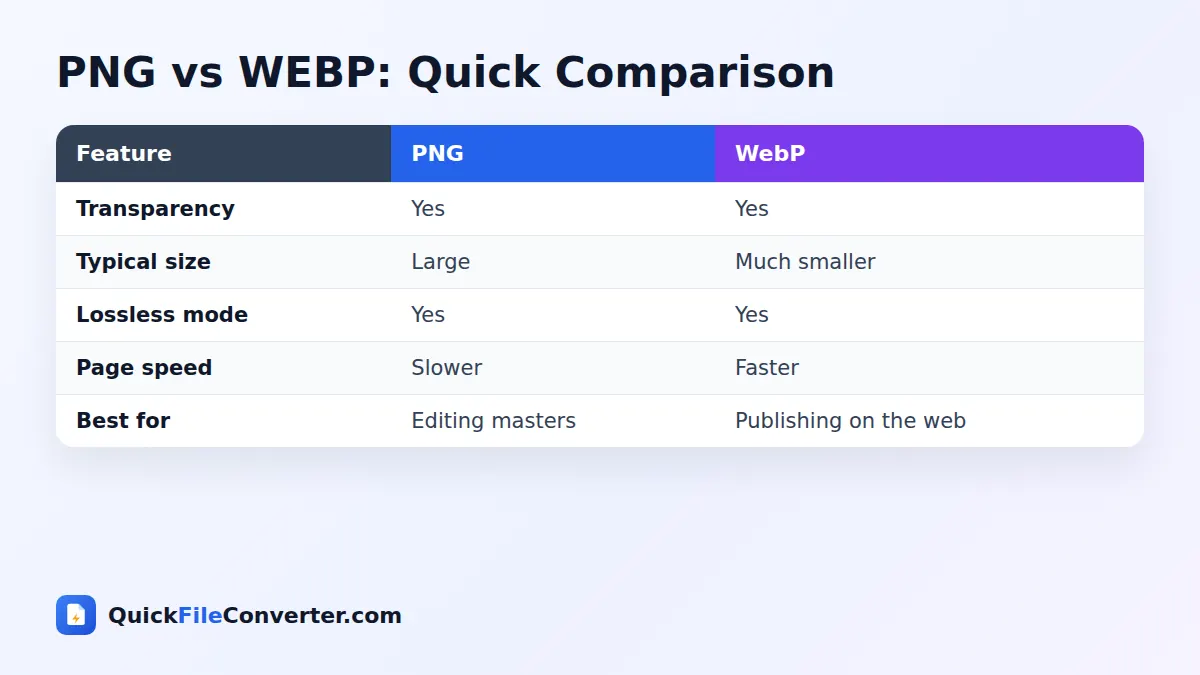
- Add your PNG images. Hover over Choose Files and pick From Device, drag the files onto the upload area, or choose Add Folder to convert a whole folder of assets.
- Pick a quality level. High (92%) keeps graphics crisp. Balanced (85%) gives excellent savings for most website images. Smaller file (75%) is great for backgrounds and thumbnails.
- Convert and download. Click Convert Now, then download each WebP file or use Download all for a ZIP.
PNG vs WebP: A Side-by-Side Comparison
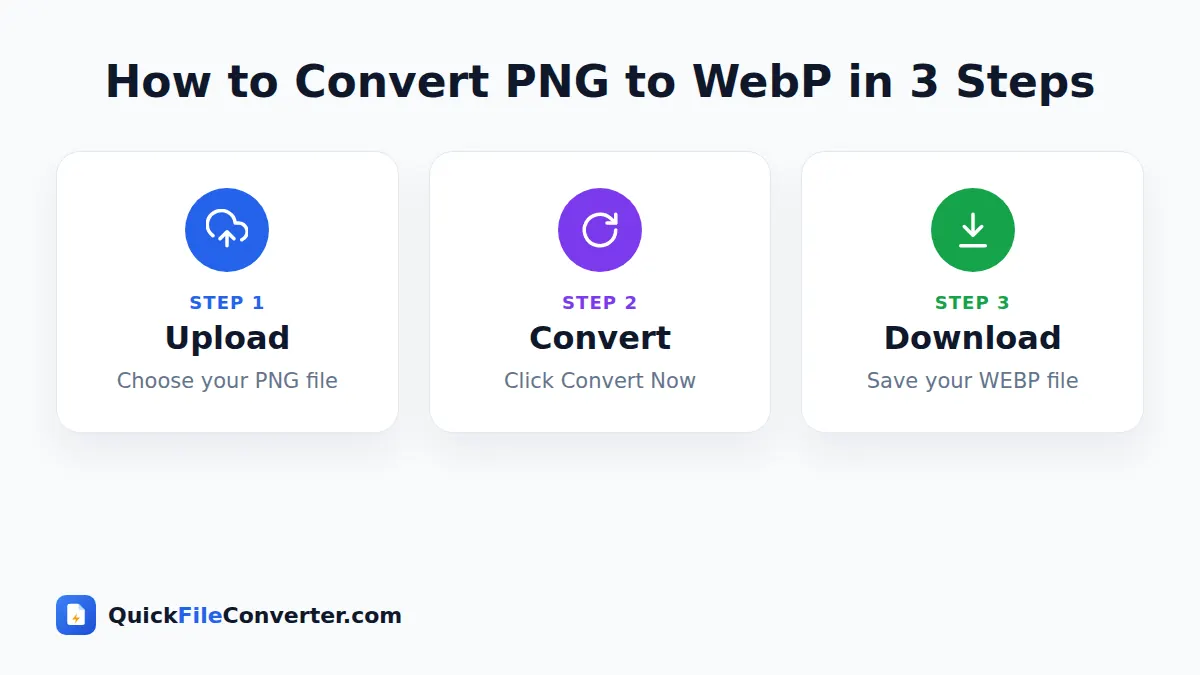
| Feature | PNG | WebP |
|---|---|---|
| Transparency (alpha channel) | Yes | Yes |
| Compression | Lossless only | Lossy or lossless |
| Typical size for photos | Very large | 70 to 90% smaller |
| Typical size for graphics | Medium | 30 to 60% smaller |
| Animation | APNG only, limited support | Yes |
| Best use | Master files and editing | Publishing on the web |
The key advantage is that you do not have to choose between transparency and small size. With PNG to WebP conversion, a product photo with a transparent background can drop from 1.5 MB to a couple of hundred kilobytes.
Why Convert PNG to WebP?
- Much faster web pages. Large PNG files are one of the most common causes of slow pages.
- Keep transparent backgrounds. Unlike JPG, WebP preserves transparency, so logos and cut-outs still sit perfectly on any background.
- Better Core Web Vitals. Lighter hero images improve Largest Contentful Paint.
- Pass PageSpeed audits. Fix the “Serve images in next-gen formats” recommendation.
- Save bandwidth and storage. Smaller files cost less to host and deliver.
- Faster apps and games. Web apps and HTML5 games load assets more quickly.
- Better mobile experience. Visitors on slow connections see images sooner.
Quality Settings Explained
| Setting | Result | Good for |
|---|---|---|
| Maximum (95%) | Nearly identical to PNG, modest saving | Detailed illustrations and artwork |
| High (92%) | Visually identical for most images | Logos, icons, UI screenshots, product photos |
| Balanced (85%) | Excellent look, big saving | Blog images, banners, general website use |
| Smaller file (75%) | Good look, maximum saving | Backgrounds, thumbnails, galleries |
For graphics with small text, such as software screenshots, start with High. For photographic PNGs, Balanced usually gives huge savings with no visible difference.
Features of Our PNG to WebP Converter
Transparency preserved
Transparent and semi-transparent pixels are kept, including soft shadows and anti-aliased edges.
Batch conversion
Convert dozens or hundreds of assets at once and download them in a single ZIP.
Full resolution
The WebP keeps the exact width and height of your PNG.
Adjustable quality
Choose the balance between detail and file size that suits each project.
Private in-browser processing
Images are encoded by your browser. Nothing is uploaded or stored.
Free and unlimited
No accounts, limits or watermarks.
Where to Use WebP Images
Websites and blogs
All modern browsers display WebP. Upload the converted files to WordPress, Shopify, Wix, Webflow or any static site and use them just like PNG.
Web apps and progressive web apps
Lighter icons, illustrations and sprites reduce the size of your app bundle and speed up first load.
E-commerce
Product cut-outs with transparent backgrounds are perfect candidates. Converting them makes category pages much lighter.
Documentation and help centres
UI screenshots are often large PNG files. Converting them at High quality keeps text readable while cutting page weight.
Places to avoid
Some email clients and older desktop programs still do not support WebP. For newsletters or print, keep a PNG or JPG version.
Tips for the Best Results
- Resize before converting. If an image is displayed at 800 pixels wide, there is no need to publish a 3000-pixel version.
- Use High quality for text. Screenshots and diagrams with small labels stay crisp.
- Use Balanced for photos. Photographic PNGs shrink dramatically.
- Keep your PNG masters. Edit the PNG, then convert the final version for publishing.
- Name files clearly. Descriptive names such as “blue-running-shoe.webp” help with image SEO.
- Test on a real page. Check that transparent edges look right on your site’s background colour.
Is It Safe to Convert PNG to WebP Online?
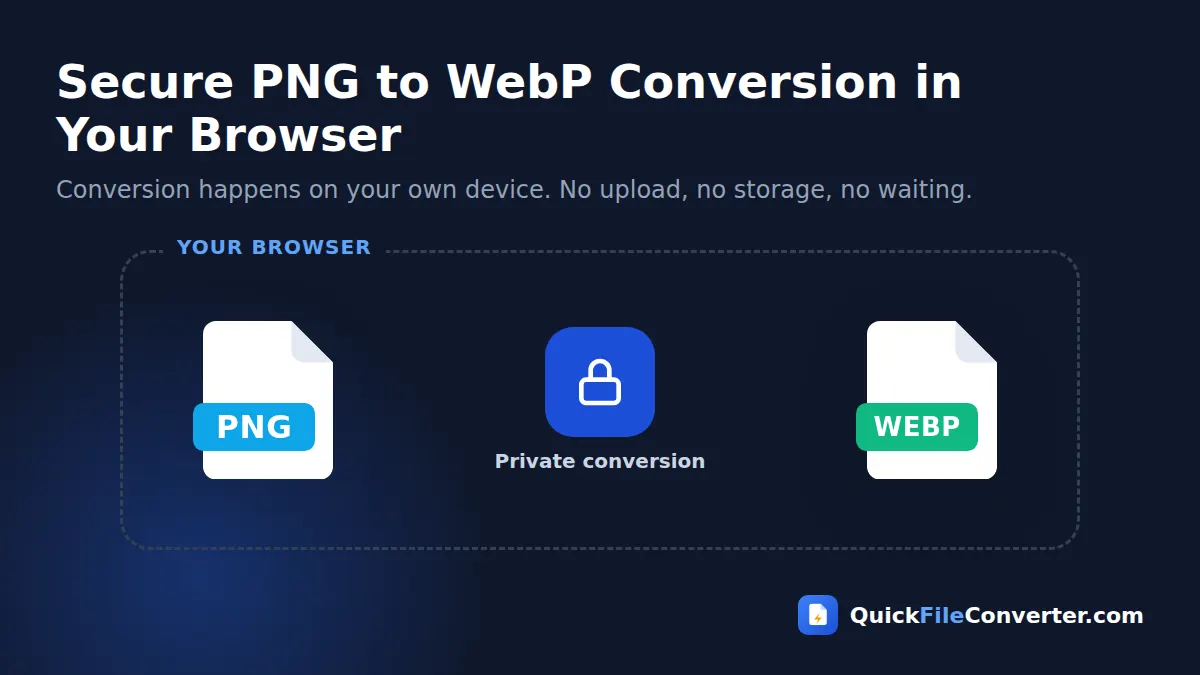
Design assets and screenshots can include unreleased products, client branding or private information. Many online optimisers upload these files to their servers. Our PNG to WebP converter never does. Your browser reads each PNG, draws it on an off-screen canvas and encodes it as WebP locally. Nothing is transmitted or stored. See our privacy policy for more.
How the Conversion Works
- Decoding. Your browser decodes the PNG, including its alpha channel for transparency.
- Drawing. The image is drawn to an off-screen canvas without any background colour, so transparency is kept.
- Encoding. The browser’s WebP encoder compresses the image at your chosen quality.
Chrome, Edge and Firefox include WebP encoders. If your browser cannot create WebP, the tool will let you know so you can switch browsers.
PNG to WebP vs PNG to JPG
Both conversions make files smaller, but they suit different images.
- Choose WebP when the image has transparency, or when you want the smallest possible file for a website.
- Choose JPG when you need maximum compatibility, for example for email, printing or older software. Our PNG to JPG converter fills transparent areas with white.
For modern websites, WebP is almost always the better choice.
Understanding Transparency in Images
Transparency is stored in something called an alpha channel. Every pixel has a value from fully transparent to fully opaque, which allows soft edges, glows and shadows to blend smoothly into any background. PNG made alpha transparency popular on the web, and WebP supports it in exactly the same way. That means a logo with a soft drop shadow or a product photo with feathered edges will look identical after conversion, just in a much smaller file.
JPG, by contrast, has no alpha channel at all. That is why converting a transparent PNG to JPG always adds a solid background, while converting PNG to WebP keeps the cut-out effect.
How Much Can You Save?
Savings vary with the type of image. Here are typical results at Balanced quality:
| Image type | Typical PNG size | Typical WebP size |
|---|---|---|
| Product photo with transparent background | 1.2 MB | 150 to 250 KB |
| Full-screen app screenshot | 800 KB | 120 to 200 KB |
| Illustration with gradients | 600 KB | 80 to 150 KB |
| Simple flat logo | 40 KB | 15 to 30 KB |
On a page with ten such images, the total saving can easily reach several megabytes, which makes a dramatic difference to loading time on mobile networks.
Converting Design Assets in Bulk
Designers and developers often need to convert a whole folder of exported assets. Use Add Folder to add everything at once, pick a single quality level and download the results as a ZIP. The WebP files keep the same base names as the originals, so you can drop them straight into your project and update references from .png to .webp with a quick find-and-replace in your code editor.
PNG to WebP for WordPress Sites
WordPress sites often carry heavy PNG files uploaded over many years: logos, banners, featured images and screenshots. Converting them is one of the fastest ways to improve speed scores without changing your design. Follow these steps:
- Find the heaviest images. Run your homepage and a few popular posts through PageSpeed Insights. The report lists images that could be smaller.
- Download the originals. Save those PNG files from your Media Library.
- Convert PNG to WebP here. Use High quality for logos and screenshots and Balanced for photos.
- Upload the WebP versions. Add them to the Media Library and replace the old images in your pages, widgets and theme settings.
- Clear your cache. If you use a caching plugin, purge it so visitors receive the new images.
- Test again. Re-run the speed test to see the improvement.
Many sites see page weight drop by more than half after replacing a handful of oversized PNG images.
Accessibility and Image Quality
Smaller files should never come at the cost of readability. If an image contains important text, such as a chart label, a price or instructions, check the WebP version at 100 percent zoom before publishing. High quality keeps small text sharp, and adding the same information as real text or in the alt attribute helps screen reader users and search engines understand the content.
Common Problems and Solutions
Edges look jagged on a dark background
Some PNG graphics are designed with a light halo that only looks right on white. This is part of the original artwork rather than the conversion. Export the graphic again from your design tool with a transparent background, then convert PNG to WebP.
The WebP is not much smaller
Tiny, simple graphics with few colours are already efficient as PNG. The biggest savings come from photos, gradients and large screenshots.
Safari will not create WebP files
Older Safari versions can display WebP but may not encode it. Use a recent version of Chrome, Edge or Firefox to convert, and the files will display in Safari without problems.
My design software cannot open WebP
Keep your PNG masters for editing. Use WebP only for the published copies on your website.
PNG to WebP for Mobile Apps and Games
Hybrid mobile apps, progressive web apps and browser games often bundle hundreds of PNG sprites, icons and backgrounds. Every kilobyte adds to the download size and the time before the app becomes usable. Converting those assets to WebP reduces install size and memory use, and it speeds up the first launch. Android has supported WebP natively for years, and modern iOS versions do as well, so the converted assets work across platforms.
For sprite sheets and pixel art, choose Maximum quality to keep every edge exactly where it should be. For large background images, Balanced quality usually gives the best mix of look and size.
Lossless vs Lossy WebP
WebP can compress images in two ways. Lossless WebP works like PNG, keeping every pixel exactly, but usually produces files around a quarter smaller than the equivalent PNG. Lossy WebP works more like JPG, simplifying details the eye barely notices, and produces much smaller files. Our converter uses high-quality lossy compression with full transparency, which gives the biggest savings for everyday website images while keeping them visually identical at normal viewing sizes.
Keeping Your Source Files Organised
A tidy folder structure makes future updates painless. Many teams keep three folders for each project: “source” for the original design files, “png” for full-quality exports, and “web” for the converted WebP images that are actually published. When a design changes, you update the source, export a new PNG and convert it again, so the published version is always based on the highest-quality master.
A Quick Checklist Before Publishing
- Is each image resized to the largest size it will be displayed at?
- Is transparency showing correctly on your site’s background colour?
- Is small text still readable at 100 percent zoom?
- Does every image have descriptive alt text?
- Have you kept the PNG originals safely stored?
Ticking these boxes ensures your lighter images still look professional.
Related Tools
- Convert back with WebP to PNG.
- Shrink photos with JPG to WebP.
- Make compatible copies with PNG to JPG.
- Read the image file formats guide.
Frequently Asked Questions
Is this PNG to WebP converter free?
Yes. It is completely free with no sign-up, watermark or limits.
Does WebP keep transparent backgrounds?
Yes. WebP supports full alpha transparency, so transparent and semi-transparent areas are preserved.
How much smaller will my images be?
Photographic PNGs are often 70 to 90 percent smaller as WebP. Simple graphics usually save 30 to 60 percent.
Will text in screenshots stay sharp?
Yes, especially at High or Maximum quality.
Can I convert a whole folder of PNG files?
Yes. Use Add Folder, then download all the WebP images together as a ZIP.
Are my images uploaded to your server?
No. Conversion happens in your browser and your files never leave your device.
Do all browsers support WebP?
All modern browsers, including Chrome, Edge, Firefox, Safari and Samsung Internet, display WebP images.
Final Thoughts
Transparent images do not have to be heavy. Our PNG to WebP converter keeps the transparency you need and removes the weight you do not. Drop your PNG files into the box at the top of the page, choose a quality level and download optimised WebP images in seconds, with your files kept private on your own device. Faster pages, lower bandwidth and happier visitors are only a few clicks away. Bookmark this page and make conversion a regular step whenever you publish new images or redesign part of your site.