Our free CSV to Excel converter turns any comma-separated file into a proper Excel XLSX workbook in seconds. Drop your CSV into the box above, click Convert Now and download a spreadsheet with every value in its own cell, ready for sorting, filtering, formulas and charts. There is no sign-up, no watermark and no row limit.
Everything happens in your browser, so your data is never uploaded. Customer lists, bank exports and sales reports stay private while you convert CSV to Excel.
Table of Contents
What Is a CSV to Excel Converter?
A CSV to Excel converter reads a plain-text CSV file, splits each line into separate values, and writes them into the rows and columns of an Excel workbook (XLSX). CSV files are the standard way for apps, websites and banks to export data, but they are just text. Opening one directly in a spreadsheet app can go wrong: values can land in a single column, dates can be misread, and special characters can turn into symbols.
Converting to XLSX gives you a real spreadsheet file. You can add formatting, formulas, charts and extra sheets, and share it with people who expect an Excel file. The XLSX format is part of the Office Open XML standard, so it opens in Excel, Google Sheets, LibreOffice Calc, Apple Numbers and WPS Office.
How to Convert CSV to Excel in 3 Steps
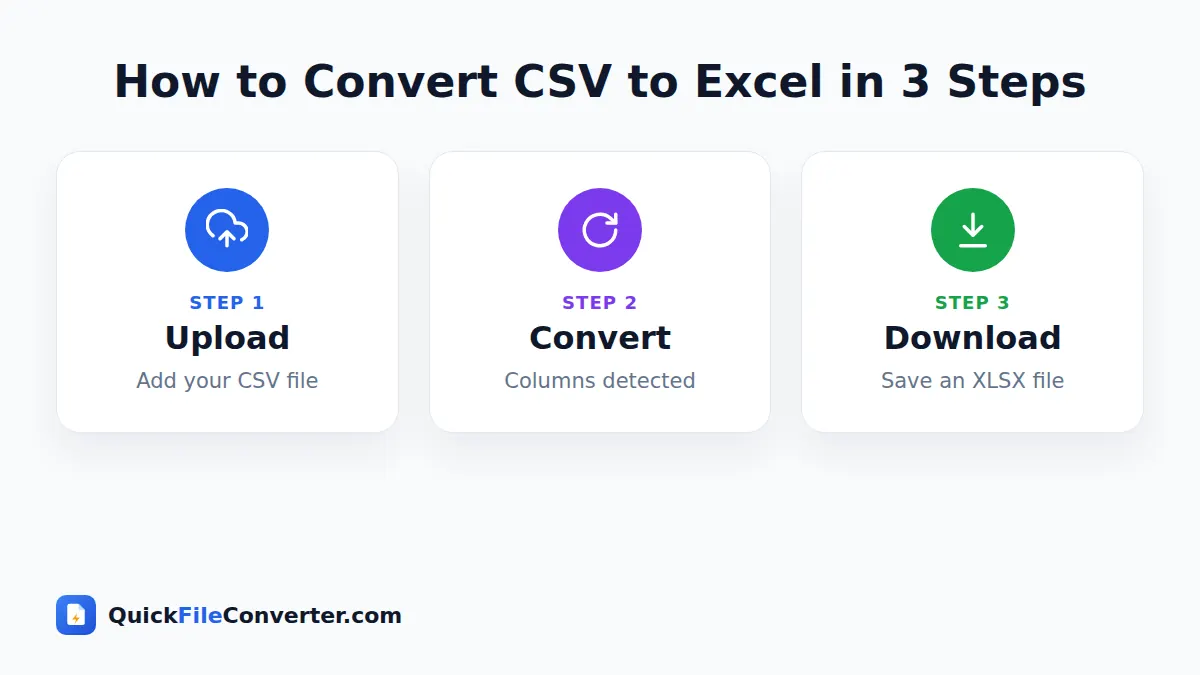
- Add your CSV file. Hover over Choose Files and pick From Device, drag the file onto the upload box, or use From URL to fetch a CSV from a public link.
- Click Convert Now. The tool detects the delimiter, splits the values into cells and builds an XLSX workbook.
- Download your spreadsheet. Click Download and open the file in Excel or any spreadsheet app.
You can add several CSV files at once and download all the Excel files together as a ZIP.
Why Convert CSV to Excel?
CSV is excellent for moving data, but Excel is better for working with it. People convert CSV to Excel to:
- Analyse bank and card statements exported from online banking.
- Work with website and app exports such as orders, subscribers, form responses and analytics.
- Share reports with colleagues and clients who expect an XLSX file.
- Add formulas and charts to raw data.
- Apply formatting such as bold headers, column widths and number formats.
- Combine data from several exports into one workbook with multiple sheets.
- Avoid import mistakes where values end up in a single column.
CSV vs Excel: Key Differences
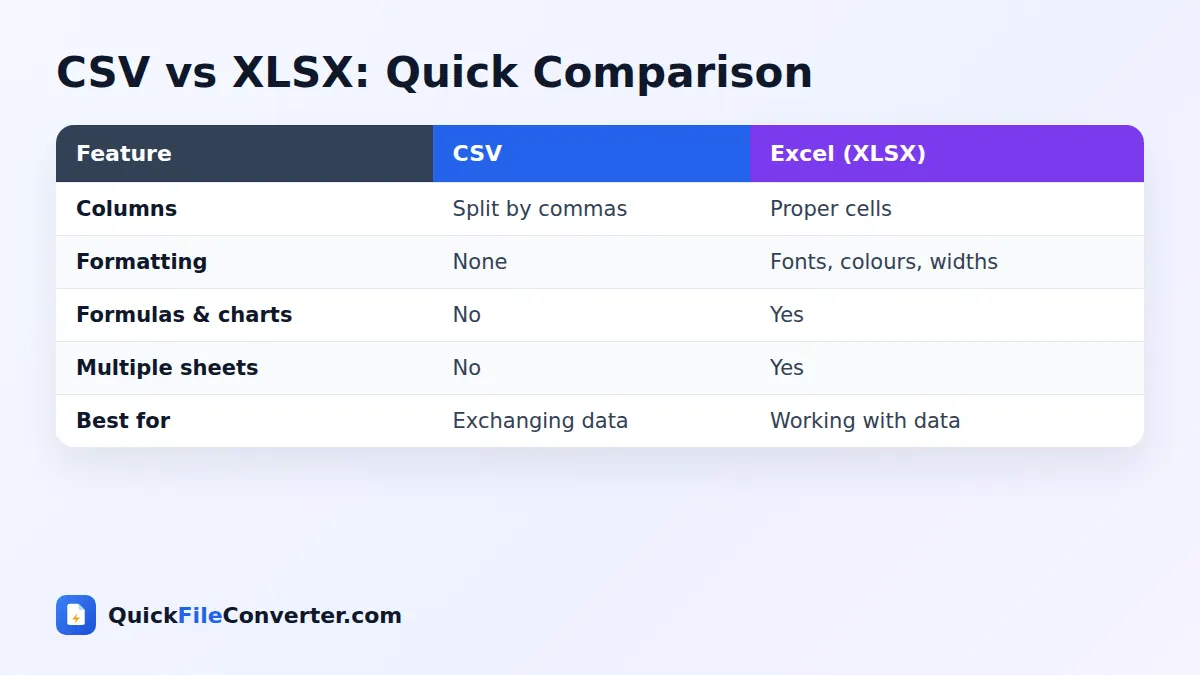
| Feature | CSV | Excel (XLSX) |
|---|---|---|
| File type | Plain text | Structured workbook |
| Formatting | None | Fonts, colours, borders, widths |
| Formulas | No | Yes |
| Charts and pivot tables | No | Yes |
| Multiple sheets | No | Yes |
| File size | Very small | Small to medium |
| Universally readable | Yes | Needs a spreadsheet app |
CSV is ideal for exchanging data between systems, while Excel is ideal for people. Converting CSV to XLSX gives you the best of both: data from any system in a format that is easy to explore.
Features of Our CSV to Excel Converter
Smart delimiter detection
Commas, semicolons and tabs are detected automatically, so European-style CSV files and TSV exports convert correctly.
Keeps special characters
UTF-8 text, including accented letters, currency symbols and scripts such as Malayalam, Hindi and Arabic, is preserved in the workbook.
Numbers and dates recognised
Numeric values become real numbers you can sum and chart, and common date formats become real dates.
Private in-browser processing
The conversion uses the open-source SheetJS library in your browser. Your file never leaves your device.
Free with no limits
Convert large files with tens of thousands of rows, as often as you like, without paying or registering.
Also accepts TXT exports
Some systems export delimited data with a .txt extension. You can convert those too.
What Happens During Conversion?
When you convert CSV to Excel with our tool:
- The file is read as UTF-8 text, and any byte order mark is removed.
- The delimiter is detected from the content.
- Quoted values, such as “Kochi, Kerala”, are kept together even though they contain commas.
- Each value is placed in its own cell. Numbers and dates are converted to proper types.
- A standard XLSX workbook is created with one sheet containing your data.
Tips for Perfect Spreadsheets
- Check the header row. Column names on the first line become the header row of your sheet.
- Watch leading zeros. Phone numbers and postcodes like 0484 may be read as numbers. If zeros matter, format the column as Text in Excel after converting, or keep the original CSV as a reference.
- Long numbers. Account numbers longer than 15 digits cannot be stored exactly as numbers in Excel. Treat them as text.
- Consistent dates. Mixed date formats in one column can be interpreted differently. Clean them in the source system if possible.
- Freeze the top row. After opening the XLSX, use View, Freeze Top Row for easier scrolling.
- Turn data into a table. Press Ctrl+T in Excel to add filters and banded rows instantly.
CSV to Excel on Any Device
Windows and Mac
Drag the CSV onto the upload area and click Convert Now. Double-click the downloaded XLSX to open it in Excel or Numbers.
Chromebook
Convert the file here, then open the XLSX in Google Sheets or the Office web apps.
Android and iPhone
Tap Choose Files, select the CSV from your downloads or email attachments, convert and open the XLSX with Google Sheets, Microsoft Excel or Numbers.
Is It Safe to Convert CSV to Excel Online?
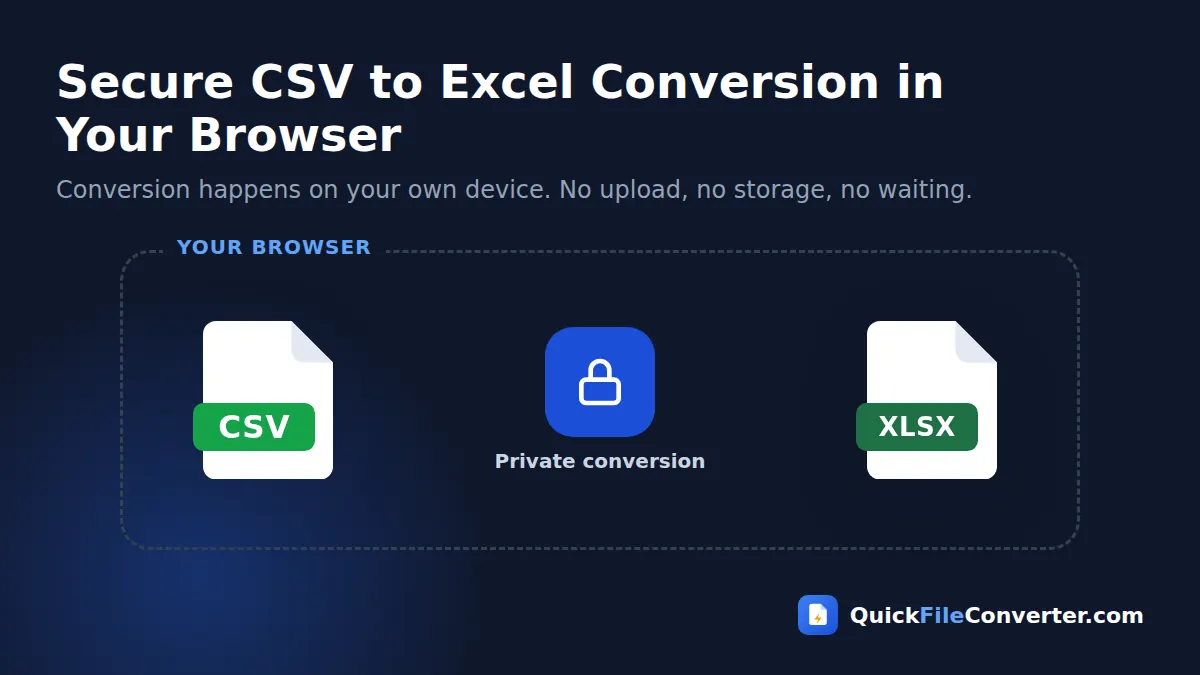
CSV exports often contain personal and financial data. Many online converters upload those files to their servers, which creates a privacy risk. Our CSV to Excel converter is different. It reads and converts your file entirely inside your browser, so the data never leaves your device and nothing is stored anywhere. Read our privacy policy for more.
Common Problems and Solutions
My dates look wrong
Dates like 03/04/2026 can mean 3 April or March 4 depending on the region. Check a few rows after converting. If they are swapped, change the date format in the source system or use Excel’s Text to Columns feature to set the right order.
Numbers show as 1.23E+15
Excel displays very long numbers in scientific notation. Widen the column or change the format to Number with zero decimal places. For IDs, format the column as Text.
Some rows have values in the wrong columns
This usually means a value contains the delimiter without being wrapped in quotes. Fix the export settings in the source system so text values are quoted.
Characters look garbled
Make sure the CSV was saved as UTF-8. Most modern systems do this by default. If not, re-export with UTF-8 encoding.
CSV to Excel for Business Users
Business users receive CSV files from almost every online service: payment gateways, e-commerce platforms, survey tools, HR systems and advertising dashboards. Converting these exports to XLSX makes them far easier to review, share and present. Add a header style, a total row and a chart, save the workbook, and your raw export becomes a presentable report in minutes.
For regular reports, keep a template workbook with your formulas and charts. Each month, convert the new CSV to Excel, copy the data into the template’s data sheet, and all the calculations update automatically.
CSV to Excel for Students and Researchers
Research data, survey results and lab measurements are often shared as CSV. Converting to XLSX lets students sort and filter results, create pivot tables and draw charts for assignments and presentations, without needing to learn a programming language. Because the conversion runs locally, it also respects the confidentiality rules that often apply to research participants’ data.
Converting Several CSV Files at Once
You can add many CSV files in one go, for example twelve monthly exports. Each becomes its own XLSX file, and you can download them all together as a ZIP. If you would rather have them as sheets in one workbook, open the first file in Excel and use Move or Copy Sheet to bring the others in.
Getting Started with Your New Spreadsheet
Once your data is in a workbook, a few simple steps make it much easier to read and analyse.
Format the header row
Select row 1, make it bold and add a light fill colour. Clear headers help anyone who opens the file understand each column at a glance.
Adjust column widths
Select all columns and double-click any column border to fit the widths to the content automatically. Long text columns can be wrapped with the Wrap Text button.
Add filters
With any cell selected, press Ctrl+Shift+L to add filter arrows to the headers. You can now sort by date, filter by customer or show only rows above a certain value.
Summarise with a pivot table
Choose Insert, PivotTable to group and total your data in seconds. For example, turn a list of thousands of orders into a summary of sales per month or per product.
Create a chart
Select a small summary table and choose Insert, Chart. Column charts work well for comparisons and line charts for trends over time.
Save as XLSX
Remember that your new workbook is already an XLSX file, so formatting, formulas and charts will be saved. If you save as CSV again, all of those extras are lost.
Common Sources of CSV Files
Knowing where your data comes from helps you anticipate quirks in the file.
| Source | Typical content | Things to watch |
|---|---|---|
| Online banking | Transactions, balances | Date order, negative amounts |
| E-commerce platforms | Orders, products, customers | Long order IDs, currency columns |
| Survey and form tools | Responses | Very long text answers |
| Email marketing tools | Subscribers | Duplicate emails, tags |
| Analytics dashboards | Traffic and events | Percentages, large numbers |
| Accounting software | Invoices, ledgers | Leading zeros in codes |
A Short History of CSV
CSV files have been used since the early days of personal computing because they are so simple: any program can write text with commas between values. That simplicity is why the format has survived for decades and is still supported everywhere today. The trade-off is that CSV has no way to store formatting, formulas or data types, which is exactly why converting to a modern spreadsheet format is so useful once the data reaches you.
CSV to Excel Without Installing Anything
Many people only need to open an export occasionally and do not want to buy or install spreadsheet software. Our browser-based tool creates a standard XLSX file on any device, which you can then open for free in Google Sheets, the Excel web app or LibreOffice. It is a quick way to turn a confusing text export into a tidy table on a work computer with restricted permissions, a Chromebook or a phone.
Because nothing is uploaded, it is also suitable for data covered by workplace confidentiality rules. The file is processed in your browser and the finished workbook is saved directly to your device, so there is no copy on anyone else’s server.
Sharing Your Converted Workbook
Once your spreadsheet looks right, share it the way your team prefers. Email the XLSX as an attachment, upload it to OneDrive, Google Drive or Dropbox, or turn a finished summary into a PDF for people who only need to read it. If the file contains personal information, share it only with the people who need it and consider removing columns that are not required, such as phone numbers or full addresses.
Cleaning Data After Conversion
Exports are rarely perfect. These quick Excel techniques fix the most common problems once your data is in a workbook.
- Remove duplicates: select the data and choose Data, Remove Duplicates, then pick the columns that should be unique, such as email or order number.
- Trim spaces: use =TRIM(A2) in a helper column to remove extra spaces, then paste the results as values.
- Fix capitalisation: =PROPER(A2) turns “anita kumar” into “Anita Kumar”.
- Split text: Data, Text to Columns splits full names or addresses into separate columns.
- Find blanks: Home, Find and Select, Go To Special, Blanks highlights every empty cell so you can fill or delete them.
- Highlight errors: Conditional Formatting can colour negative numbers, very large values or dates outside an expected range.
A few minutes of cleaning makes your analysis more reliable and your charts easier to trust.
Related Tools
- Go the other way with Excel to CSV.
- Share a finished report as a PDF with Word to PDF.
- Send many files together with Create ZIP.
- Read our document file formats guide.
Frequently Asked Questions
Is the CSV to Excel converter free?
Yes. It is completely free, with no sign-up, row limits or watermarks.
Which Excel format do I get?
You get a modern XLSX file that opens in Excel 2007 and later, Google Sheets, LibreOffice Calc, Numbers and WPS Office.
Does it handle semicolon-separated files?
Yes. Commas, semicolons and tabs are detected automatically.
Will special characters be kept?
Yes. UTF-8 text, including accented letters and non-Latin scripts, is preserved.
Is my CSV uploaded to your server?
No. The conversion happens in your browser and your data never leaves your device.
Can I convert several CSV files at once?
Yes. Add multiple files and download all the XLSX results together as a ZIP.
Why are leading zeros missing?
Spreadsheets treat values like 00123 as numbers. Format the column as Text in Excel if the zeros are important.
Final Thoughts
Raw exports are much easier to work with in a real spreadsheet, and our CSV to Excel converter gets you there in seconds. Drop your CSV into the box at the top of this page, click Convert Now and download a clean XLSX workbook, with your data kept private on your own device. Bookmark the page for the next time a bank, shop or app sends you an export.