Our free FLAC to MP3 converter shrinks lossless music into portable MP3 files that play on phones, car stereos, smart speakers and every music app. Drop your FLAC files into the box above, choose a bitrate and click Convert Now. Convert a single track or an entire album and download the results individually or together as a ZIP. There is no sign-up, no watermark and no limit.
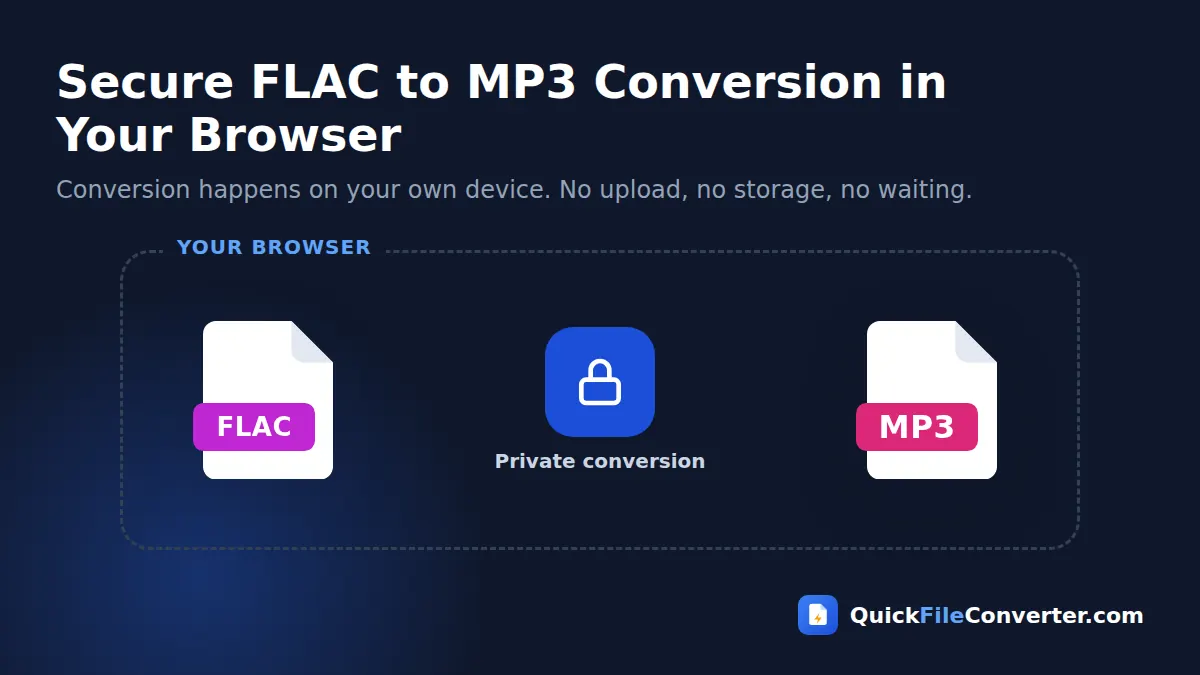
The conversion runs in your browser, so your music is never uploaded. Your CD rips, high-resolution downloads and recordings stay private while you convert FLAC to MP3.
Table of Contents
What Is a FLAC File?
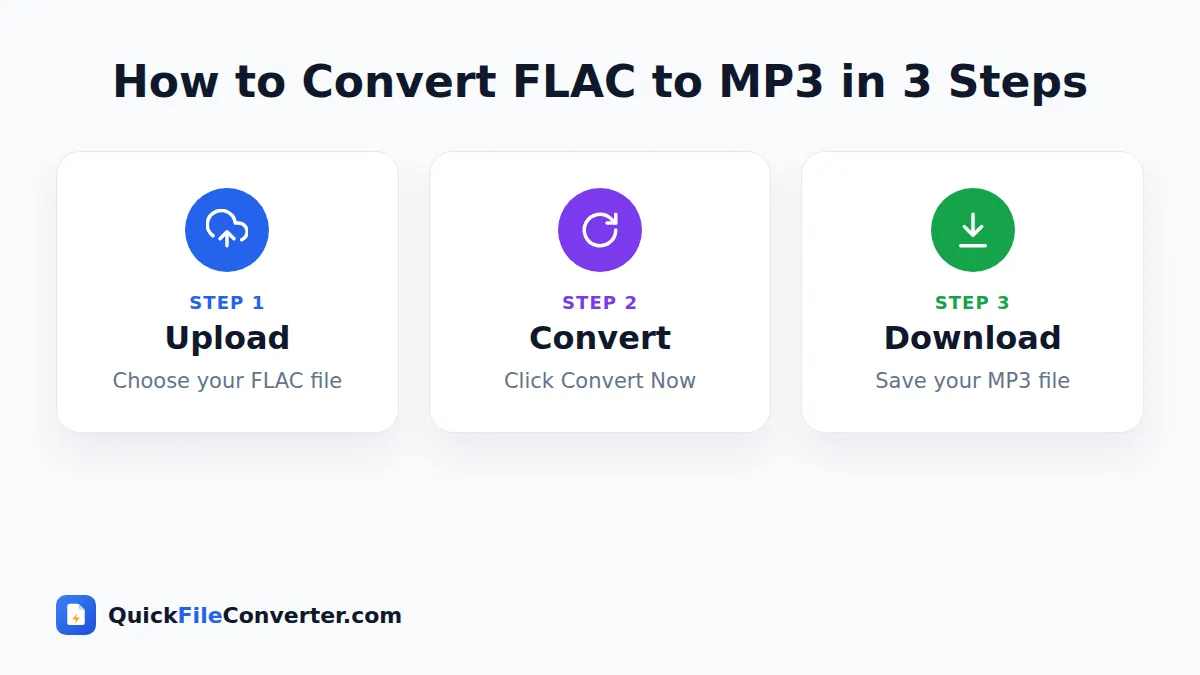
FLAC stands for Free Lossless Audio Codec. It compresses audio to roughly half the size of an uncompressed WAV file without losing a single bit of information. When you play a FLAC file, you hear exactly what was on the original CD or studio master. That is why audiophiles, music collectors and high-resolution download stores love it. The format is open and royalty-free, maintained by the Xiph.Org Foundation.
The downside is size and compatibility. A FLAC album can take 300 to 700 MB, and high-resolution albums even more. Many car stereos, older phones, iTunes, some smart speakers and portable players do not support FLAC. Converting FLAC to MP3 gives you small, universally compatible files for everyday listening while you keep the FLAC originals as a perfect archive.
How to Convert FLAC to MP3 in 3 Steps
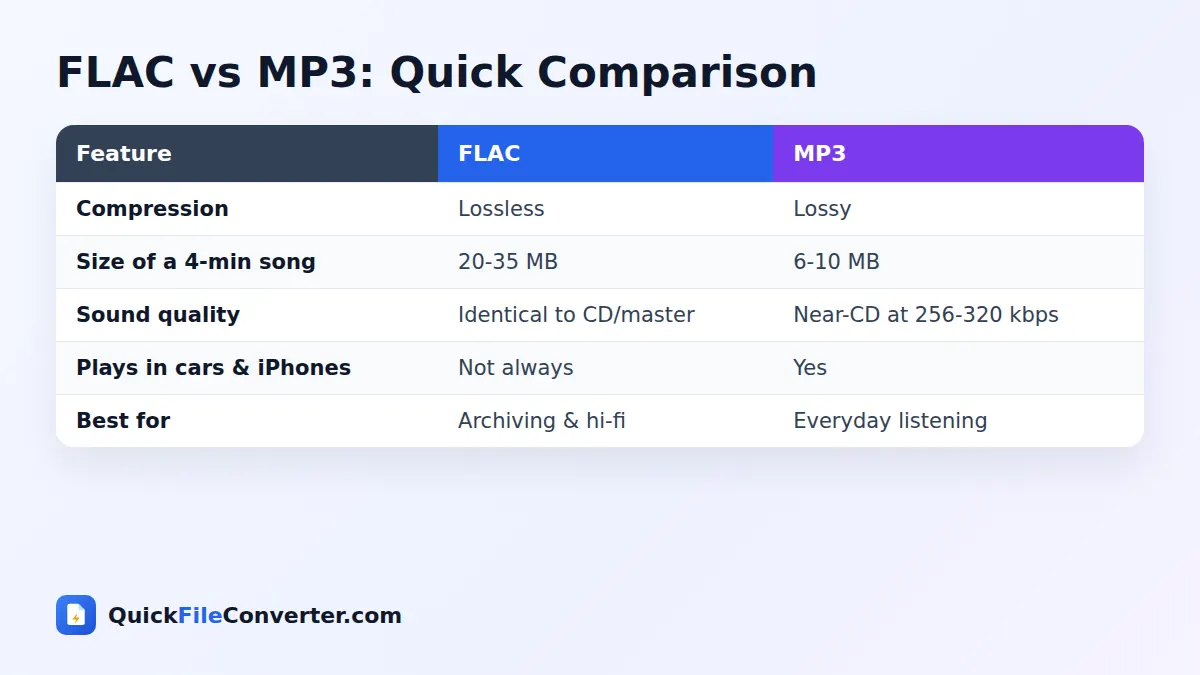
- Add your FLAC files. Hover over Choose Files and pick From Device, drag tracks onto the upload box, or use Add Folder to convert a whole album.
- Choose a bitrate. 256 kbps or 320 kbps is recommended for music from lossless sources. Choose 192 kbps to save more space.
- Convert and download. Click Convert Now. Download each MP3 or use Download all to get the album as a ZIP.
Which Bitrate Is Best for FLAC to MP3?
Because FLAC is a perfect source, you get the best possible MP3 quality from it. Your choice depends on how you listen.
| Bitrate | Size of a 4-minute song | Recommended for |
|---|---|---|
| 192 kbps | about 5.6 MB | Phones, casual listening, saving space |
| 256 kbps | about 7.5 MB | Great quality for most listeners |
| 320 kbps | about 9.4 MB | Best MP3 quality, good headphones and speakers |
Compared with a typical 25 MB FLAC track, even a 320 kbps MP3 saves around 60 percent of the space, and 192 kbps saves nearly 80 percent.
Why Convert FLAC to MP3?
- Save space on your phone. Fit several times more music on the same storage.
- Play in your car. Most car stereos and USB music players support MP3 but not FLAC.
- Use with iTunes and Apple Music. Apple’s apps do not import FLAC directly.
- Stream less data. Smaller files sync faster to phones, cloud drives and smart speakers.
- Share music with friends. MP3 plays on every device without special apps.
- Create workout and travel playlists. Keep lossless files at home and portable MP3s on the go.
- Use in video and presentation projects that do not accept FLAC.
Features of Our FLAC to MP3 Converter
High-quality LAME encoding
MP3 files are encoded with LAME, the most respected MP3 encoder.
Supports high-resolution FLAC
24-bit FLAC files and sample rates such as 88.2, 96 and 192 kHz are converted to standard 44.1 kHz MP3.
Batch conversion
Convert full albums and download them as a single ZIP.
Keeps track names
Each MP3 keeps the file name of its FLAC source, so track numbers and titles in file names are preserved.
Private in-browser processing
Your music is decoded and encoded on your device. Nothing is uploaded.
Free and unlimited
No accounts, watermarks or limits.
Lossless vs Lossy: What You Gain and Lose
FLAC is lossless: it keeps everything. MP3 is lossy: it removes sounds that are masked by louder sounds or are beyond the range most people can hear. At 256 to 320 kbps, well-encoded MP3 files are extremely close to the original, and in blind tests most listeners cannot reliably tell the difference on typical equipment.
Where lossless still matters is archiving and future conversions. If you ever need a different format, starting from FLAC gives the best result. That is why the smart approach is to keep your FLAC library as a master archive and create MP3 copies for daily listening.
About Tags and Album Art
FLAC files usually contain rich tags, such as title, artist, album, track number and cover art. Our converter focuses on the audio itself, so tags and artwork are not copied into the MP3. File names are kept, which usually include the track number and title. To restore tags and album art, use a free tag editor such as Mp3tag, MusicBrainz Picard or Kid3, which can look up album information automatically.
Tips for Converting a Music Library
- Keep your FLAC originals. They are your lossless master copies.
- Pick one bitrate for your whole library so everything sounds consistent. 256 kbps is a great choice.
- Convert album by album using Add Folder, and download each album as a ZIP.
- Tag your MP3 files after converting to restore artist, album and artwork.
- Use a computer for large libraries. Converting hundreds of tracks is faster on a desktop.
- Check your storage. Plan roughly 60 to 90 MB per album at 256 to 320 kbps.
Is It Safe to Convert FLAC to MP3 Online?
Music libraries are large and personal. Uploading gigabytes of audio to an online converter takes a long time and puts your files on someone else’s server. Our FLAC to MP3 converter processes everything locally in your browser, so nothing is uploaded or stored. It is faster, private and does not use your internet bandwidth. See our privacy policy.
How the Conversion Works
- Decoding. Modern browsers decode FLAC natively into raw audio samples.
- Resampling. High-resolution audio is resampled to 44.1 kHz, the standard rate for MP3.
- Encoding. The LAME encoder compresses the audio at your chosen bitrate.
- Fallback. If a browser cannot decode a particular FLAC file, a built-in FFmpeg engine handles it.
A typical track converts in a few seconds on a modern computer.
Common Problems and Solutions
The MP3 has no artist or album information
Tags are not copied. Use a tag editor to add them, or rely on the file names.
A high-resolution file takes longer
Files at 96 or 192 kHz contain much more data, so decoding and resampling take longer. The result is standard 44.1 kHz MP3.
My phone runs out of memory with a large album
Convert a few tracks at a time on phones, or use a computer for whole albums.
The file will not play in my car
Make sure the USB stick is formatted as FAT32 and the files end in .mp3. Some cars also limit the number of files per folder.
FLAC to MP3 for Car Audio
Car stereos are one of the main reasons people convert FLAC to MP3. Most in-car systems read MP3 from USB sticks or SD cards, while FLAC support is limited to some newer models. Convert your favourite albums at 256 kbps, copy them to a FAT32 USB stick in simple folders, and enjoy excellent sound on the road without worrying about compatibility.
FLAC to MP3 for Phones and Streaming Devices
Even phones that play FLAC benefit from MP3 when storage is tight. A 64 GB phone can hold around 2,000 FLAC tracks but over 7,000 MP3 tracks at 256 kbps. For wireless headphones using Bluetooth, which compresses audio anyway, high-bitrate MP3 files sound virtually the same as FLAC.
FLAC to MP3 on Different Devices
Windows
Windows 10 and 11 can play FLAC in the Media Player app, but many older players, editors and devices cannot. Drag an album folder onto the upload area with Add Folder, convert FLAC to MP3 and download the ZIP.
Mac
Apple Music and iTunes do not import FLAC. Convert your albums to MP3 here, then add the MP3 files to your Apple Music library and sync them to your iPhone.
Android
Most Android phones play FLAC, but converting saves space. Tap Choose Files, select tracks from your Music folder and download the MP3 versions.
iPhone and iPad
The Files app can play some FLAC files, but the Music app cannot. Convert tracks to MP3, then add them to your library through a computer or a music app that accepts MP3 imports.
Understanding High-Resolution Audio
High-resolution FLAC files use 24-bit depth and sample rates above CD quality, such as 96 or 192 kHz. They are prized by audiophiles and are sold by specialist download stores. The extra resolution is mainly useful in studios, where it gives engineers more room while editing and mixing. For playback, research suggests most listeners cannot distinguish high-resolution audio from CD quality under normal conditions.
When you convert high-resolution FLAC to MP3, the audio is resampled to 44.1 kHz and encoded at your chosen bitrate. Keep the original high-resolution files if you own a hi-fi system that supports them, and use MP3 copies for phones, cars and portable devices.
Building a Two-Tier Music Library
Many music lovers keep two libraries side by side:
- Archive library (FLAC). Stored on a computer, NAS or external drive, backed up in at least two places. This is your permanent, perfect copy.
- Portable library (MP3). Converted from the archive at 256 or 320 kbps, synced to phones, cars and portable players.
When you buy or rip new music, add it to the archive first, then convert FLAC to MP3 for the portable library. If a better format appears in the future, you can create new copies from the lossless archive without any loss of quality.
Storage Planning Guide
Use this table to estimate how much space your music will need after converting.
| Library size | FLAC (CD quality) | MP3 at 256 kbps | MP3 at 320 kbps |
|---|---|---|---|
| 1 album (45 min) | about 300 MB | about 85 MB | about 105 MB |
| 100 albums | about 30 GB | about 8.5 GB | about 10.5 GB |
| 1,000 albums | about 300 GB | about 85 GB | about 105 GB |
These figures show why keeping the lossless archive on a large drive at home, and carrying MP3 copies on your phone, makes so much sense.
Wireless Headphones and Bluetooth
Most Bluetooth headphones and speakers re-compress audio using codecs such as SBC, AAC, aptX or LDAC before it reaches your ears. That means the extra detail in a lossless file is largely lost over Bluetooth anyway. For wireless listening, a 256 or 320 kbps MP3 sounds effectively identical to FLAC while using a fraction of the storage, which is another good reason to carry MP3 copies on your phone.
FLAC to MP3 for DJs and Party Playlists
Many DJs keep lossless files for club systems but still need MP3 copies for older controllers, backup USB sticks and venue equipment that does not support FLAC. Converting sets to 320 kbps MP3 gives excellent sound on large speakers while guaranteeing compatibility with almost every player. For house parties and weddings, a USB stick of 320 kbps MP3 files plugged into a sound system is simple and reliable.
Checking Your Converted Album
Before deleting anything or syncing to your phone, play the first and last track of each album, check that track numbers in the file names are in order, and confirm the total number of files matches the original. A quick check now saves frustration on a long drive later.
Sharing Music Legally
Converting music you own for your own devices is widely accepted as personal use in many countries. Sharing converted files with others, uploading them publicly or selling them usually requires permission from the rights holders. When in doubt, share playlists from streaming services rather than the files themselves.
Ripping CDs to FLAC and MP3
If you are digitising a CD collection, rip to FLAC first using a free tool such as Exact Audio Copy on Windows or XLD on Mac. These tools check for errors and produce accurate, lossless files. Then use our converter to create MP3 copies for everyday listening. This approach gives you the best of both worlds without re-ripping discs later.
Related Tools
- Compress uncompressed audio with WAV to MP3.
- Convert Apple audio with M4A to MP3.
- Convert open formats with OGG to MP3.
- Learn more in our audio file formats guide.
Frequently Asked Questions
Is this FLAC to MP3 converter free?
Yes. It is completely free with no sign-up, watermark or limits.
What bitrate is best when converting from FLAC?
256 kbps offers excellent quality for most listeners, and 320 kbps gives the best MP3 quality.
Will I hear a difference between FLAC and MP3?
At 256 to 320 kbps, most people cannot hear a difference on everyday headphones, speakers and car stereos.
Can I convert a whole album at once?
Yes. Use Add Folder and download all the MP3 tracks together as a ZIP.
Are tags and album art kept?
No. The audio and file names are converted, but tags and artwork need to be added with a tag editor.
Does it support 24-bit and 96 kHz FLAC?
Yes. High-resolution files are converted to standard 44.1 kHz MP3.
Is my music uploaded?
No. The conversion happens in your browser and your files never leave your device.
Final Thoughts
FLAC is perfect for your archive, and MP3 is perfect for your pocket. Our FLAC to MP3 converter gives you portable, great-sounding files in seconds, with complete privacy. Drop your FLAC files into the box at the top of the page, choose a bitrate and download MP3 tracks ready for your phone, car and every music player. Keep your lossless archive safe at home, carry lightweight copies wherever you go, and enjoy your favourite albums anywhere without worrying about storage or compatibility again.