Use our free tool to zip files online in seconds. Add a few documents, a batch of photos or an entire folder to the box above, give your archive a name and click Create ZIP. You get one compressed ZIP file that is easy to email, upload or back up. There is no sign-up, no watermark and no limit on the number of files.
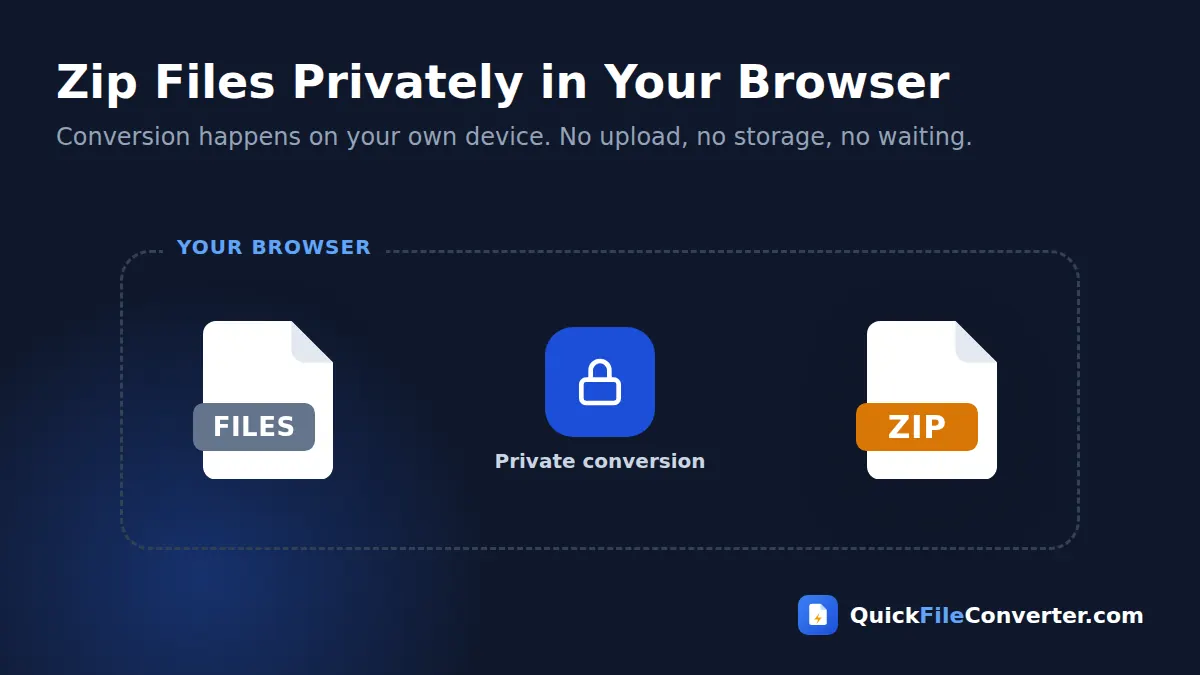
Everything happens inside your browser, so your files are never uploaded. Contracts, photos, projects and personal documents stay private while you zip files on your own device.
Table of Contents
What Does It Mean to Zip Files?
To zip files means to pack one or more files, and even whole folders, into a single archive with the .zip extension. While packing, the files are compressed using the DEFLATE algorithm, which removes repeated patterns in data so the archive is often smaller than the originals. When the receiver unzips the archive, every file comes back exactly as it was, with the same names and folder structure.
ZIP is the most widely supported archive format in the world. Windows, macOS, Linux, ChromeOS, Android and iOS can all open ZIP files without extra software. The format was created by Phil Katz in 1989, and its specification is still published by PKWARE as the ZIP file format specification.
How to Zip Files Online in 3 Steps
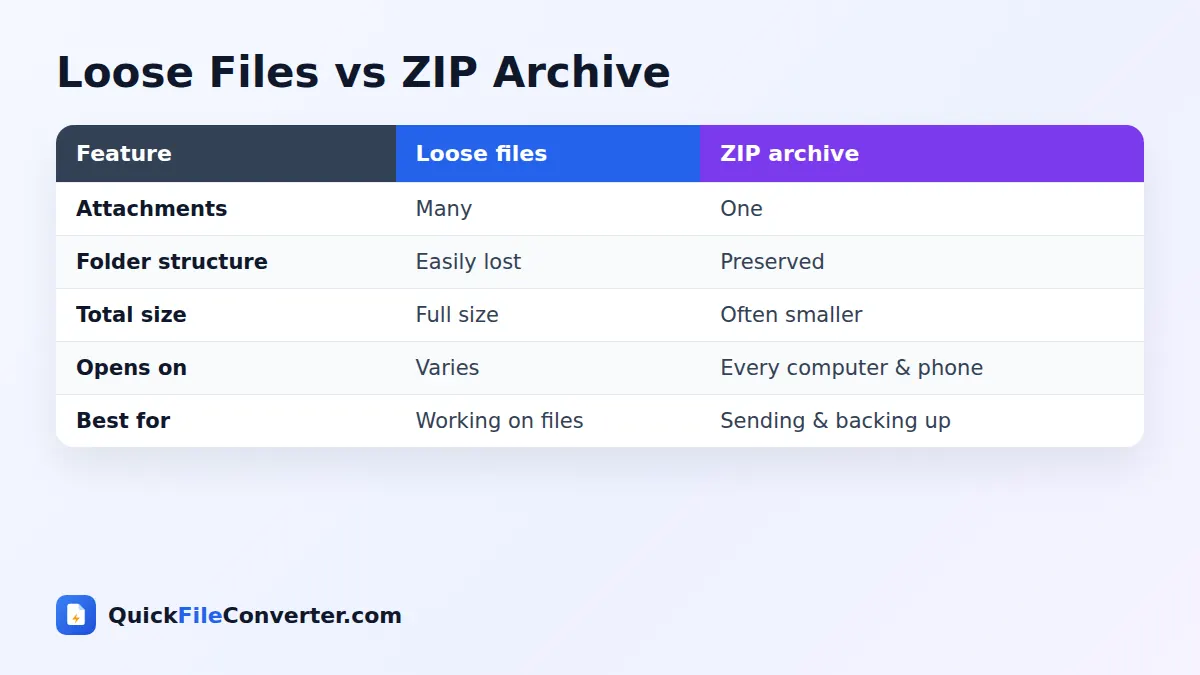
- Add your files. Hover over Choose Files and pick From Device to select files, Add Folder to include a whole folder with its subfolders, or From URL to fetch a public file. You can also drag files onto the upload area.
- Name your archive. Type a name for the ZIP file, such as “Project-Report” or “Holiday-Photos”.
- Create and download. Click Create ZIP. When compression finishes, click Download to save your archive.
Why Zip Files?
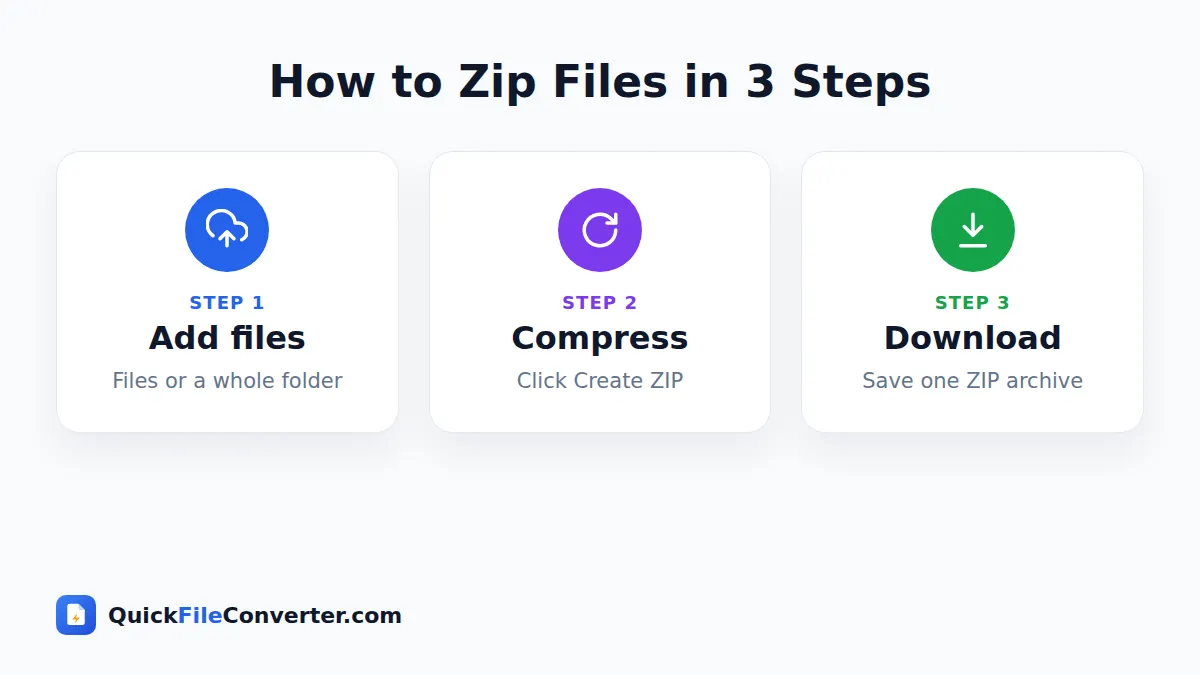
- Send many files as one attachment. Email services and chat apps handle one ZIP far better than dozens of separate files.
- Keep folder structure. When you zip files from a folder, subfolders are preserved, so the receiver sees everything organised just as you did.
- Save space. Text documents, spreadsheets, code and uncompressed images often shrink significantly.
- Upload to websites. Many portals, job applications and assignment systems accept a single ZIP.
- Back up projects. A dated ZIP of a project folder is an easy snapshot to store.
- Share with clients. One tidy archive looks professional and is simple to download.
- Keep files together. Related files, such as a website’s HTML, CSS and images, stay in one package.
How Much Smaller Will My Files Be?
Compression depends on the type of file. Files that are already compressed, such as JPG photos, MP4 videos, MP3 music and most PDFs, shrink very little. Files with lots of repeated data shrink a lot.
| File type | Typical size reduction |
|---|---|
| Text, CSV, HTML, code | 60 to 90% |
| Word and Excel files (DOCX, XLSX) | 0 to 10% (already zipped inside) |
| Uncompressed images (BMP, TIFF) | 30 to 70% |
| WAV audio | 5 to 20% |
| JPG, PNG, MP3, MP4 | 0 to 5% |
| 0 to 20% |
Even when the size barely changes, zipping is still useful for bundling files together and keeping folder structure.
Features of Our ZIP Creator
Folder support
Use Add Folder to include every file inside a folder, with subfolders kept intact.
Standard ZIP format
Archives use standard DEFLATE compression and open on every operating system.
Custom archive name
Name your ZIP before downloading, so it is ready to send.
Progress tracking
A progress bar shows compression status for large batches.
Private in-browser processing
The ZIP is built on your device with the open-source JSZip library. Nothing is uploaded.
Free and unlimited
No accounts, watermarks or file-count limits.
How to Zip Files on Different Devices
Windows
Windows can zip files with Send to, Compressed (zipped) folder, but our tool is handy on shared or locked-down computers, or when you want to combine files from different places. Drag them onto the upload area and click Create ZIP.
Mac
macOS can compress files from Finder, but it names archives “Archive.zip” and may add hidden __MACOSX folders that confuse Windows users. Our tool creates clean ZIP files with the name you choose.
Android
Many Android phones lack a built-in way to create ZIP files. Tap Choose Files, select documents or photos, and create a ZIP in seconds.
iPhone and iPad
The Files app can compress files, but our tool lets you combine files from different locations and name the archive yourself. Tap Choose Files, then Browse, select your files and create the ZIP.
Tips for Better ZIP Archives
- Use Add Folder for projects. It keeps subfolders exactly as they are.
- Give the archive a descriptive name. Include the project name and date.
- Remove unnecessary files such as temporary files and duplicates before zipping.
- Do not expect big savings on photos and videos. They are already compressed.
- Split very large sets into several ZIP files if an upload portal has a size limit.
- Test the archive by opening it before sending important files.
Is It Safe to Zip Files Online?
Most online ZIP tools upload your files to a server, compress them there and send the archive back. That means private documents sit on someone else’s computer, even if only for a while. Our tool builds the ZIP inside your browser, using your device’s memory and processor. Nothing is uploaded or stored. Read our privacy policy for full details.
How the ZIP Is Created
- Reading files. Your browser gives the page access only to the files or folder you selected.
- Adding entries. Each file is added to the archive with its name and, for folders, its relative path.
- Compressing. File data is compressed with DEFLATE at a balanced level for good size and speed.
- Saving. The finished ZIP is generated in memory and offered for download.
ZIP vs RAR vs 7Z
| Format | Compression | Built-in support | Best for |
|---|---|---|---|
| ZIP | Good | Every operating system | Sharing with anyone |
| RAR | Very good | Needs extra software | Some download sites |
| 7Z | Excellent | Needs extra software on most systems | Maximum compression |
ZIP’s universal support makes it the best choice when you do not know what software the receiver has.
Zip Files for Work and Study
Students zip coding projects, design files and multi-part assignments for submission. Office workers zip reports with their supporting spreadsheets and images. Developers zip website builds and log files for support tickets. In every case, one clean archive saves time for both the sender and the receiver.
Common Situations Where You Need to Zip Files
Submitting assignments and applications
Universities, coding bootcamps and job portals often ask for a single upload that contains several documents, such as a CV, portfolio samples and certificates, or a project with source code and a report. When you zip files into one archive, you meet the “one file only” rule without losing anything.
Sending photos from an event
Sharing dozens of photos through email is painful, and chat apps often compress images. Zipping the originals and sharing the archive through a cloud link or file transfer service keeps full quality and keeps the album together.
Sharing design and development projects
Designers send clients folders full of logos, fonts and mock-ups, and developers share website builds with HTML, CSS, JavaScript and image folders. A ZIP preserves the exact folder structure, so everything works when it is unpacked.
Archiving finished work
At the end of a project, zipping the folder and naming it with the date, such as “Client-Website-2026-09.zip”, creates a tidy snapshot that is easy to store and restore later.
Sending logs and diagnostic files
Support teams often ask for log files or screenshots to investigate problems. Zipping them keeps everything together and usually shrinks text logs dramatically.
How ZIP Compression Works
ZIP archives normally use a method called DEFLATE, which combines two techniques. First, it looks for repeated sequences of bytes and replaces later copies with short references to earlier ones. Then it uses Huffman coding, which gives common symbols shorter codes and rare ones longer codes. Together, these steps make text-heavy files much smaller without losing any data.
Files such as JPG, MP4 and MP3 are already compressed with specialised methods, so there is little repetition left for DEFLATE to remove. That is why photos and videos barely shrink when you zip files, even though bundling them is still convenient.
File Size Limits When Sharing ZIP Archives
Knowing common limits helps you plan how to share your archive:
| Service | Typical attachment or upload limit |
|---|---|
| Gmail and Outlook email | 20 to 25 MB |
| WhatsApp documents | Up to 2 GB |
| Telegram files | 2 GB or more |
| Cloud drives (Google Drive, OneDrive, Dropbox) | Very large, share a link |
| Many job and exam portals | 2 to 10 MB |
If your archive is too large for email, upload it to a cloud drive and share a link instead. For portals with small limits, split the files into several smaller archives.
Zip Files Online Without Installing Software
Traditional archive programs such as WinRAR, 7-Zip and The Unarchiver are useful, but they need to be installed, which is not always possible on school computers, work laptops, borrowed devices or Chromebooks. Our browser tool lets you zip files online anywhere you have a modern browser, with no downloads, no admin rights and no trial pop-ups. Because it runs locally, it is also faster than uploading everything to a website and waiting for a server to send the archive back.
Security Tips for Sharing Archives
ZIP files are convenient, but a few habits keep you and your recipients safe:
- Only open ZIP files from people you trust. Attackers sometimes hide malware inside archives.
- Scan downloads with your antivirus before opening files you were not expecting.
- Do not include passwords or sensitive IDs in archives sent by email. Use secure sharing tools for confidential data.
- Check the contents before sending. Open the archive once to make sure you did not include private files by mistake.
- Use expiring links when sharing large archives through cloud storage.
Zip Files for Photographers
Photographers delivering images to clients often zip files by gallery or shoot. Keep the full-resolution JPG or RAW files, add a folder of web-sized copies, and include a short licence note if needed. Clients can download a single archive and find everything neatly organised. Remember that photos will not shrink much, so for very large shoots, share the ZIP through a cloud link or split it by day or location.
Zip Files for Teachers
Teachers can zip files to share worksheets, slides and reading material with students in one download, or to collect a whole class’s submissions for archiving. A clear naming scheme, such as “Class10-Physics-Unit3.zip”, makes it easy for students and colleagues to find the right materials.
What Happens When Someone Opens Your Archive?
When the recipient double-clicks the archive on Windows or Mac, the operating system shows the contents like a normal folder. They can drag files out or choose Extract All to unpack everything. On Android and iPhone, the built-in Files apps can open archives with a tap. If they do not have a suitable app, they can use our Extract ZIP tool in any browser. Everything comes out exactly as it went in, including subfolders and original file names, so nothing needs to be renamed or reorganised.
Naming Conventions That Help
A consistent naming pattern, such as project, content and date, makes archives easy to sort and search. For example, “Acme-Brochure-Drafts-2026-09-24.zip” tells anyone exactly what is inside and when it was created, without opening it.
A Quick Pre-Send Checklist
Before you share an archive, confirm that every file you need is inside, nothing private slipped in by mistake, the archive has a clear name, and its size fits the service you plan to use. Thirty seconds of checking can save an awkward follow-up email.
Keeping ZIP Archives Organised
- Use clear names. Include what the archive contains and a date.
- Avoid deep folder nesting. Very long paths can cause problems when unzipping on some systems.
- Keep file names simple. Avoid unusual symbols that some systems handle poorly.
- Include a short README. For projects, a text file explaining the contents helps the receiver.
- Store backups in more than one place. Keep important archives on cloud storage and an external drive.
Related Tools
- Open archives with Extract ZIP.
- Combine documents with Merge PDF.
- Turn images into one document with JPG to PDF.
- Learn more in our guide on how to convert files online.
Frequently Asked Questions
How do I zip files for free?
Add your files or a folder to the box at the top of this page, name your archive and click Create ZIP. It is completely free.
Can I zip a whole folder?
Yes. Use Add Folder to include every file and subfolder, with the folder structure kept.
Will zipping make my files smaller?
Text, documents and uncompressed files often shrink a lot. Photos, videos and music are already compressed, so they shrink very little.
Are my files uploaded?
No. The ZIP is created in your browser and your files never leave your device.
Can the receiver open the ZIP without special software?
Yes. Windows, macOS, Linux, ChromeOS, Android and iOS can all open ZIP files.
Is there a limit on the number of files?
There is no fixed limit. Very large archives depend on your device’s memory.
Can I password-protect the ZIP?
This tool creates standard, unencrypted ZIP files. For confidential files, share them through a secure channel or encrypted storage.
Final Thoughts
Whenever you need to send, upload or back up several files at once, the simplest answer is to zip files into one archive. Our free tool does it in seconds, keeps your folder structure and never uploads your data. Add your files at the top of the page, name your archive and download your ZIP right away. It works the same on Windows, Mac, Chromebook, Android and iPhone, so you can bundle files wherever you are.