Our free WebP to JPG converter turns WebP images into universally supported JPG files in seconds. Drop one image or a whole batch into the box above, choose a quality level and click Convert Now. Your JPG files are ready to download individually or together as a ZIP, with no sign-up, watermark or limit.
The conversion runs in your browser, so your images are never uploaded. Pictures saved from websites, product photos and personal images stay private on your device while you convert WebP to JPG.
Table of Contents
What Is a WebP to JPG Converter?
A WebP to JPG converter opens a WebP image and saves it as a standard JPG (JPEG) file. WebP is a modern image format created by Google in 2010. It makes images 25 to 35 percent smaller than JPG at the same visual quality, which is why so many websites now use it. The downside is compatibility. When you right-click and save an image from a website, you often end up with a .webp file that some apps, older photo editors, printers, upload forms and even some email clients cannot open.
JPG, on the other hand, has been the standard photo format since the early 1990s. It opens in every app on every device. Converting WebP to JPG is the quickest way to make a saved image usable everywhere. Google’s WebP documentation explains how the format works, and the JPEG committee maintains the JPG standard.
How to Convert WebP to JPG in 3 Steps
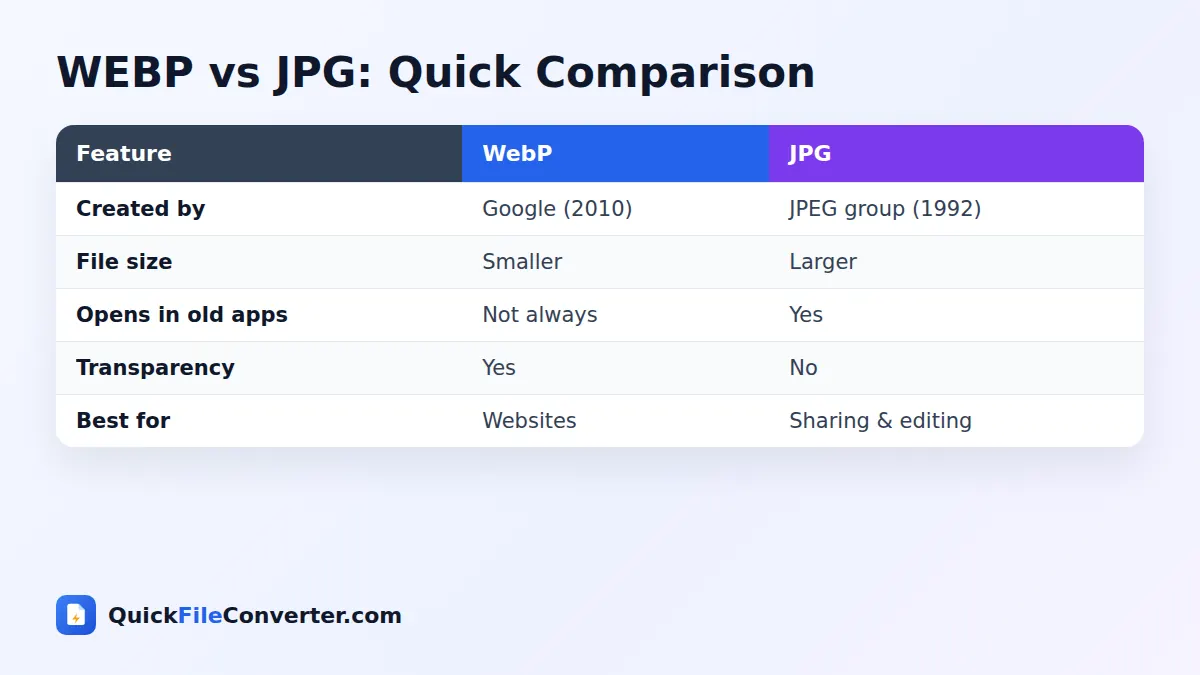
- Add your WebP images. Hover over Choose Files and select From Device, drag the files onto the upload box, use Add Folder for a whole folder, or add an image from a link with From URL.
- Pick a quality level. High (92%) is recommended. Choose Maximum for printing, or Balanced and Smaller file to save space.
- Convert and download. Click Convert Now and save each JPG, or use Download all to get a ZIP file.
WebP vs JPG: Key Differences
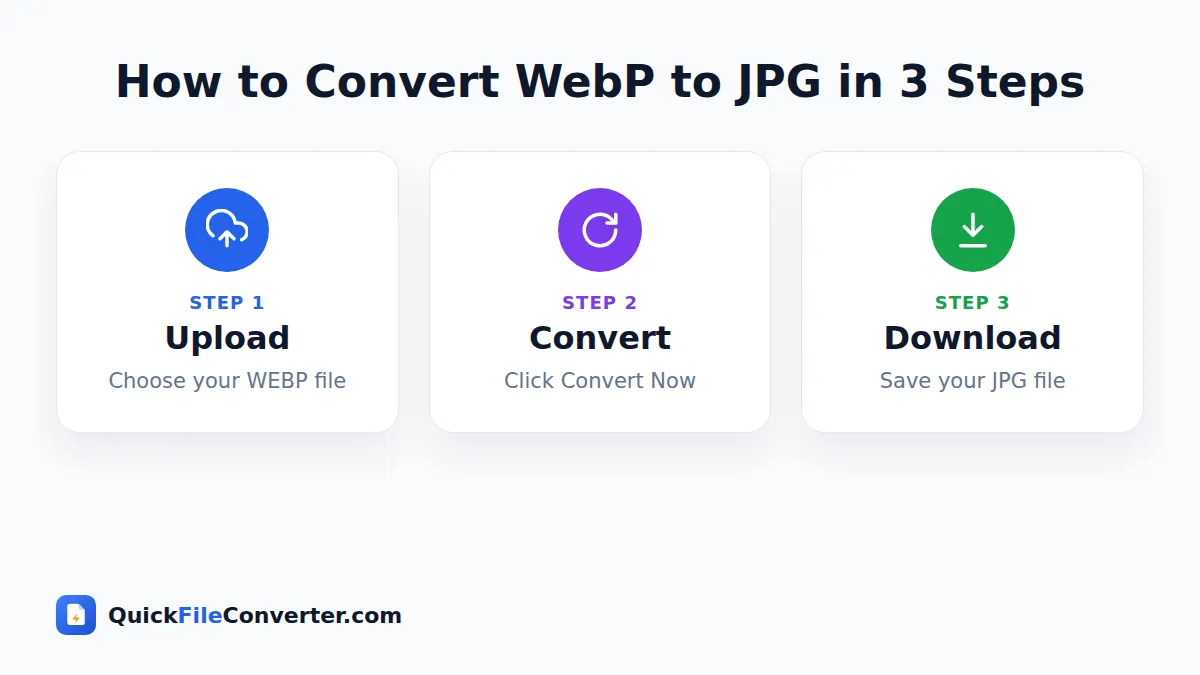
| Feature | WebP | JPG |
|---|---|---|
| Year introduced | 2010 | 1992 |
| Typical file size | 25 to 35% smaller | Standard |
| Lossy and lossless modes | Both | Lossy only |
| Transparency | Supported | Not supported |
| Animation | Supported | Not supported |
| Compatibility | Modern browsers and apps | Universal |
WebP is the better format for fast websites, while JPG is the better format for sharing and compatibility. That is why web developers convert images to WebP, and everyone else often needs to convert WebP to JPG.
Why Convert WebP to JPG?
- Opening saved images. Older versions of Photoshop, Windows Photo Viewer, Microsoft Office and many mobile apps cannot open WebP.
- Uploading to forms and websites. Job portals, government sites and marketplaces often accept only JPG or PNG.
- Printing photos. Many printers and photo labs expect JPG.
- Editing in familiar software. JPG works in every photo editor.
- Sharing with anyone. A JPG opens on any phone, computer or smart TV without special apps.
- Email attachments. Some email clients show WebP attachments as unknown files.
- Social media scheduling tools. Several tools still reject WebP uploads.
Features of Our WebP to JPG Converter
Batch conversion
Convert many WebP images at once and download them as a single ZIP file.
Adjustable quality
Choose from four quality levels to balance detail and file size.
Keeps full resolution
The JPG keeps the same width and height as the original WebP image.
Transparent areas become white
JPG cannot store transparency, so transparent parts of a WebP image are filled with clean white.
Private by design
The conversion is done by your browser, which natively understands WebP. Nothing is uploaded.
Free, unlimited and watermark-free
Convert as many images as you like without an account.
What Happens to Transparency and Animation?
Some WebP images contain transparent backgrounds, such as logos and stickers. Because JPG does not support transparency, those areas become white when you convert WebP to JPG. If you need to keep the transparent background, use our WebP to PNG converter instead.
Animated WebP files work like GIFs. JPG is a still-image format, so only the first frame of an animation is converted.
Choosing the Right Quality
| Setting | Visual result | When to use |
|---|---|---|
| Maximum (95%) | Indistinguishable from the original | Printing, archiving, professional use |
| High (92%) | Excellent, recommended | Everyday use and sharing |
| Balanced (85%) | Very good | Websites, blogs, social media |
| Smaller file (75%) | Good | Email, chat apps and strict upload limits |
Because WebP files are already compressed, choosing Maximum or High quality avoids adding visible artefacts during the conversion.
Tips for Better Results
- Save the largest version available. When saving from a website, open the image in a new tab first to get the full-size version.
- Use High quality by default. It keeps images looking identical while producing reasonable file sizes.
- Convert in batches. Add many images at once to save time.
- Choose PNG for transparent images. Logos and stickers look better with transparency intact.
- Rename files meaningfully. Web images often have long random names. A clear name helps you find them later.
- Respect copyright. Only convert and reuse images you have permission to use.
How to Convert WebP to JPG on Any Device
Windows
Windows 10 and 11 can display WebP in some apps, but many programs still cannot edit or upload it. Drag the WebP file onto the upload area, convert and download a JPG that works everywhere.
Mac
macOS Preview can open WebP, but some older apps and websites still reject it. Drag your images onto the upload area and click Convert Now.
Android
Tap Choose Files, select images from Downloads or your gallery and convert them. The JPG files save to your Downloads folder.
iPhone and iPad
Tap Choose Files and pick the WebP images from the Files app or Photos. After converting, save the JPG files to Photos or share them directly.
Is It Safe to Convert WebP to JPG Online?
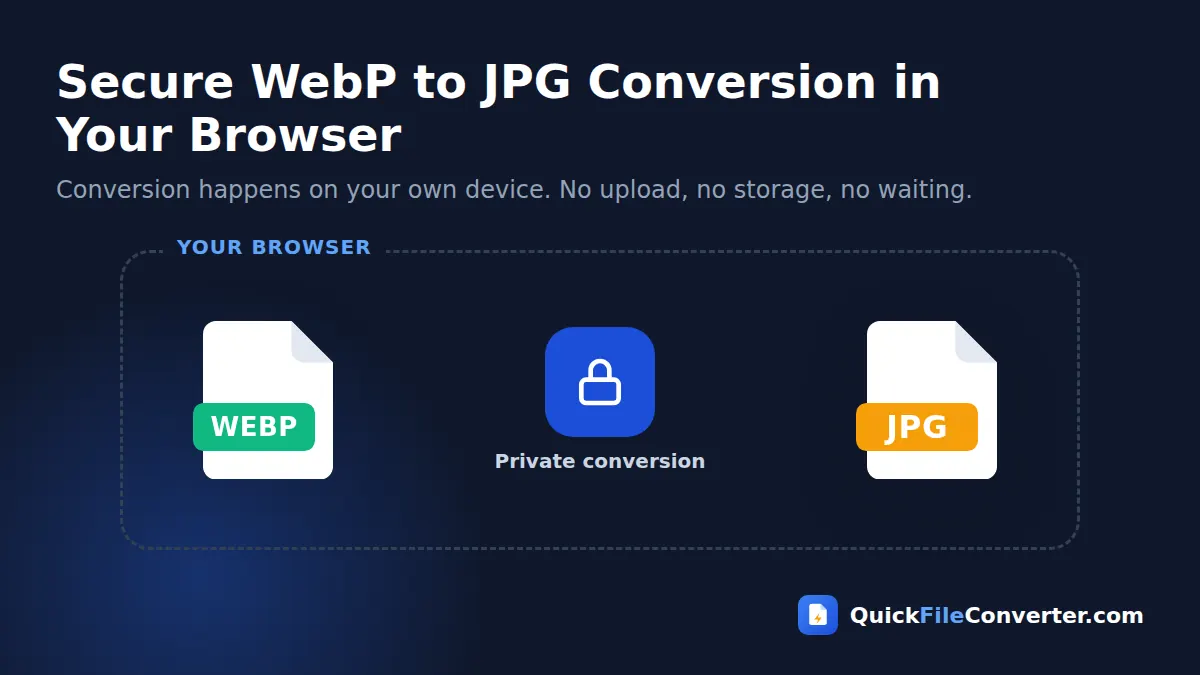
Many converters upload your pictures to a server. Ours does not. Your browser decodes the WebP image, draws it on an invisible canvas and saves it as JPG, entirely on your device. This keeps your images private and makes the conversion very fast. Read more in our privacy policy.
How the Conversion Works
- Decoding. Modern browsers support WebP natively, so your browser reads the image into pixels.
- Background. A white background is added to replace any transparent areas.
- Encoding. The browser’s JPEG encoder saves the picture at the quality you chose.
This all happens in a fraction of a second for typical images.
Why Do Websites Use WebP?
Website owners want pages to load quickly, because fast pages keep visitors happy and rank better in search engines. Images are usually the heaviest part of a page, so a format that cuts image size by a third makes a big difference. Google introduced WebP for exactly this reason, and today almost every major browser supports it. Content delivery networks and platforms such as WordPress now create WebP versions of images automatically.
This is great for visitors, but it means that when you save an image from a website, you often get a WebP file, even if the site owner originally uploaded a JPG.
Common Problems and Solutions
My saved image has a .webp extension I cannot open
That is exactly what this tool fixes. Convert WebP to JPG and the image will open in any app.
The converted image has a white background
The original had transparency, which JPG cannot store. Use WebP to PNG to keep the transparent background.
The image looks slightly soft
Web images are often resized for the page. Try to save the original, larger version from the website. Converting cannot add detail that was not in the WebP file.
Only one frame of my animation was converted
JPG does not support animation. For moving images, keep the WebP or convert a video to GIF instead.
Renaming a WebP File Is Not Enough
Some people try to change the file extension from .webp to .jpg by renaming the file. That does not convert anything: the data inside is still WebP, and many apps will show an error or refuse to open it. A real conversion decodes the image and encodes it again as a genuine JPG, which is what this tool does.
WebP to JPG for Online Sellers
Marketplace sellers often receive product images from suppliers in WebP format, while some listing tools and print catalogues require JPG. Converting a batch of product photos takes seconds and keeps colours and detail intact. Choose High or Maximum quality to keep products looking sharp, and keep your images at their original resolution so buyers can zoom in on details.
WebP to JPG for Students and Office Workers
When you copy an image from a website into a school project or a work presentation, older versions of PowerPoint and Word may refuse to insert WebP pictures, or they may appear as broken images when the file is opened on another computer. Converting to JPG first ensures the picture displays reliably for everyone who opens your document, whether they use Windows, Mac or a web-based office suite.
A Brief History of Web Image Formats
For most of the web’s history, three formats did almost all the work. GIF, released in 1987, handled simple graphics and animations but was limited to 256 colours. JPEG arrived in 1992 and became the standard for photographs thanks to its efficient compression. PNG followed in 1996 as a free, lossless alternative to GIF, adding full colour and smooth transparency.
As websites grew heavier and mobile browsing took off, developers wanted smaller images without losing quality. Google released WebP in 2010, combining lossy compression, lossless compression, transparency and animation in a single format. Support grew steadily, and by 2020 every major browser, including Safari, could display it. More recently, AVIF has appeared with even better compression, and many sites now serve WebP or AVIF to browsers that support them and fall back to JPG for others.
The result is that the images you see online are increasingly served in modern formats, while many everyday apps and systems still expect the classic ones. Converters bridge that gap.
Understanding Image Quality Settings
The quality percentage controls how aggressively the JPEG encoder simplifies the image. At 95 percent, almost every detail is kept and files are fairly large. At 75 percent, fine textures such as hair, grass and fabric are smoothed a little, but the picture still looks good at normal viewing sizes. For most photos, the jump from 92 to 95 percent roughly doubles the file size with little visible benefit, which is why High is our recommended default.
Keep in mind that the quality setting cannot restore detail that was removed when the WebP was created. If the WebP was heavily compressed, choose a high setting so no further loss is added.
Converting Images Saved from Google Images and Social Media
Images saved from search results, news sites and social networks are frequently delivered as WebP, even when the page shows a normal photo. After saving, run them through the converter before inserting them into documents, slides or photo books. Remember that most online images are protected by copyright. Using them for personal reference is usually fine, but publishing them on your own website or in marketing material requires permission from the owner or a suitable licence.
Should You Convert Every WebP Image?
Not necessarily. If an image already opens in the apps you use, there is no need to change it. Convert only when a program, website or person cannot open the WebP file.
Checking Image Dimensions
The size of an image in pixels matters as much as the format. Many websites display small thumbnails and link to a larger version. If your saved image looks tiny or blurry, look for a way to open the full-size image, such as clicking it to enlarge or opening it in a new tab, before converting. A converted image always has exactly the same width and height as the WebP you started with.
Keeping Your Image Library Tidy
Downloading images from several websites can leave you with a confusing mix of WebP, PNG, JPG and AVIF files. Converting everything you plan to keep into JPG gives you one consistent format that works in every gallery, backup service and editing app. Store converted images in folders by project or topic, and delete the original WebP copies once you have checked the JPG versions look right.
Related Tools
- Keep transparency with WebP to PNG.
- Make web images smaller with JPG to WebP.
- Convert iPhone photos with HEIC to JPG.
- Learn more in our image file formats guide.
Frequently Asked Questions
Is this WebP to JPG converter free?
Yes. It is completely free with no sign-up, watermark or limits.
Why can't I open WebP files on my computer?
Some older apps and operating systems do not support WebP. Converting to JPG makes the image open everywhere.
Will the image quality drop?
At High or Maximum quality, the JPG looks the same as the WebP image to the eye.
What happens to transparent backgrounds?
They become white, because JPG does not support transparency. Use WebP to PNG to keep them.
Can I convert many WebP files at once?
Yes. Add multiple files or a whole folder and download all the JPG images as a ZIP.
Are my images uploaded to your server?
No. The conversion happens in your browser and your images never leave your device.
Does it work on iPhone and Android?
Yes. It works in modern mobile browsers as well as on Windows, Mac and Linux.
Final Thoughts
WebP is great for websites, but JPG is still the format that works everywhere. Our WebP to JPG converter bridges the gap in seconds. Drop your images into the box at the top of the page, choose a quality and download JPG files that open on any device, with your privacy fully protected.