Our free MKV to MP4 converter turns Matroska video files into MP4 videos that play on phones, tablets, smart TVs, game consoles and editing apps. Drop your MKV file into the box above, choose a quality option and click Convert Now. In Fast mode, many MKV files convert in seconds without losing any quality. There is no sign-up, no watermark and no upload.
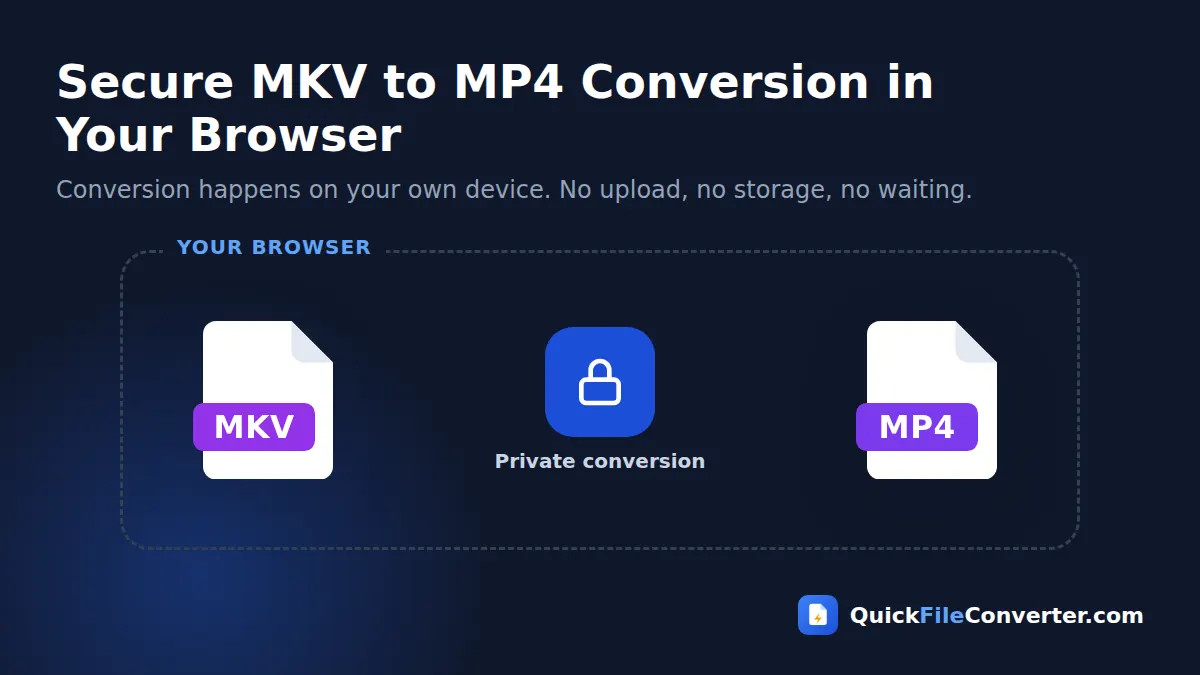
Everything runs inside your browser, so your videos never leave your device. Home recordings, screen captures and personal media stay private while you convert MKV to MP4.
Table of Contents
What Is an MKV File?
MKV stands for Matroska Video. It is an open, free container format that can hold an unlimited number of video, audio and subtitle tracks in a single file, along with chapters and attachments. That flexibility makes MKV popular for home media libraries, screen recording software such as OBS Studio, and archiving recordings with multiple language tracks. You can read the technical details on the Matroska project website.
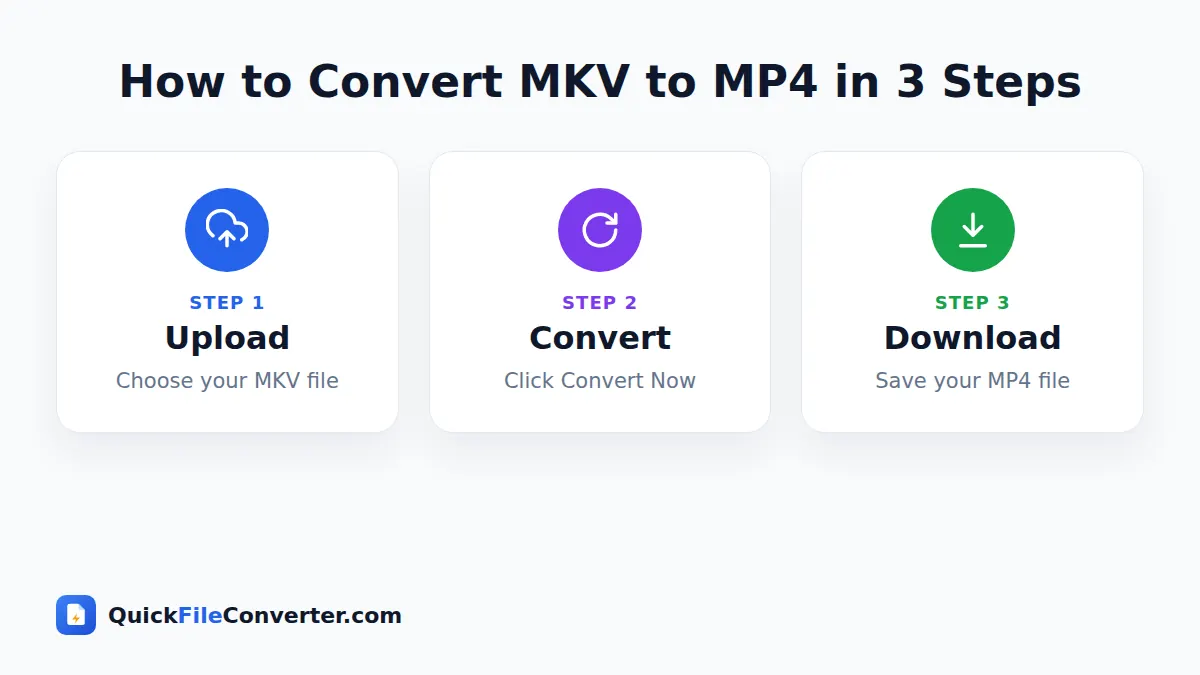
The downside is compatibility. Many iPhones, iPads, smart TVs, older Android phones, video editors, social networks and upload forms either cannot play MKV at all or only play some MKV files. MP4, on the other hand, is supported almost everywhere. Converting MKV to MP4 lets you play and share your videos without installing special players.
How to Convert MKV to MP4 in 3 Steps
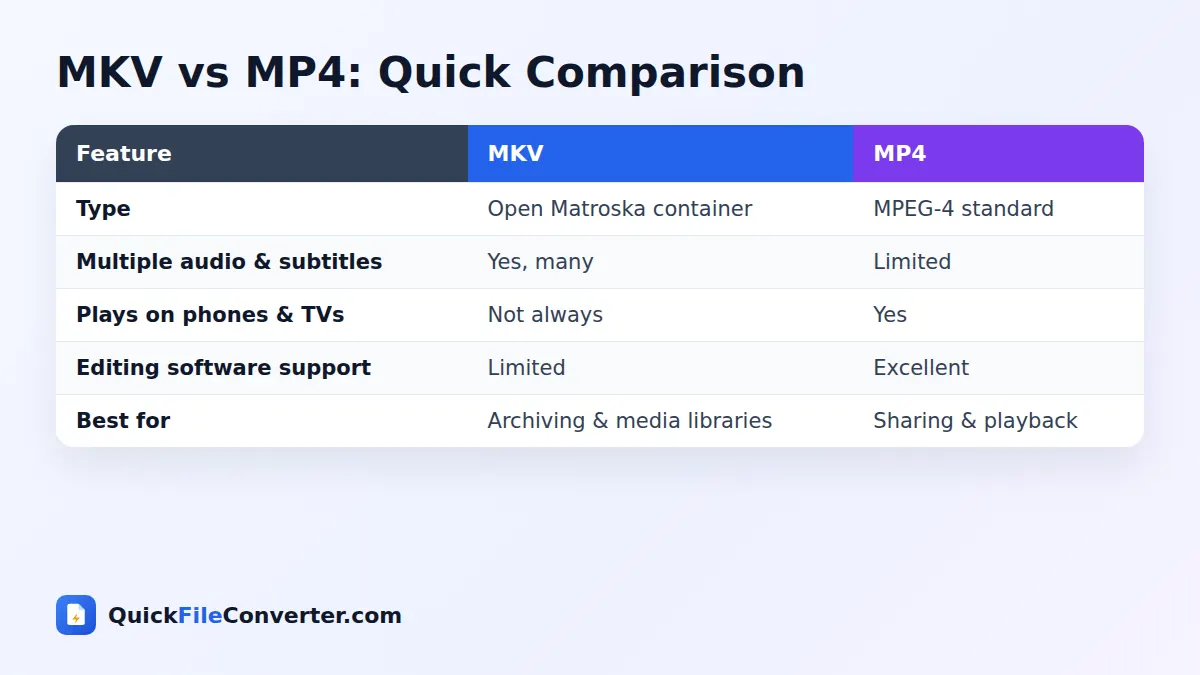
- Add your MKV video. Hover over Choose Files and pick From Device, or drag the file onto the upload box.
- Pick a quality option. Fast copies the video without re-encoding when possible. Balanced and High quality re-encode to H.264 for maximum compatibility. Smaller file reduces the size.
- Convert and download. Click Convert Now. The video engine loads once, then your MP4 is created and ready to save.
Fast Copy or Re-Encode?
MKV and MP4 are both containers. The video inside an MKV file is often H.264 or HEVC, both of which MP4 supports. When that is the case, the tool can simply move the video into an MP4 container, a process called remuxing. It is very fast and keeps the original quality.
| Option | What it does | Speed | Best for |
|---|---|---|---|
| Fast | Copies the video stream and converts audio to AAC | Very fast | H.264 and HEVC MKV files |
| Balanced | Re-encodes video to H.264 at good quality | Slower | Maximum compatibility |
| High quality | Re-encodes with more detail | Slowest | Important footage |
| Smaller file | Re-encodes at a lower bitrate | Slower | Sharing and storage |
If a fast copy is not possible, for example when the MKV contains VP9 or an older codec, the tool automatically re-encodes to H.264.
What happens to audio?
MKV files often use audio formats such as AC3, DTS, FLAC or Opus, which many MP4 players cannot handle. The converter always turns the main audio track into AAC, the standard audio codec for MP4, so your video has sound on every device.
What about subtitles and extra tracks?
The converter keeps the main video track and the first audio track. Additional audio languages, subtitles and chapters stored in the MKV are not carried into the MP4. If you need subtitles, keep the original MKV or add subtitles later in a video editor.
Why Convert MKV to MP4?
- Play on iPhone and iPad. Apple devices do not play MKV natively.
- Watch on smart TVs. Many TVs and streaming sticks prefer MP4 from USB drives and media servers.
- Edit your videos. iMovie, Premiere Pro, Final Cut Pro, Clipchamp and many other editors work best with MP4.
- Upload to social networks. YouTube accepts MKV, but most other platforms and tools prefer MP4.
- Share OBS recordings. OBS records to MKV for safety, but MP4 is easier to edit and share.
- Send to friends and colleagues. MP4 plays without extra software.
Features of Our MKV to MP4 Converter
Lossless fast mode
When possible, the video stream is copied, so quality stays identical to the original.
Automatic audio conversion
Audio is converted to AAC so it plays on every device.
Powered by FFmpeg
FFmpeg compiled to WebAssembly handles MKV reliably, right in your browser.
Private by design
Your video is processed locally. Nothing is uploaded.
Web-ready output
MP4 files are saved with fast start so they begin playing quickly online.
Free and watermark-free
No accounts, limits or logos.
Converting OBS Recordings from MKV to MP4
OBS Studio is one of the most popular free screen recording and streaming tools. Many creators record in MKV because, if OBS crashes or the power goes out, an MKV recording can still be recovered, while an unfinished MP4 file may be lost. After recording, you then need to convert MKV to MP4 for editing and uploading.
Our converter is ideal for this. OBS usually records H.264 video, so Fast mode copies it straight into an MP4 in seconds without any quality loss. OBS also has a built-in “Remux Recordings” feature in the File menu, but our tool is handy when you are on a different computer or received the recording from someone else.
Tips for Smooth Conversions
- Start with Fast mode. It is the quickest and keeps full quality.
- Use Balanced for older TVs and phones that do not support HEVC.
- Keep the tab open during long conversions, and keep your laptop plugged in.
- Convert large files on a computer. Browsers on phones have tighter memory limits.
- Keep your original MKV if it contains extra audio tracks or subtitles you might need.
- Check the result by playing the MP4 on the device you plan to use.
Is It Safe to Convert MKV to MP4 Online?
Uploading large video files to an online converter can take a long time and exposes your footage to a third-party server. Our MKV to MP4 converter never uploads anything. The conversion engine runs inside your browser and your video is processed in memory on your own device. See our privacy policy for more details.
How the Conversion Works
- Loading FFmpeg. Your browser downloads the FFmpeg engine (about 30 MB) the first time and caches it.
- Reading the MKV. The file is loaded into memory on your device.
- Converting. In Fast mode, the video stream is copied and the audio is encoded to AAC. In other modes, video is encoded with H.264.
- Saving. The MP4 file is finalised with fast start and offered for download.
Common Problems and Solutions
The MP4 plays without sound
This is rare, because audio is always converted to AAC. If it happens, try Balanced mode, which re-encodes everything.
The wrong language audio was used
The converter uses the first audio track in the MKV. If your file has several languages, set the preferred language as the default track with a free tool such as MKVToolNix, then convert again.
The video will not play on my TV
Your TV may not support HEVC or high frame rates. Convert with Balanced mode to create a standard H.264 MP4.
Conversion stops on a very large file
Browsers have memory limits. Split the video into shorter parts or use a computer with more RAM.
MKV vs MP4: Which Should You Keep?
Keep MKV when you need several audio tracks, embedded subtitles or chapters, or when you are building a media library for players like VLC, Kodi or Plex that support it well. Choose MP4 when you want to share, edit, upload or play on phones, tablets and TVs. Many people keep the MKV as an archive and create an MP4 copy for everyday use.
MKV to MP4 on Different Devices
Windows
Windows 10 and 11 can play some MKV files in the Films & TV app, but editing apps and older players often cannot. Drag the MKV onto the upload area, convert in Fast mode and open the MP4 in any program.
Mac
macOS QuickTime Player does not open MKV. Convert MKV to MP4 here, and the video will play in QuickTime, Photos and iMovie, and sync to your iPhone.
iPhone and iPad
Tap Choose Files, then Browse, and select the MKV from the Files app. Short and medium videos convert well on recent iPhones. Save the MP4 to Files or to Photos.
Android
Many Android phones play MKV, but converting helps when you want to edit, upload or share with iPhone users. Tap Choose Files, convert and download.
Chromebook
Chromebooks have limited video app options. Because the converter runs in Chrome, it is one of the easiest ways to convert MKV to MP4 on ChromeOS.
Understanding Video Codecs Inside MKV Files
An MKV file can contain almost any codec. These are the most common and what happens to each during conversion:
| Codec inside the MKV | Fast mode result | Notes |
|---|---|---|
| H.264 (AVC) | Copied without re-encoding | Plays on nearly every device |
| HEVC (H.265) | Copied without re-encoding | Great quality, but older devices may not play it |
| VP9 | Usually re-encoded to H.264 | Common in web downloads |
| AV1 | Re-encoded to H.264 | Newest codec, limited hardware support |
| MPEG-2 or MPEG-4 Part 2 | Re-encoded to H.264 | Found in older recordings |
If you are unsure which codec your file uses, just try Fast mode. The tool falls back to re-encoding automatically when a copy is not possible.
MKV to MP4 for Video Editing
Most video editors are built around MP4 and MOV. Importing MKV files can cause missing audio, jerky playback on the timeline, or no import at all. Converting MKV to MP4 with Fast mode before editing gives you a file that behaves predictably in CapCut, DaVinci Resolve, Premiere Pro, Final Cut Pro, iMovie and Clipchamp, without any loss of quality.
For gameplay and tutorial creators who record with OBS, this simple step saves hours of troubleshooting. Record in MKV for safety, convert to MP4 for editing, and export your finished video as MP4 for upload.
MKV to MP4 for Media Servers and TVs
Home media servers such as Plex, Jellyfin and Emby can play MKV, but when a TV or streaming stick does not support a file, the server has to transcode it on the fly. That can cause buffering and heavy CPU use on the server. Converting problem files to a standard H.264 MP4 ahead of time allows them to play directly on almost any TV, which is smoother for viewers and easier on your hardware.
A Short History of Matroska
The Matroska project began in 2002 as an open alternative to proprietary video containers. Its name comes from the Russian word for nesting dolls, a nod to the way the format nests many tracks inside one file. Because it is free, flexible and well documented, MKV became a favourite for video enthusiasts, archivists and open-source software. The WebM format used on the web is actually a simplified version of Matroska. Despite this popularity, device manufacturers and editing software makers have largely standardised on MP4, which is why conversion is still so common.
Checking Your Converted File
After converting, it is worth a quick check before deleting anything:
- Play the MP4 from start to end, or skip through it, to confirm video and sound are in sync.
- Check the audio language is the one you expected.
- Make sure the resolution looks right on the device you will use.
- Compare file sizes. In Fast mode the MP4 should be close to the MKV’s size.
If everything looks good, you can keep the MKV as an archive or free up space by removing it.
Privacy Benefits of Converting Locally
Screen recordings often capture more than intended: open email tabs, notifications, chat messages or personal files on the desktop. Uploading those recordings to an online converter could expose that information. Because our converter works entirely inside your browser, those recordings never leave your computer. It is a simple way to stay in control of what you share, especially for work recordings and online meetings.
Batch Tips for Large Collections
Converting a whole season of recordings? Convert one file first to confirm the settings, then work through the rest one at a time, keeping the browser tab open.
Saving Storage Space
If your MKV files are very large, the Smaller file option re-encodes the video at a lower bitrate, which can reduce the size considerably while keeping good quality for phones and tablets. This is useful for copying videos to a phone for a long journey, or for sharing clips over messaging apps with size limits.
Related Tools
- Convert iPhone videos with MOV to MP4.
- Convert older videos with AVI to MP4.
- Extract audio with MP4 to MP3.
- Learn more in our video file formats guide.
Frequently Asked Questions
Is this MKV to MP4 converter free?
Yes. It is free with no sign-up, watermark or limits.
Will converting MKV to MP4 reduce quality?
Not in Fast mode, which copies the original video stream. Re-encoding options keep high quality at sensible sizes.
Is my video uploaded?
No. The conversion runs in your browser and your video never leaves your device.
Are subtitles kept?
No. Only the main video and first audio track are converted. Keep the original MKV if you need subtitles.
Why does the first conversion take longer?
Your browser downloads the video engine once. After that, it is cached and loads quickly.
Can I convert OBS recordings?
Yes. OBS MKV recordings usually convert in seconds with Fast mode.
Does it work on phones?
Yes, although long videos convert faster and more reliably on a computer.
Final Thoughts
MKV is a powerful format, but MP4 is the one that plays everywhere. Our MKV to MP4 converter makes your videos universally compatible in seconds, without uploading them anywhere. Drop your MKV file into the box at the top of this page, choose Fast mode and download an MP4 ready for any device. Whether you are editing an OBS recording, preparing a video for your TV or sharing a clip with friends, converting MKV to MP4 takes just a few clicks, and your files never leave your hands.