Phones, cameras, screen recorders and download sites save videos in many different video file formats. Some play everywhere, some only work on certain devices, and some are designed for editing or archiving. If you have ever seen “format not supported” on a TV or phone, you already know why it matters.
This guide explains the most common video formats in plain English, including the difference between containers and codecs, and shows you how to convert videos for free with our private, in-browser tools.
Table of Contents
Containers and Codecs: The Key to Video File Formats
The most important idea behind video file formats is the difference between a container and a codec.
- A container is the file type you see, such as MP4, MOV, MKV, AVI or WebM. It is like a box that holds the video stream, one or more audio streams, subtitles and information such as chapters.
- A codec is the method used to compress the video or audio inside the box, such as H.264, HEVC (H.265), VP9, AV1 for video, or AAC, MP3, Opus for audio.
Two files with the same extension can contain different codecs. For example, an MP4 file may hold H.264 video, which plays on almost anything, or HEVC video, which some older devices cannot play. That is why a file can sometimes play on one device but not another, even though the extension is the same.
The Most Common Video Formats
1. MP4 (MPEG-4 Part 14)
MP4 is the most widely supported video format in the world. It is an international standard and usually contains H.264 or HEVC video with AAC audio. Phones, computers, TVs, game consoles, browsers and social networks all play MP4. If you are unsure which format to use, MP4 with H.264 is almost always the right answer. You can read more in the MP4 article on Wikipedia.
Best for: sharing, uploading, streaming, playback on any device.
2. MOV (QuickTime)
MOV is Apple’s QuickTime format and the default on iPhones and many Mac apps. It is very similar to MP4 internally and is popular in professional editing. Outside the Apple world, MOV files can cause compatibility problems.
Best for: Apple devices and editing. Convert: MOV to MP4.
3. MKV (Matroska)
MKV is an open container that can hold unlimited video, audio and subtitle tracks, plus chapters. It is popular for home media libraries and OBS screen recordings. Many phones, TVs and editors do not support it fully.
Best for: media libraries, multi-language videos, archiving. Convert: MKV to MP4.
4. AVI (Audio Video Interleave)
AVI is Microsoft’s old format from 1992. Older cameras and software used it with codecs like DivX, Xvid and Motion JPEG. Modern devices rarely support it, and files are often very large.
Best for: nothing new; convert old recordings. Convert: AVI to MP4.
5. WebM
WebM is an open format developed for the web, usually containing VP8, VP9 or AV1 video with Opus or Vorbis audio. All major browsers support it, and it is widely used for web video and screen recordings in browsers.
Best for: websites and browser-based video.
6. WMV (Windows Media Video)
WMV was Microsoft’s streaming format in the 2000s. Like AVI, it is now mostly found in old archives and is best converted to MP4.
7. FLV (Flash Video)
FLV was used by Flash-based players and early YouTube. Flash is gone, so FLV files should be converted to MP4 for modern playback.
8. 3GP
3GP was used by older mobile phones. The files are small and low resolution, and are best converted to MP4 to play on current devices.
9. GIF (for short animations)
GIF is technically an image format, but it is often used for short silent animations. It autoplays and loops everywhere, which makes it perfect for reactions and tutorials, but files get large quickly.
Create: Video to GIF.
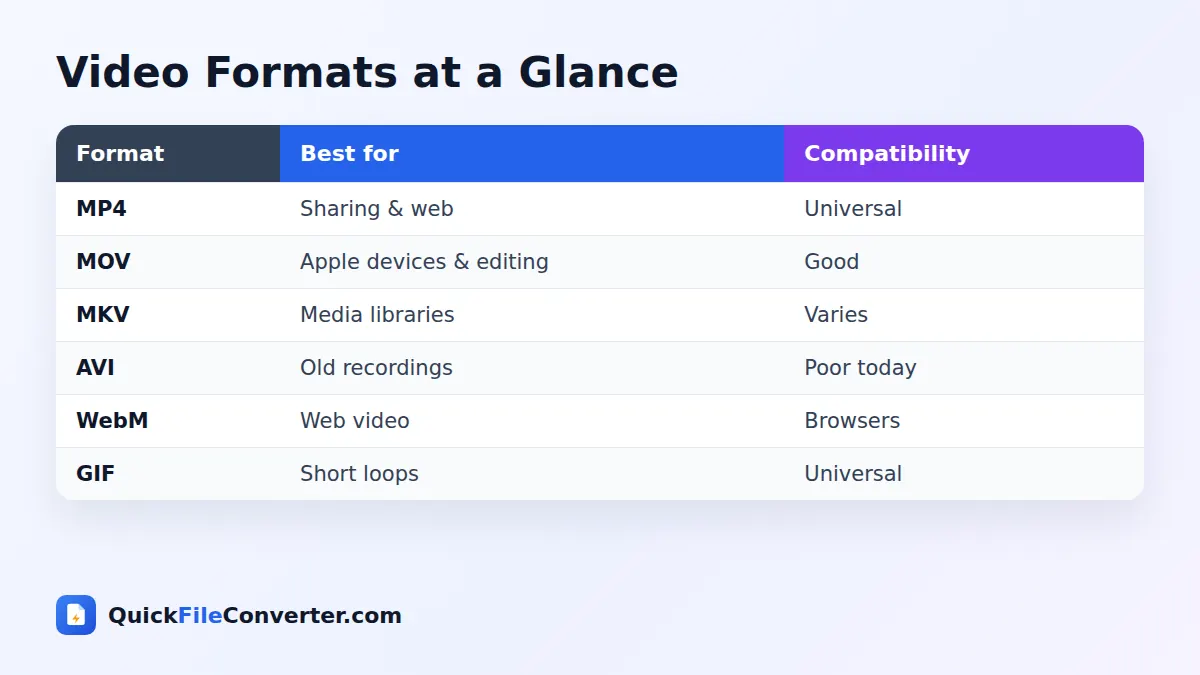
Video File Formats Compared
| Format | Typical codecs | Compatibility | Multiple tracks | Best use |
|---|---|---|---|---|
| MP4 | H.264, HEVC, AAC | Universal | Limited | Sharing, uploading, playback |
| MOV | H.264, HEVC, ProRes, AAC | Good, best on Apple | Yes | Apple devices, editing |
| MKV | H.264, HEVC, VP9, AV1, many audio | Varies | Excellent | Media libraries, archives |
| AVI | DivX, Xvid, MJPEG | Poor on modern devices | Limited | Legacy files |
| WebM | VP8, VP9, AV1, Opus | Browsers | Limited | Web video |
| GIF | GIF frames | Universal | No audio | Short loops |
Video Codecs Explained
H.264 (AVC)
The most compatible video codec. Almost every device made in the last fifteen years can play H.264, often with hardware acceleration that saves battery.
HEVC (H.265)
About twice as efficient as H.264, so 4K videos are smaller. iPhones and many cameras use it. Some older devices, browsers and editors do not support it.
VP9
Google’s open codec, widely used on YouTube and in WebM files. It is efficient but less common outside browsers.
AV1
The newest open codec, even more efficient than HEVC. Support is growing in browsers, streaming services and recent devices.
ProRes
Apple’s professional editing codec. Files are huge but easy to edit without quality loss.
Audio codecs
AAC is standard in MP4 and MOV. MP3 is universal for audio files. Opus and Vorbis are common in WebM and MKV. AC3 and DTS appear in films and TV recordings.
How to Choose the Best Video Format
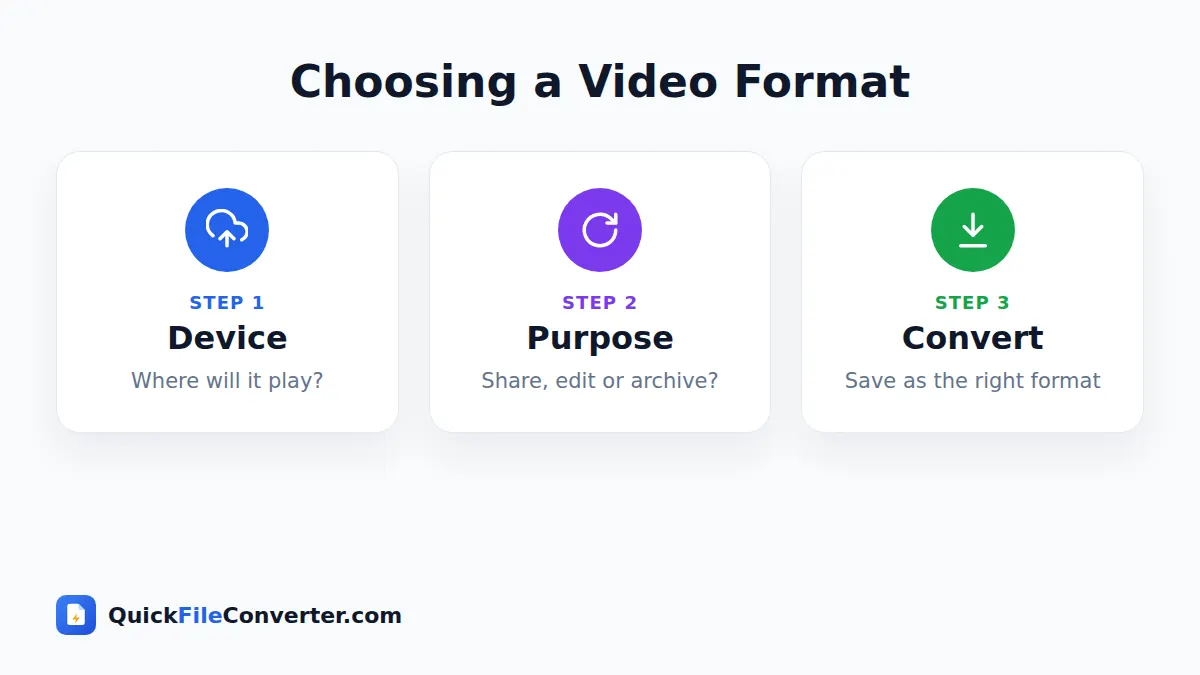
For sharing with anyone
Use MP4 with H.264 video and AAC audio. It plays on phones, computers, TVs, browsers and every social network.
For uploading to social media
Use MP4. Platforms such as YouTube, Instagram, Facebook, X and LinkedIn all accept MP4, and most recommend it.
For editing
Use the format your camera produced, or MP4/MOV with H.264. Avoid editing heavily compressed or unusual formats directly; convert them first.
For media libraries
MKV is excellent for keeping multiple audio languages and subtitles in one file. Keep MP4 copies for devices that cannot play MKV.
For websites
Use MP4 (H.264) for the widest support, optionally with a WebM version for extra efficiency.
For old recordings
Convert AVI, WMV, FLV and 3GP files to MP4 so they play on modern devices.
MP4 vs MOV: What Is the Difference?
The MP4 vs MOV question is common because iPhones record MOV while most other devices use MP4.
| MP4 | MOV | |
|---|---|---|
| Created by | MPEG (international standard) | Apple |
| Default on | Android, most cameras | iPhone, Mac |
| Compatibility | Universal | Best on Apple devices |
| Editing | Very good | Excellent in Apple apps |
| Quality | Depends on codec | Depends on codec |
Quality is the same when both contain the same codec. The difference is compatibility, which is why converting iPhone videos with MOV to MP4 is so popular.
Resolution, Frame Rate and Bitrate
- Resolution is the size of the video in pixels: 720p (1280 × 720), 1080p (1920 × 1080), 4K (3840 × 2160).
- Frame rate is how many frames play each second: 24 fps for a film look, 30 fps for everyday video, 60 fps for smooth motion and sports.
- Bitrate is how much data is used per second. Higher bitrates mean better quality and bigger files.
These settings affect size far more than the container. A 4K 60 fps video can be ten times larger than a 1080p 30 fps video of the same length.
Extracting Audio and Making GIFs
Sometimes you do not need the whole video. You can extract the soundtrack as an MP3 with MP4 to MP3, for lectures, music or podcasts, or turn a short moment into a looping animation with Video to GIF.
Privacy When Converting Videos
Videos are large and often personal. Uploading them to online converters takes time and puts copies on other people’s servers. QuickFileConverter processes videos inside your browser using FFmpeg compiled to WebAssembly, so your footage never leaves your device. Read our privacy policy to learn more.
A Short History of Video File Formats
Digital video on personal computers began in the early 1990s with Apple’s QuickTime (MOV) in 1991 and Microsoft’s AVI in 1992. These early video file formats were designed for CD-ROMs and small windows on slow computers. In the 2000s, the internet brought streaming video formats such as RealMedia, WMV and Flash Video (FLV), each tied to its own player.
The arrival of the iPhone, YouTube and HTML5 video changed everything. The industry converged on MP4 with H.264 because it offered good quality, efficient compression and hardware support in phones. Open video formats such as WebM and MKV grew alongside it, and newer codecs like HEVC and AV1 now deliver 4K and HDR video at manageable sizes. Today, most old video formats survive only in archives, which is why converting them to MP4 is such a common task.
Video Formats for Different Devices
| Device | Best video formats | Notes |
|---|---|---|
| iPhone and iPad | MP4, MOV (H.264 or HEVC) | MKV and AVI need third-party apps |
| Android phones | MP4, WebM, MKV (varies) | MP4 is the safest choice |
| Windows PC | MP4, MOV, MKV, AVI (varies) | Some codecs need extra support |
| Mac | MP4, MOV | MKV and AVI need third-party players |
| Smart TVs | MP4 (H.264, often HEVC) | Check your model for MKV support |
| Game consoles | MP4 | Limited support for other formats |
| Web browsers | MP4 (H.264), WebM | Other video formats cannot play in browsers |
The pattern is clear: among all video file formats, MP4 is the one that works on every device on this list.
Video Formats for Content Creators
Creators juggle several video formats in a single project. Cameras record MP4 or MOV, screen recorders often save MKV, stock footage may arrive as MOV with ProRes, and audio comes separately. A good workflow is to convert everything into a consistent format before editing, edit in your preferred software, and export the final video as MP4 with H.264 for platforms. Keeping source files in their original video formats means you can always go back and re-export at a higher quality later.
HDR, 10-Bit and Other Modern Features
Modern phones and cameras can record HDR (high dynamic range) video with brighter highlights and richer colours. HDR is usually stored as 10-bit HEVC in MOV or MP4 files. It looks stunning on HDR-capable screens, but on older displays and in some editors it can appear washed out or too dark. If you share HDR clips with people whose devices do not support it, converting to standard H.264 MP4 gives more predictable results.
Other modern features include spatial audio, high frame rates such as 120 fps for slow motion, and variable frame rate recordings from phones and screen recorders. Variable frame rate can cause audio sync problems in some editing software. Re-encoding to a constant frame rate MP4 usually fixes this.
How to Check Which Format a Video Uses
The extension tells you the container, but not the codec. To see the full details, open the file in VLC and choose Tools, Codec Information, or use the free MediaInfo app on Windows, Mac or Linux. On a Mac, Finder’s Get Info window shows the codecs, and on Windows, the file Properties Details tab shows resolution and frame rate. Knowing the codec helps you decide whether a quick remux is enough or whether the video needs full re-encoding.
Streaming vs Downloaded Video
Streaming services use adaptive streaming technologies such as HLS and DASH, which split videos into many small segments at different qualities. These are delivery systems rather than single files, and they switch quality automatically depending on your connection. When you download or record video, though, you get an ordinary file in one of the standard containers covered in this guide.
Choosing Video Formats for Archiving
For long-term storage, prioritise widely supported video file formats and keep the highest quality you have. MP4 with H.264 is a safe archive format because it will remain playable for many years. If you have professional footage, keep the camera originals too. Store archives in at least two places, such as an external drive and cloud storage, and check them every year or two to make sure they still open.
Common Video Format Problems
- “Format not supported” on a TV. Convert to MP4 with H.264 video.
- Video plays but no sound. The audio codec (such as AC3 or DTS) is not supported. Converting to MP4 with AAC audio fixes it.
- iPhone videos will not play on Windows or Android. Convert MOV (especially HEVC) to MP4 with H.264.
- Old AVI files are huge. Converting to MP4 with H.264 usually makes them much smaller.
- Editor will not import MKV. Convert to MP4 in Fast mode for a lossless copy.
Frequently Asked Questions
What is the best video format?
For most people, MP4 with H.264 video and AAC audio is the best video format because it plays almost everywhere.
What is the difference between a container and a codec?
A container (MP4, MOV, MKV) is the file that holds the streams. A codec (H.264, HEVC, AAC) is how the video or audio is compressed inside it.
Is MOV better quality than MP4?
Not by itself. Quality depends on the codec and bitrate. MOV and MP4 with the same codec look the same.
Why won't my MKV file play on my phone?
Many phones do not support MKV or the codecs inside it. Convert it to MP4 to play it anywhere.
Which video format is smallest?
Videos using HEVC or AV1 codecs are smallest for the same quality. For compatibility, H.264 MP4 is the best balance.
How can I convert video formats for free?
Use our free tools such as MOV to MP4, MKV to MP4, AVI to MP4, Video to GIF and MP4 to MP3. They run in your browser and never upload your videos.
Final Thoughts
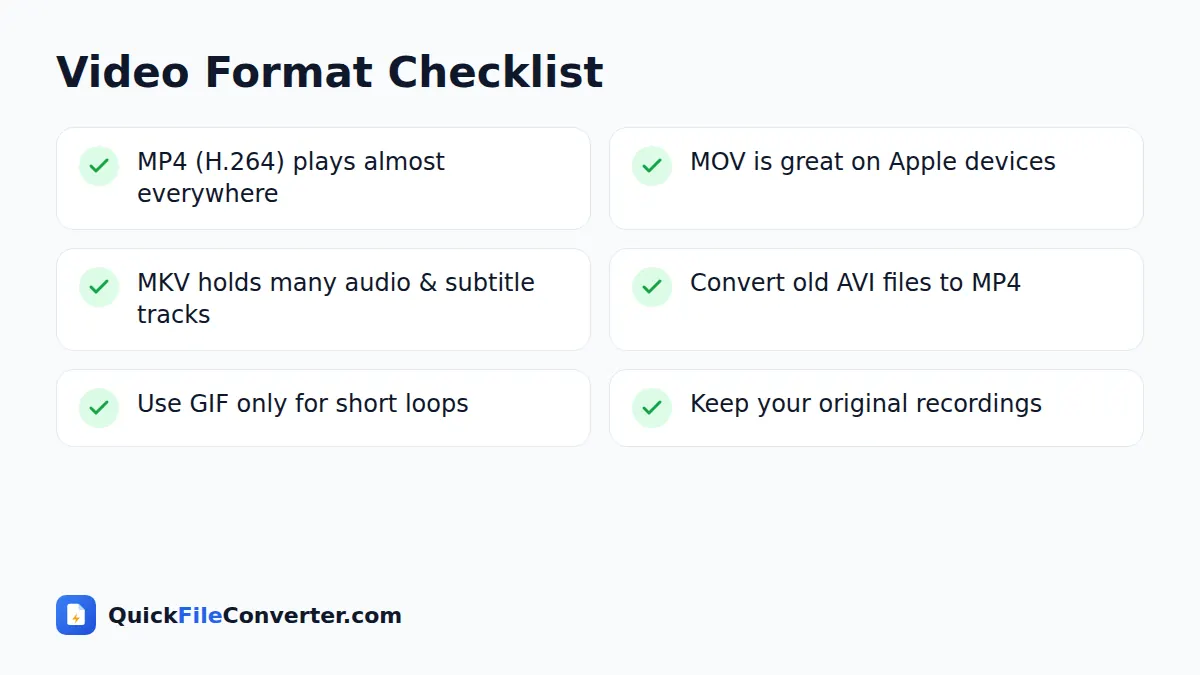
Video file formats can seem confusing, but the essentials are simple: containers hold the streams, codecs compress them, and MP4 with H.264 plays almost everywhere. Keep original recordings, convert copies for sharing, and use our free video tools when a file will not play. Browse all our video converters to get started, and come back to this guide whenever a new file leaves you wondering which of the many video formats it uses.