Our free WebP to PNG converter turns WebP images into lossless PNG files that open in every app, while keeping transparent backgrounds intact. Drop your images into the box above, click Convert Now and download your PNG files one by one or together as a ZIP. There is no sign-up, no watermark and no limit.
The conversion runs entirely in your browser. Your images are never uploaded, so logos, stickers, screenshots and personal pictures stay private while you convert WebP to PNG.
Table of Contents
What Is a WebP to PNG Converter?
A WebP to PNG converter opens a WebP image and saves it as a PNG file. WebP is a modern web format created by Google to make images smaller. Websites love it, but many desktop programs, design tools, older operating systems and upload forms still cannot open or edit WebP files. PNG, by contrast, is supported everywhere and is the go-to format for graphics that need perfect quality and transparency.
Converting WebP to PNG gives you a universally compatible, lossless copy of the image. Transparent areas stay transparent, colours stay the same and nothing is lost in the process. You can read more about the formats in Google’s WebP documentation and the W3C PNG specification.
How to Convert WebP to PNG in 3 Steps
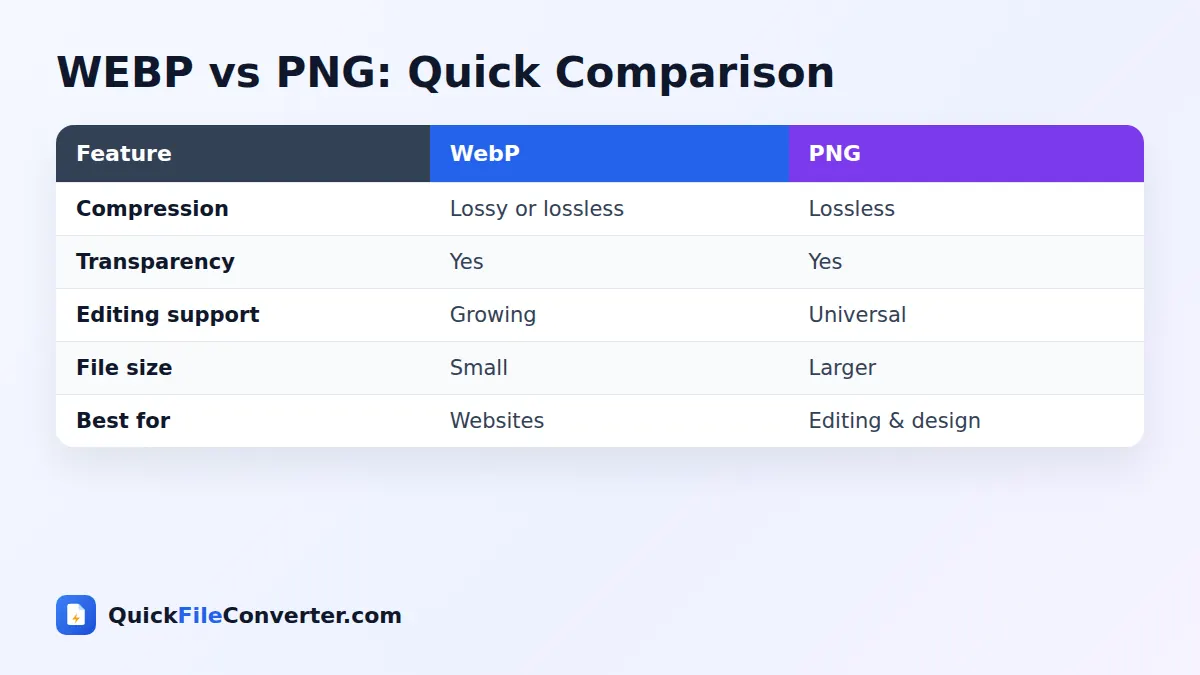
- Add your WebP images. Hover over Choose Files and pick From Device, drag images onto the upload area, use Add Folder, or paste a link with From URL.
- Click Convert Now. Each image is decoded and saved losslessly as PNG in your browser.
- Download. Save each PNG with its Download button, or click Download all for a ZIP of every image.
WebP vs PNG: Which One Do You Need?
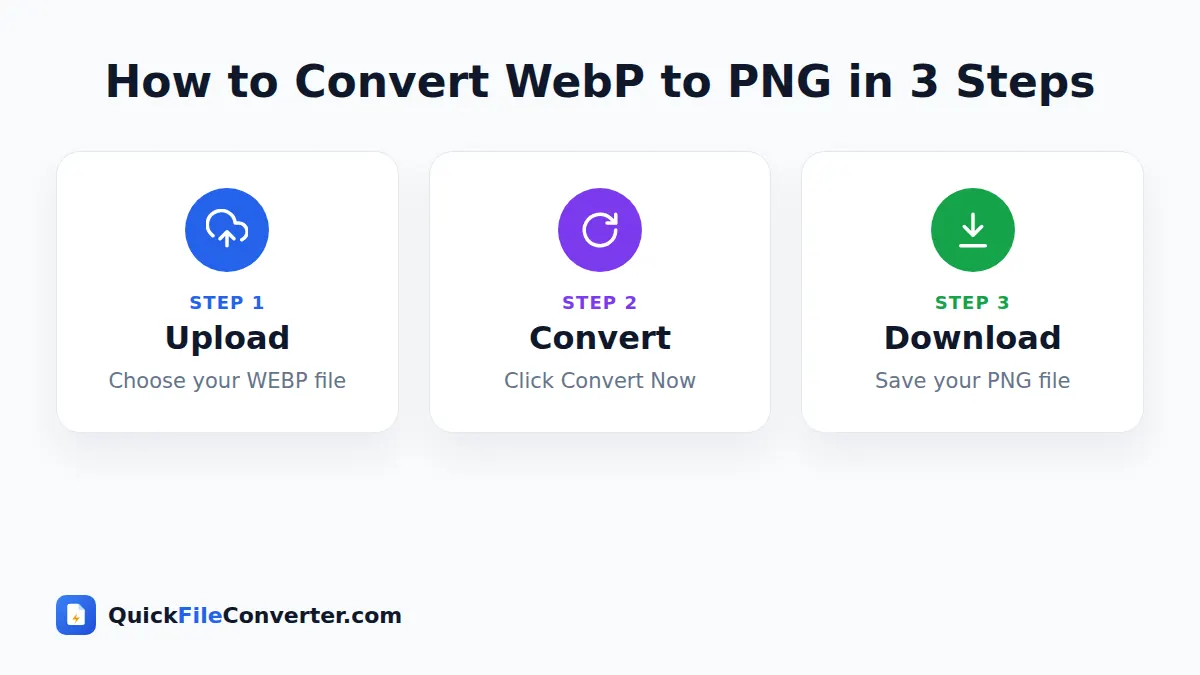
| Feature | WebP | PNG |
|---|---|---|
| Created | 2010 by Google | 1996 as an open standard |
| Compression | Lossy or lossless | Lossless |
| Transparency | Yes | Yes |
| File size | Smaller | Larger |
| Support in editing software | Growing | Universal |
| Best for | Fast websites | Editing, design, printing, compatibility |
Use WebP for publishing on websites. Use PNG when you need to edit an image, work with it in design software, print it, or share it with someone whose apps may not support WebP.
Why Convert WebP to PNG?
- Editing in any program. Older Photoshop versions, Paint, many mobile editors and office apps work better with PNG.
- Keeping transparency. Logos, icons and stickers saved from websites keep their transparent backgrounds.
- Design tools. PNG is the safest format for Canva, Figma, Illustrator, PowerPoint and Keynote.
- Uploading to forms. Many websites and app stores accept PNG but not WebP.
- Lossless master copies. PNG will not lose quality when you edit and save repeatedly.
- Printing. PNG is widely accepted by print services for graphics.
- Sharing with anyone. PNG opens on every computer, phone and tablet.
WebP to PNG vs WebP to JPG
| If your image… | Choose |
|---|---|
| Has a transparent background | PNG |
| Contains text, icons or sharp lines | PNG |
| Will be edited several times | PNG |
| Is a large photo you just want to share | JPG, using WebP to JPG |
| Must be as small as possible | JPG |
When in doubt, PNG is the safer choice because it keeps everything exactly as it is.
Features of Our WebP to PNG Converter
Lossless output
The PNG contains every pixel of the decoded WebP image with no further compression loss.
Full transparency support
Transparent and semi-transparent pixels, soft shadows and smooth edges are preserved.
Batch conversion
Convert many images at once and download them in a single ZIP file.
Full resolution
The PNG has the same width and height as the WebP image.
Private by design
Your browser does the conversion locally. Nothing is uploaded or stored.
Free and unlimited
No accounts, watermarks or limits.
What About Animated WebP?
WebP can contain animations, similar to GIFs. PNG is a still-image format in most apps, so only the first frame of an animated WebP is converted. If you need to keep the animation, keep the WebP file or recreate the animation as a GIF from the original video with our Video to GIF converter.
Tips for Great Results
- Save the largest version. When saving from a website, open the image in a new tab to get the full-size file before converting.
- Check transparency. Place the PNG on a coloured background in your editor to confirm transparent areas look right.
- Batch convert downloads. Use Add Folder to convert a whole folder of saved images.
- Rename files. Web images often have long random names. Clear names make them easier to find.
- Mind the file size. PNG files are larger than WebP. For sharing photos, JPG may be more practical.
- Respect copyright. Only reuse images you have the right to use.
How to Convert WebP to PNG on Your Device
Windows
Drag the WebP files onto the upload area and click Convert Now. The PNG files save to your Downloads folder and open in Paint, Photos and every editor.
Mac
Drag images from Finder onto the upload box. After converting, open the PNG files in Preview, Pixelmator, Keynote or any other app.
Android and iPhone
Tap Choose Files, pick images from your gallery or Files app, convert them and save the PNG files to your device.
Is It Safe to Convert WebP to PNG Online?
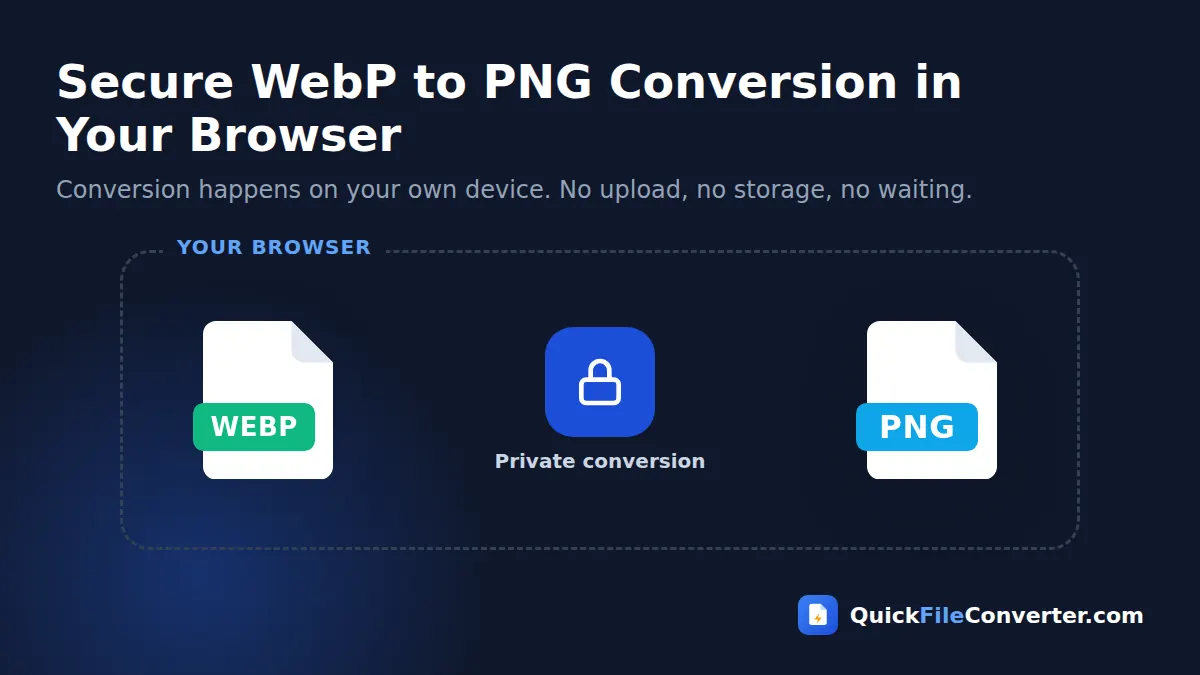
Uploading images to unknown servers is a privacy risk, especially for unreleased designs or personal pictures. Our WebP to PNG converter never uploads anything. Your browser decodes the WebP file, draws it on an off-screen canvas that supports transparency, and encodes a PNG locally. Once you close the page, nothing remains. Read our privacy policy for more.
How the Conversion Works
- Decoding. Modern browsers support WebP natively, so the image is decoded into pixels, including its transparency.
- Drawing. Pixels are drawn to a transparent canvas at the original size.
- Encoding. The browser’s PNG encoder saves the image losslessly.
Most images convert in a fraction of a second.
Common Problems and Fixes
The PNG is much bigger than the WebP
That is normal. PNG is lossless and does not use the advanced compression of WebP. The image quality is the same, but the file needs more space.
The background is not transparent
The original WebP image did not contain transparency. Converting cannot create a transparent background, but you can remove the background in an image editor and save the PNG again.
Only one frame of an animation appears
Animated WebP files are converted to a single frame. Keep the WebP to preserve the animation.
My editor still cannot open the file
Make sure the file extension is .png after downloading. Some phones add extra extensions when saving. Rename the file if needed.
WebP to PNG for Designers
Designers regularly collect reference images, icons and brand assets from websites. Many of those arrive as WebP. Converting them to PNG makes them easy to place on a design canvas, adjust, recolour and export again without quality loss. Because transparency is kept, logos and cut-out product images can be layered over any background immediately.
WebP to PNG for Presentations and Documents
PowerPoint, Keynote, Google Slides, Word and Google Docs all handle PNG images perfectly, and PNG keeps text in diagrams sharp when projected on a large screen. Converting WebP images before inserting them avoids missing-image problems when a presentation is opened on another computer.
Why Do Websites Serve WebP Images?
When you save an image from a modern website, there is a good chance it arrives as WebP, even if the site owner uploaded a PNG or JPG. Content delivery networks, image plugins and platforms such as WordPress, Shopify and Squarespace automatically create WebP versions because they load faster. Browsers ask for WebP when they support it, and the server delivers the lighter file.
This behind-the-scenes optimisation is great for page speed, but it can surprise people who save images for later use. That is why so many people search for a way to turn those files back into a familiar format.
Understanding Image Transparency
Transparent images use an extra piece of information for every pixel, known as the alpha channel. It records how see-through each pixel is, from completely invisible to completely solid. Values in between create soft edges, glows and shadows that blend naturally into any background.
Both WebP and PNG support alpha transparency with the same level of detail, so a logo with a soft drop shadow or a sticker with smooth edges converts perfectly. JPG does not support transparency at all, which is why converting a transparent image to JPG always adds a solid background colour. If a graphic needs to sit on different coloured backgrounds, PNG is the right choice.
Preparing Images for Printing
PNG is a reliable format for printing logos, labels, stickers and graphics. For good print results:
- Check the resolution. For a sharp print, aim for about 300 pixels per inch at the final size. A 5 cm wide logo needs roughly 600 pixels of width.
- Start from the largest image available. Web images are often small. Look for a high-resolution version or the original artwork.
- Keep transparency for stickers and labels. Printers that support white ink or die-cut stickers use the transparent areas to shape the design.
- Check colours on paper. Screens and printers show colours differently. Print a test before ordering large quantities.
Organising Saved Web Images
It is easy to end up with a downloads folder full of files named with random numbers and a mix of formats. A few habits keep things tidy:
- Convert images you plan to keep into one consistent format, such as PNG for graphics and JPG for photos.
- Rename each file with a short description, such as “company-logo-transparent.png”.
- Store images in folders by project, client or topic.
- Note where each image came from, especially if you may need permission to reuse it.
- Delete duplicates and original WebP files once you have checked the converted copies.
Converting WebP on Computers Without Admin Rights
On school and office computers, installing image editors or format plugins is often blocked. Because this converter runs inside the browser, it needs no installation and no special permissions. Open the page, convert your images, download the results and close the tab. Nothing is left behind on the computer except the PNG files you chose to save.
Colour Accuracy and Image Quality
When a WebP image is converted, the colours of every pixel are copied exactly as your browser decodes them. On screens, the PNG will look identical to the original. Some professional images include embedded colour profiles for print; everyday web images almost always use the standard sRGB colour space, which PNG and every screen handle correctly.
Keep in mind that converting cannot restore detail lost when the WebP was created. If a website compressed an image heavily, the PNG will faithfully reproduce any softness or artefacts. It simply guarantees that no further quality is lost from this point on.
Using Converted Images on Social Media
Most social networks accept PNG uploads, and PNG is a good choice for graphics with text, such as quotes, infographics and announcements, because it keeps lettering sharp. Platforms usually recompress uploads, so there is no need to worry about the larger file size. For ordinary photos, JPG uploads a little faster and looks the same once the platform has processed it. If you are designing a graphic from an image you found as WebP, converting it to PNG first lets you edit it freely in any app before posting.
Quick Troubleshooting Checklist
- File will not add? Make sure it really is a WebP image and not a web page saved with a .webp name.
- Image looks tiny? You probably saved a thumbnail. Look for a larger version on the website.
- Download does nothing on a phone? Check your browser’s download permissions and free storage space.
- Many files to convert? Use Add Folder and the ZIP download to save time.
WebP to PNG for Developers
Developers sometimes need PNG versions of WebP assets for tools that do not yet support WebP, such as older build pipelines, documentation generators or native app resources. A quick in-browser conversion is faster than installing a command-line library for a handful of files, and it preserves transparency exactly. For large batches, add the whole folder at once and download a ZIP of the results.
Related Tools
- Make smaller copies with WebP to JPG.
- Convert PNG back to WebP with PNG to WebP.
- Turn PNG images into a PDF with JPG to PDF.
- Read our image file formats guide.
Frequently Asked Questions
Is this WebP to PNG converter free?
Yes. It is completely free, with no sign-up, watermark or limits.
Does WebP to PNG keep transparency?
Yes. Transparent and semi-transparent areas are preserved in the PNG.
Is there any quality loss?
No. PNG is lossless, so the converted image looks exactly like the decoded WebP.
Why is the PNG file larger?
PNG uses lossless compression, which is less efficient than WebP. The quality is the same, but the file is bigger.
Can I convert many WebP files at once?
Yes. Add multiple files or a whole folder and download all the PNG images as a ZIP.
Are my images uploaded?
No. The conversion happens in your browser and your images never leave your device.
What happens to animated WebP files?
Only the first frame is converted, because PNG is a still-image format.
Final Thoughts
WebP is excellent for the web, but PNG is still the format every app understands. Our WebP to PNG converter gives you lossless, transparent PNG files in seconds. Drop your images into the box at the top of the page, click Convert Now and download them, with your privacy fully protected. Whether you are a designer, student, developer or simply saving pictures you like, the WebP to PNG converter is ready whenever an image refuses to open.