From phone photos and screenshots to website banners and logos, we use pictures in many different image file formats every day. Each format was designed for a particular job. JPG is brilliant for photos, PNG keeps graphics sharp, WebP makes websites fast, HEIC saves space on iPhones and SVG scales logos to any size. Choosing the right one makes images look better, load faster and open everywhere.
This guide explains the most important image formats in simple terms, compares their strengths, and shows you how to convert between them for free with our private, in-browser tools.
Table of Contents
What Are Image File Formats?
An image file format is the set of rules used to store a picture in a file. It decides how colours are recorded, whether the image is compressed, whether it can have transparent areas and whether it can move. The file extension, such as .jpg, .png or .webp, tells your device which format is inside.
There are two big families of image file formats:
- Raster formats store images as a grid of coloured pixels. Photos and screenshots are raster images. JPG, PNG, WebP, HEIC, GIF, BMP, TIFF and AVIF are all raster formats.
- Vector formats store images as shapes, lines and curves described mathematically. They can be scaled to any size without losing sharpness. SVG, EPS and AI are vector formats.
Raster formats are further divided by how they compress data:
- Lossy compression removes detail the eye barely notices to make files much smaller (JPG, lossy WebP, HEIC, AVIF).
- Lossless compression shrinks files without losing any information (PNG, lossless WebP, GIF, TIFF with LZW).
The 10 Most Important Image Formats
1. JPG / JPEG
JPG, also written JPEG, is the world’s most popular photo format. Created in 1992 by the Joint Photographic Experts Group, it uses lossy compression to make photos small while keeping them looking natural. Every camera, phone, app and website supports it.
Best for: photos, social media, email, printing photos. Avoid for: logos, text, screenshots and images that need transparency. Convert: JPG to PNG, JPG to WebP, JPG to PDF.
2. PNG
PNG (Portable Network Graphics) is a lossless format that supports full transparency. It keeps text, lines and flat colours perfectly sharp, which makes it ideal for screenshots, logos, icons, diagrams and images you plan to edit. PNG photos, however, are much larger than JPG. The format is a W3C standard.
Best for: screenshots, graphics, transparent images, editing masters. Convert: PNG to JPG, PNG to WebP.
3. WebP
WebP was introduced by Google in 2010 to make the web faster. It supports both lossy and lossless compression, transparency and animation, and is typically 25 to 35 percent smaller than JPG at similar quality. All modern browsers support it.
Best for: websites, online stores, blogs, web apps. Convert: WebP to JPG, WebP to PNG.
4. HEIC / HEIF
HEIC is the default photo format on iPhones and iPads. It uses modern HEVC compression to store photos at about half the size of JPG with the same quality, and it can hold extras such as depth maps and Live Photo data. Many Windows PCs, Android apps and websites still struggle to open it.
Best for: storing photos on Apple devices. Convert: HEIC to JPG.
5. GIF
GIF has been around since 1987 and is famous for short, looping animations. It supports only 256 colours per frame, so photos look grainy, but its universal support keeps it popular for reactions, memes and simple animations.
Best for: short animations, reactions, simple graphics. Create: Video to GIF.
6. SVG
SVG (Scalable Vector Graphics) describes images with code, using shapes and paths rather than pixels. It stays perfectly sharp at any size and is often tiny in file size. It is the best format for logos, icons and illustrations on websites.
Best for: logos, icons, illustrations, charts on the web. Convert: SVG to PNG.
7. AVIF
AVIF is a newer format based on the AV1 video codec. It offers even better compression than WebP, supports transparency and HDR, and is supported by modern browsers. Encoding is slower and support in desktop apps is still growing.
Best for: cutting-edge websites that want the smallest images.
8. TIFF
TIFF is a flexible, high-quality format used in professional photography, printing, scanning and publishing. It can store lossless images with multiple layers and high bit depths. Files are very large, so it is rarely used on the web.
Best for: professional printing, archiving scans.
9. BMP
BMP is an old Windows format that usually stores uncompressed pixels. It is simple but produces very large files and is rarely needed today. Converting BMP to PNG or JPG saves a lot of space.
10. RAW
RAW files come straight from a camera’s sensor and contain far more information than a JPG, which gives photographers maximum editing flexibility. Each camera brand has its own RAW format, such as CR3, NEF or ARW. RAW files must be processed and exported, usually to JPG or TIFF, before sharing.
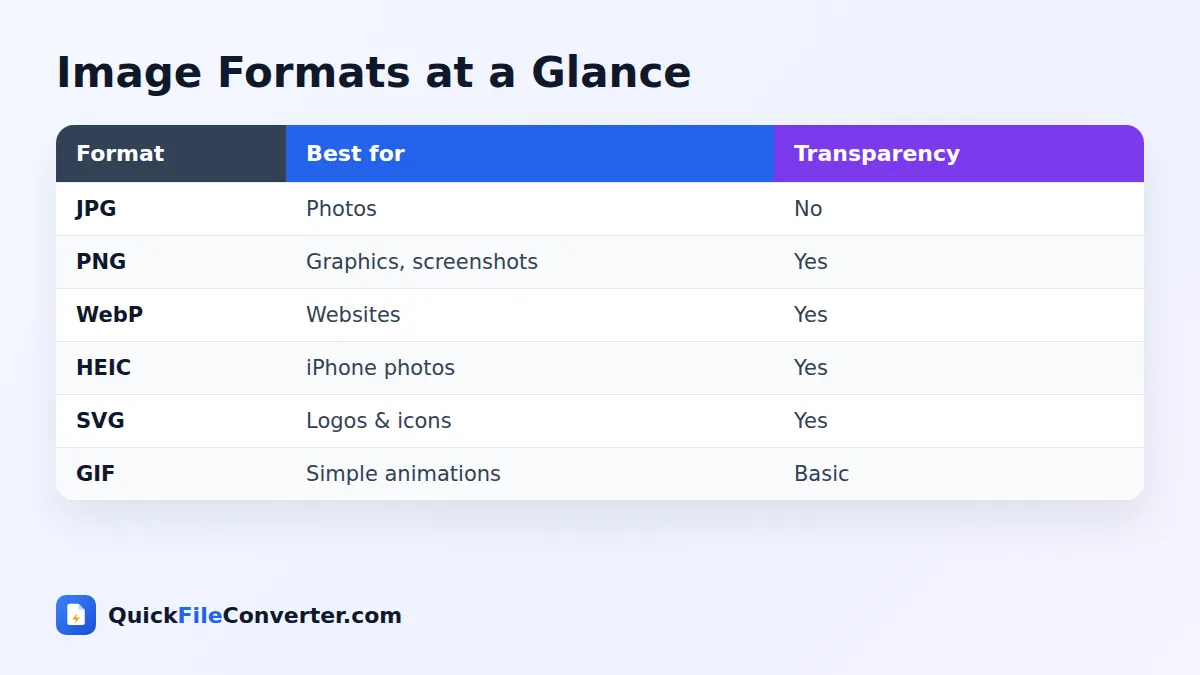
Image File Formats Compared
| Format | Compression | Transparency | Animation | Typical use | Browser support |
|---|---|---|---|---|---|
| JPG | Lossy | No | No | Photos | Universal |
| PNG | Lossless | Yes | Limited (APNG) | Graphics, screenshots | Universal |
| WebP | Lossy or lossless | Yes | Yes | Websites | All modern browsers |
| HEIC | Lossy | Yes | Sequences | iPhone photos | Limited |
| GIF | Lossless, 256 colours | Basic | Yes | Animations | Universal |
| SVG | Vector | Yes | Yes (CSS/SMIL) | Logos, icons | Universal |
| AVIF | Lossy or lossless | Yes | Yes | Modern websites | Most modern browsers |
| TIFF | Usually lossless | Yes | No | Printing, archiving | Not in browsers |
How to Choose the Best Image Format
The best image format depends on what the picture contains and where it will be used.
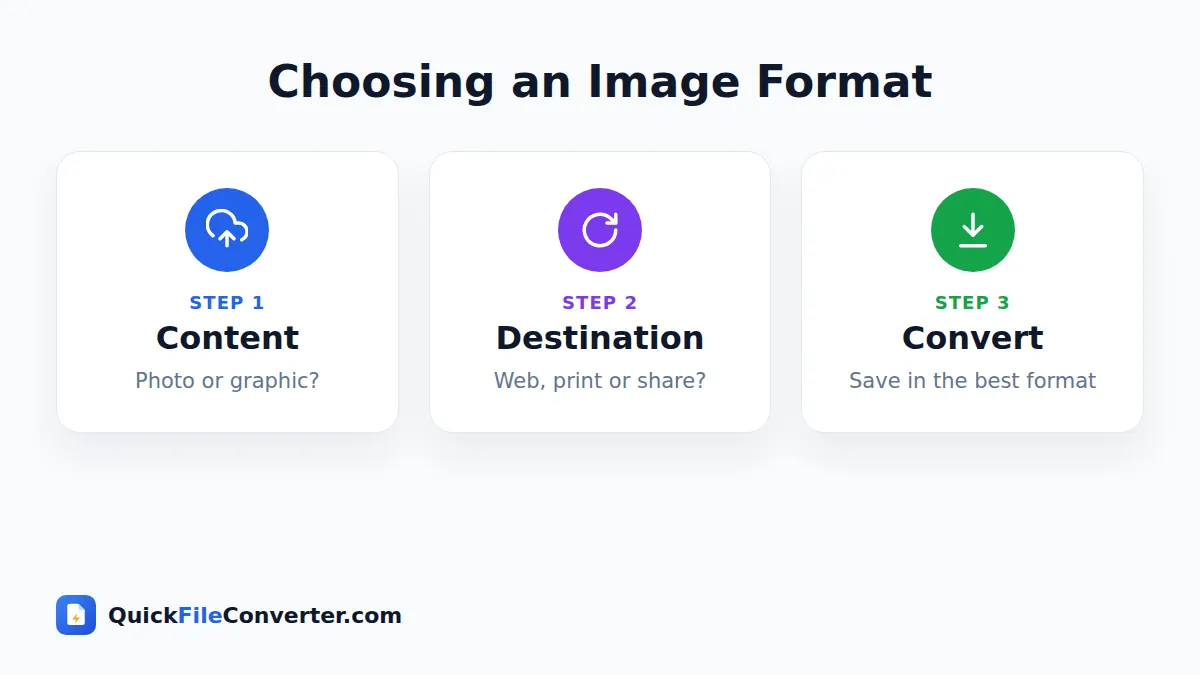
Is it a photo or a graphic?
Photos with lots of colours and gradients compress best with lossy formats such as JPG, WebP, HEIC or AVIF. Graphics with text, sharp edges and flat colours look best in lossless formats such as PNG or SVG.
Does it need transparency?
If the image needs a transparent background, such as a logo placed over different colours, use PNG, WebP or SVG. JPG does not support transparency.
Where will it be used?
- Website: WebP (or AVIF) for photos, SVG for logos and icons, PNG for screenshots that must stay sharp.
- Social media: JPG or PNG. Platforms recompress uploads anyway.
- Email: JPG or PNG. Some email clients do not support WebP or SVG.
- Printing: high-quality JPG, PNG or TIFF at 300 pixels per inch.
- Documents and presentations: PNG for graphics, JPG for photos.
- Storage on iPhone: HEIC saves space, and you can convert copies when sharing.
JPG vs PNG: The Classic Question
The JPG vs PNG debate comes up constantly. Here is the simple rule: JPG for photos, PNG for graphics.
| JPG | PNG | |
|---|---|---|
| Compression | Lossy | Lossless |
| Photo file size | Small | Large |
| Text and sharp edges | Can blur slightly | Perfectly sharp |
| Transparency | No | Yes |
| Editing and re-saving | Loses quality each time | No quality loss |
If you have a PNG photo that is too large, convert it with PNG to JPG. If you need to edit a JPG many times or add transparency, convert it with JPG to PNG.
Image Formats and Website Speed
Images are usually the heaviest part of a web page, so choosing efficient image formats is one of the easiest ways to make a site faster. Google’s Core Web Vitals measure loading speed, and heavy images often slow down the Largest Contentful Paint. Practical steps:
- Convert photos to WebP with JPG to WebP.
- Convert transparent PNG graphics to WebP with PNG to WebP.
- Use SVG for logos and icons.
- Resize images to the size they are actually displayed.
- Add width and height attributes and lazy-load images below the fold.
Understanding Resolution and Quality
Two images in the same format can look very different because of resolution and quality settings.
- Resolution is the number of pixels, such as 4032 × 3024. More pixels allow bigger prints and closer zooming.
- Quality (for lossy formats) controls how much detail is kept during compression. High quality means larger files.
- PPI/DPI matters for printing. For sharp prints, aim for about 300 pixels per inch at the final size.
Converting to a different format never adds detail that was not already there. Always start from the highest quality original you have.
Transparency Explained
Transparency lets parts of an image be see-through, so a logo can sit neatly on any background. It is stored in an alpha channel, which records how transparent each pixel is. PNG, WebP, HEIC, AVIF and SVG support smooth transparency. GIF supports only fully transparent or fully solid pixels, which can cause jagged edges. JPG has no transparency at all, so transparent areas become a solid colour, usually white, when converting.
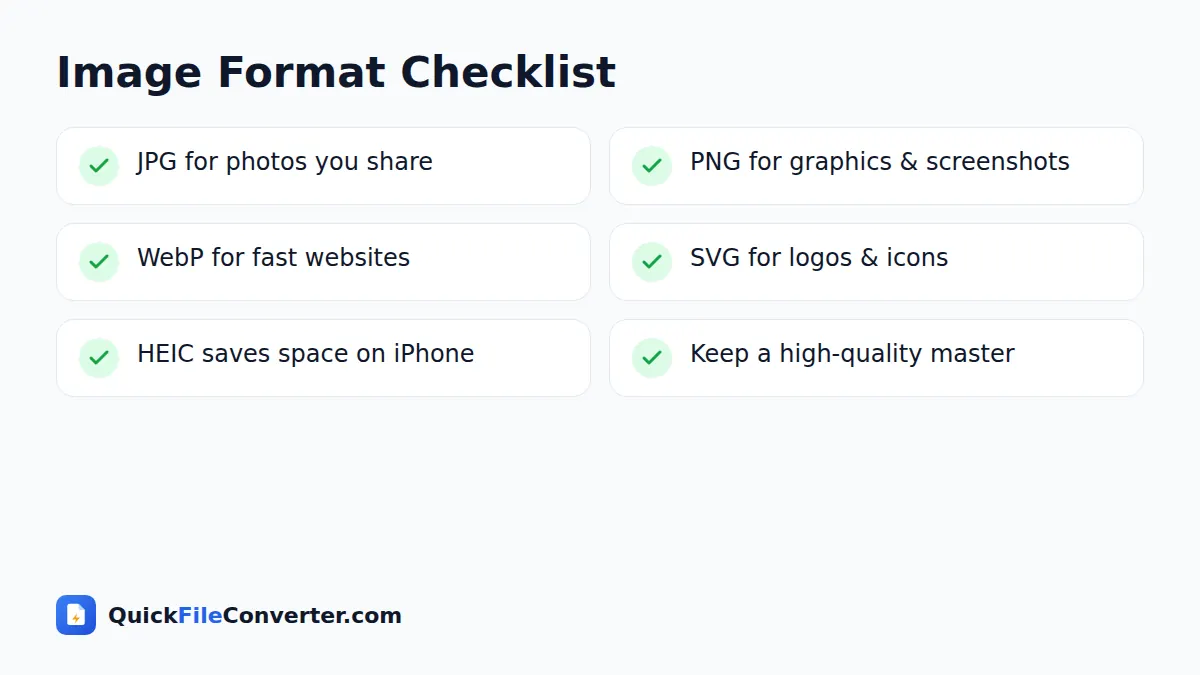
Image Formats for Different People
For everyday phone users
Keep photos in your phone’s default format, and convert copies to JPG when sharing with people who cannot open HEIC or WebP files.
For bloggers and website owners
Use WebP for photos, SVG for logos, and PNG only when you need pixel-perfect screenshots. Compress and resize before uploading.
For designers
Work in lossless formats (PNG, TIFF or native design files), and export final assets in the format each platform needs.
For photographers
Shoot RAW for maximum flexibility, archive originals, and export JPG for clients and TIFF for print labs that request it.
For online sellers
Use high-quality JPG or WebP for product photos, PNG or WebP for cut-outs with transparent backgrounds, and keep originals for future edits.
A Short History of Image File Formats
The story of image file formats mirrors the story of computing itself. In the 1980s, BMP and GIF appeared, designed for the limited screens and slow modems of the time. JPEG arrived in 1992 and made digital photography practical by shrinking photos dramatically. PNG followed in 1996 as a free, patent-free replacement for GIF, adding full colour and smooth transparency.
For almost two decades, those image formats dominated. Then smartphones, high-resolution screens and mobile data costs created demand for smaller files. Google introduced WebP in 2010, Apple switched iPhones to HEIC in 2017, and AVIF arrived in 2019 with even better compression. Meanwhile, SVG grew in popularity as websites needed crisp logos and icons on every screen size. Today we live with a mix of old and new image file formats, which is exactly why conversion tools are so useful.
Image Formats and Colour
Colour is another area where image formats differ. Most images on the web use the sRGB colour space, which every screen understands. Professional photos may use wider colour spaces such as Adobe RGB or Display P3, which can show more vivid colours on capable screens. HEIC and AVIF can also store HDR (high dynamic range) images with brighter highlights. When converting to JPG or PNG for general sharing, images are usually converted to sRGB, which keeps colours consistent across devices.
Metadata in Image Formats
Many image formats can carry hidden information called metadata. JPG and HEIC photos often include EXIF data such as the camera model, settings, date and sometimes GPS location. PNG files may contain text notes from the app that created them. This information is useful for organising your own photos, but it can reveal more than you intend when sharing publicly. Converting images with a tool that redraws the pixels, as our converters do, produces clean files without that hidden data.
Future-Proofing Your Image Library
To keep your pictures usable for decades, store them in widely supported image file formats. JPG, PNG and TIFF have been readable for thirty years and will almost certainly remain so. Keep original photos and RAW files in an archive, back them up in at least two places, and create converted copies in newer image formats, such as WebP or AVIF, only when you need them for specific purposes like websites.
Quick Decision Guide
Still unsure? Ask three quick questions. Is it a photograph? Choose JPG, or WebP for a website. Does it need a transparent background or sharp text? Choose PNG, or SVG if it is a logo or icon. Will it be edited again and again? Keep a lossless master and export copies only when you share them. These three questions cover almost every situation you will meet, from social media posts to printed brochures and online stores.
Common Mistakes with Image Formats
- Saving photos as PNG for the web. They become huge. Use JPG or WebP.
- Saving logos as JPG. Edges blur and backgrounds cannot be transparent. Use SVG or PNG.
- Re-saving JPG files repeatedly. Each save loses a little quality. Edit in PNG and export once.
- Uploading giant images. A 4000-pixel photo for a 800-pixel slot wastes bandwidth.
- Sending HEIC to Windows or Android users. Convert to JPG first.
- Renaming instead of converting. Changing .webp to .jpg does not convert the file.
Frequently Asked Questions
What is the best image format?
There is no single best image format. Use JPG or WebP for photos, PNG for graphics and screenshots, SVG for logos and icons, and GIF for simple animations.
Which image format has the smallest file size?
AVIF and WebP usually produce the smallest files for photos, followed by HEIC and JPG. SVG is tiny for simple graphics.
Which image formats support transparency?
PNG, WebP, SVG, HEIC and AVIF support smooth transparency. GIF supports basic transparency. JPG does not.
Is PNG better quality than JPG?
PNG is lossless, so it keeps every pixel exactly. For photos, a high-quality JPG looks almost identical and is much smaller.
Why do my iPhone photos not open on Windows?
iPhones save photos as HEIC. Convert them with a HEIC to JPG converter to open them anywhere.
How can I convert image formats for free?
Use our free tools such as JPG to PNG, PNG to JPG, WebP to JPG, HEIC to JPG and SVG to PNG. They run in your browser and never upload your images.
Final Thoughts
Knowing a little about image file formats helps your pictures look better, load faster and open everywhere. Remember the basics: JPG for photos, PNG for graphics, WebP for websites, SVG for logos and HEIC for saving space on iPhones. When you need to switch, our free image converters do it in seconds, privately in your browser. Browse all our image tools to get started.