Our free JPG to WebP converter shrinks JPEG photos into lightweight WebP images in seconds, so your website loads faster without losing visible quality. Drop your images into the box above, choose a quality level and click Convert Now. Convert one picture or hundreds and download them individually or as a ZIP. There is no sign-up, no watermark and no limit.
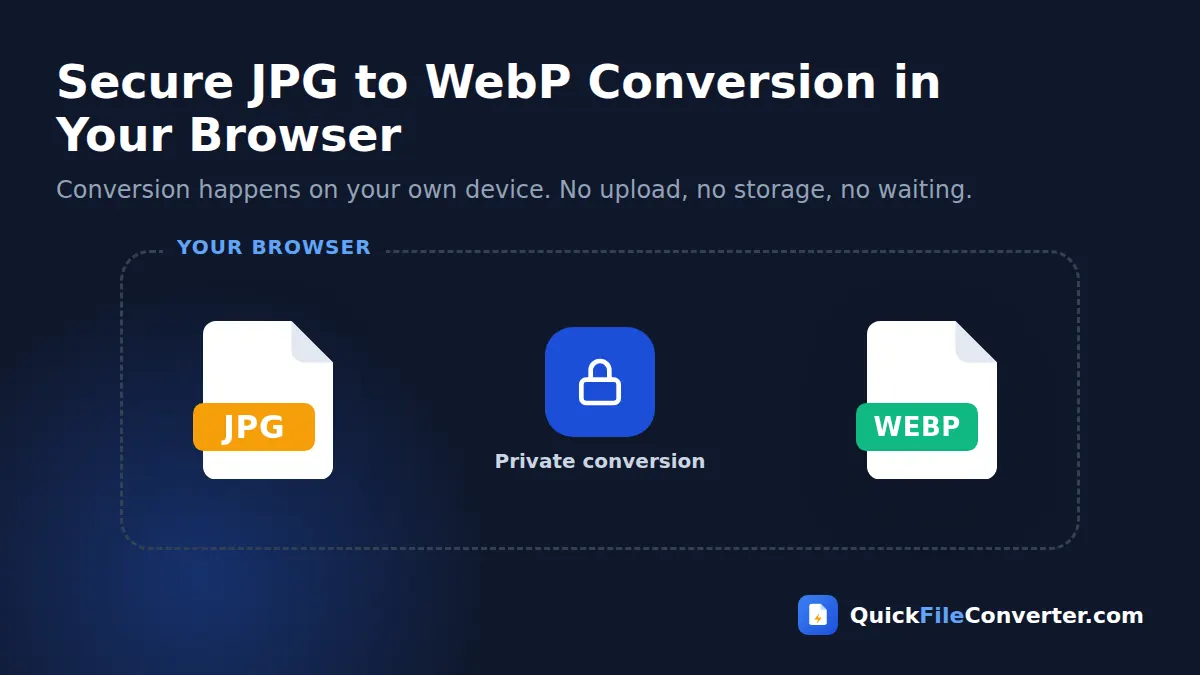
The conversion happens entirely in your browser. Your photos are never uploaded, which keeps client images, product shots and personal pictures private while you convert JPG to WebP.
Table of Contents
What Is a JPG to WebP Converter?
A JPG to WebP converter opens a JPEG image and re-encodes it in Google’s WebP format. WebP uses more advanced compression than JPG, so the same photo usually becomes 25 to 35 percent smaller while looking just as good. For websites, online stores and blogs, that saving adds up quickly across dozens of images per page.
Smaller images mean faster pages, and faster pages mean happier visitors and better search rankings. Google’s own WebP documentation and its Core Web Vitals guidance both highlight image optimisation as one of the most effective ways to speed up a site. Converting JPG to WebP is one of the easiest wins available.
How to Convert JPG to WebP in 3 Steps
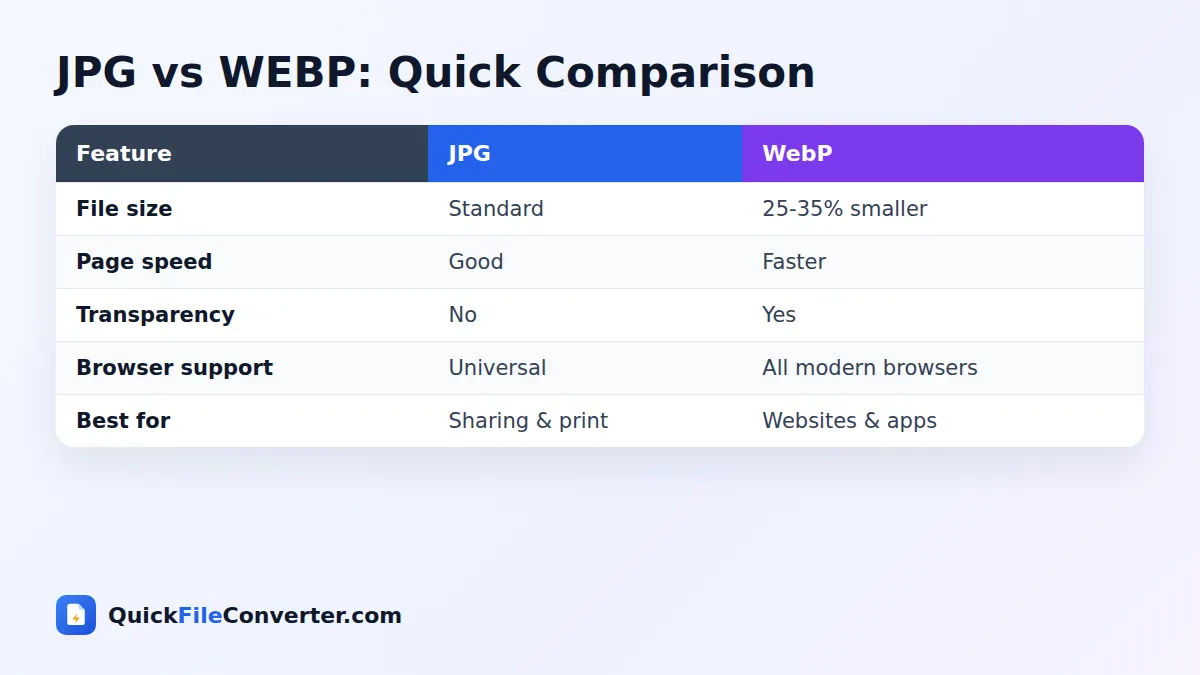
- Add your JPG images. Hover over Choose Files and select From Device, drag photos onto the upload box, or use Add Folder to convert a whole folder of images.
- Choose a quality level. High (92%) keeps photos looking identical. Balanced (85%) is a great choice for most websites. Smaller file (75%) gives the biggest savings.
- Convert and download. Click Convert Now, then download each WebP file or use Download all to get a ZIP.
JPG vs WebP Compared
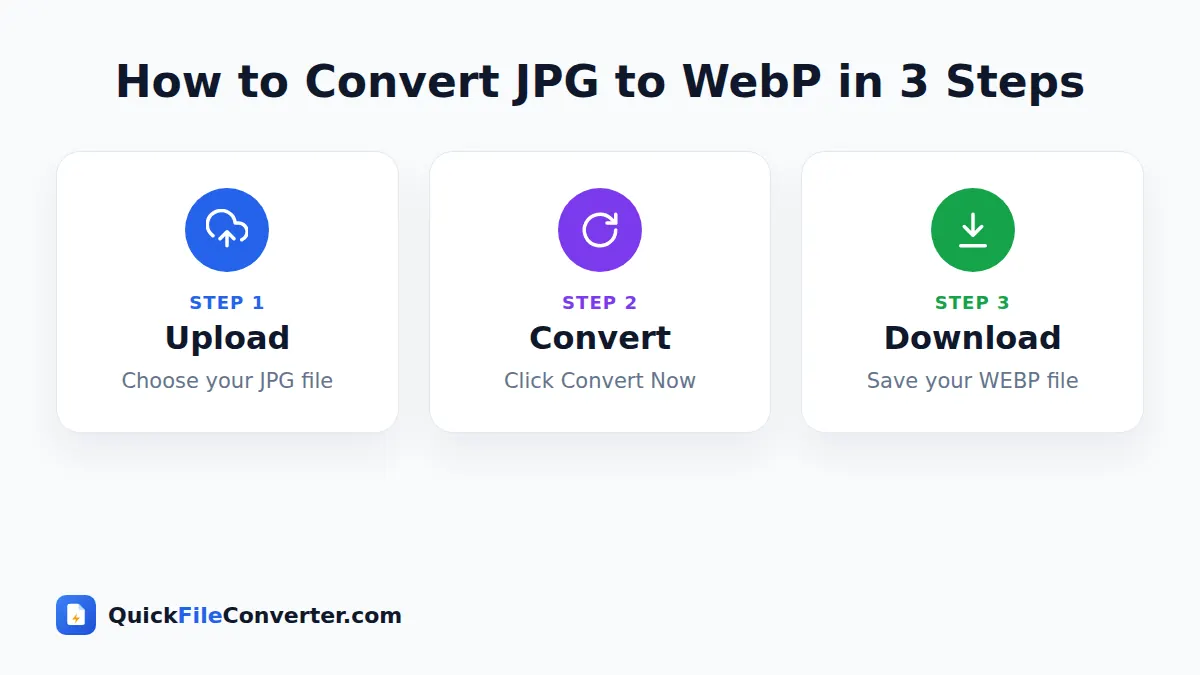
| Feature | JPG | WebP |
|---|---|---|
| Compression | Lossy | Lossy or lossless |
| Typical size for the same quality | 100% | 65 to 75% |
| Transparency | No | Yes |
| Animation | No | Yes |
| Browser support | Universal | Chrome, Edge, Firefox, Safari, Opera, Samsung Internet |
| Support in older desktop apps | Universal | Growing |
For websites, WebP is the better choice in almost every case. For printing, email attachments to older systems and editing in legacy software, JPG is still useful. Keep your original JPG files as masters and serve WebP copies on the web.
Why Convert JPG to WebP?
- Faster page loads. Smaller images download quicker, especially on mobile data.
- Better Core Web Vitals. Largest Contentful Paint (LCP) often depends on a hero image. A lighter image improves the score.
- Higher search visibility. Page speed is part of Google’s page experience signals.
- Lower hosting and bandwidth costs. Less data is served for every visitor.
- Better user experience. Visitors see images sooner and are less likely to leave.
- Fixing PageSpeed warnings. Tools such as PageSpeed Insights recommend “Serve images in next-gen formats”. Converting to WebP resolves it.
- More storage for apps. Mobile and desktop apps that bundle images can reduce their download size.
Choosing the Right WebP Quality
| Setting | Typical saving vs original JPG | Recommended for |
|---|---|---|
| Maximum (95%) | Small saving, highest detail | Photography portfolios |
| High (92%) | Moderate saving | Product photos and hero images |
| Balanced (85%) | Large saving, excellent look | Most blog and website images |
| Smaller file (75%) | Largest saving | Thumbnails, backgrounds, galleries |
A good rule is to start with Balanced for general website images and use High for images where detail really matters, such as product close-ups. If your original JPG was already heavily compressed, a higher setting avoids adding extra artefacts.
Features of Our JPG to WebP Converter
Real WebP encoding
Images are encoded with your browser’s native WebP encoder for efficient, standards-compliant files.
Batch conversion
Convert an entire folder of images and download them in one ZIP file, ready to upload to your site.
Adjustable quality
Four quality levels let you balance size and detail for each project.
Keeps full resolution
Width and height stay exactly the same as the original JPG.
Private and secure
Nothing is uploaded. Images are converted locally on your device.
Free and unlimited
No accounts, watermarks or daily caps.
How to Use WebP Images on Your Website
WordPress
WordPress has supported WebP uploads since version 5.8. Upload your converted images to the Media Library and insert them as usual. Many caching and image plugins can also serve WebP automatically.
Shopify, Wix and Squarespace
Most hosted platforms accept WebP uploads and many convert images automatically. Uploading optimised WebP files yourself gives you more control over quality and size.
Custom HTML sites
Use a normal img tag with your WebP file. If you need to support very old browsers, you can use the picture element to provide a JPG fallback alongside the WebP version.
Email newsletters
Some email clients still do not display WebP reliably. For newsletters, JPG or PNG remains the safer choice.
Tips for Maximum Speed
- Resize before converting. A 4000-pixel photo is far larger than any web page needs. Resize to the display size, such as 1200 or 1600 pixels wide.
- Use Balanced quality for most images. It offers the best trade-off.
- Lazy-load images below the fold. Only load images when visitors scroll to them.
- Give images width and height. This prevents layout shifts while the page loads.
- Use descriptive file names and alt text. They help accessibility and image search.
- Keep your JPG originals. You may need them for print or future edits.
Is It Safe to Convert JPG to WebP Online?
Many image optimisers upload your files to their servers for processing. Ours converts everything inside your browser, so your photos never leave your device and nothing is stored anywhere. That makes it suitable for unpublished product launches, client work and private images. Read our privacy policy for details.
How the Conversion Works
- Decoding. Your browser reads the JPG into raw pixels.
- Drawing. The pixels are drawn to an off-screen canvas at full resolution.
- Encoding. The browser’s built-in WebP encoder compresses the image at the quality you selected.
Chrome, Edge and Firefox include a WebP encoder. On Safari, encoding support can vary by version; if your browser cannot create WebP files, the tool will tell you so you can switch to Chrome or Firefox.
How Much Faster Will My Site Be?
The exact improvement depends on how many images you have and how large they are. As an example, a blog post with ten 300 KB JPG photos carries about 3 MB of images. Converting them to WebP at Balanced quality might bring that down to around 2 MB, saving about 1 MB per page view. On a typical 4G connection, that can shave a noticeable amount of time off loading, and on slower connections the difference is even larger.
Understanding Next-Gen Image Formats
“Next-gen” is the term tools like PageSpeed Insights use for modern formats that compress better than JPG and PNG. The two main ones are WebP and AVIF. WebP has near-universal browser support and fast encoding, which makes it the practical default today. AVIF can be even smaller, but it takes longer to encode and some tools still do not support it. For most websites, converting to WebP captures the majority of the benefit with the fewest compatibility concerns.
A Simple Image Optimisation Workflow
- Collect originals. Keep full-size JPG photos in a master folder.
- Resize for the web. Create copies at the widths your site actually displays, such as 800, 1200 and 1600 pixels.
- Convert to WebP. Add the resized copies here and choose Balanced or High quality.
- Upload and test. Upload the WebP files and run a speed test to confirm the improvement.
- Repeat for new content. Make conversion part of your publishing routine so every new post is fast from day one.
JPG to WebP for Bloggers
Bloggers often upload photos straight from their phone or camera, which can be several megabytes each. Converting JPG to WebP before uploading, together with resizing to the width of your content area, can make a photo-heavy post several times lighter. Readers on mobile connections will see images appear almost instantly, and your hosting plan will serve far less data each month.
A practical routine is to export photos at around 1600 pixels wide, convert them to WebP at Balanced quality and upload them to WordPress or your blogging platform. Add descriptive alt text to every image so screen reader users and search engines understand what each picture shows.
JPG to WebP for Developers
Developers can use this tool for quick one-off conversions without installing command-line utilities. It is handy for prototypes, landing pages, documentation sites and small projects where setting up an image pipeline would be overkill. For large production sites, build tools and CDNs can automate conversion, but a quick in-browser JPG to WebP converter is ideal for checking how much a particular image will shrink before you commit to a workflow.
When you add WebP files to a page, remember to include width and height attributes and to lazy-load images below the fold. Combined with WebP, these simple steps often move a page from an amber to a green score in speed tests.
Common Problems and Solutions
The WebP file is bigger than the JPG
This can happen when the original JPG was already heavily compressed and you choose Maximum quality. Try Balanced or Smaller file quality, which almost always produces a smaller WebP.
My browser says it cannot create WebP files
Some older Safari versions can display WebP but not encode it. Use a recent version of Chrome, Edge or Firefox to convert JPG to WebP, then use the files anywhere.
My image editor will not open WebP
Older desktop software may not support the format. Keep your JPG originals for editing and use WebP only for publishing.
Colours look slightly different
Very rarely, images with special colour profiles can look a little different after conversion. For web use, colours are normally identical. Keep the original for professional printing.
Image SEO Beyond File Format
Converting to a modern format is only one part of image optimisation. To help your pictures appear in Google Images and to make your pages accessible, also pay attention to these details:
- Alt text. Describe what the image shows in a short sentence. This helps visually impaired visitors and gives search engines context.
- File names. Use descriptive, hyphenated names such as “red-cotton-saree.webp” instead of “IMG_4821.webp”.
- Captions. Captions are read more than body text on many pages and can add useful context.
- Surrounding text. Place images near the text that discusses them.
- Structured data. Product and recipe pages benefit from structured data that references your images.
- Responsive sizes. Serve smaller images to phones and larger ones to desktops using the srcset attribute.
Together with WebP, these steps give your images the best chance of loading fast and ranking well.
Does WebP Work on Every Device?
Today, yes, for web browsing. Chrome, Edge, Firefox, Opera and Samsung Internet have supported WebP for years, and Safari added full support on iPhone, iPad and Mac in 2020. Around 97 percent of web users now have a browser that displays WebP. The main exceptions are some older desktop programs, a few email clients and certain print workflows, which is why it is wise to keep JPG copies of important images.
If you convert JPG to WebP for a website that must support very old devices, use the HTML picture element to offer a JPG fallback. Modern browsers pick the WebP, while older ones quietly load the JPG.
Keeping Your Originals Safe
Always store the full-size originals in a separate folder or cloud drive before publishing optimised copies. If you redesign your site, need a print version or want to try a newer format later, you can create fresh files from the masters without any loss.
Measuring the Results
After you replace JPG images with WebP versions, run your page through a speed test such as PageSpeed Insights or the Lighthouse panel in Chrome’s developer tools. Look at the total page weight and the Largest Contentful Paint time. Comparing the results before and after converting JPG to WebP shows exactly how much faster your page has become, and helps you decide which other images to optimise next.
JPG to WebP for Online Stores
Product pages often show many large images, including zoomable close-ups and galleries. Converting product photos to WebP can make category and product pages noticeably lighter, which helps shoppers on mobile data. Use High quality for main product shots so textures and colours stay accurate, and Balanced for secondary images such as lifestyle photos and banners.
Related Tools
- Convert back for compatibility with WebP to JPG.
- Keep transparency with PNG to WebP.
- Turn WebP into lossless PNG with WebP to PNG.
- Read our image file formats guide.
Frequently Asked Questions
Is this JPG to WebP converter free?
Yes. It is free with no sign-up, watermark or limits.
How much smaller are WebP files than JPG?
Typically 25 to 35 percent smaller at the same visual quality. Lower quality settings save even more.
Will my images lose quality?
At High or Balanced quality, differences are very hard to see. Choose Maximum for the most detail.
Do all browsers support WebP?
Yes. All modern browsers, including Chrome, Edge, Firefox, Safari and Samsung Internet, display WebP images.
Can I convert many images at once?
Yes. Add a batch of files or a whole folder, then download all the WebP images as a ZIP.
Are my images uploaded?
No. The conversion happens in your browser and your photos never leave your device.
Should I delete my original JPG files?
No. Keep them as masters for printing, editing or creating other sizes later.
Final Thoughts
Faster websites start with lighter images, and converting JPG to WebP is one of the simplest ways to get there. Drop your photos into the box at the top of the page, choose a quality level and download optimised WebP images in seconds, with your files kept private on your own device. Make conversion part of your publishing routine and every new page on your site will be lighter and faster from the moment it goes live.