Use our free tool to unzip files online in seconds. Drop a ZIP archive into the box above and click Extract Files. Every file inside appears in a list, ready to download one by one, including files stored in subfolders. There is no software to install, no sign-up and no upload.
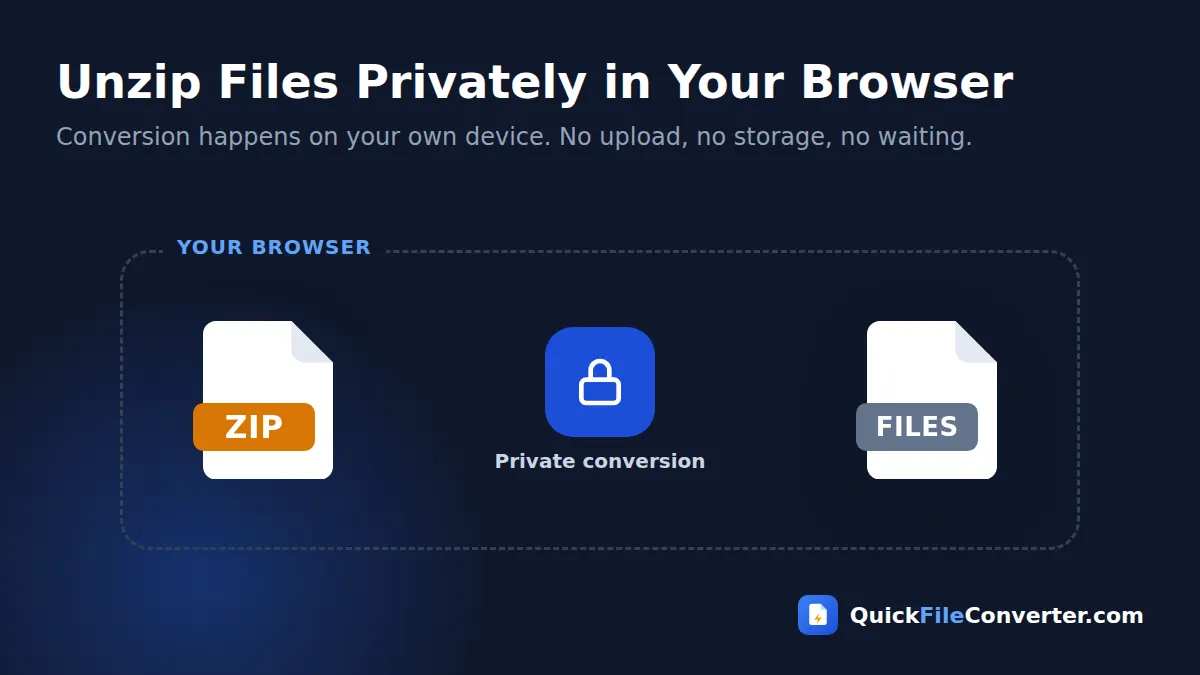
The extraction runs inside your browser, so the archive and its contents never leave your device. Documents, photos and project files stay private while you unzip files on your phone, tablet or computer.
Table of Contents
What Does It Mean to Unzip Files?
A ZIP file is an archive that bundles one or more files and folders into a single compressed package. To unzip files means to open that package and extract the original files so you can use them. The extracted files are identical to the ones that were zipped, with the same names, content and folder paths.
ZIP archives are everywhere: email attachments, downloads from websites, shared project folders, exported photo albums, software packages and backups. Most operating systems can open them, but not always conveniently. Some phones lack a built-in extractor, some computers block software installs, and some archives are simply easier to browse file by file. Our online extractor handles all of these cases. The ZIP format is documented in the PKWARE ZIP specification.
How to Unzip Files Online in 3 Steps
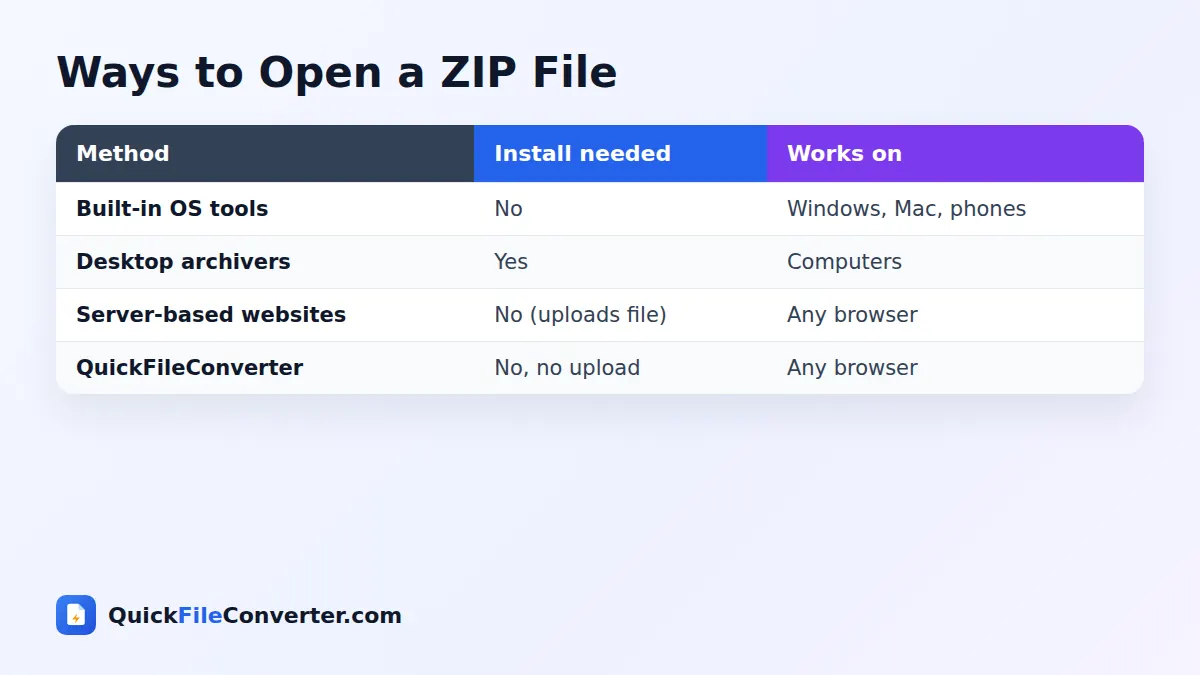
- Add your ZIP archive. Hover over Choose Files and pick From Device, drag the ZIP onto the upload area, or use From URL to open a public ZIP from a link.
- Click Extract Files. The archive is opened in your browser and every file inside is listed with its name, folder path and size.
- Download what you need. Click Download next to any file. Use Download all to save everything again as a single archive if you need a copy.
Why Unzip Files Online?
- No software needed. Perfect for Chromebooks, work laptops, school computers and borrowed devices.
- Phones and tablets. Open ZIP attachments on Android and iPhone without installing an app.
- Pick individual files. Download only the documents or photos you need instead of extracting everything.
- Check contents first. See what is inside an archive before saving files to your device.
- Private and secure. Nothing is uploaded, which matters for confidential archives.
- Works everywhere. Windows, Mac, Linux, ChromeOS, Android and iOS.
Features of Our ZIP Extractor
Lists every file
All files in the archive are shown, including those inside subfolders, with their full paths and sizes.
Individual downloads
Save only the files you need with one click each.
Handles large archives
Archives with hundreds of files extract quickly, limited only by your device’s memory.
Standard ZIP support
Works with ZIP archives created by Windows, macOS, Linux, 7-Zip, WinRAR and most other tools.
Private in-browser processing
Extraction uses the open-source JSZip library inside your browser. Nothing is uploaded.
Free and unlimited
No accounts, adverts inside files or limits.
How to Unzip Files on Different Devices
Windows
Windows can open ZIP files in File Explorer. Our tool is useful when you only need a few files, when File Explorer shows errors with long paths, or when you are on a locked-down computer. Drag the ZIP onto the upload area and download what you need.
Mac
macOS extracts ZIP files automatically when you double-click them, but it always extracts everything. Our tool lets you preview the contents and download individual files.
Chromebook
ChromeOS can mount ZIP files in the Files app, but our tool is a quick alternative that works right in Chrome, including for archives opened from links.
Android
Open this page in Chrome, tap Choose Files and select the ZIP from Downloads, WhatsApp documents or Google Drive. Tap Extract Files and download the files you need.
iPhone and iPad
The Files app can expand ZIP files, but it extracts everything into the same folder. With our tool, tap Choose Files, then Browse, select the ZIP and download only the files you want.
Tips for Working with ZIP Archives
- Check the file list first. Make sure the archive contains what you expected before downloading anything.
- Be careful with unexpected archives. Only open ZIP files from people and websites you trust.
- Scan executable files. If an archive contains .exe, .bat or .js files you did not expect, do not run them.
- Keep folder structure in mind. File names show their folder paths so you know where each file belongs.
- Download large files on Wi-Fi if you plan to move them to cloud storage.
- Delete the ZIP after extracting if you no longer need it, to free up space.
Is It Safe to Unzip Files Online?
Many online extractors upload your archive to their servers, unpack it there and let you download the files. That exposes everything inside the archive to a third party. Our tool never uploads your ZIP. The archive is read and extracted in your browser’s memory, and the files are saved directly to your device. Read our privacy policy for details.
How Extraction Works
- Reading the archive. Your browser reads the ZIP file from your device.
- Reading the directory. The ZIP’s central directory lists every file, its path and its compressed size.
- Decompressing. Each file is decompressed using the DEFLATE algorithm, or copied directly if it was stored without compression.
- Offering downloads. Each extracted file is prepared as a download, named exactly as it was in the archive.
What About RAR, 7Z and TAR Files?
This tool is designed for ZIP archives, the most common format. RAR and 7Z archives use different compression methods and usually need a dedicated archiver such as 7-Zip, WinRAR, Keka or The Unarchiver. If someone sends you a RAR or 7Z file and you cannot open it, ask them to send a ZIP instead, which anyone can open. To create ZIP files yourself, use our Zip Files tool.
Common Problems and Solutions
The tool says the ZIP cannot be opened
The archive may be damaged or only partly downloaded. Try downloading it again. If it still fails, ask the sender to create a new archive.
The archive is password protected
Encrypted ZIP files cannot be opened without the password, and this tool does not unlock encrypted archives. Use a desktop archiver and enter the password the sender gave you.
Some file names look strange
Archives created on older systems may use different character encodings for file names. The file contents are fine, so rename the files after downloading.
The archive is very large
Very large archives, such as several gigabytes, may exceed browser memory on phones. Use a computer or a desktop archiver for these.
Unzip Files for Students and Teachers
Course materials, assignment templates and exam resources are often distributed as ZIP files. Students on phones or Chromebooks can unzip files right in the browser and open just the document they need. Teachers collecting student submissions can quickly check each archive’s contents before grading.
Unzip Files for Office Workers
Clients and colleagues often send reports, invoices and image sets as ZIP attachments. When you are on a work laptop without admin rights or on your phone between meetings, extracting a single file from the archive in your browser is the fastest way to get what you need.
Where Do ZIP Files Come From?
You will meet ZIP archives in many everyday situations. Knowing where they come from helps you decide how to handle them.
Email attachments
Colleagues and clients zip reports, invoices and photos to send them as one attachment. When you unzip files from email, check the sender first, especially if you were not expecting the message.
Google Drive, OneDrive and Dropbox downloads
When you download a folder or several files at once from cloud storage, the service packages them as a ZIP. Unzipping restores the folder exactly as it appeared online.
Photo and data exports
Google Takeout, social networks and many apps deliver your personal data as ZIP archives. These can be large, so a computer is best for extracting them in full, while our tool is handy for quickly grabbing specific files.
Software, fonts and templates
Fonts, design templates, plugins and code libraries are often distributed as ZIP files. Unzip them to find the installer, font files or documentation inside.
School and course materials
Teachers and online courses share bundles of worksheets, slides and resources as archives, making it easy to download everything at once.
Understanding What Is Inside an Archive
After you click Extract Files, the list shows each file’s full path, such as “Project/images/logo.png”. The part before the last slash is the folder it came from. This helps you understand how the sender organised the files and find what you need quickly. Files with the same name in different folders are shown separately, so nothing is overwritten.
Pay attention to file extensions. Documents (.pdf, .docx, .xlsx), images (.jpg, .png) and media files are usually safe to open. Programs and scripts (.exe, .msi, .bat, .cmd, .js, .vbs) can run code on your computer, so only open them if you trust the source and expected them.
Staying Safe with ZIP Attachments
Attackers sometimes use ZIP archives to hide harmful files, because some email filters cannot look inside archives. Follow these simple rules to unzip files safely:
- Verify the sender. If an email looks unusual, contact the sender through another channel before opening the attachment.
- Be wary of urgency. Messages demanding that you open an invoice or delivery notice immediately are a common trick.
- Look before you open. Our tool lets you see the contents without running anything.
- Avoid double extensions. A file named “invoice.pdf.exe” is a program pretending to be a document.
- Keep your system updated and use antivirus software.
- When in doubt, delete it. It is always safer to ask for the file again than to risk infection.
How to Open ZIP File Attachments on a Phone
Phones are where people most often struggle to open ZIP file attachments. Here is the quickest way on each platform.
Android
- Download the attachment from Gmail, WhatsApp or your browser.
- Open this page and tap Choose Files, then pick the ZIP from Downloads.
- Tap Extract Files and download the files you need.
This works even on phones without a file manager that supports archives, which is why many people prefer to unzip files online.
iPhone
- In Mail or WhatsApp, tap the attachment and choose Save to Files.
- Open this page in Safari, tap Choose Files, then Browse, and select the ZIP.
- Extract the archive and download individual files to the Files app.
Extract ZIP File Contents on Shared Computers
Library computers, school labs and office desktops often block software installation and may clear downloads when you log out. To extract a ZIP file on these machines, open our tool, add the archive and download only the file you need, then open it straight away. Because the archive is processed in the browser’s memory, nothing extra is left on the computer apart from the files you choose to save.
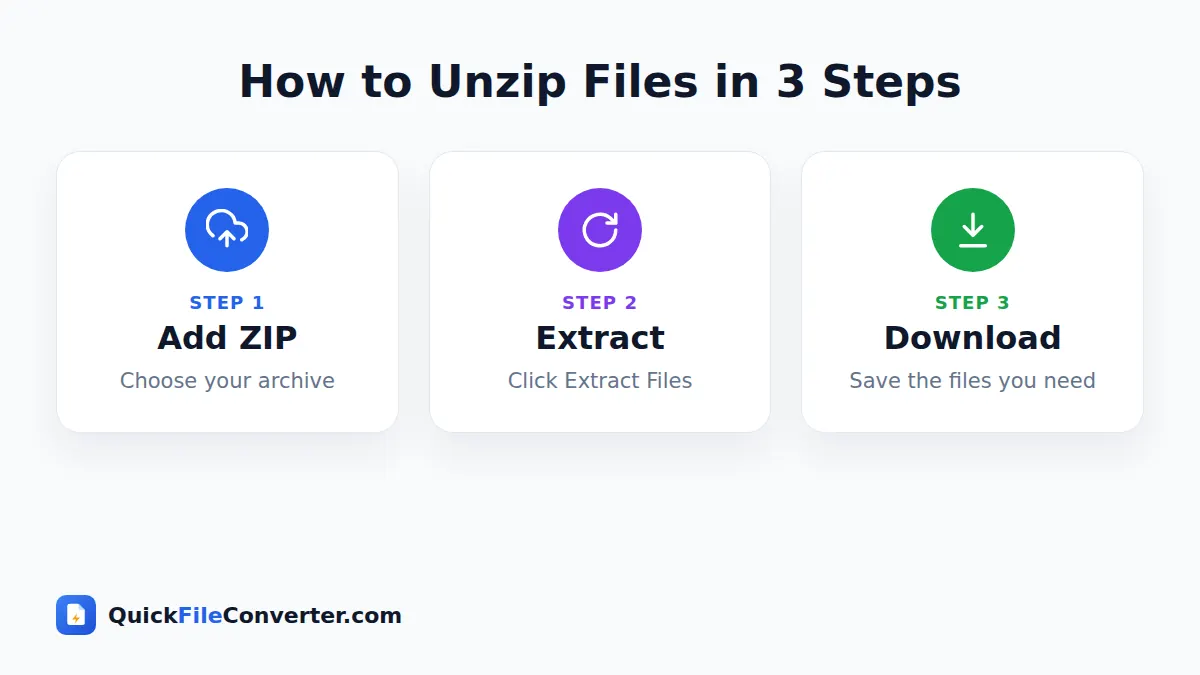
Unzip Files Online vs Desktop Archivers
Desktop archivers such as 7-Zip, WinRAR and Keka are powerful and support many formats, passwords and very large archives. Use them for heavy, regular work. For quick jobs, such as reading one document from an email attachment, checking what is inside a download, or working on a device where you cannot install software, it is faster to unzip files online in your browser.
Freeing Up Space After Extracting
Archives and their extracted copies can double the storage you use. Once you have the files you need, delete the original ZIP from your Downloads folder, or move it to cloud storage if you want to keep a backup. On phones, clearing old archives from WhatsApp documents and downloads can free a surprising amount of space.
Re-Zipping and Converting Extracted Files
Once you have extracted what you need, you might want to do more with it. Photos from an iPhone export may need converting from HEIC to JPG. Several extracted PDFs can be combined into one document. If you need to send a subset of files to someone else, you can zip files again with a clear name so the recipient receives only what they need. All of these tools work in the same private, in-browser way.
Related Tools
- Create archives with Zip Files.
- Combine extracted PDFs with Merge PDF.
- Convert extracted photos with HEIC to JPG or WebP to JPG.
- Learn more in our guide on how to convert files online.
Frequently Asked Questions
How do I unzip files without software?
Add your ZIP archive to the box at the top of this page and click Extract Files. Everything runs in your browser, so nothing needs to be installed.
Is it free to unzip files here?
Yes. The tool is completely free with no sign-up, limits or watermarks.
Is my ZIP file uploaded?
No. The archive is extracted in your browser and never leaves your device.
Can I download only some of the files?
Yes. Every file has its own Download button, so you can save only what you need.
Can I open password-protected ZIP files?
No. Encrypted archives need a desktop archiver and the correct password.
Does it work on iPhone and Android?
Yes. The tool works in modern mobile browsers as well as on computers.
Can I open RAR or 7Z files?
This tool supports ZIP archives. RAR and 7Z files need a dedicated archiver.
Final Thoughts
Opening an archive should not require installing software or uploading private files. Our tool lets you unzip files online in seconds, right in your browser, on any device. Add your ZIP at the top of the page, click Extract Files and download exactly what you need. Bookmark the page so you can open any ZIP attachment the moment it arrives.