Our free AVI to MP4 converter brings old AVI videos into the modern world. Drop an AVI file into the box above, choose a quality level and click Convert Now. The tool re-encodes your video with the H.264 codec, producing an MP4 that plays on phones, tablets, smart TVs and every editing app, and is often much smaller than the original. There is no sign-up, watermark or upload.
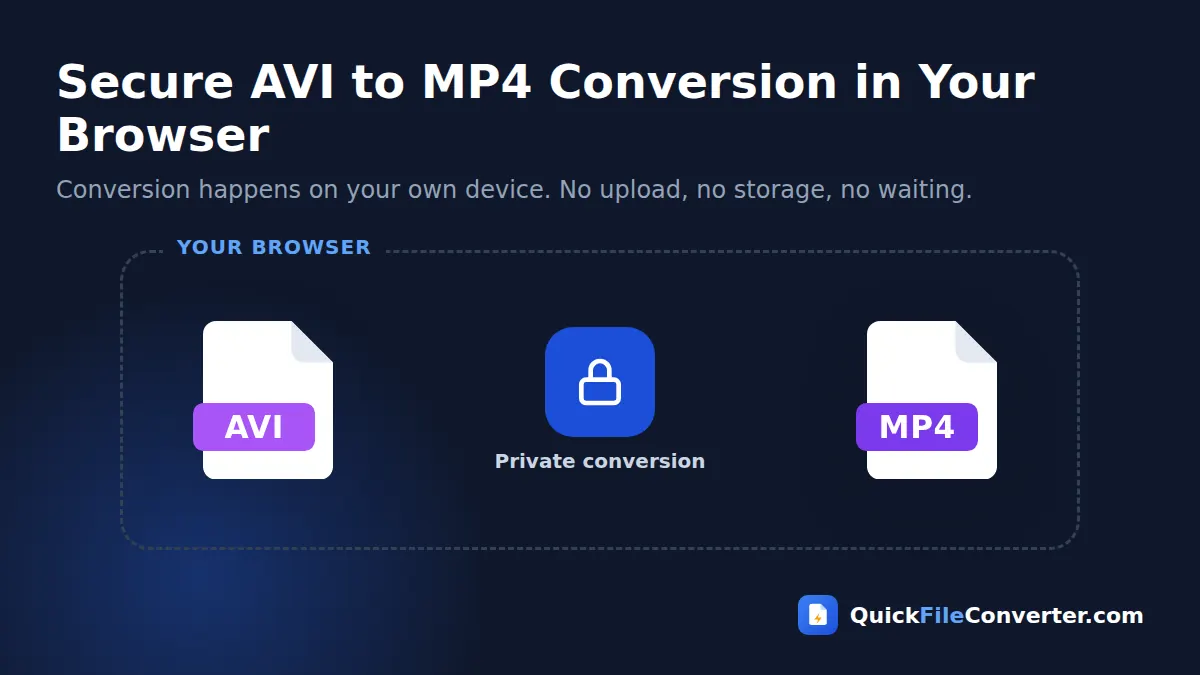
The conversion runs entirely in your browser, so your home movies, camera clips and archived recordings never leave your device while you convert AVI to MP4.
Table of Contents
What Is an AVI File?
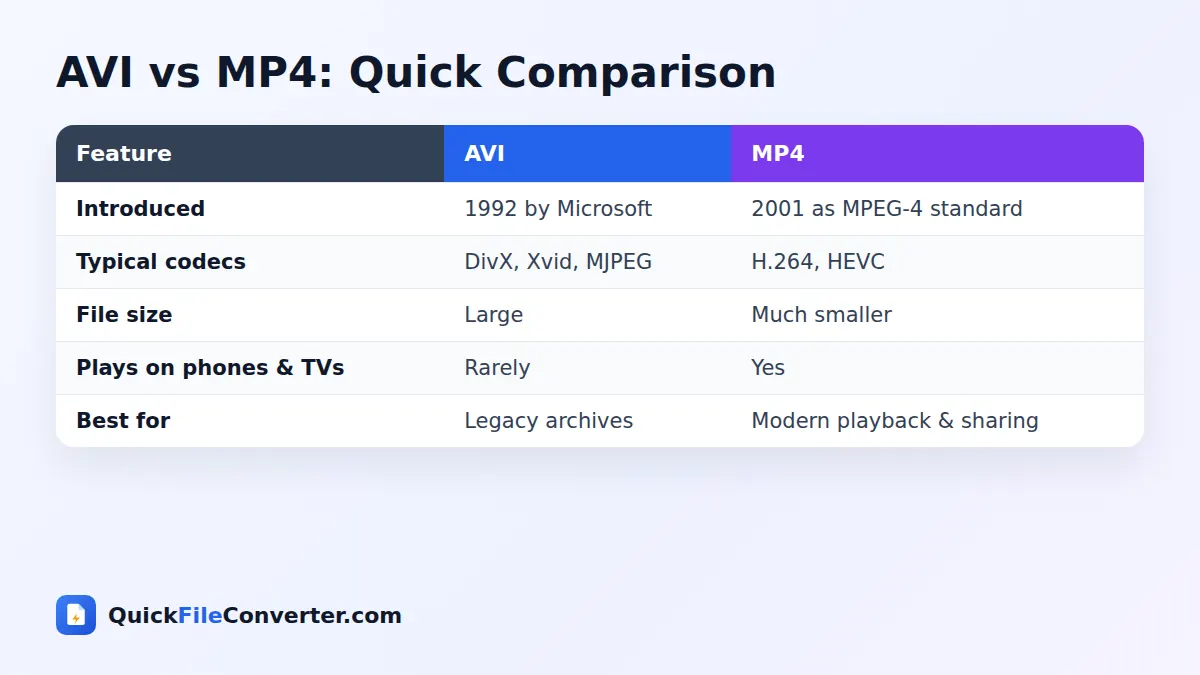
AVI stands for Audio Video Interleave. Microsoft introduced it in 1992 as part of Video for Windows, and for many years it was the standard video format on PCs. Digital cameras, webcams, camcorders, screen recorders and video editing software from the late 1990s and 2000s often saved AVI files, using codecs such as DivX, Xvid, Motion JPEG, Cinepak or even uncompressed video. You can read more about its history in the AVI article on Wikipedia.
Today, AVI is a legacy format. iPhones, iPads, most Android phones, smart TVs, game consoles, web browsers and social networks do not play AVI files reliably. Old codecs also make AVI files very large compared with modern video. Converting AVI to MP4 with H.264 solves both problems: your videos play everywhere and take up less space.
How to Convert AVI to MP4 in 3 Steps
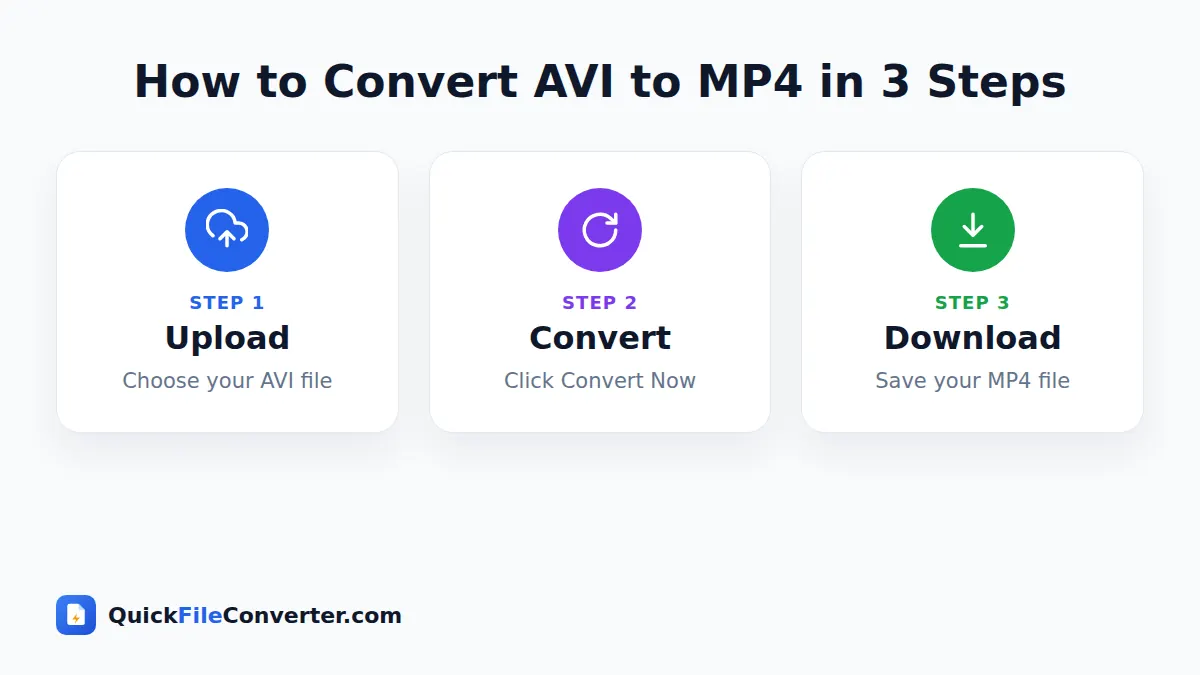
- Add your AVI video. Hover over Choose Files and pick From Device, or drag the file onto the upload area.
- Choose a quality level. Balanced is a great default. Choose High quality for important footage or Smaller file to save space.
- Convert and download. Click Convert Now. The video engine loads once, then your video is re-encoded and ready to download as MP4.
Why AVI to MP4 Needs Re-Encoding
Unlike MOV or MKV, most AVI files use older codecs that the MP4 format and modern devices do not handle well. Simply repackaging them would not make them play on phones or TVs. That is why our AVI to MP4 converter always re-encodes the video with H.264 and the audio with AAC, the most compatible combination in the world.
Re-encoding takes longer than a simple copy, because every frame is processed. The result, however, is a clean, modern MP4 that plays everywhere and is usually far smaller than the original.
Quality Options
| Option | Result | Best for |
|---|---|---|
| Fast / Balanced | Good quality, sensible size | Most home videos and clips |
| High quality | More detail, larger file | Precious family footage, archiving |
| Smaller file | Smallest size, good for phones | Sharing, messaging, storage limits |
For AVI files, Fast and Balanced both re-encode with balanced settings, because a direct copy is not suitable for old codecs.
Why Convert AVI to MP4?
- Play old videos on phones and tablets. Watch family memories on iPhone, iPad and Android.
- Stream to smart TVs. MP4 plays from USB drives, media servers and casting apps.
- Save storage space. H.264 is far more efficient than old codecs like Motion JPEG.
- Edit in modern software. Import into iMovie, CapCut, DaVinci Resolve or Premiere Pro without codec errors.
- Share online. Upload to cloud drives, social networks and family groups.
- Preserve memories. Convert digitised tapes and early digital camera clips into a future-proof format.
Features of Our AVI to MP4 Converter
Modern H.264 output
Your video is encoded with H.264, the most widely supported video codec.
AAC audio
Audio is converted to AAC, the standard for MP4 files.
Automatic sizing fixes
Some old AVI videos have odd dimensions. The converter adjusts them slightly when needed so the MP4 plays correctly.
Private in-browser processing
FFmpeg runs inside your browser via WebAssembly. Nothing is uploaded.
Web-ready files
MP4 files are optimised to start playing quickly online.
Free and watermark-free
No accounts, logos or limits.
Converting Old Family Videos
Many families have AVI files from early digital cameras, camcorder transfers or digitised VHS tapes. These videos are precious, but they are hard to watch on today’s devices. Here is a simple plan to rescue them:
- Gather the files from old hard drives, CDs, DVDs or memory cards into one folder.
- Convert each video with High quality to keep as much detail as possible.
- Rename the MP4 files with the date and event, such as “1999-12-25 Christmas at home.mp4”.
- Back them up to cloud storage and an external drive.
- Share them with relatives in a family album or cloud folder.
Because the conversion happens on your own device, these personal memories never pass through anyone else’s servers.
Tips for Better Results
- Use a computer for long videos. Re-encoding is demanding, and desktop processors are much faster than phones.
- Keep your device plugged in and the browser tab open during conversion.
- Start with a short clip to check the quality setting before converting a long video.
- Choose High quality for archives and Smaller file for sharing copies.
- Keep the original AVI until you have checked the MP4 plays correctly.
- Convert one file at a time if your computer has limited memory.
Is It Safe to Convert AVI to MP4 Online?
Uploading large, personal videos to an online converter is slow and puts your memories on someone else’s server. Our AVI to MP4 converter keeps everything local. The FFmpeg engine runs in your browser, your video is processed in your device’s memory, and the MP4 is saved straight back to your device. Read our privacy policy for more.
How the Conversion Works
- Loading FFmpeg. The first time, your browser downloads the video engine (about 30 MB) and caches it.
- Reading the AVI. Your file is loaded into memory on your device.
- Encoding video. Each frame is encoded with H.264 using a fast preset and a quality level based on your choice.
- Encoding audio. The soundtrack is converted to AAC at 128 kbps.
- Saving the MP4. The file is finalised with fast start and offered for download.
How Long Will It Take?
Re-encoding speed depends on your device and the video’s resolution. As a rough guide, on a modern laptop, standard-definition AVI videos (640 × 480) often convert faster than real time, while HD videos may take roughly as long as their running time. Phones are slower. The progress bar shows how far along the conversion is, so you always know how much is left.
Common Problems and Solutions
The conversion is slow
Use a computer rather than a phone, close other heavy tabs and choose Balanced or Smaller file. Long HD videos simply take time to re-encode.
The MP4 has no sound
Some old AVI files use rare audio formats. Try converting again. If the problem remains, the audio track in the AVI may be damaged.
The picture looks squashed or stretched
Some old AVI files store video with non-square pixels. Most players correct this automatically. If yours does not, a video editor can adjust the aspect ratio.
The file will not load
The AVI file may be incomplete or damaged, which is common with files copied from old CDs. Try playing it in VLC. If VLC cannot play it, the file needs repairing first.
AVI to MP4 for Businesses and Archives
Organisations often have archives of training videos, event recordings and CCTV exports in AVI format. Converting them to MP4 makes them easier to store, search and share on modern intranets and learning platforms. Because the conversion runs locally, sensitive internal footage never has to be uploaded to a third-party service.
AVI to MP4 on Different Devices
Windows
Windows computers are where most AVI files come from. Drag them from File Explorer onto the upload area and convert AVI to MP4. The result plays in the Photos app, Films & TV, VLC and every editor, and it is ready to copy to your phone.
Mac
macOS does not play many AVI codecs natively. After converting, the MP4 opens in QuickTime Player, Photos and iMovie without extra software.
Chromebook
Chromebooks cannot install traditional video converters. Because this tool runs in Chrome, you can convert old AVI files directly.
iPhone, iPad and Android
You can convert AVI to MP4 on phones and tablets, but because re-encoding is demanding, short clips work best. For long videos, use a computer if you can.
Understanding Old Video Codecs
AVI is only the container. The look and size of your video depend on the codec used inside it.
| Codec found in AVI files | Era | Typical source | Notes |
|---|---|---|---|
| Motion JPEG (MJPEG) | 1990s to 2010s | Digital cameras, webcams | Very large files, each frame is a JPEG |
| DivX / Xvid | 2000s | Downloads, early camcorders | Efficient for its time, poor device support today |
| Cinepak / Indeo | 1990s | CD-ROMs, early PC video | Low quality, rarely supported now |
| DV | 2000s | MiniDV camcorders | High quality, large files |
| Uncompressed | Any | Capture cards | Enormous files |
Whatever codec your AVI uses, the converter turns it into efficient H.264, which is why the resulting MP4 is often dramatically smaller. A Motion JPEG clip from an old camera can shrink to a fraction of its original size.
Digitising VHS and Camcorder Tapes
Many people transfer old VHS, Hi8 or MiniDV tapes using capture devices that save AVI files. These captures are often huge, sometimes several gigabytes per hour, because they use high-quality or uncompressed formats. Converting them to MP4 with High quality keeps the look of the original tape while making the files manageable for cloud storage and sharing. For very long captures, split them into shorter segments first so your browser has enough memory, then convert each part.
AVI to MP4 for Editing Projects
Modern editing software expects modern video. Old AVI codecs can cause stuttering timelines, missing audio or import errors in apps such as Premiere Pro, Final Cut Pro, DaVinci Resolve and CapCut. Converting AVI to MP4 before you start editing creates clean H.264 files that scrub smoothly and export reliably. It is an easy first step when making anniversary videos, memorial tributes or “then and now” compilations from old footage.
Sharing Old Videos with Family
Once your AVI clips are MP4, sharing becomes simple. Upload them to a shared Google Photos album, a family WhatsApp group or a cloud folder, and everyone can watch on their phone or TV. For large files, share a cloud link rather than sending the video directly, so it keeps its full quality.
Choosing the Right Quality for Old Footage
Old videos often have low resolution, noise and soft focus. Choosing High quality will not add detail that was never captured, but it avoids adding new compression artefacts on top of existing imperfections. For standard-definition footage, High quality still produces reasonably small files, so it is usually the best choice for archiving. Use Smaller file for copies you plan to send over messaging apps.
Why Not Just Install a Codec Pack?
In the past, people installed codec packs to play AVI files. Today, that is rarely a good idea. Codec packs can conflict with other software, some bundle unwanted programs, and they do nothing for phones, TVs and web browsers. Converting AVI to MP4 once gives you a file that plays everywhere without any extra software, now and in the future. It is simply the cleaner, safer long-term solution for old video collections.
A Quick Pre-Conversion Checklist
- Does the AVI play in VLC or another player? If not, it may be damaged.
- Do you have enough free storage for the new MP4 file?
- Is your laptop plugged in for long videos?
- Have you chosen High quality for irreplaceable footage?
- Have you noted the date and event so you can name the MP4 clearly?
Ticking these boxes before you convert AVI to MP4 saves time and avoids having to repeat a long conversion.
Storage and Backup After Converting
Once your old videos are in MP4, follow the 3-2-1 backup rule to keep them safe: keep three copies of your files, on two different types of storage, with one copy stored off-site or in the cloud. Family videos are irreplaceable, and converting them is the perfect moment to make sure they are properly backed up.
Related Tools
- Convert iPhone videos with MOV to MP4.
- Convert Matroska files with MKV to MP4.
- Turn clips into animations with Video to GIF.
- Learn more in our video file formats guide.
Frequently Asked Questions
Is this AVI to MP4 converter free?
Yes. It is free with no sign-up, watermark or limits.
Will the MP4 be smaller than the AVI?
Usually, yes. H.264 is much more efficient than the older codecs used in most AVI files.
Is my video uploaded?
No. The conversion runs in your browser and your video never leaves your device.
Why does converting AVI take longer than MOV or MKV?
AVI files use old codecs that must be fully re-encoded, which takes more processing than a simple copy.
Will the quality stay the same?
With High quality, the MP4 looks essentially the same as the original. Balanced gives very good quality at a smaller size.
Can I convert AVI files on my phone?
Yes, but long videos are much faster on a computer.
Which devices can play the MP4?
Almost all of them, including iPhone, Android, Windows, Mac, smart TVs, game consoles and web browsers.
Final Thoughts
Old AVI videos deserve to be watched, not forgotten on a hard drive. Our AVI to MP4 converter gives them a modern, compact format that plays on every device, without uploading your memories anywhere. Drop your AVI file into the box at the top of the page, choose a quality level and download an MP4 in minutes. Your old recordings will be ready to enjoy on today’s phones, laptops and TVs, and safely preserved for the years ahead, for your children and grandchildren to watch and enjoy too, wherever they live.