Our free M4A to MP3 converter turns Apple audio files, voice memos and AAC recordings into MP3 files that play on every device. Drop your M4A or AAC files into the box above, choose a bitrate and click Convert Now. Convert one file or a whole folder and download them individually or as a ZIP. There is no sign-up, no watermark and no limit.
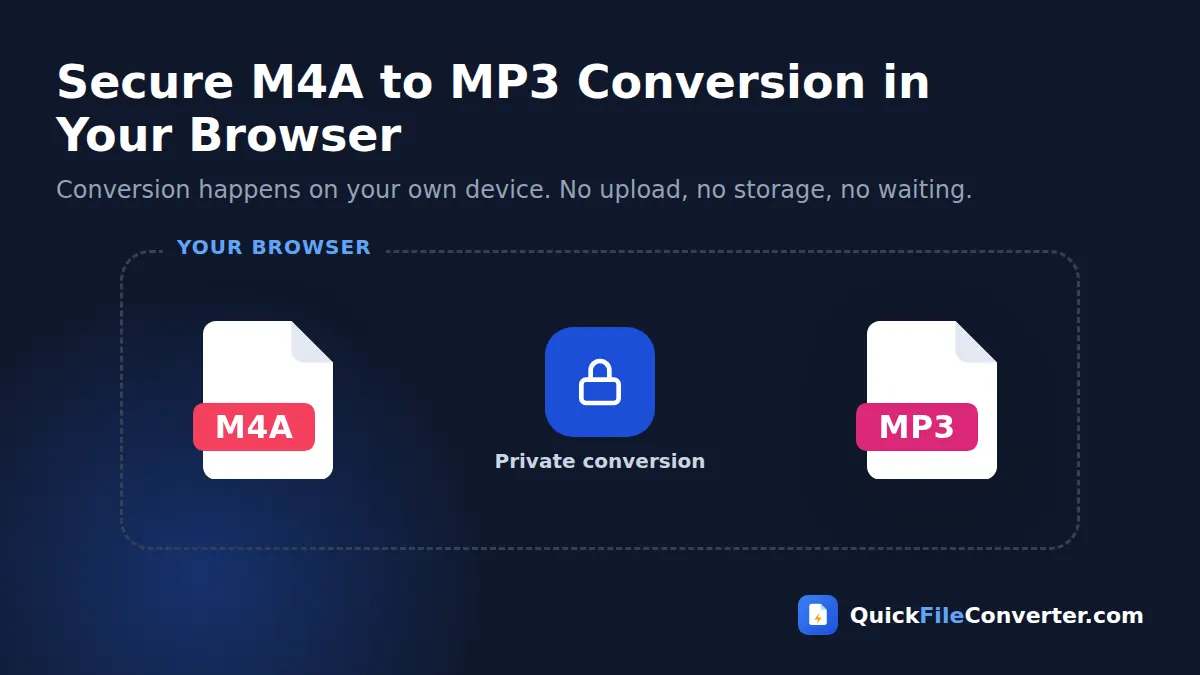
Everything happens in your browser, so your audio is never uploaded. Voice memos, interviews, lectures and music stay private while you convert M4A to MP3.
Table of Contents
What Is an M4A File?
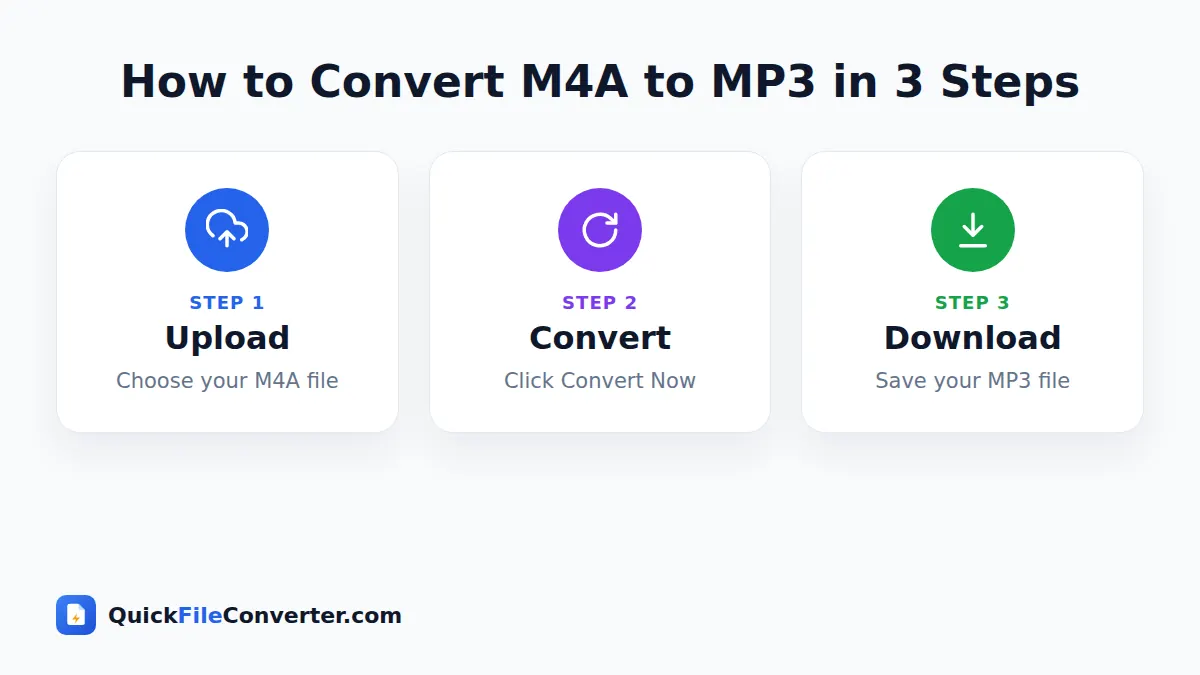
M4A is an audio file that uses the MPEG-4 container, usually holding audio compressed with AAC (Advanced Audio Coding). Apple popularised the format through iTunes, and it is still the default for iPhone Voice Memos, many Mac apps, some Android recorders and several podcast and audiobook tools. AAC is an efficient codec that sounds slightly better than MP3 at the same bitrate. You can read more about it in the AAC article on Wikipedia.
Even so, MP3 remains the most universally compatible audio format. Older car stereos, many portable players, some Windows apps, smart speakers, website upload forms and audio tools still prefer or require MP3. Converting M4A to MP3 guarantees your audio plays everywhere.
How to Convert M4A to MP3 in 3 Steps
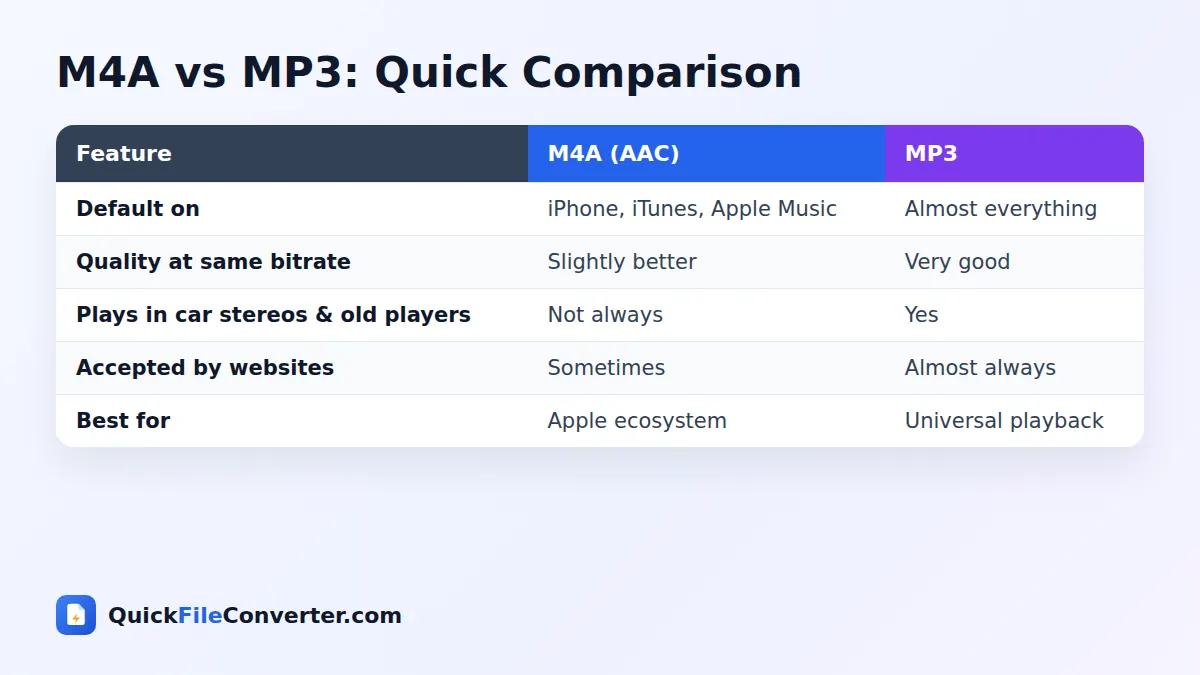
- Add your audio. Hover over Choose Files and pick From Device, drag M4A or AAC files onto the upload area, or use Add Folder.
- Choose a bitrate. 192 kbps is recommended for music. Choose 128 kbps for voice memos and speech, or 256 to 320 kbps for high-quality music.
- Convert and download. Click Convert Now and save each MP3 or download them all as a ZIP.
Choosing the Right MP3 Bitrate
| Bitrate | Size per minute | Best for |
|---|---|---|
| 128 kbps | about 1 MB | Voice memos, lectures, meetings, podcasts |
| 192 kbps | about 1.4 MB | Everyday music, recommended |
| 256 kbps | about 1.9 MB | Music from 256 kbps iTunes purchases |
| 320 kbps | about 2.4 MB | Best MP3 quality |
A good rule is to match or slightly exceed the bitrate of your source. iTunes purchases are usually 256 kbps AAC, so 256 kbps MP3 is a sensible match. iPhone voice memos are typically compressed for speech, so 128 kbps is plenty.
Why Convert M4A to MP3?
- Share iPhone voice memos with Windows and Android users.
- Play in older car stereos and MP3 players that do not support AAC.
- Upload to websites and apps that only accept MP3, such as some podcast hosts, e-learning platforms and form builders.
- Edit in any software. Some older audio editors do not open M4A.
- Send to transcription services that prefer MP3.
- Build a consistent music library in one universal format.
- Use in presentations and videos created with tools that expect MP3.
Features of Our M4A to MP3 Converter
High-quality MP3 encoding
The LAME encoder produces clear, natural MP3 audio at every bitrate.
Supports M4A and AAC
Both .m4a files and raw .aac files are accepted.
Batch conversion
Convert a full folder of recordings and download them in one ZIP.
Choice of bitrate
Pick 128, 192, 256 or 320 kbps.
Private in-browser processing
Your browser decodes the AAC audio and encodes the MP3 locally. Nothing is uploaded.
Free and unlimited
No sign-up, watermarks or limits.
Converting iPhone Voice Memos to MP3
Voice Memos is one of the most used apps on the iPhone, for lectures, interviews, meeting notes, song ideas and reminders. Recordings are saved as M4A. To convert them:
- Open Voice Memos, tap a recording, tap the three dots and choose Save to Files. Save it to a folder in iCloud Drive or On My iPhone.
- Open this page in Safari, tap Choose Files, then Browse, and select the saved recording.
- Choose 128 kbps, tap Convert Now, then Download.
On a Mac, open the Voice Memos app, drag recordings to your desktop, then drag them onto the upload box.
Important: Protected iTunes Music
Songs bought from the iTunes Store before 2009, and tracks downloaded through Apple Music subscriptions, may be protected with digital rights management (DRM). These files usually have the .m4p extension. Protected files cannot be converted by any browser tool, and removing DRM may break the service’s terms. Unprotected M4A files, including most iTunes purchases since 2009, voice memos and your own recordings, convert normally.
Tips for the Best Results
- Use 128 kbps for speech to keep files small and clear.
- Use 256 kbps for music from iTunes purchases.
- Avoid repeated conversions. Converting between lossy formats many times reduces quality. Convert once from the original.
- Batch convert recordings by exporting them to a folder first.
- Rename files clearly. Voice memo names like “New Recording 12” are hard to find later.
- Keep the originals until you have checked the MP3 files.
Converting M4A to MP3 on Different Devices
Windows
Drag M4A files onto the upload area and click Convert Now. The MP3 files play in every Windows app and portable player.
Mac
Drag files from Finder or Voice Memos onto the page. Convert and download the MP3 files.
Android
Tap Choose Files and select recordings from your Files or Recorder app. Convert and download the MP3 files to your Music or Downloads folder.
iPhone and iPad
Save recordings to the Files app, then tap Choose Files and Browse to select them. After converting, save the MP3 files back to Files and share them.
Is It Safe to Convert M4A to MP3 Online?
Voice memos often capture private conversations, lectures and personal ideas. Uploading them to an online converter creates a copy on someone else’s server. Our M4A to MP3 converter keeps everything on your device: your browser decodes the audio and the MP3 is encoded locally in memory. Nothing is uploaded or stored. See our privacy policy.
How the Conversion Works
- Decoding. Your browser’s audio engine, which natively supports AAC, decodes the M4A into raw audio.
- Resampling. If the audio uses an unusual sample rate, it is converted to 44.1 kHz.
- Encoding. The LAME encoder creates the MP3 at your chosen bitrate.
- Fallback. Rare files that the browser cannot decode are processed by a built-in FFmpeg engine.
Common Problems and Solutions
The file will not convert
If the file ends in .m4p, it is protected and cannot be converted. If it is a normal M4A, try again; unusual files are handled by the FFmpeg fallback.
The MP3 is bigger than the M4A
AAC is more efficient than MP3, so at a higher MP3 bitrate the file can be larger. Choose a lower bitrate, such as 128 kbps for speech.
Audio sounds slightly different
At the same bitrate, AAC can sound a little better than MP3. Choose a higher MP3 bitrate if you notice a difference.
Voice memo is very long
Long recordings convert fine on computers. On older phones, convert shorter recordings or use a computer for multi-hour files.
M4A to MP3 for Students and Journalists
Students record lectures and interviews with their phones, and journalists capture interviews on the go. Transcription tools, editors and content management systems often expect MP3. Converting recordings at 128 kbps keeps speech clear while making files small enough to upload quickly over mobile data.
M4A vs MP3: A Closer Look
Both formats are lossy, which means they reduce file size by discarding sounds that are hard to hear. AAC, the codec inside most M4A files, was designed as the successor to MP3 and uses more advanced techniques, so it tends to sound cleaner at low bitrates such as 96 or 128 kbps. At 192 kbps and above, most listeners cannot tell them apart.
| M4A (AAC) | MP3 | |
|---|---|---|
| Released | 1997 | 1993 |
| Efficiency | Higher | Good |
| Common on | Apple devices, YouTube, streaming | Everywhere |
| Tag support | Yes | Yes (ID3) |
| Car stereo support | Newer models | Almost all |
The deciding factor is usually compatibility. If you only use Apple devices, M4A is excellent. If you share audio with lots of different people and devices, converting M4A to MP3 avoids problems.
M4A to MP3 for Musicians and Songwriters
Many songwriters capture ideas as voice memos on their phones: a melody hummed on the bus, a chord progression played on a guitar, a lyric idea recorded before sleep. Converting those memos to MP3 makes them easy to share with co-writers and producers, drop into a DAW, or organise in a music library. Use 192 kbps for musical ideas so details like guitar tone and vocal nuance come through.
M4A to MP3 for Podcasters and Interviewers
Podcasters sometimes record remote guests who send their audio as M4A from an iPhone. Converting these files to MP3 or WAV before editing keeps the session consistent. For interviews that will be transcribed or archived, MP3 at 128 kbps gives clear speech at a very small size, which is ideal for sending to transcription services or storing large archives.
M4A to MP3 for Audiobooks and Language Learning
Language courses, audiobooks and lecture series are sometimes distributed as unprotected M4A or M4B files. Converting M4A chapters to MP3 lets you listen on basic MP3 players, older phones and car stereos, or in apps that do not support AAC. Keep the chapters in order by numbering the file names, so they play correctly.
Playing Converted Files in Your Car
Many cars from the last decade play MP3 files from a USB stick, but support for M4A is less consistent, especially in older or budget models. To prepare a USB stick for your car:
- Convert M4A to MP3 at 192 or 256 kbps.
- Format the USB stick as FAT32, which most car stereos require.
- Create simple folders, such as by artist or playlist, and avoid very deep folder structures.
- Keep file and folder names short, without emoji or unusual symbols.
- Safely eject the stick before removing it from your computer.
Most car systems will then show and play your music without any problems.
Using MP3 Files on Smart Speakers and Old Players
Bluetooth speakers play whatever your phone sends, but speakers and players with memory card slots or USB ports often support only MP3. The same goes for classic MP3 players, many kids’ audio players and some fitness devices. Converting your M4A collection to MP3 means everything plays, with no need to check each device’s specifications.
Understanding AAC Profiles
Not all AAC audio is the same. Most M4A files use AAC-LC (Low Complexity), the standard profile for music and voice. Some streaming and low-bitrate files use HE-AAC, which adds techniques to sound good at very small sizes, such as 48 or 64 kbps. Your browser decodes both profiles, so the converter handles them automatically. If you convert a low-bitrate HE-AAC file, choose 128 kbps MP3; a higher bitrate will not bring back detail that was not in the original.
Converting M4A to MP3 for WhatsApp and Messaging
Most messaging apps accept audio files, but recipients on older phones may not be able to play M4A attachments sent as documents. Converting to MP3 before sending means the audio opens in the default music player on almost any phone. For voice notes and speech, 128 kbps keeps the file small enough to send quickly, even on slow connections.
Quick Checklist
- Is the file .m4a or .aac, not a protected .m4p?
- Have you picked 128 kbps for speech or 192 to 256 kbps for music?
- Is there enough storage for the new MP3 files?
- Have you named your files so they are easy to find later?
When to Keep M4A Instead
You do not need to convert everything. If you use an iPhone, Mac, Apple Music or iTunes, M4A files play perfectly and take up slightly less space than MP3 at the same quality. Convert M4A to MP3 only when you need to share with non-Apple users, upload to a site that requires MP3, or play on devices that do not support AAC. Keeping your originals lets you convert again whenever needed.
Organising Your Converted Audio
Name converted files clearly, using a date or topic, and store them in folders such as Lectures, Interviews and Music. Add tags like title and artist with a free tag editor if you plan to listen in a music app. Back up important recordings to cloud storage so they are safe if your phone is lost.
Related Tools
- Convert other formats with OGG to MP3 and FLAC to MP3.
- Extract audio from video with MP4 to MP3.
- Create editable audio with MP3 to WAV.
- Learn more in our audio file formats guide.
Frequently Asked Questions
Is this M4A to MP3 converter free?
Yes. It is completely free with no sign-up, watermark or limits.
Can I convert iPhone voice memos?
Yes. Save them to the Files app or your computer, then add them to the converter.
What bitrate should I use?
128 kbps for speech, 192 kbps for most music, and 256 kbps for iTunes purchases.
Can I convert protected Apple Music files?
No. Protected .m4p files cannot be converted. Unprotected M4A files convert normally.
Does it support AAC files?
Yes. Both .m4a and .aac files are supported.
Are my recordings uploaded?
No. The conversion happens in your browser and your audio never leaves your device.
Can I convert multiple files at once?
Yes. Add several files or a folder and download all the MP3 files as a ZIP.
Final Thoughts
M4A works beautifully on Apple devices, but MP3 plays everywhere. Our M4A to MP3 converter gives you universal audio files in seconds, with excellent quality and full privacy. Drop your recordings into the box at the top of the page, choose a bitrate and download MP3 files ready for any player. From voice memos and lectures to song ideas and interviews, your audio will be ready to share with anyone, on any phone, computer or car stereo.