Our free MP3 to WAV converter turns compressed MP3 files into uncompressed WAV audio in seconds. Drop your MP3 files into the box above and click Convert Now. You get standard 16-bit PCM WAV files that open in every audio editor, DAW, video editor, CD burning program and hardware sampler. Convert one song or a whole folder and download the results individually or as a ZIP. No sign-up, watermark or limits.
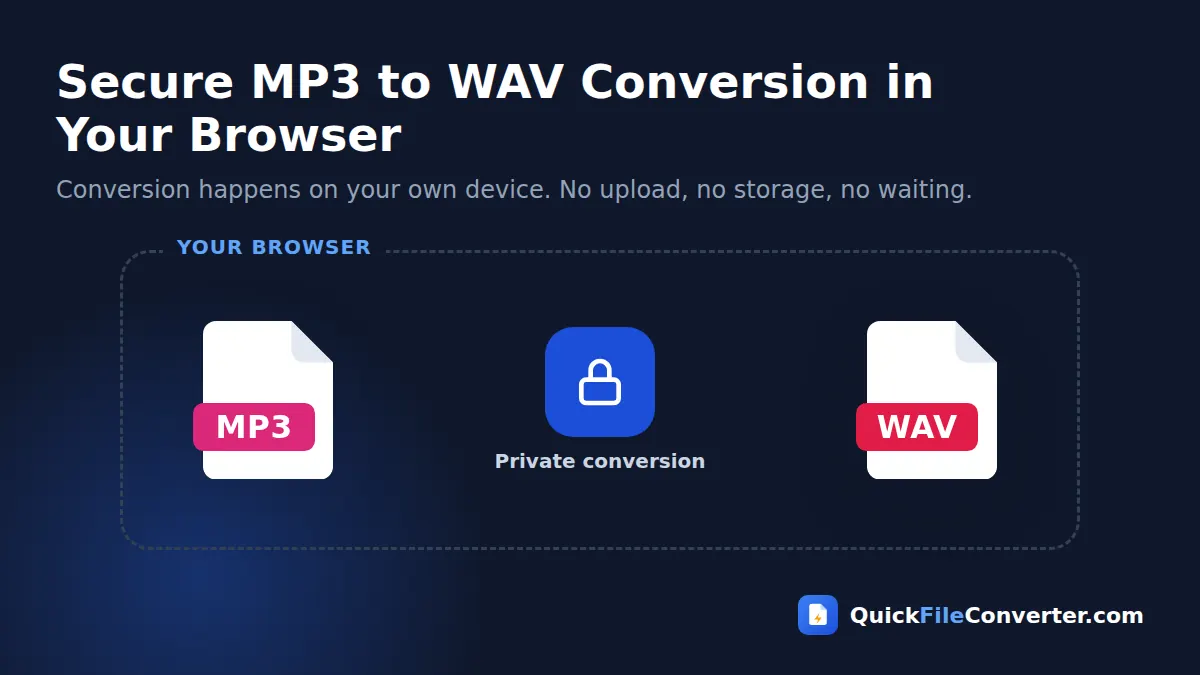
The conversion runs in your browser, so your audio never leaves your device. Songs, samples, voice-overs and recordings stay private while you convert MP3 to WAV.
Table of Contents
What Is an MP3 to WAV Converter?
An MP3 to WAV converter decodes a compressed MP3 file into raw audio samples and saves them in the WAV format. MP3 is great for listening because it is small, but it is a lossy, compressed format. Many audio tools work more smoothly with uncompressed audio, and some programs and devices only accept WAV.
WAV (Waveform Audio File Format) stores audio as plain PCM samples, the same way music is stored on an audio CD. It is simple, universally supported and easy for software to edit sample by sample. The format is described in the WAV article on Wikipedia, and Microsoft documents the underlying RIFF structure.
How to Convert MP3 to WAV in 3 Steps
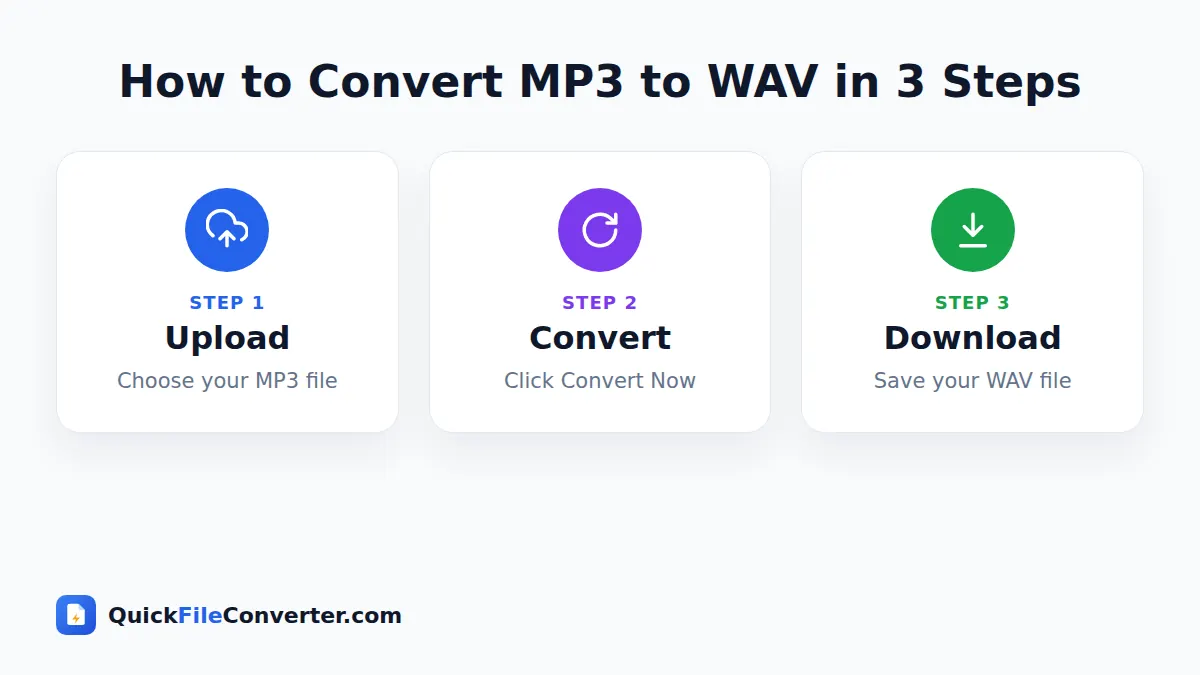
- Add your MP3 files. Hover over Choose Files and pick From Device, drag files onto the upload area, or use Add Folder to add a whole album.
- Click Convert Now. Each MP3 is decoded and written as a 16-bit WAV file at its original sample rate.
- Download. Save each WAV or click Download all to get a ZIP.
Does Converting MP3 to WAV Improve Quality?
No, and it is important to understand why. MP3 compression permanently removes some audio information. Converting MP3 to WAV decodes what is left into an uncompressed file, so the WAV sounds exactly like the MP3, not better. What you gain is compatibility and editing convenience, not extra detail.
That is still very useful. Editing uncompressed audio avoids repeated decoding, prevents additional compression loss when you save your edits, and satisfies programs and devices that only accept WAV.
Why Convert MP3 to WAV?
- Audio editing. Editors such as Audacity, Adobe Audition, Ocenaudio and Reaper work efficiently with WAV.
- Music production. Import samples and loops into FL Studio, Ableton Live, Logic Pro, GarageBand or Cubase without decoding overhead.
- DJ software and hardware. Some samplers, drum machines and older DJ equipment only read WAV.
- Burning audio CDs. CD burning programs convert to CD-quality PCM; starting with WAV avoids surprises.
- Video editing. Some video editors sync and scrub more smoothly with WAV audio.
- Broadcast and radio. Many broadcast systems require WAV files.
- Games and apps. Game engines and app tools often import WAV for sound effects.
- Speech analysis and transcription tools. Some tools require uncompressed input.
MP3 vs WAV Compared
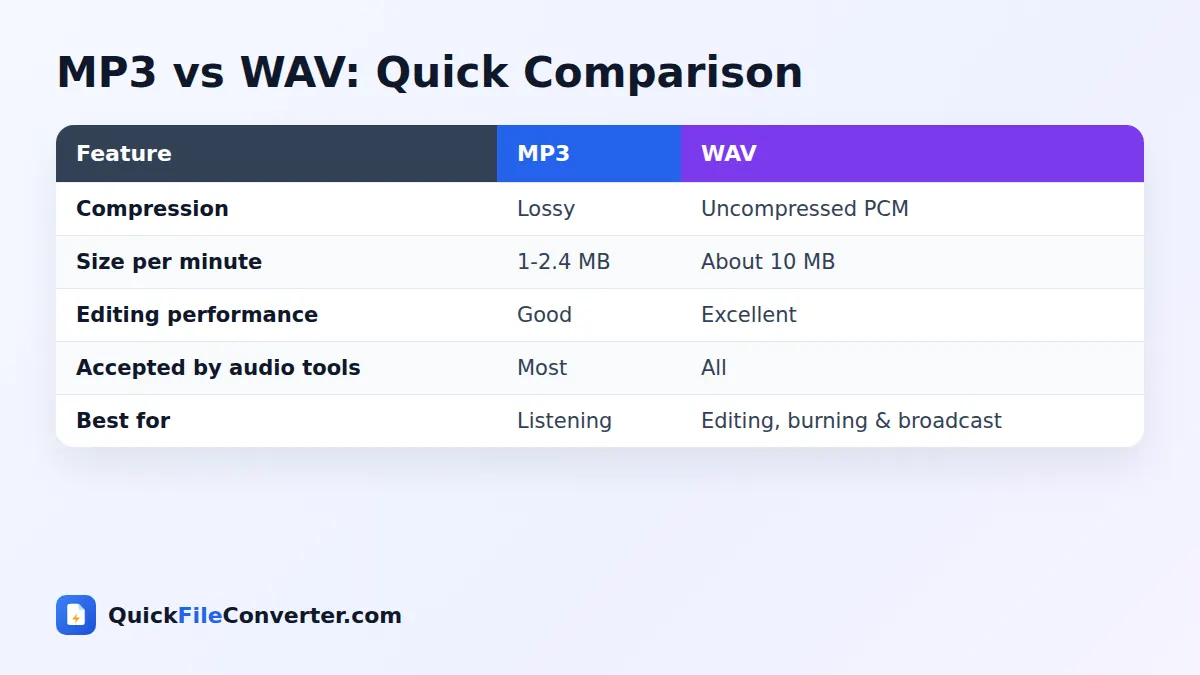
| Feature | MP3 | WAV |
|---|---|---|
| Compression | Lossy | None |
| Typical size per minute | 1 to 2.4 MB | about 10 MB (16-bit, 44.1 kHz stereo) |
| Editing | Needs decoding each time | Direct, sample-accurate |
| Compatibility | Players, phones, cars | Editors, DAWs, broadcast, samplers |
| Metadata tags | Rich (ID3) | Basic |
| Best use | Listening and sharing | Editing and production |
Features of Our MP3 to WAV Converter
Standard 16-bit PCM WAV
The output uses the most compatible WAV format, supported by virtually every program and device.
Keeps the original sample rate
Audio is saved at the MP3’s sample rate, usually 44.1 or 48 kHz, so timing and pitch are unchanged.
Stereo and mono preserved
Stereo MP3 files become stereo WAV files; mono stays mono.
Batch conversion
Convert many files at once and download them together as a ZIP.
Private in-browser processing
Decoding is done by your browser’s audio engine. Nothing is uploaded.
Free and unlimited
No accounts, watermarks or caps.
File Size: What to Expect
WAV files are much larger than MP3s because they are uncompressed. A typical 4-minute song that is 6 MB as a 192 kbps MP3 becomes about 40 MB as WAV. Make sure you have enough storage before converting large music collections, and convert only the tracks you actually need to edit or use in a WAV-only workflow.
| Length | MP3 (192 kbps) | WAV (16-bit, 44.1 kHz stereo) |
|---|---|---|
| 1 minute | 1.4 MB | 10 MB |
| 4 minutes | 5.6 MB | 40 MB |
| 30 minutes | 42 MB | 300 MB |
| 1 hour | 84 MB | 600 MB |
Tips for Best Results
- Start with the highest quality MP3. A 320 kbps MP3 makes a better WAV than a 128 kbps one.
- Convert only what you need. WAV files are large.
- Edit, then export. After editing the WAV, export your final version in the format your audience needs.
- Keep the sample rate consistent in projects. If your project is 48 kHz, set your editor to resample imported files.
- Rename files clearly. Tags are not carried over to WAV, so good file names matter.
- Back up your originals. Keep the MP3 files as a compact archive.
Converting MP3 to WAV on Your Device
Windows and Mac
Drag MP3 files onto the upload area and click Convert Now. The WAV files download to your usual folder, ready to import into your editor.
Android
Tap Choose Files and select songs or recordings from your Music or Downloads folders. Convert and download the WAV files.
iPhone and iPad
Tap Choose Files, then Browse, and select MP3 files from the Files app. After converting, save the WAV files to Files for use in apps such as GarageBand.
Is It Safe to Convert MP3 to WAV Online?
Unreleased beats, client voice-overs and private recordings should not be uploaded to unknown servers. Our MP3 to WAV converter keeps everything on your device. Your browser decodes the MP3 and our code writes the WAV file directly in memory. Nothing is sent over the internet. See our privacy policy.
How the Conversion Works
- Decoding. Your browser’s Web Audio engine decodes the MP3 into floating-point audio samples.
- Converting samples. Each sample is converted to a 16-bit integer.
- Writing the WAV. A standard RIFF WAV header is written, followed by the interleaved audio data.
- Saving. The finished WAV file is offered for download.
Most songs convert in a second or two, even on phones.
Common Problems and Solutions
There is a tiny silence at the start
MP3 encoders add a few milliseconds of padding at the beginning of files. This is part of the MP3 format. Trim it in your editor if you need sample-perfect alignment for loops.
The WAV is huge
That is normal for uncompressed audio. If space is limited, convert only the files you need, or keep working in MP3 when editing is light.
My DAW shows a different sample rate
The WAV keeps the MP3’s original sample rate. If your project uses a different rate, most DAWs resample automatically on import.
Song information is missing
WAV files do not support the rich ID3 tags used by MP3. Keep the MP3 for your music library and use the WAV for editing.
MP3 to WAV for Music Producers
Producers regularly collect samples, loops and acapellas in MP3 format. Converting them to WAV before importing keeps projects consistent and avoids decoding overhead when you have dozens of tracks playing at once. It also makes chopping, time-stretching and pitch-shifting more responsive in many DAWs. Remember to respect sample licences and copyright when using audio from other sources.
MP3 to WAV for Video Editors
Video editors sometimes experience audio drift or sluggish scrubbing with compressed audio on long timelines. Converting music beds and voice-over files to WAV often gives smoother playback and more reliable syncing. Once the edit is finished, the exported video will compress the audio again in its own format.
MP3 to WAV for Burning Audio CDs
Audio CDs still matter for car stereos, older hi-fi systems and gifts. A standard audio CD stores 16-bit, 44.1 kHz stereo PCM, the same format as a typical WAV file. Most burning software can accept MP3 files directly, but converting MP3 to WAV first lets you check each track in an editor, trim silence and adjust volume before burning. It also avoids problems with older burning programs that do not decode MP3 reliably.
A standard 80-minute CD-R holds about 700 MB of data, which matches roughly 80 minutes of CD-quality WAV audio. Plan your track list with that limit in mind.
MP3 to WAV for Samplers and Hardware
Many hardware samplers, drum machines, loop stations and grooveboxes only accept WAV files, often at specific sample rates and bit depths. Popular devices typically expect 16-bit or 24-bit WAV at 44.1 or 48 kHz. Our converter outputs 16-bit WAV at the MP3’s original sample rate, which works with most hardware. If your device needs a specific rate, resample in an editor like Audacity before copying the files over.
Keep sample names short and simple, without special characters, because some devices display only a limited number of characters on their screens.
MP3 to WAV for Game Developers
Game engines such as Unity, Unreal and Godot import WAV files easily for sound effects, because they can be decoded instantly with no processing delay during gameplay. Converting short MP3 effects, such as clicks, jumps and notifications, into WAV can make them trigger more precisely. For long background music, engines usually recompress audio into their own formats, so keeping music as MP3 or OGG is fine.
A Short Guide to Audio Editing After Conversion
If you are new to editing audio, here are the basic steps most people follow once they have a WAV file:
- Open the file in a free editor such as Audacity or Ocenaudio.
- Trim the start and end to remove silence or unwanted noise.
- Normalise the volume so the loudest part reaches a consistent level without distortion.
- Apply gentle effects if needed, such as noise reduction for recordings or a fade-in and fade-out for music.
- Save the project so you can come back and make changes.
- Export the final version in the format your audience needs, such as MP3 for sharing or WAV for broadcast.
Working on an uncompressed file during these steps means no quality is lost each time you save, and effects are applied to the full audio signal.
Podcasters, Audiobook Narrators and Voice Actors
Spoken-word creators often receive music beds, intros and sound effects as MP3 files from music libraries. Converting them to WAV before placing them in a multitrack session keeps the whole project in one consistent format and avoids timing glitches between tracks. Audiobook platforms and voice-over clients may also ask for WAV deliveries, so it helps to keep every element of the session uncompressed until final export. Once the edit is approved, export the finished programme in the format each platform specifies.
Is WAV the Only Uncompressed Option?
WAV is the most common uncompressed format on Windows and in most software, while AIFF is its equivalent on older Apple systems. Both store the same kind of PCM audio and most programs accept either. If you want to save space without losing any quality, FLAC is a lossless compressed alternative that roughly halves the size. For maximum compatibility with editors, samplers and broadcast tools, though, WAV remains the safest choice.
Understanding Audio Levels
Audio levels in editors are measured in decibels relative to full scale (dBFS), where 0 dBFS is the maximum possible level. Peaks that hit 0 dBFS may clip and sound harsh. A common target is to keep peaks around -1 dBFS for music and to aim for consistent loudness across tracks. Many editors include a loudness meter to help, which is especially useful when preparing podcasts, audiobooks and radio segments.
Working Efficiently with Large WAV Files
Because WAV files are big, a few habits keep your computer responsive:
- Store projects on a fast drive. SSDs load and save large audio files much faster than older hard drives.
- Clean up after projects. Delete temporary WAV files you no longer need.
- Archive finished work. Convert final mixes back to MP3 or FLAC for long-term storage, keeping only essential WAV masters.
- Use folders per project. Keeping source files, edits and exports together avoids confusion.
Related Tools
- Compress audio with WAV to MP3.
- Convert Apple audio with M4A to MP3.
- Extract sound from videos with MP4 to MP3.
- Learn more in our audio file formats guide.
Frequently Asked Questions
Is this MP3 to WAV converter free?
Yes. It is completely free with no sign-up, watermark or limits.
Does converting MP3 to WAV improve sound quality?
No. The WAV sounds exactly like the MP3. You gain compatibility and easier editing, not extra detail.
What WAV format do I get?
Standard 16-bit PCM WAV at the MP3’s original sample rate, compatible with virtually all software and hardware.
Why is the WAV file so much bigger?
WAV is uncompressed, so it needs about 10 MB per minute of stereo audio.
Can I convert several MP3 files at once?
Yes. Add multiple files or a folder and download all the WAV files as a ZIP.
Are my files uploaded?
No. The conversion happens in your browser and your audio never leaves your device.
Will my song titles and artist tags be kept?
No. WAV has limited tag support, so ID3 tags are not copied. Name your files clearly.
Final Thoughts
When your editor, sampler, broadcast system or CD burner needs WAV, our MP3 to WAV converter delivers clean, standard files in seconds. Drop your MP3 files into the box at the top of the page, click Convert Now and download WAV audio ready for any workflow, with complete privacy. Whether you are producing music, editing a podcast, burning a CD or loading a sampler, the right format is now just a click away, on any computer or phone.