Our free PDF to JPG converter saves every page of a PDF as a sharp JPG image in seconds. Drop your file into the box above, pick a resolution and click Convert Now. You will get one JPG per page, ready to post, share or insert into a presentation, and you can download them all together as a ZIP.
Everything happens inside your browser. Your PDF is not uploaded anywhere, so private documents stay on your device while you convert PDF to JPG.

Table of Contents
What Is a PDF to JPG Converter?
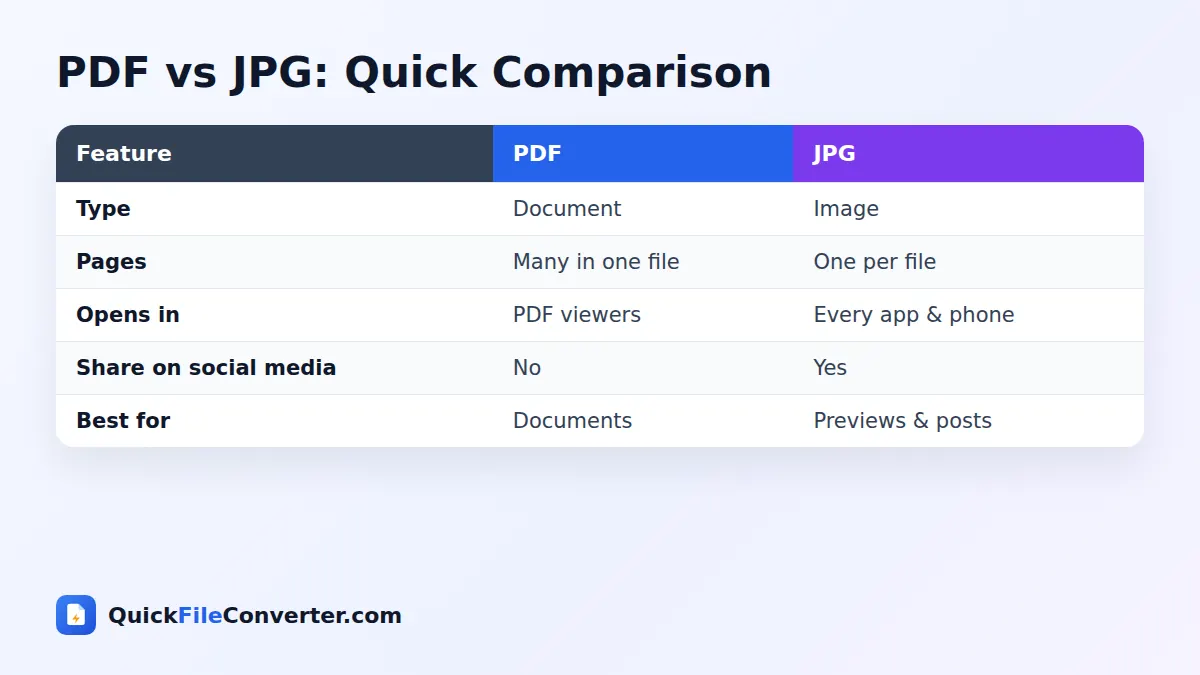
A PDF to JPG converter renders each page of a PDF document, just as a PDF viewer would display it, and saves that picture as a JPG (also written JPEG) image file. PDF is great for documents with many pages, but it is awkward when you want to show a page on social media, add it to a slide, send it in a chat app or use it as a thumbnail. JPG is the most widely supported image format in the world, so it opens on every phone, computer, website and app.
The JPG format is defined by the Joint Photographic Experts Group, and its clever compression keeps files small while keeping pictures clear. That makes JPG ideal for sharing PDF pages quickly.
How to Convert PDF to JPG in 3 Easy Steps
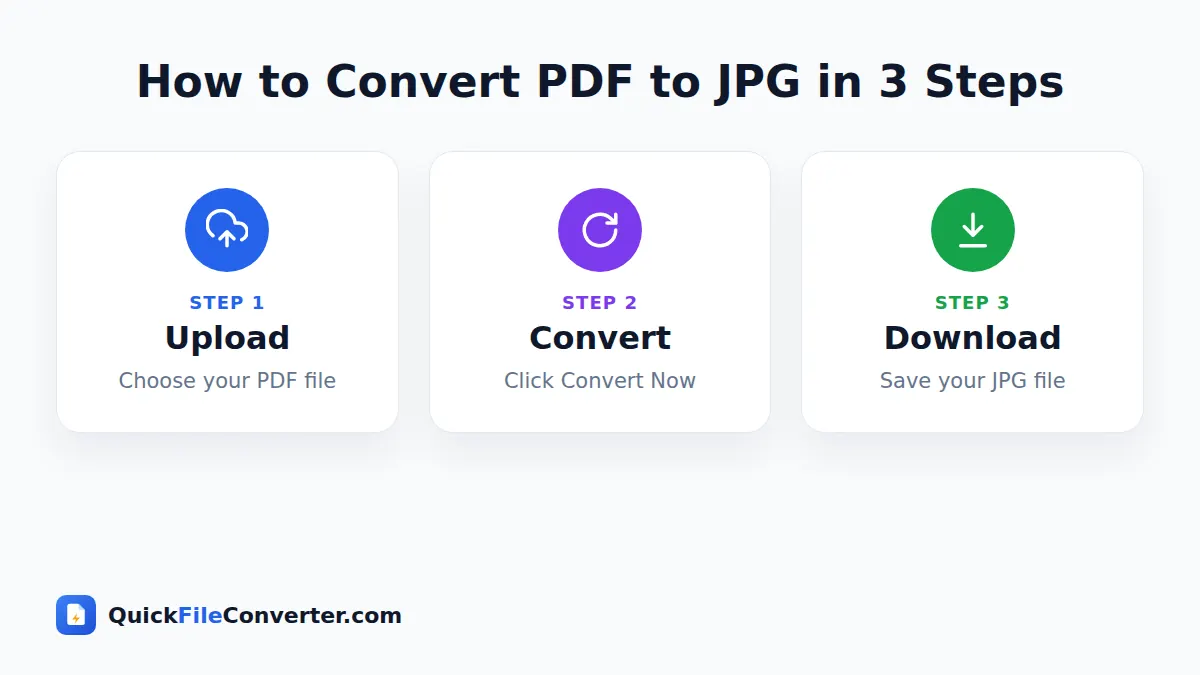
- Add your PDF. Hover over Choose Files and select From Device, or drag the PDF onto the upload box. Use From URL to fetch a public PDF from a link.
- Choose the resolution. 150 DPI is recommended for screens and sharing. Pick 300 DPI for printing or zooming in on fine detail, or 72 DPI for the smallest files.
- Convert and download. Click Convert Now. Each page appears as its own JPG. Download them one by one or click Download all to get a ZIP.
Choosing the Right Resolution
Resolution controls how many pixels each page gets. Higher numbers mean sharper images and larger files.
| Setting | A4 page size in pixels | Best for |
|---|---|---|
| 72 DPI | about 595 × 842 | Quick previews and thumbnails |
| 150 DPI | about 1240 × 1754 | Sharing, websites, slides and chat apps |
| 300 DPI | about 2480 × 3508 | Printing, zooming, detailed diagrams |
For most people, 150 DPI is the sweet spot. Text stays crisp and each image is usually a few hundred kilobytes. If you are unsure, start with 150 DPI and only switch to 300 if you need more detail.
Why Convert PDF to JPG?
There are plenty of everyday reasons to turn PDF pages into pictures.
- Social media posts. Instagram, Facebook, X and LinkedIn accept images, not PDFs.
- Presentations. Drop a page image straight into PowerPoint, Keynote or Google Slides.
- Messaging apps. Images preview instantly in WhatsApp, Telegram and iMessage.
- Websites and blogs. Show a page of a report or menu without making visitors download a PDF.
- Thumbnails and previews. Use the first page as a cover image for a document library.
- Image editing. Annotate, crop or highlight a page in any photo editor.
- Old devices. Some older phones and TVs cannot open PDFs but show JPG images easily.
Whatever the reason, converting PDF to JPG takes seconds and keeps each page looking exactly as it did in the original.
Features of Our PDF to JPG Tool
Every page, automatically
The converter processes every page in the PDF. A ten-page document gives you ten JPG images, named in order so they are easy to keep track of.
High quality output
Pages are rendered with PDF.js, the same trusted engine used by Firefox’s built-in PDF viewer, so text, vector graphics and images look sharp and accurate.
Private and secure
The PDF is read and rendered on your device. No upload, no server storage and nothing for anyone else to see.
Free and unlimited
No sign-up, no watermark and no page limit. Convert as many PDFs as you like.
Download all as ZIP
Multi-page documents can be saved in one click as a ZIP archive containing all the JPG images.
PDF to JPG vs PDF to PNG
JPG is not the only image format you can choose. Here is how it compares with PNG for converted PDF pages.
| JPG | PNG | |
|---|---|---|
| File size | Smaller | Larger |
| Compression | Lossy (tiny detail loss) | Lossless (no loss) |
| Transparency | No | Yes |
| Best for | Sharing, photos, general use | Sharp text, diagrams, editing |
If your PDF is mostly text or line drawings and you plan to edit the image, our PDF to PNG converter may be a better fit. For everyday sharing, PDF to JPG gives the best balance of quality and size.
Tips for Better Results
- Pick 150 DPI first. It suits most uses and keeps files small.
- Extract only the pages you need. Use Split PDF to pull out specific pages before converting a long document.
- Remove passwords. Protected PDFs need to be unlocked by the owner before they can be rendered.
- Rename files after download. Names like “report-page-3.jpg” are clear, but you may want more descriptive names for sharing.
- Use 300 DPI for print. Printing at 150 DPI can look slightly soft on large paper sizes.
- Keep the original PDF. It remains the best source if you need other formats later.
PDF to JPG on Phones and Computers
On a computer
Drag the PDF onto the upload area, choose a resolution and click Convert Now. Images are saved to your Downloads folder. Use Download all to get a single ZIP when there are many pages.
On Android
Tap Choose Files, select the PDF from Files or Drive and tap Convert Now. Tap Download under each image, or download the ZIP and open it with the Files app.
On iPhone and iPad
Tap Choose Files and pick the PDF from the Files app. After converting, tap each Download button. Images save to the Files app, where you can share them or save them to Photos.
Is It Safe to Convert PDF to JPG Online?
Many converters ask you to upload files to their servers. That creates a copy of your document on a computer you do not control. Our PDF to JPG tool works differently: the rendering engine runs inside your browser, so your document never leaves your device. This makes it safe for bank statements, medical documents, contracts and personal letters. Read our privacy policy to learn more.

Common Problems and Quick Fixes
The images look blurry
Choose a higher resolution. Switching from 150 to 300 DPI doubles the width and height of each image, which makes small text much sharper.
The file is too big to send
Choose 72 or 150 DPI instead of 300 DPI. You can also convert the result into WebP with our JPG to WebP tool, which is often 25 to 35 percent smaller.
Some pages look different from my viewer
Rarely, a PDF uses unusual fonts or effects. Most PDFs render perfectly, but if a page looks wrong, try printing the PDF to a new PDF in your browser and converting that copy.
I only need one page
Convert the whole file and download only the page you want, or split the PDF first to save time with very long documents.
Popular Ways to Use PDF to JPG
Turning PDF pages into pictures opens up lots of practical uses. Here are some ideas, along with the best settings for each.
Sharing a menu, flyer or poster
Restaurants, shops and event organisers often design flyers as PDFs. Social networks and chat apps do not display PDFs nicely, but they show images instantly. Convert PDF to JPG at 150 DPI and post the images directly. Your audience sees the design right in their feed without tapping a download link.
Adding pages to a presentation
Want to show a chart from a report or a page from a contract during a meeting? Convert the page to JPG, then insert it into PowerPoint, Google Slides or Keynote. Use 300 DPI if you plan to zoom in on small details during the presentation.
Creating document thumbnails
Online libraries, course websites and intranets often show a small preview of each document. Convert only the first page at 72 or 150 DPI to create a lightweight thumbnail that loads quickly.
Sending pages in WhatsApp or Telegram
Some people cannot open PDFs on older phones, and PDF previews in chat apps are often tiny. Sending a JPG of each page makes the document easy to read on any phone. This is especially useful for forms, tickets, receipts and certificates.
Editing or annotating a page
Photo editors cannot open PDFs, but they can open JPG images. After converting, you can draw arrows, highlight text, add stickers or blur private details before sharing the page.
Uploading to websites that only accept images
Some online forms, marketplaces and social profiles only allow image uploads. A quick PDF to JPG conversion lets you submit a certificate, ID scan or document page where a PDF would be rejected.
How Our PDF to JPG Converter Works
The whole process takes place in your browser in three stages.
- Opening the PDF. PDF.js, an open-source library maintained by Mozilla, reads the document structure, fonts and images from your file.
- Rendering each page. Every page is drawn onto an invisible canvas at the resolution you selected, exactly as a PDF viewer would show it on screen.
- Saving as JPG. The canvas is encoded as a high-quality JPG image with a white background and offered to you as a download.
Because PDF.js runs locally, the conversion is fast and private, and it does not depend on a busy server.
Understanding JPG Quality and File Size
JPG uses lossy compression. It removes tiny details that the eye barely notices, which is why JPG files are so much smaller than uncompressed images. Our PDF to JPG tool uses a quality level of 90 percent, which keeps text edges clean while keeping files compact.
As a rough guide, a text page at 150 DPI is usually between 150 and 400 KB. Pages with large photos are bigger. If you need even smaller files for email, 72 DPI is a good option, and for the best print quality 300 DPI gives you about four times as many pixels.
Organising Your Converted Images
A long document can produce dozens of images, so a little organisation saves time later.
- Keep the page numbers. Files are named with the original PDF name followed by “page-1”, “page-2” and so on. This keeps them in the right order in any folder or photo app.
- Use the ZIP download. For more than a few pages, the Download all button bundles every image into one ZIP file. It is much quicker than saving images one at a time, especially on a phone.
- Create a folder per document. Unzip the archive into its own folder so pages from different PDFs do not get mixed up.
- Delete what you do not need. If you only wanted a couple of pages, delete the rest straight away to save space.
Accessibility Considerations
Images of text cannot be read by screen readers in the same way as real text. If you share PDF pages as JPG images on a website or social network, add a short description, known as alt text, that explains what the page shows. Most social platforms have an “Add description” option when you upload an image. For long documents that people need to read in full, sharing the original PDF alongside the images is the most inclusive choice.
PDF to JPG Without Installing Software
Desktop programs such as Adobe Acrobat can export PDF pages as images, but they are expensive and need installing. Some operating systems include basic tools, yet they often export only one page at a time. Our browser-based converter handles the whole document in one go, works on any device and costs nothing. It is a practical choice for school computers, work laptops without admin rights and phones.
A Quick Checklist Before You Convert
Run through these points to get perfect images on the first try:
- Is the PDF the final version, with all edits and signatures in place?
- Do you know where the images will be used, so you can pick the right resolution?
- Does the PDF open without a password in your usual viewer?
- Have you removed pages you do not want to share, such as pages with personal data?
- Do you have enough free storage on your phone for large 300 DPI images?
If you can answer yes to each question, you are ready to convert your PDF to JPG images.
Related Tools
- Turn images back into a document with JPG to PDF.
- Edit the text of a PDF with PDF to Word.
- Combine documents with Merge PDF.
- Learn more in our guide to image file formats.
Frequently Asked Questions
Is this PDF to JPG converter free?
Yes. It is free to use with no limits, sign-up or watermarks.
Does every page become a separate JPG?
Yes. Each page of your PDF is saved as its own JPG image, and you can download them all together as a ZIP.
Are my PDFs uploaded to a server?
No. The PDF is rendered inside your browser and never leaves your device.
What resolution should I choose?
150 DPI is best for most uses. Choose 300 DPI for printing and 72 DPI for the smallest possible files.
Can I convert a password-protected PDF?
Not until the password is removed by the owner. Once the file opens freely, it will convert normally.
Does it work on iPhone and Android?
Yes. The converter works in all modern mobile browsers as well as on Windows, Mac and Linux.
How many pages can I convert at once?
There is no fixed limit. Very long documents simply take a little longer, especially at 300 DPI.
Final Thoughts
Turning a PDF into images should be quick and private, and our PDF to JPG converter makes it exactly that. Drop your PDF into the box at the top of this page, choose a resolution and download crisp JPG images of every page in seconds.