Our free MP4 to MP3 converter extracts the audio from any video and saves it as a high-quality MP3 file in seconds. Drop your MP4 into the box above, choose a bitrate and click Convert Now. You get a small, portable music or speech file that plays on every phone, computer, car stereo and music player. There is no sign-up, no watermark and no limit.
The conversion runs inside your browser, so your videos are never uploaded. Family recordings, lectures, interviews and personal clips stay private while you convert MP4 to MP3.
Table of Contents
What Is an MP4 to MP3 Converter?
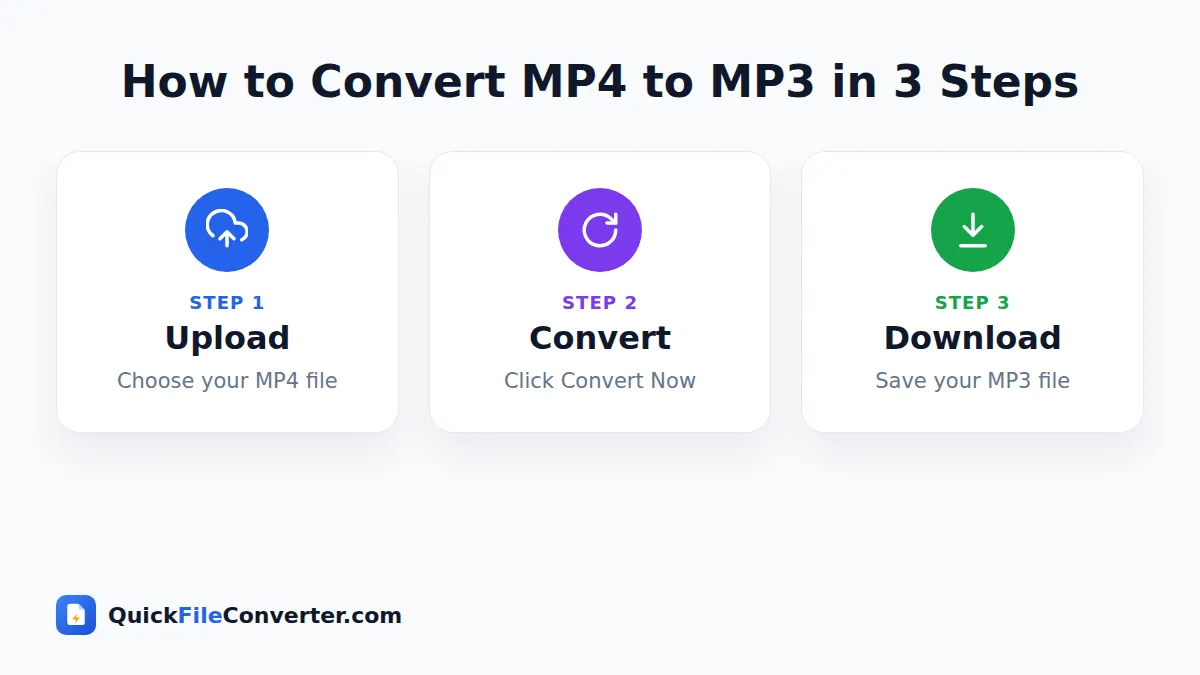
An MP4 to MP3 converter takes the soundtrack from an MP4 video file and saves it as an MP3 audio file. MP4 is a container that usually holds H.264 or H.265 video together with AAC audio. MP3 is the most widely supported audio format in the world. By removing the video and re-encoding the sound as MP3, you get a file that is often 10 to 30 times smaller and that plays anywhere.
People extract audio for all sorts of reasons: to listen to a lecture on the go, to save the music from their own recordings, to turn a recorded meeting into a podcast-style file, or to use a voice-over in another project. The MP3 format was standardised as part of MPEG-1 Audio Layer III, and its patents have expired, so it is free for everyone to use.
How to Convert MP4 to MP3 in 3 Steps
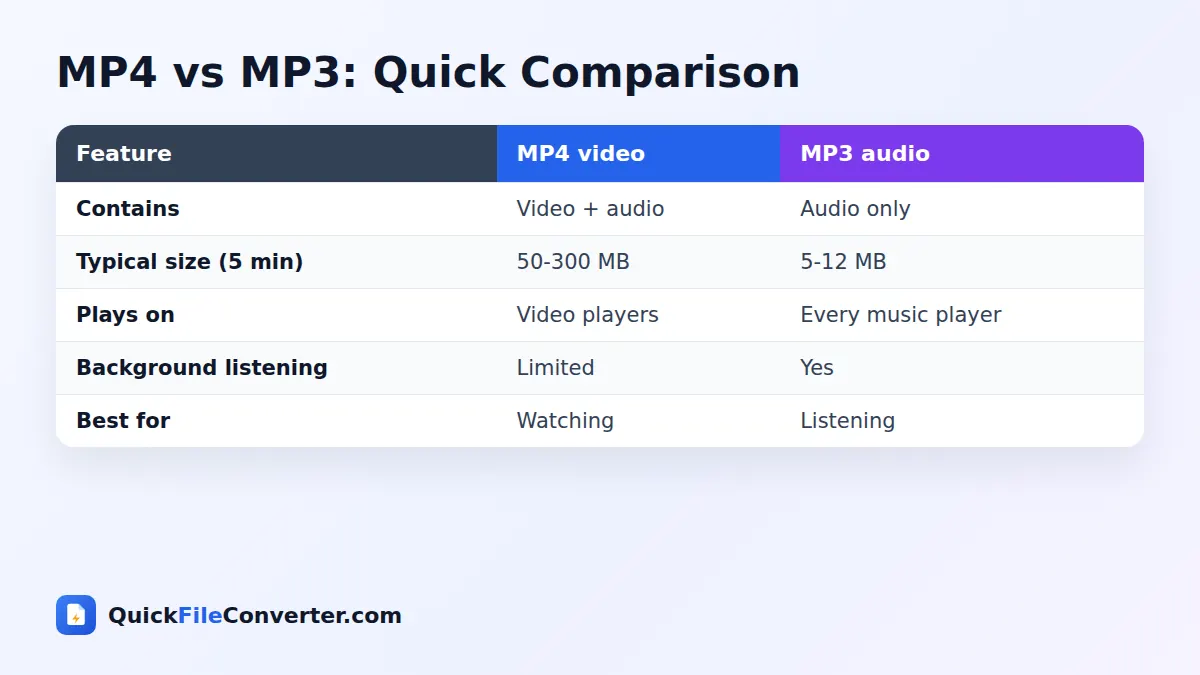
- Add your video. Hover over Choose Files and pick From Device, or drag your MP4 onto the upload area. MOV, WebM, M4V, MKV and AVI files are accepted too.
- Choose the MP3 quality. 192 kbps is recommended for most audio. Choose 128 kbps for speech and small files, or 256 or 320 kbps for music.
- Convert and download. Click Convert Now. When the progress bar finishes, click Download to save your MP3.
Choosing the Right MP3 Bitrate
Bitrate is the amount of data used for each second of audio. Higher bitrates sound better and make larger files.
| Bitrate | Size per minute (approx.) | Best for |
|---|---|---|
| 128 kbps | 1 MB | Speech, lectures, podcasts, voice notes |
| 192 kbps | 1.4 MB | Everyday music listening, recommended |
| 256 kbps | 1.9 MB | High-quality music |
| 320 kbps | 2.4 MB | Best MP3 quality, music archives |
Keep in mind that the MP3 cannot sound better than the audio in your video. If the video has 128 kbps AAC audio, choosing 320 kbps will not add detail, it will simply create a bigger file. For most videos, 192 kbps is the sweet spot.
Why Convert MP4 to MP3?
- Listen on the go. Audio files play in the background on phones, even with the screen off.
- Save storage. An hour of HD video can be several gigabytes. The same audio as MP3 is about 80 MB at 192 kbps.
- Lectures and online classes. Revise by listening while commuting or exercising.
- Meetings and interviews. Turn a recorded call into an audio file for transcription or archiving.
- Music from your own videos. Save a live performance or a song you recorded.
- Podcast production. Extract the audio from a video podcast to publish on audio platforms.
- Voice-overs and sound effects. Reuse audio in video editors, presentations and games.
- Older devices. MP3 plays on car stereos, MP3 players and speakers that cannot play video.
Features of Our MP4 to MP3 Converter
High-quality MP3 encoding
Audio is encoded with the LAME MP3 encoder, known for its excellent sound quality.
Choose your bitrate
Pick 128, 192, 256 or 320 kbps depending on whether you want small files or maximum quality.
Works with many video formats
MP4, M4V, MOV and WebM are decoded instantly by your browser. MKV and AVI files are handled by a built-in FFmpeg engine.
Private by design
The video is processed on your own device. Nothing is uploaded, which also saves your internet data.
No length limit
Convert short clips or long recordings. The only limit is your device’s memory.
Free and watermark-free
No accounts, no ads inside the audio, no limits.
Converting MP4 to MP3 on Your Phone
Android
Tap Choose Files and select the video from your gallery, Files app or downloads. Pick a bitrate, tap Convert Now and then Download. The MP3 file appears in your Downloads folder and in music apps that scan it.
iPhone and iPad
Tap Choose Files and pick the video from Photos or the Files app. iPhone videos are usually MOV, which works too. After converting, the MP3 is saved to the Files app, where you can play it or share it.
Windows and Mac
Drag the MP4 file from your desktop onto the upload area. Because the work happens on your computer, a long video converts much faster than uploading it to a website.
Tips for the Best Audio
- Use 192 kbps unless you have a reason not to. It is a great balance between quality and size.
- Use 128 kbps for speech. Lectures and interviews sound clear and the files stay small.
- Trim long recordings afterwards. Free audio editors such as Audacity let you cut silence or unwanted sections from the MP3.
- Convert on a computer for very long files. Multi-hour recordings need plenty of memory.
- Name your files clearly. Add the date or topic so you can find them in your music app.
- Respect copyright. Only extract audio from videos you own or have permission to use.
Is It Safe to Convert MP4 to MP3 Online?
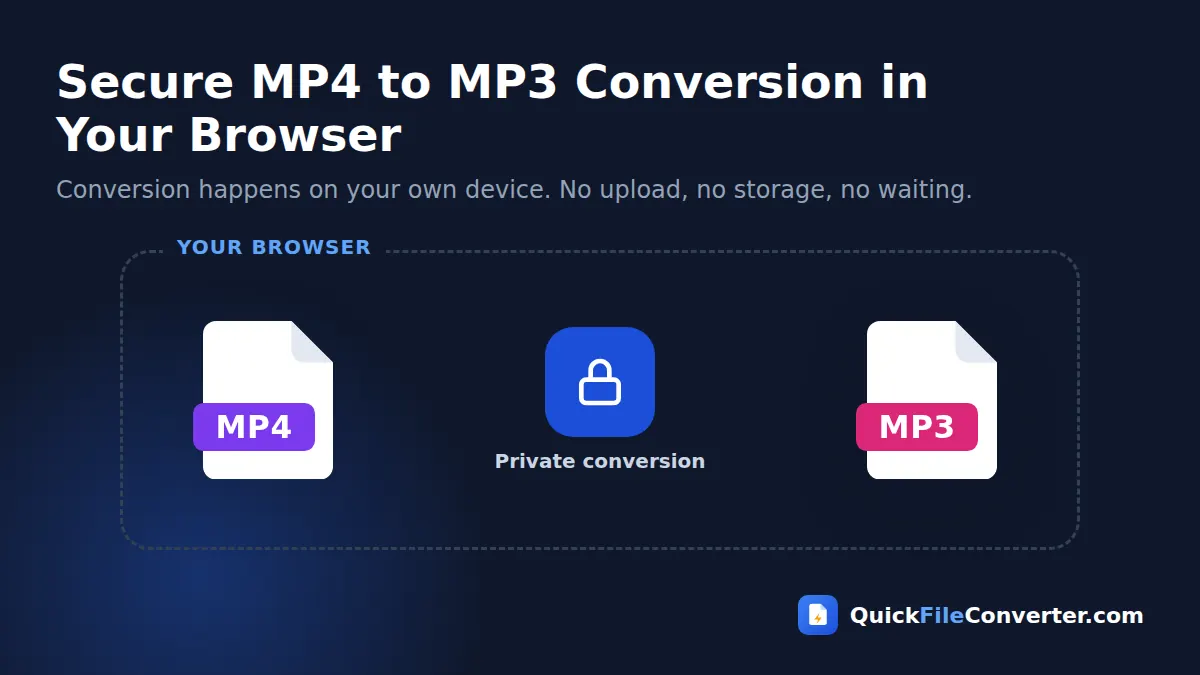
Most online converters make you upload your video to their server. For large files, that takes ages, uses lots of data and puts a copy of your private video on someone else’s computer. Our MP4 to MP3 converter works in your browser instead. The video is read from your device, the audio is decoded and encoded as MP3 locally, and the result is saved straight back to your device. Nothing is transmitted. See our privacy policy for details.
How the Conversion Works
- Decoding the audio track. Your browser’s built-in media engine decodes the audio from the MP4 into raw sound samples.
- Resampling if needed. Audio is prepared at a standard sample rate such as 44.1 or 48 kHz.
- Encoding as MP3. The LAME encoder, running in your browser, compresses the audio at the bitrate you selected.
- Fallback for unusual formats. If the browser cannot decode a file, such as some MKV or AVI videos, a WebAssembly version of FFmpeg takes over. It downloads once (about 30 MB) and is then cached.
MP4 to MP3 vs Other Audio Formats
MP3 is the most compatible choice, but it is not the only option. M4A (AAC) can sound slightly better at the same size and is the default on Apple devices. WAV is uncompressed and ideal for editing but very large. For everyday listening and sharing, MP3 remains the safest bet because literally every device supports it. If you need a WAV file for editing, convert the MP3 with our MP3 to WAV converter.
Common Problems and Solutions
The converter says the video has no audio
Some videos, such as screen recordings without sound or silent clips, contain no audio track. Check that the video plays with sound in a media player.
The MP3 sounds quiet
The volume of the MP3 matches the original video. Use an audio editor to normalise or amplify the sound if needed.
Conversion takes a long time
Very long videos, or MKV and AVI files that need the FFmpeg engine, take longer. Keep the tab open and your device plugged in. The progress bar shows how far along the conversion is.
The file will not add
Make sure it is a video file with a supported extension. If it is from an unusual camera, try converting it to MP4 first with our MOV to MP4 or MKV to MP4 tools.
MP4 to MP3 for Students and Teachers
Recorded lectures are fantastic revision material, but video files are large and hard to use on the move. Converting lectures from MP4 to MP3 lets students listen on the bus, at the gym or while doing chores. Teachers can also share audio-only versions of lessons for students with limited data or older phones. At 128 kbps, a one-hour lecture is only around 55 MB.
MP4 to MP3 for Content Creators
Video creators often repurpose content as audio. A YouTube video, webinar or live stream can become a podcast episode, an audio snippet for social media, or a background track for another edit. Extracting the audio in the browser is quick, keeps unpublished content private, and produces standard MP3 files that every podcast host and editing app accepts.
Understanding Audio Inside a Video File
A video file is really a container that holds several streams of data side by side. There is usually one video stream, one or more audio streams and sometimes subtitles or chapter markers. In most MP4 files the audio is stored as AAC at 128 to 256 kbps, and the sample rate is 44.1 or 48 kHz, the same quality as music streaming services.
When you extract the audio, the video stream is simply ignored. The audio stream is decoded into raw sound and then encoded again as MP3. Because MP3 and AAC are both high-quality lossy formats, you will not hear a difference at 192 kbps or above for everyday listening.
Stereo and mono
Most phone videos record in stereo, with separate left and right channels. Some screen recordings and voice-only videos are mono. The converter keeps stereo audio as stereo and mono audio as mono, so the MP3 sounds just like the original.
Sample rates
Audio for video is often recorded at 48 kHz, while music is traditionally 44.1 kHz. Both are supported by MP3 and both sound excellent. The converter keeps standard sample rates and only resamples unusual ones.
Organising Your Audio Library
Once you start extracting audio from videos, a little organisation goes a long way.
- Use clear file names. “2026-09-24 Physics Lecture 5.mp3” is far easier to find than “VID_20260924.mp3”.
- Add tags. Music apps display the title, artist and album tags. Free tag editors such as Mp3tag let you add them in bulk.
- Create folders by topic. Keep lectures, interviews and music separate.
- Back up important recordings. Copy precious family recordings to cloud storage or an external drive.
- Delete what you do not need. Remove duplicate or unused files to keep your phone’s storage free.
Using Extracted Audio in Other Projects
MP3 files work in almost every creative tool. You can drop them into video editors such as CapCut, DaVinci Resolve or Premiere Pro, add them to PowerPoint or Google Slides presentations, use them in podcast apps, or edit them in audio software like Audacity. If you plan heavy editing with many effects, consider converting the MP3 to WAV first, then exporting the final version as MP3 again.
MP4 to MP3 for Musicians
Musicians often film rehearsals, jam sessions and live gigs on their phones. Converting those videos from MP4 to MP3 gives you audio files to share with band members, review on headphones, or use as rough demos. Choose 256 or 320 kbps to keep as much detail as possible from the original recording, and keep the video files if you want to post clips on social media later.
MP4 to MP3 for Businesses
Businesses record webinars, training sessions, sales calls and all-hands meetings as video. Converting these recordings from MP4 to MP3 makes them easy to send to transcription services, archive in a small amount of storage, or share with staff who prefer to listen during commutes. Because nothing is uploaded, internal and confidential recordings stay on company devices.
Saving Mobile Data
Because nothing is uploaded, converting in your browser uses almost no internet data beyond loading the page. That matters when your video is hundreds of megabytes and you are on a limited mobile plan.
Copyright and Fair Use
Extracting audio from your own videos, recordings you made, or content you have permission to use is perfectly fine. Downloading and converting copyrighted music or videos from streaming platforms may break their terms of service and copyright law in your country. Always make sure you have the right to use the audio, especially if you plan to publish or share it.
Related Tools
- Turn clips into animations with Video to GIF.
- Convert iPhone videos with MOV to MP4.
- Shrink audio files with WAV to MP3.
- Learn more in our audio file formats guide.
Frequently Asked Questions
Is this MP4 to MP3 converter free?
Yes. It is completely free with no sign-up, watermark or limits.
Is my video uploaded to your server?
No. The audio is extracted inside your browser and your video never leaves your device.
What bitrate should I choose?
192 kbps is best for most audio. Use 128 kbps for speech and 256 or 320 kbps for music.
Can I convert other video formats to MP3?
Yes. MOV, M4V, WebM, MKV and AVI files are also supported.
Is there a file size or length limit?
There is no fixed limit. Very long videos need more memory and take longer, especially on phones.
Does it work on iPhone and Android?
Yes. The converter works in modern mobile browsers as well as on desktop computers.
Will the MP3 sound as good as the video?
Yes, at 192 kbps or higher the MP3 will sound essentially the same as the video’s original audio.
Final Thoughts
When you only need the sound, there is no reason to carry around a heavy video file. Our MP4 to MP3 converter extracts crisp audio in seconds, right in your browser. Drop your video into the box at the top of this page, pick a bitrate and download an MP3 that plays everywhere, with your privacy fully protected. Bookmark the page so it is ready for your next lecture, meeting, rehearsal or family video.