Music, podcasts, voice memos, audiobooks and sound effects are stored in many different audio file formats. Some are tiny and play everywhere, some keep every detail for editing, and some are designed for streaming voice messages over slow connections. Picking the right one affects sound quality, file size and whether your audio will play on the device in front of you.
This guide explains the main audio formats in plain English, compares lossy, lossless and uncompressed audio, and shows you how to convert between them for free with our private, in-browser tools.
Table of Contents
What Are Audio File Formats?
An audio file format defines how sound is stored as digital data. When a microphone records sound, the signal is measured thousands of times per second (the sample rate) with a certain precision (the bit depth). How those measurements are stored and compressed is what makes one of the audio file formats different from another.
There are three main families:
- Uncompressed formats such as WAV and AIFF store every sample exactly. They sound perfect but are large.
- Lossless compressed formats such as FLAC and ALAC shrink files, usually by 40 to 60 percent, without losing any information.
- Lossy compressed formats such as MP3, AAC, OGG Vorbis and Opus remove sounds that are hard to hear, making files much smaller.
The 10 Most Common Audio Formats
1. MP3
MP3 is the most compatible audio format in the world. Introduced in the early 1990s, it uses lossy compression to make music roughly ten times smaller than CD audio. Every phone, computer, car stereo, speaker and music app plays MP3. Its patents have expired, so it is free for everyone. You can learn more in the MP3 article on Wikipedia.
Best for: everyday listening, sharing, podcasts, car audio. Convert: WAV to MP3, M4A to MP3, FLAC to MP3, OGG to MP3, MP4 to MP3.
2. WAV
WAV is an uncompressed format created by Microsoft and IBM. It stores raw PCM audio, exactly like a CD, which makes it perfect for recording, editing and broadcast. Files are large: about 10 MB per minute of CD-quality stereo.
Best for: recording, editing, mastering, broadcast, samplers. Convert: MP3 to WAV, WAV to MP3.
3. FLAC
FLAC (Free Lossless Audio Codec) compresses audio to about half the size of WAV with no loss at all. It is the favourite format of music collectors and hi-fi enthusiasts, and is maintained by the Xiph.Org Foundation.
Best for: music archives, CD rips, high-resolution audio. Convert: FLAC to MP3.
4. AAC
AAC (Advanced Audio Coding) was designed as MP3’s successor. It sounds slightly better than MP3 at the same bitrate and is used by Apple Music, YouTube and many streaming services.
Best for: Apple devices, streaming, video soundtracks.
5. M4A
M4A is an MPEG-4 audio file that usually contains AAC (or sometimes lossless ALAC). It is the default for iPhone Voice Memos and iTunes. Some older players and websites do not support it.
Convert: M4A to MP3.
6. OGG Vorbis
OGG Vorbis is an open, royalty-free lossy format. It is common in video games, Linux software and some streaming services, and it sounds very good at moderate bitrates.
Convert: OGG to MP3.
7. Opus
Opus is a modern open codec that excels at both speech and music, especially at low bitrates. WhatsApp, Telegram, Discord and most video-calling apps use it. Files may have .opus or .ogg extensions.
Best for: voice messages, calls, podcasts, web audio.
8. AIFF
AIFF is Apple’s uncompressed format, equivalent to WAV. It is used in some Mac audio software and professional workflows.
9. ALAC
ALAC (Apple Lossless) is Apple’s lossless format, similar to FLAC, usually stored in M4A files. It works well within the Apple ecosystem.
10. WMA
WMA (Windows Media Audio) was Microsoft’s audio format in the 2000s. It is now rare and is best converted to MP3 for modern devices.
Audio File Formats Compared
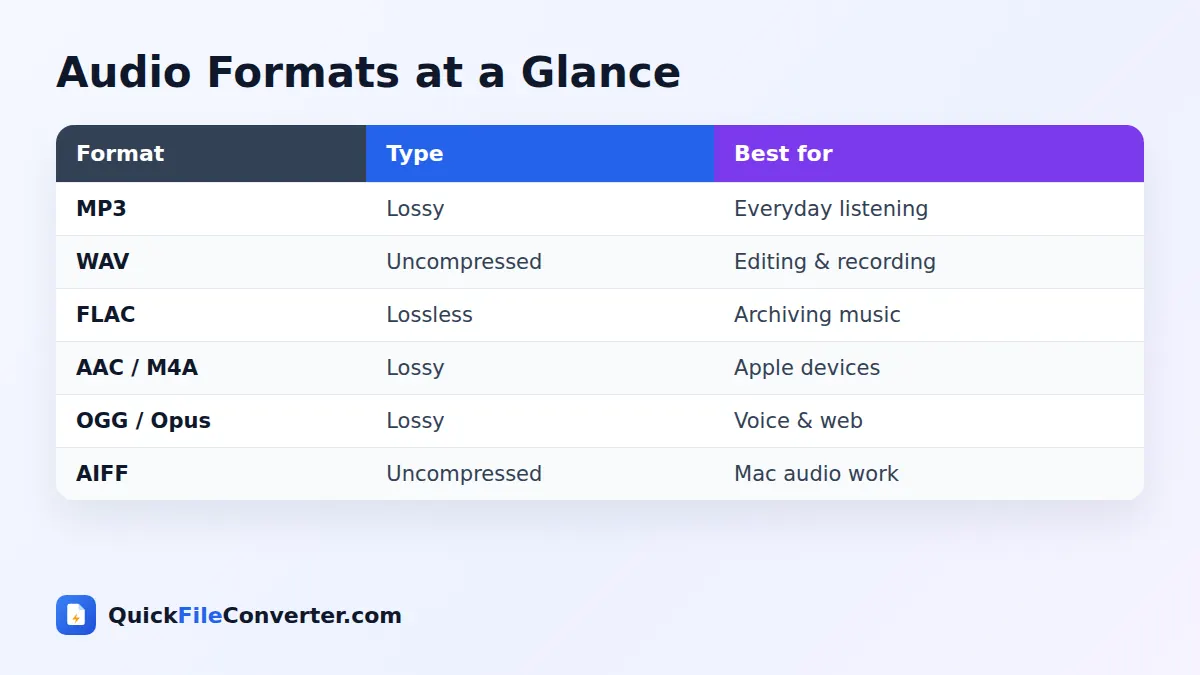
| Format | Type | Typical size per minute | Quality | Compatibility |
|---|---|---|---|---|
| WAV | Uncompressed | about 10 MB | Perfect | Very high |
| AIFF | Uncompressed | about 10 MB | Perfect | High (Apple) |
| FLAC | Lossless | 4 to 6 MB | Perfect | Good |
| ALAC | Lossless | 4 to 6 MB | Perfect | Apple |
| MP3 | Lossy | 1 to 2.4 MB | Very good at 192+ kbps | Universal |
| AAC / M4A | Lossy | 1 to 2 MB | Excellent | Very high |
| OGG Vorbis | Lossy | 1 to 2 MB | Excellent | Good |
| Opus | Lossy | 0.2 to 1 MB | Excellent for voice | Apps and browsers |
Lossy vs Lossless vs Uncompressed
Uncompressed (WAV, AIFF)
Every sample is stored exactly as recorded. Ideal for editing because no decoding is needed and there is no quality loss when saving. The downside is size.
Lossless (FLAC, ALAC)
Files are compressed like a ZIP archive: smaller, but decoding gives back every original sample. Ideal for archiving music without wasting space.
Lossy (MP3, AAC, OGG, Opus)
Some information is permanently removed, using models of human hearing to decide what matters least. At good bitrates, most people cannot hear the difference, and files are much smaller.
A useful rule: record and edit in uncompressed or lossless, listen and share in lossy.
MP3 vs WAV: Which Should You Use?
The MP3 vs WAV question comes up whenever people record or share audio.
| MP3 | WAV | |
|---|---|---|
| Compression | Lossy | None |
| File size | Small | Large |
| Sound quality | Very close to original at 192+ kbps | Perfect |
| Editing | Fine for light edits | Best |
| Sharing | Ideal | Too big for many uses |
Record and edit in WAV, then convert the finished result to MP3 for sharing with WAV to MP3. If a program requires WAV and you only have an MP3, use MP3 to WAV.
Understanding Bitrate, Sample Rate and Bit Depth
- Bitrate (for lossy audio) is the data used per second, such as 128, 192 or 320 kbps. Higher means better quality and bigger files.
- Sample rate is how many times per second sound is measured: 44.1 kHz for music, 48 kHz for video, higher for studio work.
- Bit depth is the precision of each sample: 16-bit for CDs, 24-bit for recording and mixing.
| Use | Suggested setting |
|---|---|
| Speech, podcasts, voice memos | MP3 128 kbps or Opus 32 to 64 kbps |
| Everyday music | MP3 192 to 256 kbps or AAC 256 kbps |
| Best lossy music | MP3 320 kbps |
| Archiving | FLAC 16-bit or 24-bit |
| Recording and editing | WAV 24-bit, 48 kHz |
How to Choose the Best Audio Format
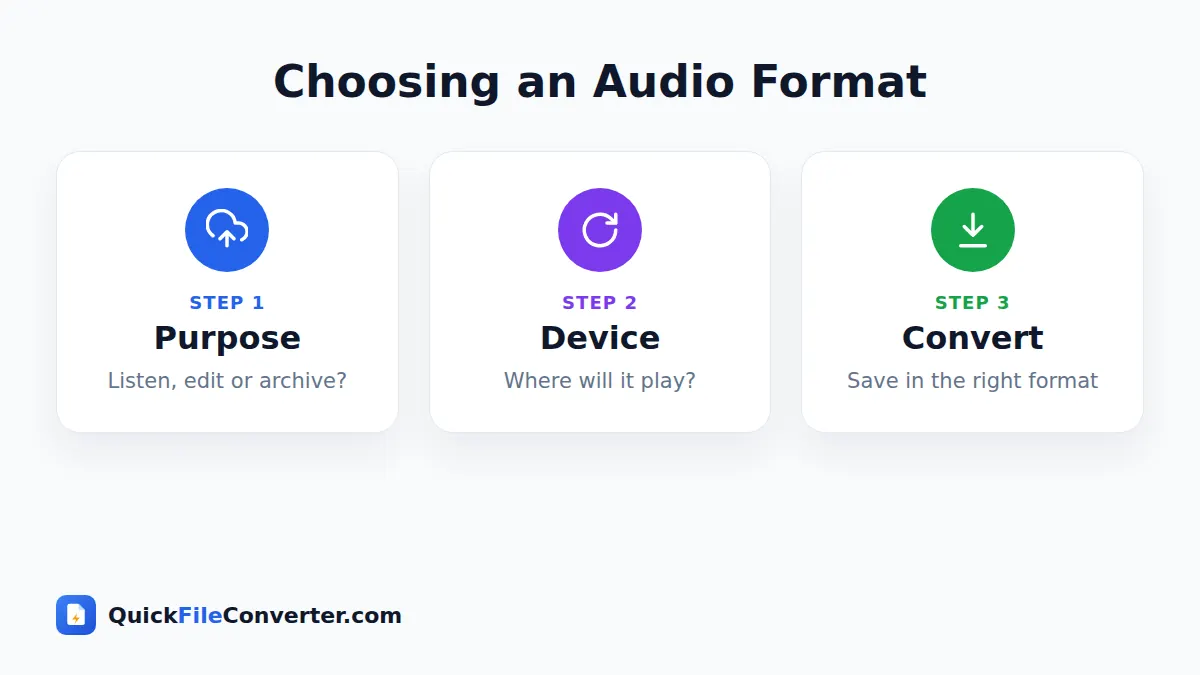
- Sharing with anyone: MP3.
- Apple devices only: AAC/M4A.
- Music archive: FLAC.
- Recording and editing: WAV.
- Voice messages and calls: Opus.
- Games and open-source apps: OGG Vorbis.
- Car stereos and old players: MP3.
Converting Audio Without Losing Quality
Every lossy conversion discards a little information, so follow these tips:
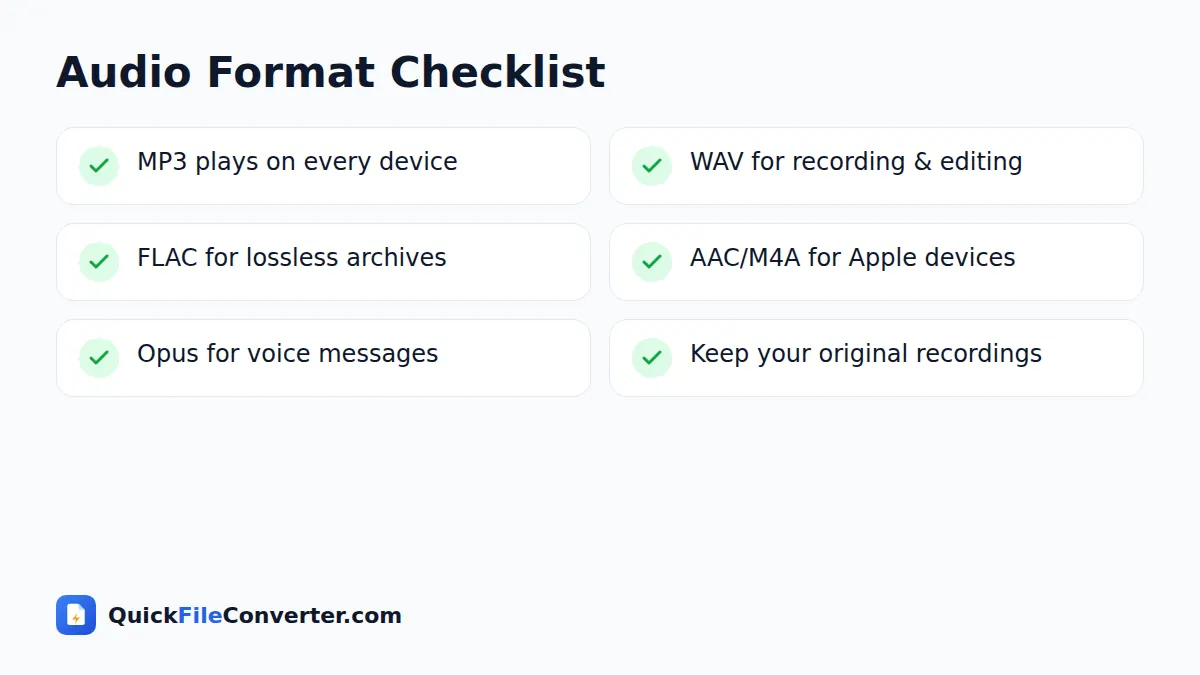
- Convert from the best original you have, such as WAV or FLAC.
- Avoid converting between lossy formats repeatedly.
- Choose a bitrate at least as high as the source for lossy-to-lossy conversions.
- Keep original recordings as masters.
A Short History of Audio File Formats
Digital audio for consumers began with the compact disc in 1982, which stored uncompressed 16-bit, 44.1 kHz audio. On computers, WAV (1991) and AIFF (1988) brought the same uncompressed audio to files. These audio formats sounded great but were far too large for the internet of the 1990s.
MP3 changed everything. Developed by the Fraunhofer Institute and standardised in the early 1990s, it made music small enough to download, which led to portable MP3 players and eventually the iPod. AAC followed as a more efficient successor and became the standard for iTunes and later streaming services. Open-source alternatives such as OGG Vorbis (2000) and FLAC (2001) gave people royalty-free choices for lossy and lossless audio. Most recently, Opus (2012) became the codec behind almost all internet voice communication. Today we live with a mix of audio file formats, each suited to a particular job.
Audio Formats on Different Devices
| Device or service | Best audio formats | Notes |
|---|---|---|
| iPhone and Apple Music | AAC/M4A, MP3, ALAC | FLAC plays in Files, not in Music app |
| Android phones | MP3, AAC, FLAC, OGG, Opus | Very broad support |
| Windows PC | MP3, WAV, AAC, FLAC | Older apps may lack FLAC or OGG |
| Mac | MP3, AAC, AIFF, WAV, ALAC | FLAC needs third-party apps |
| Car stereos | MP3, sometimes AAC or WMA | FLAC support is limited |
| Web browsers | MP3, AAC, WAV, OGG, Opus | FLAC in most modern browsers |
| Smart speakers | MP3, AAC | Varies by brand |
As the table shows, MP3 is the one audio format supported by every device on the list, which is why it remains the safe default.
Audio Formats for Podcasters
Podcasters typically record in WAV at 48 kHz and 24-bit, edit in a digital audio workstation, and publish MP3 files at 128 kbps mono or stereo. Podcast apps and hosts expect MP3 because it plays on every listener’s device. Keeping the WAV session files lets you re-export at higher quality later, for example if you move your show to a platform that supports AAC.
Audio Formats for Musicians
Musicians record and mix in WAV or AIFF, deliver masters to distributors in WAV (often 24-bit), and archive finished albums in FLAC to save space. For sharing demos with bandmates, previews on websites and social posts, a 320 kbps MP3 is ideal. This mix of audio file formats gives the best quality where it matters and convenience everywhere else.
Audio Formats for Everyday Listeners
For most people, the simplest approach is to keep music as MP3 or AAC, keep voice memos in whatever format your phone uses, and convert to MP3 whenever something will not play. If you have a large CD collection, rip it to FLAC once and create MP3 copies for your phone and car. That way, you never need to rip the discs again.
Common Mistakes with Audio Formats
- Converting MP3 to WAV to “improve” quality. It makes the file bigger but cannot restore lost detail.
- Choosing too low a bitrate for music. 96 kbps MP3 can sound thin. Use at least 192 kbps.
- Archiving only lossy copies. Keep FLAC or WAV masters for anything you might need again.
- Sending WAV files by email. They are often too large. Convert to MP3 first.
- Renaming files instead of converting. Changing .ogg to .mp3 does not change the audio format inside.
- Ignoring sample rates in video projects. Video usually uses 48 kHz. Mixing rates can cause sync problems.
Metadata and Tags
Most audio formats can store tags such as title, artist, album, year and cover art. MP3 uses ID3 tags, M4A uses iTunes-style atoms, and FLAC and OGG use Vorbis comments. WAV has only limited tag support, which is one reason WAV is used for production rather than music libraries. When you convert between audio file formats, tags may not always carry across, so a free tag editor such as Mp3tag or MusicBrainz Picard is useful for tidying up a library afterwards.
Spatial Audio and High-Resolution Formats
Newer listening experiences include spatial audio formats such as Dolby Atmos, which place sounds around the listener, and high-resolution lossless audio at 24-bit and up to 192 kHz. These are mainly delivered through streaming services and specialist stores. For personal files, FLAC handles high-resolution stereo perfectly, while spatial audio usually remains inside the streaming app that plays it.
Quick Decision Guide
If you only remember one thing, remember this: keep a high-quality master and share convenient copies. Record in WAV, archive music in FLAC, and send MP3 to friends, clients and devices. Voice messages can stay in whatever format the app uses until you need to share them elsewhere. With that simple habit, you will always have the best possible version of your sound available, plus a copy that plays wherever you need it.
How to Check an Audio File’s Format
To see which codec, bitrate and sample rate a file uses, open it in VLC and choose Tools, Codec Information, or use the free MediaInfo app. On Windows, right-click the file, choose Properties and open the Details tab. On a Mac, select the file in Finder and press Cmd+I. Knowing these details helps you pick the right settings when converting between audio formats.
Future-Proofing Your Audio Collection
Choose widely supported, well-documented audio formats for anything you want to keep. WAV, FLAC and MP3 are safe bets that will play for decades. Store important recordings in at least two places, such as an external drive and cloud storage, and keep a lossless master whenever possible. If a new format becomes popular in future, you can create fresh copies from the master without losing quality.
Privacy When Converting Audio
Recordings can include private conversations, unreleased music or business meetings. QuickFileConverter converts audio entirely in your browser, so files are never uploaded. Read our privacy policy for details.
Frequently Asked Questions
What is the best audio format?
For everyday listening and sharing, MP3 is the best audio format because it plays everywhere. For archiving, use FLAC, and for editing, use WAV.
Is WAV better than MP3?
WAV is higher quality because it is uncompressed, but MP3 at 192 kbps or higher sounds very close for most listeners and is much smaller.
Is FLAC better than MP3?
FLAC is lossless, so it keeps every detail. MP3 is smaller and more compatible. Many people keep FLAC archives and MP3 copies for phones.
What format are WhatsApp voice messages?
They use the Opus codec in an OGG container, often with the .opus or .ogg extension.
What is the difference between AAC and M4A?
AAC is the codec, and M4A is the file container that usually holds AAC audio.
How can I convert audio formats for free?
Use our free tools such as WAV to MP3, MP3 to WAV, M4A to MP3, OGG to MP3 and FLAC to MP3. They run in your browser and never upload your files.
Final Thoughts
Understanding audio file formats helps you keep the best quality where it matters and save space where it does not. Record and edit in WAV, archive in FLAC, and listen and share in MP3 or AAC. When you need to switch, our free audio converters do it in seconds, privately in your browser. Browse all our audio tools to get started, and bookmark this guide for the next time you meet an unfamiliar file extension on your phone or computer.