Our free Excel to CSV converter turns XLSX, XLS and ODS spreadsheets into clean, comma-separated CSV files in seconds. Drop your workbook into the box above, choose a delimiter, and download one CSV file for every sheet. There is no sign-up, no watermark and no row limit.
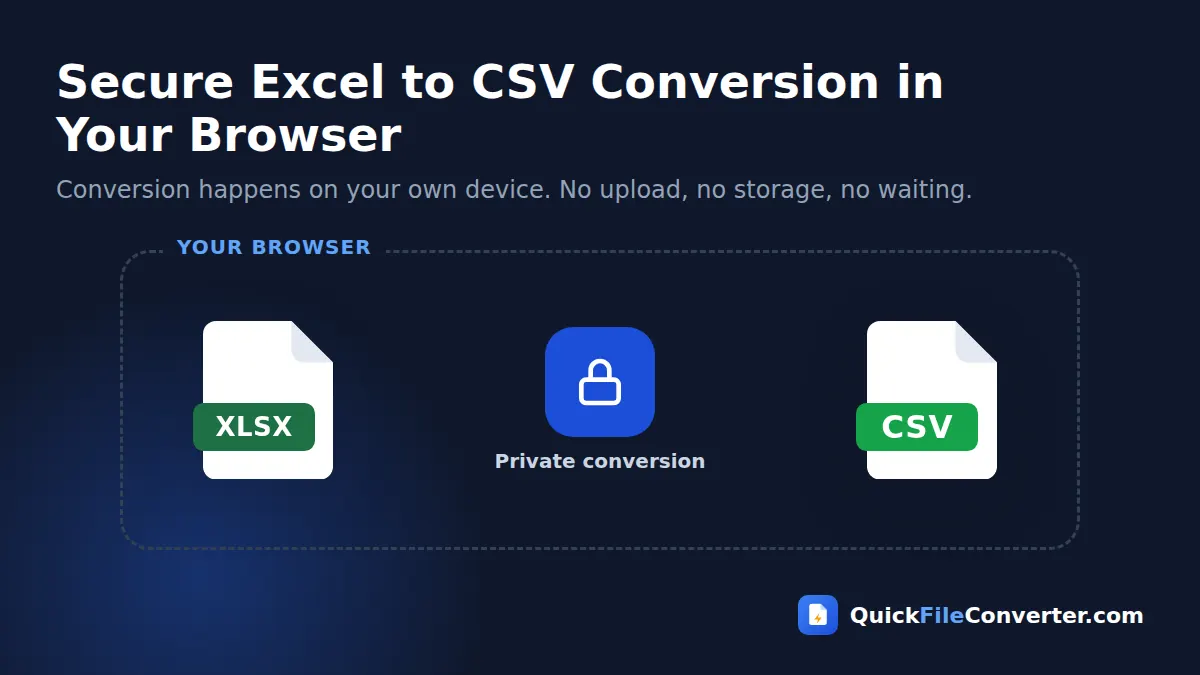
The conversion runs entirely in your browser. Your spreadsheet is never uploaded to a server, so customer lists, price files and financial data stay private while you convert Excel to CSV.
Table of Contents
What Is an Excel to CSV Converter?
An Excel to CSV converter reads the cells of a spreadsheet and writes them as plain text, with each row on its own line and each value separated by a comma (or another delimiter such as a semicolon or tab). CSV stands for Comma-Separated Values. It is one of the simplest and most widely supported data formats in the world.
Excel workbooks are powerful, but they are also complex. They store formulas, formatting, charts, multiple sheets and hidden metadata. Many systems, including databases, email marketing tools, accounting software, e-commerce platforms and programming languages, just want the raw data. CSV gives them exactly that. The format is described in RFC 4180, which is why CSV files open almost everywhere.
How to Convert Excel to CSV in 3 Steps
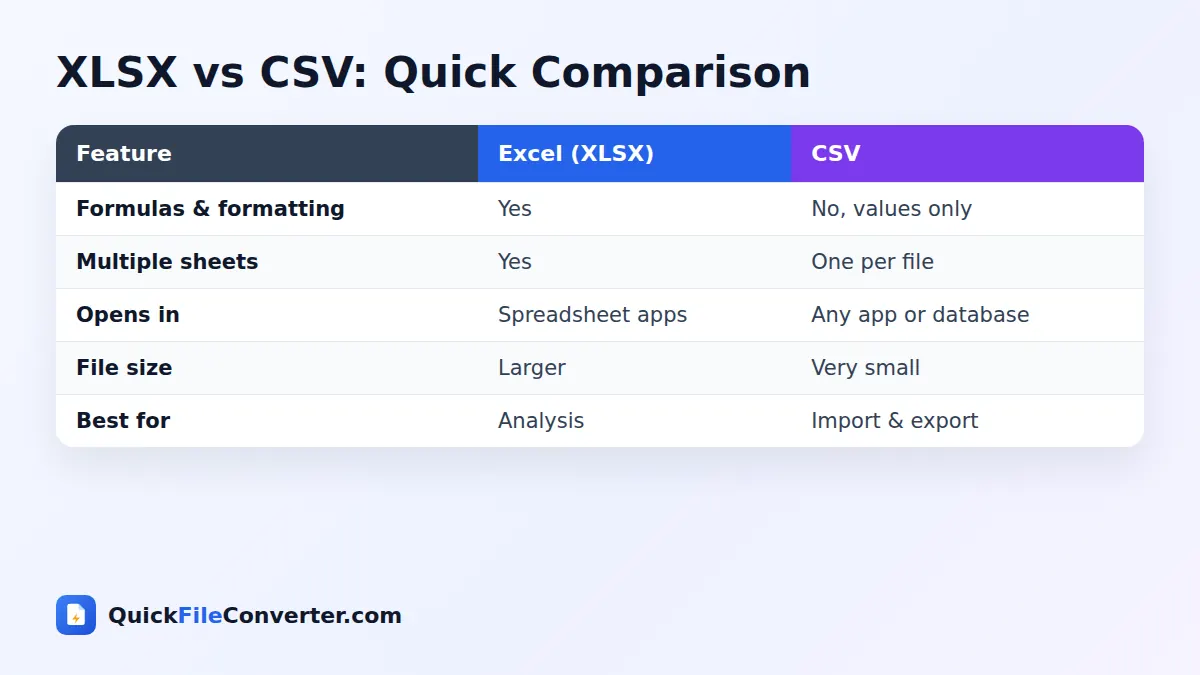
- Add your spreadsheet. Hover over Choose Files and pick From Device, or drag an XLSX, XLS or ODS file onto the upload box.
- Choose your options. Pick a delimiter (comma, semicolon or tab) and decide whether to export all sheets or only the first one.
- Convert and download. Click Convert Now. Each sheet becomes its own CSV file. Download them individually or all together as a ZIP.
Excel vs CSV: What Is the Difference?
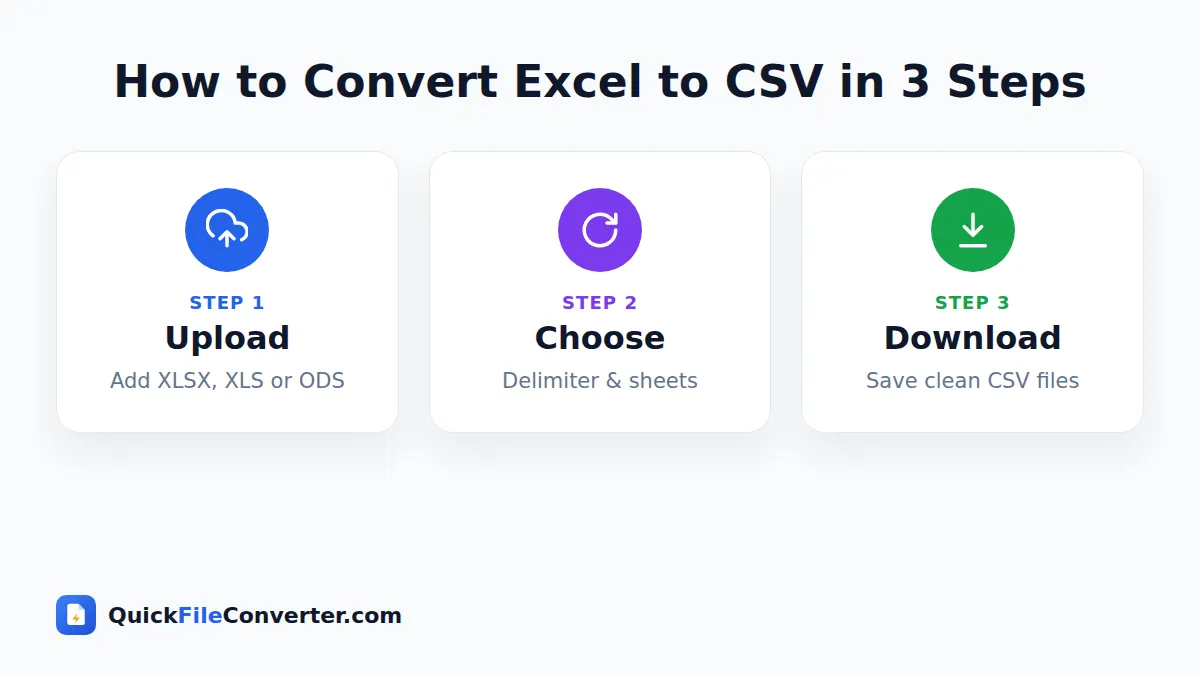
| Feature | Excel (XLSX) | CSV |
|---|---|---|
| Stores formulas | Yes | No, only the calculated values |
| Formatting, colours, fonts | Yes | No |
| Multiple sheets | Yes | One table per file |
| Charts and images | Yes | No |
| Readable in a text editor | No | Yes |
| Import into databases and apps | Sometimes | Almost always |
| File size | Larger | Very small |
In short, Excel is for working with data, and CSV is for moving data between systems. When you convert Excel to CSV, you keep the values and lose everything else, which is exactly what most import tools need.
Why Convert Excel to CSV?
- Importing contacts. Email platforms such as Mailchimp and CRMs such as HubSpot import contact lists from CSV.
- E-commerce product uploads. Shopify, WooCommerce and marketplaces use CSV for bulk product and price updates.
- Accounting and banking. Many accounting tools import transactions and invoices from CSV.
- Databases. MySQL, PostgreSQL, SQLite and cloud data warehouses load CSV files easily.
- Programming and data science. Python, R, JavaScript and every other language read CSV natively.
- Sharing data with anyone. CSV opens in Excel, Google Sheets, LibreOffice, Numbers and even Notepad.
- Version control. Plain-text CSV files work well with Git, making changes easy to track.
Choosing the Right Delimiter
The delimiter is the character that separates values. Our Excel to CSV tool offers three options.
| Delimiter | Example row | When to use |
|---|---|---|
| Comma ( , ) | Anita,32,Kochi | The standard choice for most apps and countries |
| Semicolon ( ; ) | Anita;32;Kochi | Europe and regions where the comma is a decimal separator |
| Tab | Anita 32 Kochi | Data that contains lots of commas, or apps that expect TSV |
If you are not sure, choose comma. If your numbers use commas as decimal points, such as 3,5 instead of 3.5, choose semicolon so the values are not split incorrectly.
How Multiple Sheets Are Handled
A CSV file can only hold one table, but an Excel workbook can contain many sheets. When you convert Excel to CSV with “All sheets” selected, the tool creates one CSV per sheet and adds the sheet name to each file name, for example sales-January.csv and sales-February.csv. If you only need the first sheet, choose “First sheet only” for a single file.
Features of Our Excel to CSV Converter
Supports XLSX, XLS and ODS
Convert modern Excel files, older Excel 97–2003 workbooks and LibreOffice or OpenOffice spreadsheets.
UTF-8 with BOM
Files are saved in UTF-8 with a byte order mark, so accented letters, rupee and euro symbols, and scripts such as Malayalam, Hindi, Arabic or Chinese display correctly when you open the CSV in Excel.
Private by design
The spreadsheet is read by the open-source SheetJS library inside your browser. Nothing is uploaded.
Fast and unlimited
Even large sheets with tens of thousands of rows convert in seconds, with no row caps or daily limits.
Batch download
Multiple sheets or files can be downloaded together as a ZIP archive.
What Happens to Formulas, Dates and Formatting?
When you convert Excel to CSV, the tool saves what you see in each cell:
- Formulas are replaced by their last calculated results. A cell showing 1,250 from =SUM(A1:A10) becomes 1250 in the CSV.
- Dates are written in a readable form based on the cell’s format.
- Number formatting such as currency symbols and thousands separators is simplified to plain values in most cases.
- Colours, fonts, borders, comments and charts are not included, because CSV cannot store them.
- Merged cells are written as a value in the first cell with empty cells beside it.
- Empty rows at the end of a sheet are skipped for tidy files.
Tip: if you need to keep leading zeros, such as in phone numbers or postcodes, format those cells as Text in Excel before converting.
Tips for Clean CSV Files
- Put headers in the first row. Most import tools expect column names on row 1.
- Remove totals and notes. Summary rows and comments below the data can confuse imports.
- Avoid merged cells. Unmerge them so every row has a complete set of values.
- One table per sheet. Keep each dataset on its own sheet for clean separate CSV files.
- Check special characters. Our UTF-8 output handles them, but some older systems need plain ASCII.
- Keep the original workbook. CSV does not keep formulas, so your XLSX remains the master copy.
Excel to CSV on Different Devices
Windows and Mac
Drag your workbook from File Explorer or Finder onto the upload area, pick a delimiter and click Convert Now. The CSV files save to your Downloads folder.
Chromebook and Linux
Because the tool runs in the browser, it works perfectly on devices where Microsoft Excel is not available.
Android and iPhone
Tap Choose Files and select the spreadsheet from your phone’s Files app, Google Drive or email downloads. Convert and download the CSV files straight to your phone.
Is It Safe to Convert Excel to CSV Online?
Spreadsheets often contain the most sensitive data a business has: customer names, email addresses, salaries and sales figures. Uploading them to a random website is risky. Our Excel to CSV converter never uploads your workbook. It is opened and processed in your browser’s memory, and the CSV files are created on your device. When you close the tab, nothing remains. See our privacy policy for details.
Common Problems and Fixes
Everything appears in one column when I open the CSV
Your spreadsheet app is expecting a different delimiter. Convert again with semicolon, or use Data, From Text/CSV in Excel and choose the comma delimiter manually.
Leading zeros are missing
Excel removes leading zeros from numbers when it opens a CSV. The zeros are usually still in the file. Open it with Data, From Text/CSV and set that column to Text, or format the cells as Text in your original workbook.
Strange characters instead of accented letters
Our files include a UTF-8 marker that Excel recognises. If another app shows odd characters, look for an import option called “UTF-8” or “Unicode”.
The file has more columns than expected
Hidden columns in Excel are still exported. Delete or unhide them in the original workbook, then convert again.
Excel to CSV for Developers and Analysts
Data professionals convert XLSX to CSV all the time because CSV is the common language of data tools. Pandas can read a CSV with a single line of code, SQL databases can bulk load it, and cloud warehouses such as BigQuery and Snowflake ingest it directly. Converting in the browser is handy when you receive a spreadsheet from a client and want to inspect or load it quickly without opening a heavy desktop application.
Because each sheet becomes its own file, you can load related tables separately, such as orders, customers and products, and join them in your analysis tool. The tab delimiter is a good choice when values contain lots of commas, such as addresses or product descriptions.
Excel to CSV for Online Stores and Marketing
Store owners regularly export product lists, update prices in Excel, and re-import them. Email marketers clean up subscriber lists in spreadsheets before uploading them. In both cases, the final step is to convert Excel to CSV in the exact format the platform expects. Keep column headers exactly as the platform’s template requires, choose the comma delimiter, and upload the resulting file.
Preparing a Spreadsheet for Import
Most failed imports are caused by small problems in the source workbook rather than the file format. Spend two minutes on this checklist before you export, and your upload will usually work first time.
Match the template exactly
Platforms such as Shopify, Mailchimp, Zoho and Tally publish sample import files. Download the sample, copy its header row into your workbook and make sure every column name matches exactly, including capital letters and spaces. Many systems ignore columns with unexpected names.
Clean up empty and duplicate rows
Blank rows in the middle of your data can stop an import early. Remove them, and use Excel’s Remove Duplicates feature on email addresses or product codes to avoid duplicate records.
Standardise dates and numbers
Pick one date format for the whole column, such as 2026-09-24, and remove currency symbols from price columns so the receiving system reads them as numbers.
Trim extra spaces
Invisible spaces at the start or end of a value can cause mismatches, especially in email addresses and product codes. Excel’s TRIM function removes them quickly.
Split combined fields
If a system expects first and last names in separate columns, split them before exporting. Excel’s Text to Columns and Flash Fill features make this fast.
Understanding CSV Encoding
Encoding decides how letters are stored as bytes. Older CSV files often used regional encodings, which is why names with accents or non-English scripts sometimes turn into strange symbols. UTF-8 is the modern standard and can represent every language. Our converter always writes UTF-8 and adds a small invisible marker at the start of the file called a byte order mark. Excel uses that marker to recognise UTF-8, so text displays correctly when you double-click the file. Most databases, programming languages and web platforms also handle UTF-8 by default.
Opening a CSV File Correctly in Excel
Double-clicking a CSV usually works, but for full control use the import wizard. In Excel, go to Data, then From Text/CSV, choose your file, check the preview, set the delimiter and file origin to UTF-8, and pick a data type for each column. This is the best way to keep leading zeros, long ID numbers and specific date formats exactly as they appear in the file.
Excel to CSV Without Microsoft Office
You do not need a paid Office licence to turn a workbook into CSV. Our browser tool reads XLSX files directly, so you can convert them on a school Chromebook, a Linux laptop or a phone. That is especially handy when a colleague sends a spreadsheet and you only need the data inside it.
Checking Your CSV Before Uploading
Open the finished file in a plain text editor such as Notepad or TextEdit. You should see one row per line and values separated by your chosen delimiter. This quick look confirms that headers are correct and nothing unexpected was exported.
Automating Regular Exports
If you send the same report every week, save time by keeping a dedicated export workbook. Put only the columns the receiving system needs on the first sheet, in the right order, and link them to your main workbook with simple formulas. Each week, refresh the numbers, save, and run the file through the converter with “First sheet only” selected. You get a perfectly formatted CSV in seconds, with no manual copying and no risk of sending hidden columns or private notes by mistake.
Related Tools
- Go the other way with our CSV to Excel converter.
- Turn documents into PDFs with Word to PDF.
- Bundle many CSV files together with Create ZIP.
- Learn more in our guide to document file formats.
Frequently Asked Questions
Is this Excel to CSV converter free?
Yes. It is completely free with no sign-up, row limits or watermarks.
Can I convert XLS and ODS files as well as XLSX?
Yes. The tool accepts modern XLSX files, older XLS workbooks and ODS spreadsheets from LibreOffice and OpenOffice.
What happens to workbooks with several sheets?
Each sheet is saved as a separate CSV file named after the sheet. You can also choose to export only the first sheet.
Are formulas kept in the CSV?
CSV can only store values, so formulas are replaced by their calculated results. Keep your original workbook if you need the formulas.
Is my spreadsheet uploaded?
No. The file is processed in your browser and never leaves your device.
Which delimiter should I use?
Comma is standard. Use semicolon if your region uses commas as decimal separators, or tab if your data contains many commas.
Will special characters display correctly?
Yes. Files are saved in UTF-8 with a byte order mark, so Excel and most apps show accented letters and non-Latin scripts correctly.
Final Thoughts
CSV is the universal language of data, and our Excel to CSV converter gets you there in seconds without software or privacy worries. Drop your workbook into the box at the top of this page, choose a delimiter and download clean CSV files ready for any app, database or platform.