Every day we create, send and receive documents in dozens of different document file formats: PDFs from banks, Word files from colleagues, spreadsheets from accountants, CSV exports from websites and slide decks from teachers. Choosing the right format makes your work easier to edit, share, print and keep for the future. Choosing the wrong one leads to broken layouts, files that will not open and endless back-and-forth emails.
This guide explains the most common document formats in plain English, compares their strengths and weaknesses, and shows you how to convert between them for free with our private, in-browser tools.
Table of Contents
What Are Document File Formats?
A file format is a set of rules that decides how information is stored inside a file. Document file formats are designed to store text, and often formatting, images, tables, calculations or slides. The file extension, such as .pdf, .docx or .xlsx, tells your computer which format a file uses and which app should open it.
Document file formats fall into a few broad families:
- Fixed-layout formats such as PDF, which look the same everywhere.
- Word-processing formats such as DOCX, ODT and RTF, which are designed to be edited.
- Plain-text formats such as TXT, Markdown and HTML, which store text with little or no formatting.
- Spreadsheet formats such as XLSX, ODS and CSV, which store data in rows and columns.
- Presentation formats such as PPTX and ODP, which store slides.
- E-book formats such as EPUB, which reflow text for different screen sizes.
The 13 Most Common Document Formats
1. PDF (Portable Document Format)
PDF was created by Adobe in 1993 and is now an open international standard, ISO 32000. A PDF preserves the exact layout of a document, including fonts, images and page size, so it looks identical on any device or printer. That makes it the go-to format for final copies: contracts, invoices, forms, CVs, reports, manuals and official documents.
Strengths: opens everywhere, looks the same on every device, prints perfectly, supports signatures and forms. Weaknesses: hard to edit without special software. Convert: PDF to Word, PDF to JPG, PDF to PNG, Merge PDF, Split PDF.
2. DOCX (Microsoft Word Document)
DOCX has been Microsoft Word’s default format since 2007. It is part of the Office Open XML standard and is really a ZIP package of XML files. DOCX supports rich formatting, styles, tables, images, comments and tracked changes.
Strengths: easy to edit, widely supported by Word, Google Docs, LibreOffice and Pages, great for collaboration. Weaknesses: layout can shift between apps and computers, especially if fonts are missing. Convert: Word to PDF.
3. DOC (Legacy Word Document)
DOC is the older binary Word format used before 2007. It still opens in modern apps, but it is less efficient and less secure than DOCX. If you have old DOC files, save them as DOCX in Word, Google Docs or LibreOffice.
4. ODT (OpenDocument Text)
ODT is the open standard word-processing format used by LibreOffice and OpenOffice. It is an ISO standard and a popular choice for governments and organisations that prefer open formats. Word and Google Docs can open and save ODT files, although complex formatting may change slightly.
5. RTF (Rich Text Format)
RTF is an older, simple format that stores text with basic formatting such as bold, italics and fonts. It opens in almost any word processor, including WordPad and TextEdit, which makes it a useful lowest-common-denominator format. It does not handle complex layouts well.
6. TXT (Plain Text)
TXT files contain only characters, with no formatting at all. They are tiny, open in every app on every device, and never break. Plain text is perfect for notes, lists, logs, code and anything you want to keep readable for decades.
7. Markdown (MD)
Markdown is plain text with simple symbols for formatting, such as # for headings and ** for bold. It is popular with developers, writers and note-taking apps like Obsidian and Notion. Markdown files stay readable as plain text and can be converted to HTML, PDF or DOCX.
8. HTML (Web Page)
HTML is the language of web pages. It can store text, links, images and structure, and every browser can display it. HTML is a good format for documents meant to be read online.
9. XLSX (Microsoft Excel Workbook)
XLSX is Excel’s default format since 2007. It stores data in cells across one or more sheets, together with formulas, formatting, charts and pivot tables. It is the standard for budgets, reports, inventories and analysis.
Convert: Excel to CSV.
10. CSV (Comma-Separated Values)
CSV is a plain-text format for tables. Each line is a row and values are separated by commas. It has no formatting or formulas, but almost every app, database and programming language can read it. CSV is the standard for importing and exporting data. The format is described in RFC 4180.
Convert: CSV to Excel.
11. ODS (OpenDocument Spreadsheet)
ODS is the open spreadsheet format used by LibreOffice Calc. Like ODT, it is an ISO standard. Excel and Google Sheets can open it, and our Excel to CSV tool accepts ODS files too.
12. PPTX (Microsoft PowerPoint Presentation)
PPTX is PowerPoint’s default format. It stores slides with text, images, charts, animations and speaker notes. For sharing a finished presentation with people who do not have PowerPoint, exporting to PDF is often best.
13. EPUB (Electronic Publication)
EPUB is the standard format for e-books. Unlike PDF, EPUB text reflows to fit any screen size, so it is comfortable to read on phones and e-readers. It is ideal for books and long-form reading, but not for documents that must keep an exact layout.
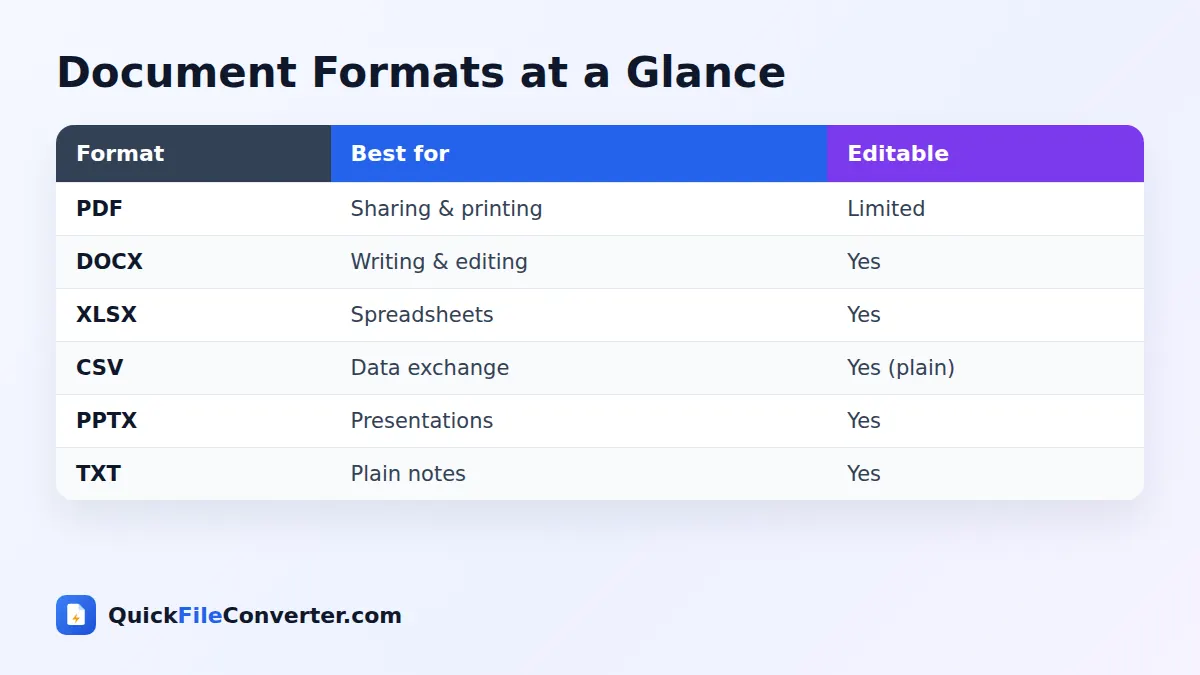
Document File Formats Compared
| Format | Type | Editable | Keeps exact layout | Opens everywhere | Best for |
|---|---|---|---|---|---|
| Fixed layout | Limited | Yes | Yes | Final copies, forms, printing | |
| DOCX | Word processing | Yes | Mostly | Very widely | Writing and collaboration |
| ODT | Word processing | Yes | Mostly | Widely | Open-standard documents |
| RTF | Word processing | Yes | Basic | Yes | Simple formatted text |
| TXT | Plain text | Yes | No formatting | Yes | Notes, logs, code |
| XLSX | Spreadsheet | Yes | Yes | Very widely | Calculations and analysis |
| CSV | Plain-text table | Yes | No formatting | Yes | Importing and exporting data |
| PPTX | Presentation | Yes | Yes | Widely | Slides |
| EPUB | E-book | Limited | Reflows | E-readers, apps | Books and long reading |
How to Choose the Right Document Format
The best choice among document file formats depends on what you want the reader to do.
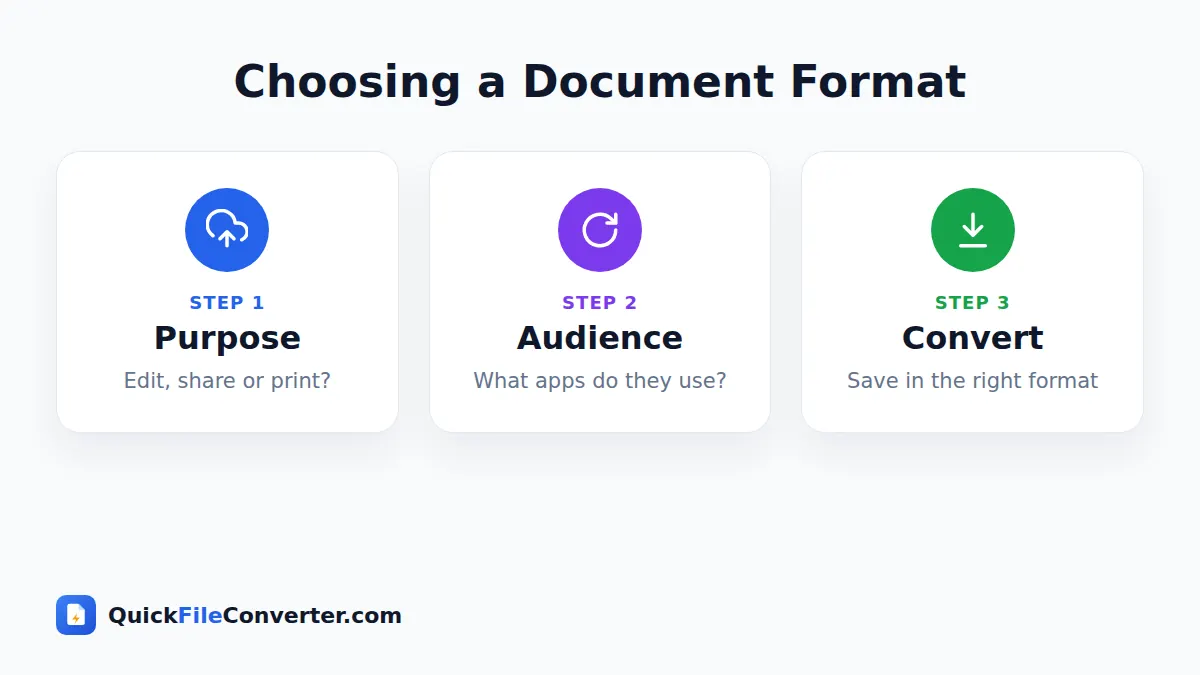
When the reader should only read or print
Use PDF. It locks the layout, so your document looks professional and cannot be changed by accident. This is the right choice for CVs, invoices, reports, contracts, certificates and official submissions.
When the reader should edit or comment
Use DOCX (or ODT if your organisation prefers open formats). Editable formats make collaboration easy, with comments and tracked changes.
When you are sharing data
Use XLSX when people need formulas, formatting and charts. Use CSV when the data will be imported into another system, database or program.
When you are presenting
Use PPTX while you are working on the slides, then export a PDF copy to share afterwards.
When the content must last for decades
Use PDF (ideally PDF/A for archiving) for finished documents, and TXT or CSV for simple text and data. Open, well-documented formats are the safest choices for long-term storage.
PDF vs Word: Which Should You Use?
The PDF vs Word question is the most common one people ask about document formats. The simple answer is that they serve different stages of a document’s life.
| Word (DOCX) | ||
|---|---|---|
| Stage | Finished | Work in progress |
| Editing | Difficult | Easy |
| Appearance | Identical everywhere | Can vary |
| Security | Harder to change, supports signatures | Easy to change |
| Accessibility | Good when tagged | Good with styles |
| File size | Small | Small |
Write and edit in Word, then save or convert to PDF when you share the final version. If you receive a PDF that needs changes, convert it back with our PDF to Word converter.
Converting Between Document Formats
You will often need to switch between document formats. Here are the most common conversions and when to use them:
- Word to PDF before sending a finished document.
- PDF to Word when you need to edit a PDF and do not have the original.
- PDF to JPG or PNG to share a page on social media or in a presentation.
- JPG to PDF to turn scanned pages or photos into one document.
- Merge PDF to combine several documents into one file.
- Split PDF to extract only the pages you need.
- Excel to CSV to import data into another system.
- CSV to Excel to analyse exported data comfortably.
All of these tools run inside your browser on QuickFileConverter, so your documents are never uploaded to a server.
Security and Privacy in Document Formats
Whatever document formats you use, files often contain personal and business information. A few habits keep that information safe:
- Check hidden content. Word files can contain comments, tracked changes and author names. Remove them before sharing.
- Flatten final documents. Converting to PDF removes most editing history.
- Use trusted tools. Avoid uploading sensitive documents to unknown websites. Browser-based converters that process files locally are safer.
- Beware of macros. Files with macros (such as DOCM or XLSM) can run code. Only enable macros from trusted sources.
- Protect with passwords when needed. PDF and Office formats support password protection for confidential files.
Accessibility and Document Formats
Accessible documents, in any of the main document formats, can be read by everyone, including people who use screen readers. To make documents more accessible:
- Use real headings (Heading 1, Heading 2) rather than just bold text.
- Add alt text to images.
- Use simple tables with header rows.
- Keep good colour contrast.
- When exporting to PDF, choose options that keep document structure tags.
These steps help people and also improve how search engines understand documents published online.
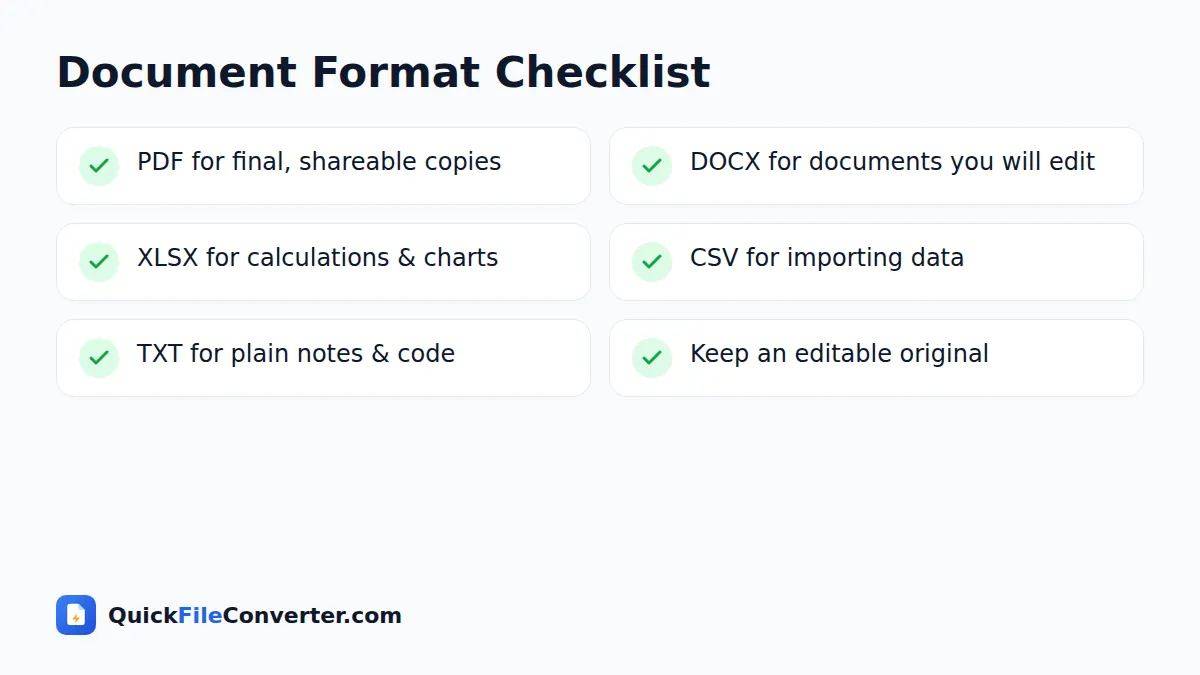
Document File Formats for Different Jobs
For students
Write assignments in DOCX or Google Docs, submit final versions as PDF, and turn handwritten notes into PDF with a phone camera and a JPG to PDF tool.
For job seekers
Keep your CV in DOCX so it is easy to update, and send it as PDF so the layout is perfect for recruiters.
For small businesses
Create invoices and quotes as PDF, keep accounts in XLSX, and use CSV to import and export data from online stores, banks and accounting apps.
For developers
Use Markdown for documentation, CSV and JSON for data, and PDF for specifications that must look the same for everyone.
For writers and publishers
Draft in DOCX, collaborate with comments, and publish as PDF for print or EPUB for e-readers.
A Brief History of Document File Formats
In the early days of personal computing, every word processor used its own private format. A file written in WordPerfect could not be opened properly in WordStar, and sharing documents between companies was a constant headache. Plain text and RTF became popular simply because almost any program could read them.
The 1990s brought two big changes. Microsoft Word’s DOC format became the de facto standard in offices, and Adobe introduced PDF to solve the problem of documents looking different on every computer. In the 2000s, the push for open standards led to OpenDocument (ODT, ODS, ODP) and Microsoft’s XML-based formats (DOCX, XLSX, PPTX), both published as international standards. Today, the most widely used document file formats are open, documented and supported by many apps, which makes it far easier to share work than it was thirty years ago.
Common Mistakes with Document File Formats
Even experienced computer users trip over these problems. Avoiding them saves a lot of time.
- Sending an editable file when a final copy is needed. A CV or invoice sent as DOCX can look broken on the recipient’s computer. Send PDF.
- Sending a PDF when edits are expected. Colleagues cannot easily comment on or change a PDF. Share DOCX for collaboration.
- Using images of text instead of real text. Screenshots of documents cannot be searched or read by screen readers.
- Opening CSV files carelessly. Spreadsheet apps can change long numbers and dates. Use the import wizard for important data.
- Keeping only the PDF. Always keep the editable original of documents you may need to update.
- Relying on unusual document formats. Niche formats may not open in a few years. Prefer widely supported document formats for anything important.
Choosing Document Formats for Your Team
Teams work best when everyone agrees on a few simple rules. A good starting point:
- Drafts and shared editing in DOCX, XLSX and PPTX, or their cloud equivalents.
- Final versions and anything sent outside the organisation in PDF.
- Data exchange with other systems in CSV.
- Long-term archives in PDF/A and CSV.
Writing these rules down, even in a short one-page guide, reduces confusion and makes it easy for new team members to follow the same approach to document file formats.
Frequently Asked Questions
What is the most common document format?
PDF and DOCX are the most widely used. PDF is best for sharing finished documents and DOCX is best for editing.
Which document format is best for printing?
PDF, because it keeps fonts, images and layout exactly as designed.
Is PDF or Word better for a CV?
In the PDF vs Word debate for CVs, the answer is both. Write your CV in Word so it is easy to update, then send it as a PDF unless the employer asks for a Word file.
What is the difference between XLSX and CSV?
XLSX stores formatting, formulas and multiple sheets. CSV stores only plain values in a single table, which makes it ideal for importing data.
Which format is best for long-term archiving?
PDF (especially PDF/A) for finished documents, and plain-text formats such as TXT and CSV for simple text and data.
How can I convert document formats for free?
Use our free tools such as PDF to Word, Word to PDF, Excel to CSV and CSV to Excel. They run in your browser and never upload your files.
Final Thoughts
Understanding document file formats saves time, prevents formatting headaches and keeps your information safe. Remember the simple rule: edit in DOCX or XLSX, share and print in PDF, and exchange data in CSV. When you need to switch, our free converters handle it in seconds, right in your browser. Explore all our document converters to get started.